Business calls. Your customer and team in view.
See who is free, whose phones are ringing and who answered. Your company directory, caller history, conversation text and AI guidance — in your Android work phone.
Android 10+ · Requires the Cenaly PBX · APK outside Google Play
One line-up on Android and iOS: the same account, the same locations and data. The goal is the same features on both platforms; where the iOS version differs, it is said below.
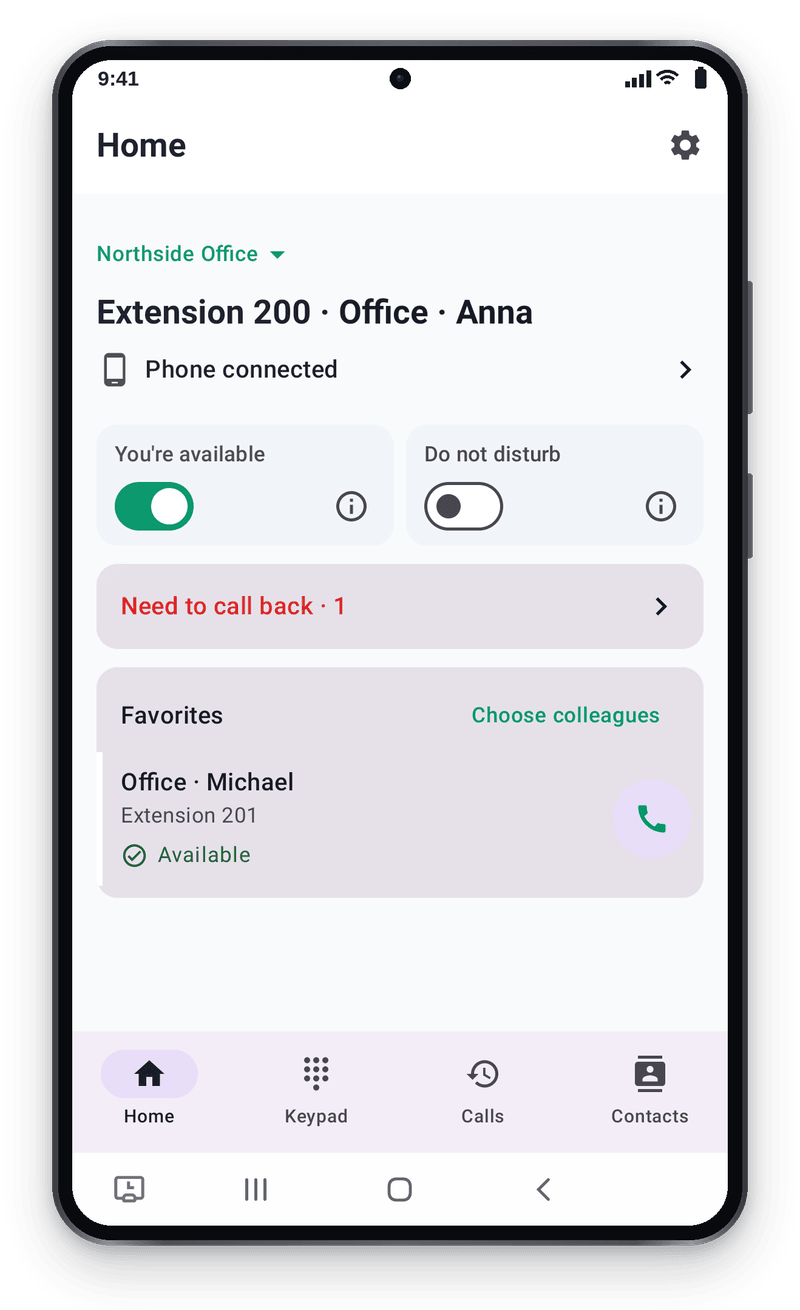
An extension is just the beginning
At a hotel front desk, salon, shop or office, calls are a team task: find an available colleague, share incoming calls and keep track of what you agreed with a customer.
Real Android app screens with demo data. Available features depend on staff permissions and the PBX version. Open any screen to view it at full size.
01 · Team and directory
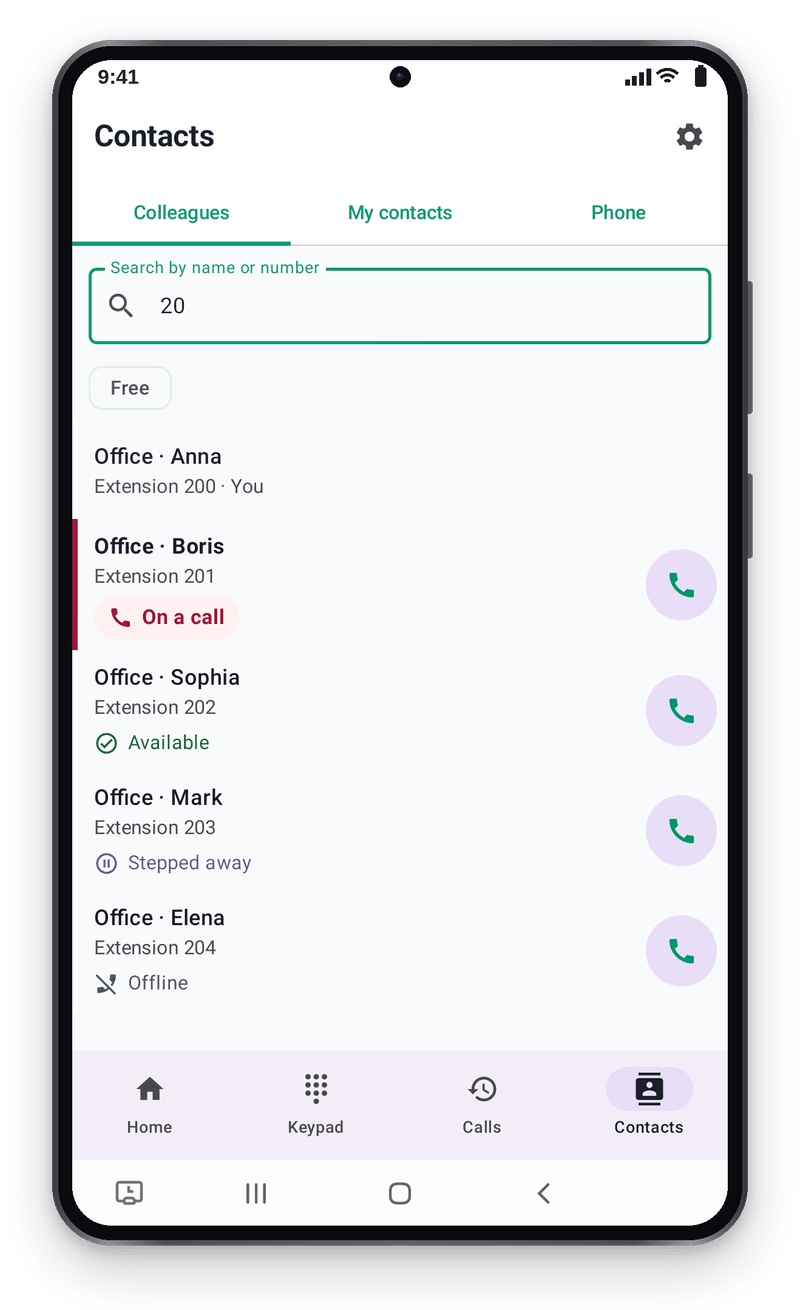
See who is available, by name
Once you connect your workplace, its colleagues and configured work numbers are already in the phone. Each employee does not have to build the same address book again.
- Live states: Available, Ringing, Dialing, On a call, Stepped away, Do not disturb and Offline. Unconfirmed data is marked Status unknown. The Free filter helps you find someone who can answer.
- The shared directory includes colleagues, groups and queues, conference rooms and service numbers, including the virtual secretary. Keep frequent contacts in favourites.
- Search by name or number also checks My contacts and Phone. Matches appear under Found in other sections.
Availability arrives through a live connection; the app marks stale information when the connection is lost. Android permission is required for the phone address book. Search does not cover the entire CRM customer catalogue.
02 · Shared incoming calls
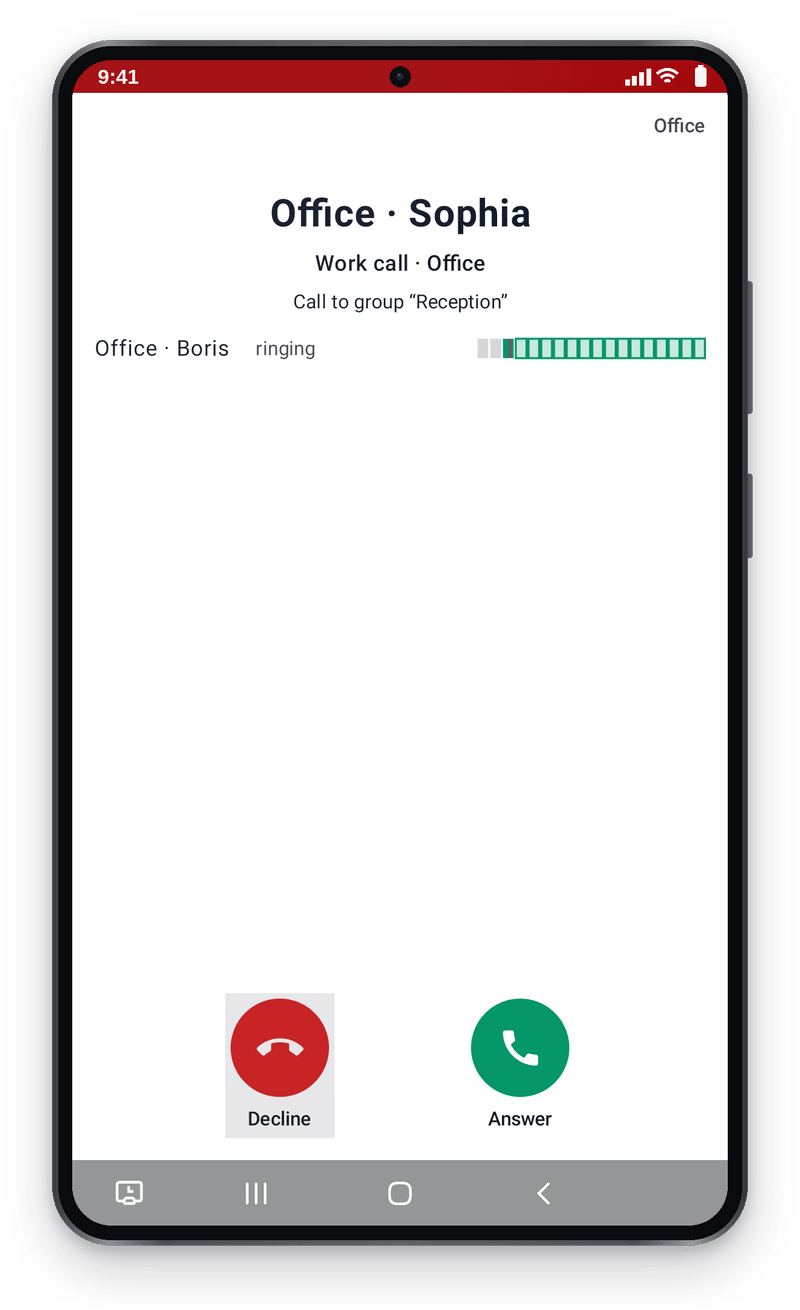
Several phones ring. Everyone sees who answered.
A Reception group can ring everyone at once. The incoming screen shows the group name and Also ringing for: Anna · Boris, so you know who else can answer.
- After a colleague answers, their name appears. The call is not counted as one you missed.
- A Ringing for strip keeps you aware of team calls even when your own phone is not ringing.
- When the PBX provides a ring plan, the grid shows who is ringing now, who comes next and who is unavailable; queued calls show waiting information.
Groups, queues and call order are configured in the PBX. The strip depends on the app view mode and is informational; it does not pick up another person’s call. Group details and the grid require an up-to-date app and PBX firmware.
03 · Customer and history
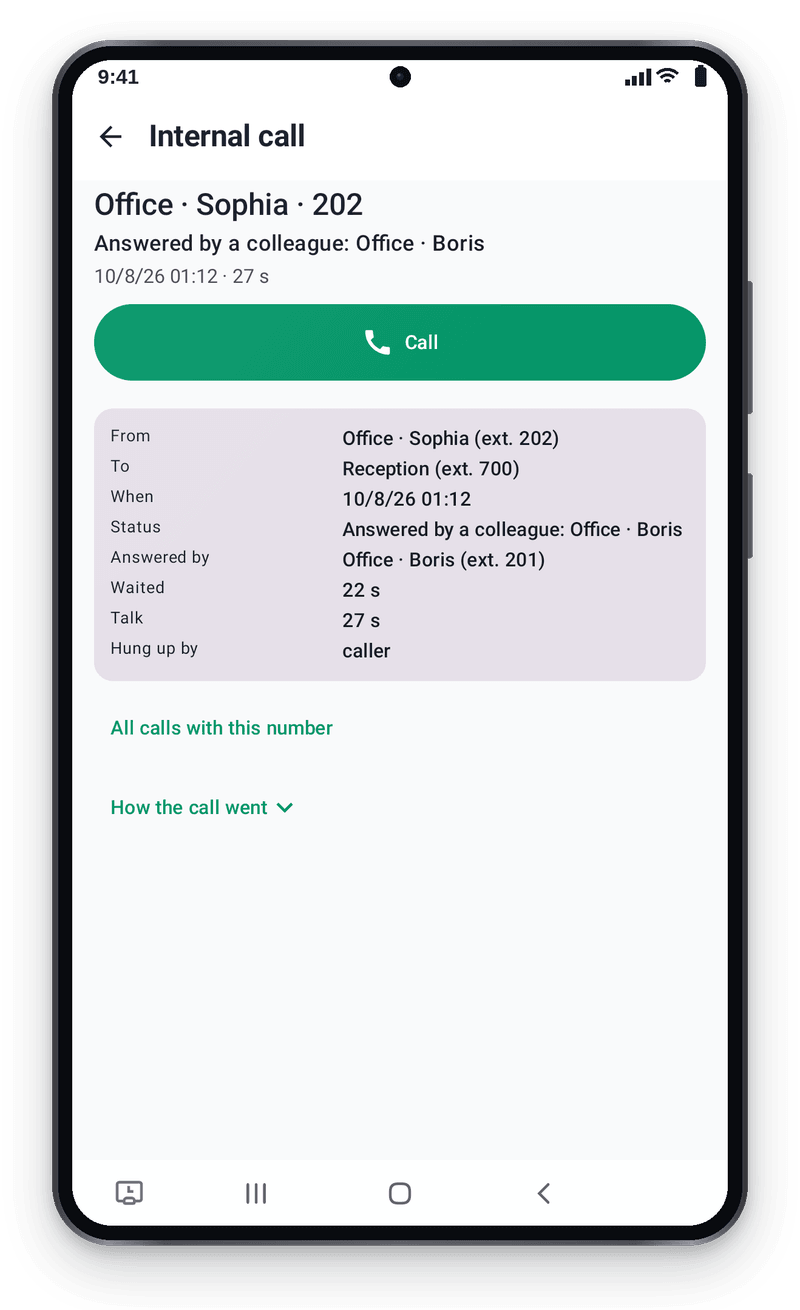
Open a call and return to the customer’s words
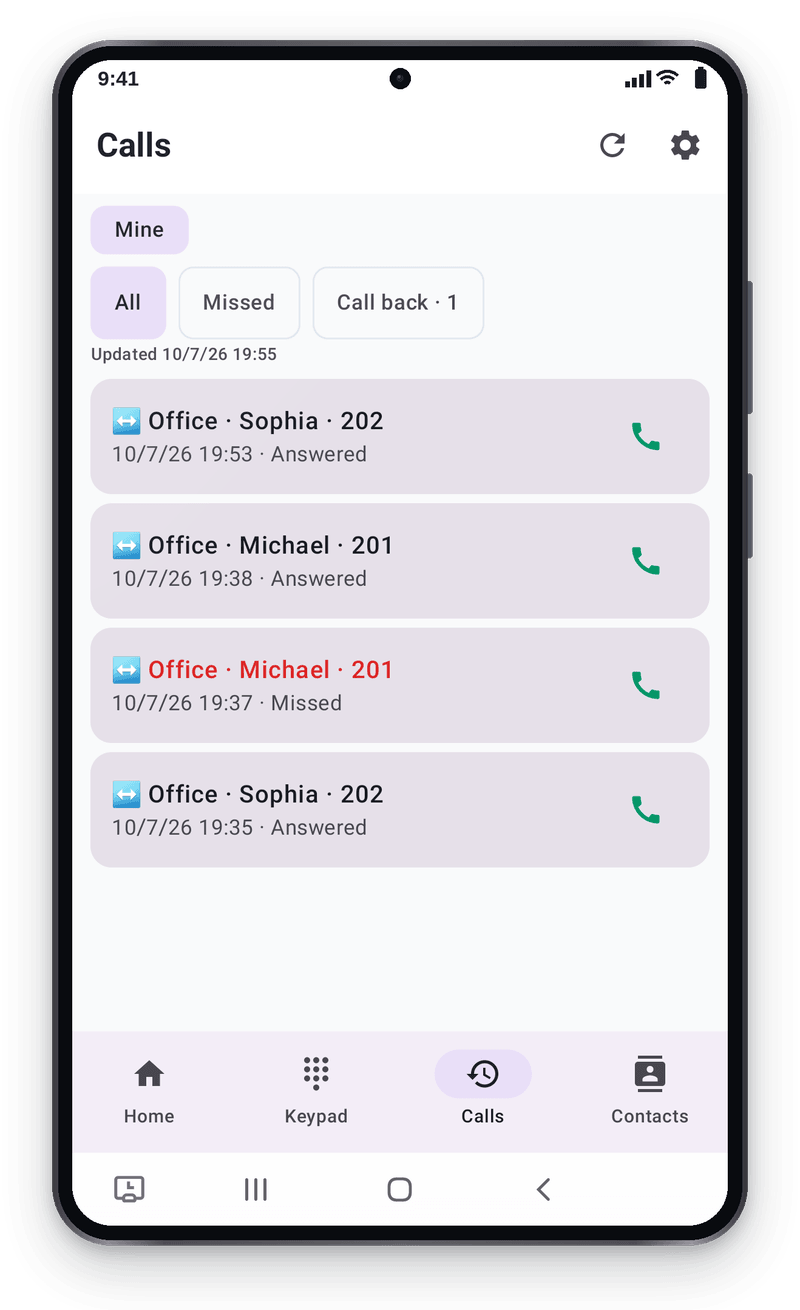
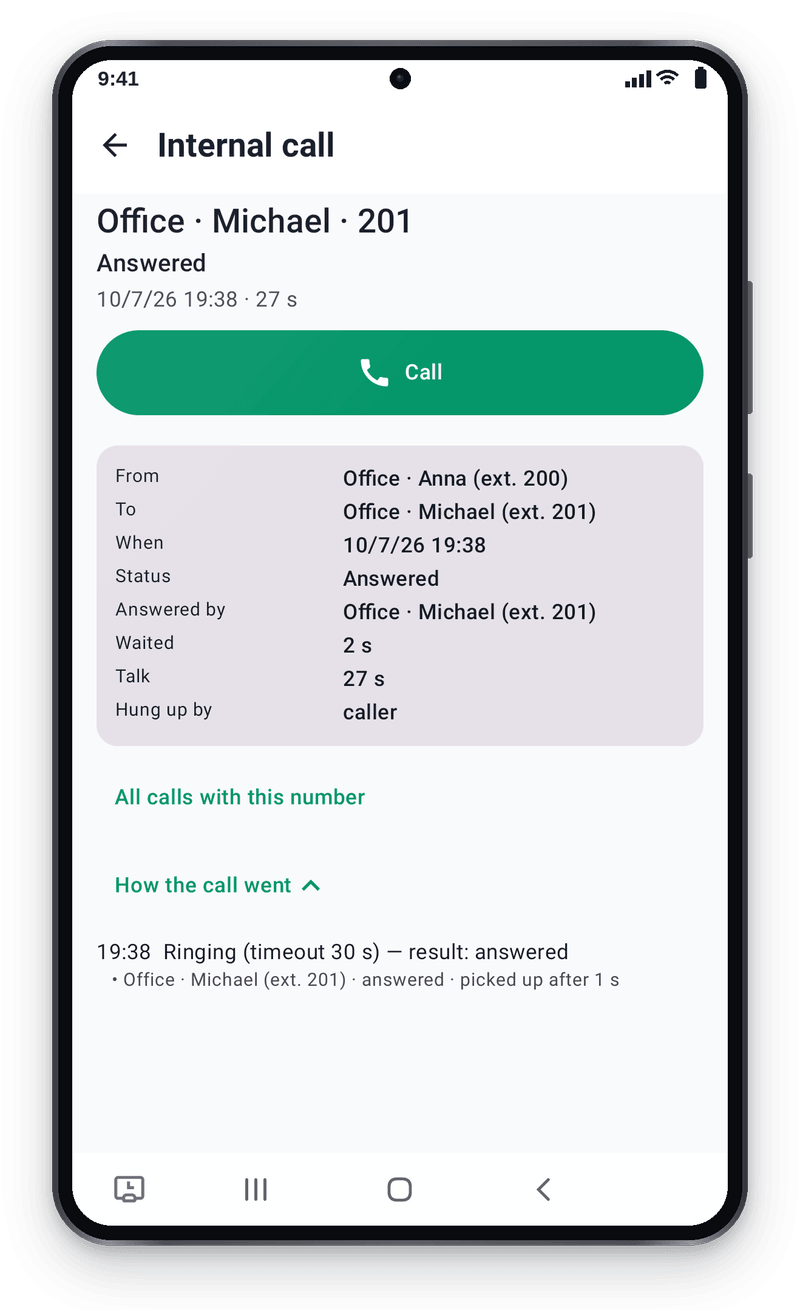
Open details from PBX history to play an available recording and read the conversation. Keep the agreement close at hand after the call ends.
- Text appears when recording and transcription were enabled for that call and processing has finished.
- A recognised number opens the customer or business contact card, with the details, visits, orders and callbacks you are allowed to see.
- How the call went shows its route, waiting time and the colleague who answered. History comes from the PBX, beyond this phone’s local list.
Recordings, transcripts, customer cards and workplace-wide history follow viewer permissions. Transcription uses AI credits; an unknown number is not given an invented history.
04 · Live AI guidance
Your knowledge base, while you are talking
During your call with a customer, the assistant brings up guidance from the company’s connected knowledge base, such as service terms or answers to common questions.
- Suggestions arrive during the conversation when live assistance is enabled for the call.
- Find a tip lets you search the knowledge base without ending the call.
- Switch knowledge base selects another available source for this call. The choice appears when more than one base is available to the employee.
Requires configured call assistance, a knowledge base, permission to access calls or call assist and the employee’s consent to external AI processing. Check suggestions before using them; AI usage is charged to credits.
05 · Setup and help
Sign in. Check the connection. Start work.
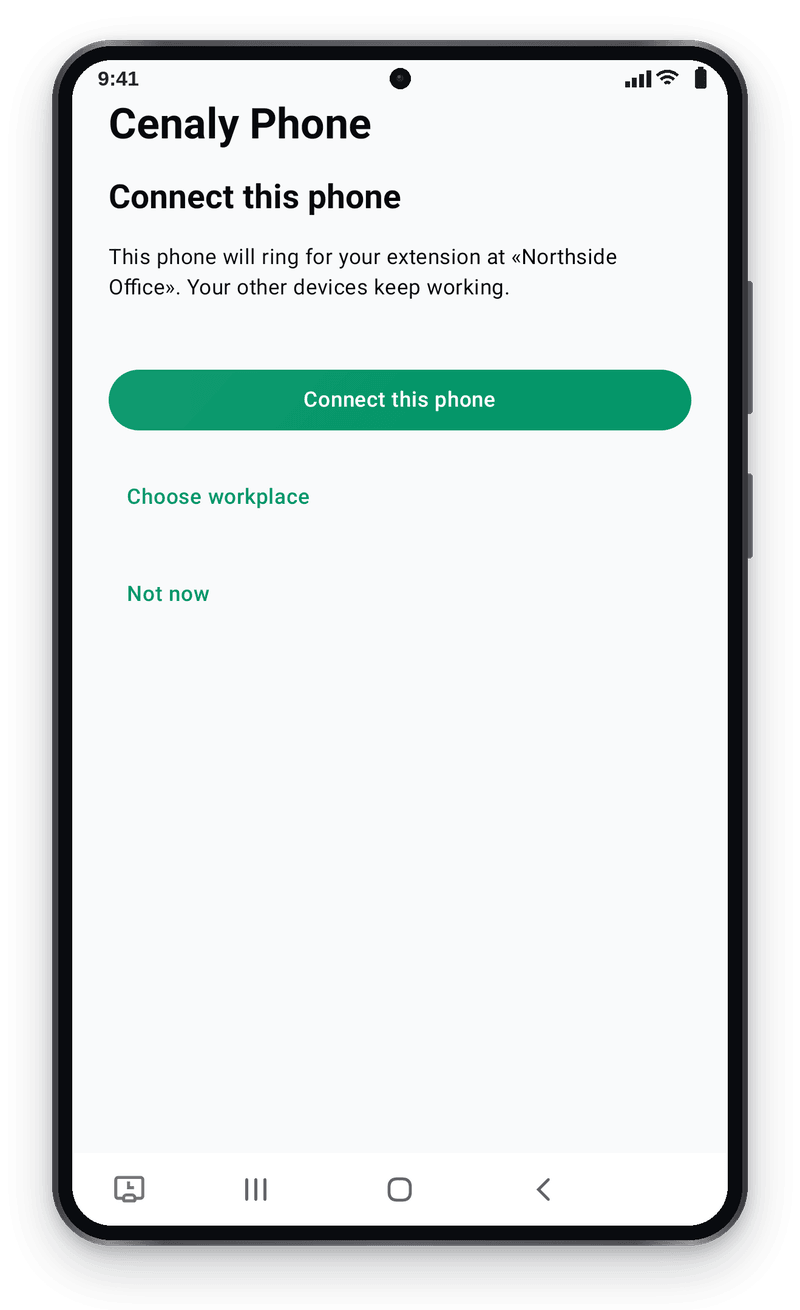
Choose your workplace and tap Connect this phone. There is no need to enter a server, port or SIP password manually.
- Each phone gets its own connection to your extension; Android Keystore protects the password. The owner sets device limits and can disconnect a lost phone.
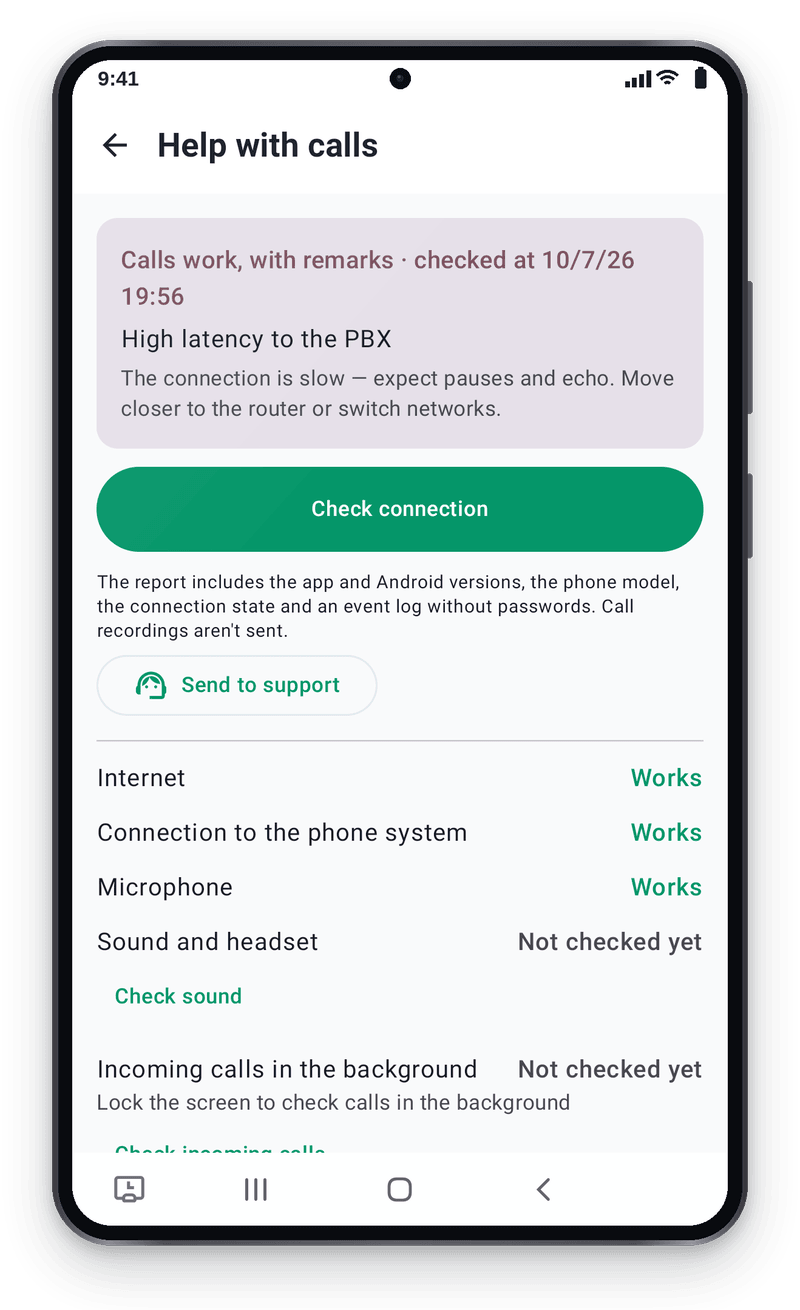
- Call help checks the network, PBX connection, permissions, battery settings and push.
- Send a diagnostic report to support from the app, with passwords and tokens removed.
Requires a working Cenaly PBX, an assigned extension and self-connection enabled by the owner. Diagnostics help find the cause; a stable internet connection is still needed.
What a connection to your company adds
A typical SIP desk phone or general-purpose softphone, compared with a client connected to the Cenaly PBX.
| Work task | Typical SIP setup | Cenaly Phone |
|---|---|---|
| Colleague availability | Configured BLF keys show extension activity; the states available depend on the phone and PBX. | Names and live states on your smartphone, including away and do not disturb, with a Free filter. |
| Shared directory | A local address book, or a company directory configured by an administrator through XML, LDAP or provisioning. | Your workplace’s colleagues, groups, queues, rooms and service numbers are already in the app, with cross-section search and favourites. |
| Group call: who hears it and who answered | The PBX handles group ringing; visibility of other participants depends on its integration with the phone. | Group name, Also ringing for and the colleague who answered, plus a strip for team calls. |
| Conversation text | Recordings and transcripts are usually opened in a separate service or PBX dashboard. | A completed transcript in call details, when recording and transcription were enabled and the viewer has access. |
| AI during a call | Guidance from company knowledge needs a separate service and integration. | Live assistance for your own call, tip search and available knowledge bases, with permission and AI consent. |
Features vary by model, PBX and configuration. Desk phones may offer BLF and company directories; cloud PBX mobile clients may offer CRM and AI. This compares workflows, not a claim that every feature is exclusive.
Everyday calls and your working day
Call controls
Hold, mute, audio selection and direct or consultative transfer are available through buttons on the call screen.
Availability for your shift
Away, Do not disturb, group participation and Call me are available in the employee workspace. Colleagues see your status.
Incoming calls wake the app
Push helps receive calls in the background. Notifications and background activity must be allowed; force-stop and restricted battery settings can prevent wake-up. This path is not yet supported on devices without Google services.
Before you install
Can I enter another provider’s SIP account?
No. Cenaly Phone works with the Cenaly PBX. Your provider’s number and SIP trunk connect to the PBX; the phone gets its connection through the employee’s account.
Is this a finished release?
It is early access. Core scenarios have been tested on real Android devices with a test PBX; acceptance on operating customer PBXs is still in progress. New screens may require an app and PBX update.
Why an APK rather than Google Play?
The app is currently distributed as a file from the website and has not been published on Google Play. The iPhone version and its current status are listed below.
Can it ring with the screen locked?
Incoming calls use the Android system call interface and push wake. Behaviour depends on the phone’s permissions and power restrictions. Test an incoming call with the screen off after installation.
Are phone service charges separate?
A connected Cenaly PBX is required. PBX service, phone numbers and provider call charges have separate terms; downloading the APK does not connect a phone line.
Start with one work phone
For employees of a company with a connected Cenaly PBX. Owner setup and PBX management from the app are still in preparation.
-
Install the APK
Download the file on Android 10 or later. Allow installation from this source.
-
Sign in and connect
Use your work account, choose a location and connect this phone to your extension.
-
Test an incoming call
Allow microphone, calls and notifications. Open Help with calls and make a test call.
Limits, honestly
- You need the Cenaly PBX with an extension for the employee; the owner allows staff to connect their own phones.
- It works only with its own PBX: third-party SIP accounts (a provider, an office PBX) connect to the Cenaly PBX as a trunk, not to the app.
- Tested on a real phone against a test PBX; acceptance on a live customer PBX has not happened yet.
- The iOS version is for iPhone only, not iPad.
- Android versions are distributed as an installation file right from this site — they are not on Google Play yet; iPhone and iPad versions are released through the App Store. Features were tested on emulators and test devices; acceptance in working venues is still in progress.