POS for food service and retail
Orders, payments and shifts in one POS on a tablet
The POS runs in a browser on any tablet or computer. Its tiles come from the same menu your guests see; orders go to the kitchen display and money goes to the shift report.
No card required. Paid plans are chosen in the admin — signing up does not start one.
- Table, bar and counter modes set by business type
- Cash, card, mixed payment, split bills and tips
- Shifts with X/Z reports and a manager PIN for discounts and refunds

Who it is for
The module is the same — wording and defaults follow your business type.
What the POS does
Checks and payments
- Modifiers, combos and discounts
Items with menu options; discounts within the cashier’s limits.
- Split bills and guest checks
Split by item or evenly; print the guest check before payment.
- Bar mode
Open tabs at the bar, closed in one action.
- Tips
With the payment or after it; distributed by your venue’s rules.
Shifts and money
- Cash shift, X and Z
Opening float, cash in and out, expected cash reconciled at close.
- Receipts, refunds and exchanges
Full or partial refunds, exchanges, reprints under a PIN.
- Corporate accounts
Pay from a client company’s account — for canteens and business lunches.
- Gift cards and points
Gift cards and loyalty points as payment methods.
Cashier control
- Rights by job role
Discount ceiling, refund rights and floor-panel access per role.
- Manager PIN
Voids, discounts and refunds above a threshold need a shift lead’s approval.
- Action log beta
The server records voids, discounts and refunds — a cashier cannot hide them.
Hardware and connectivity
- Printers, scales, scanners
Printers, scales, scanners and the customer display through the bridge on the POS computer.
- When the connection drops
Orders and receipts queue up and sync without duplicates once the network is back.
- Android POS app beta
A tablet app with the same menu and shift.
Step-by-step guides — Help article →
What it looks like in the product
Set meal with choices
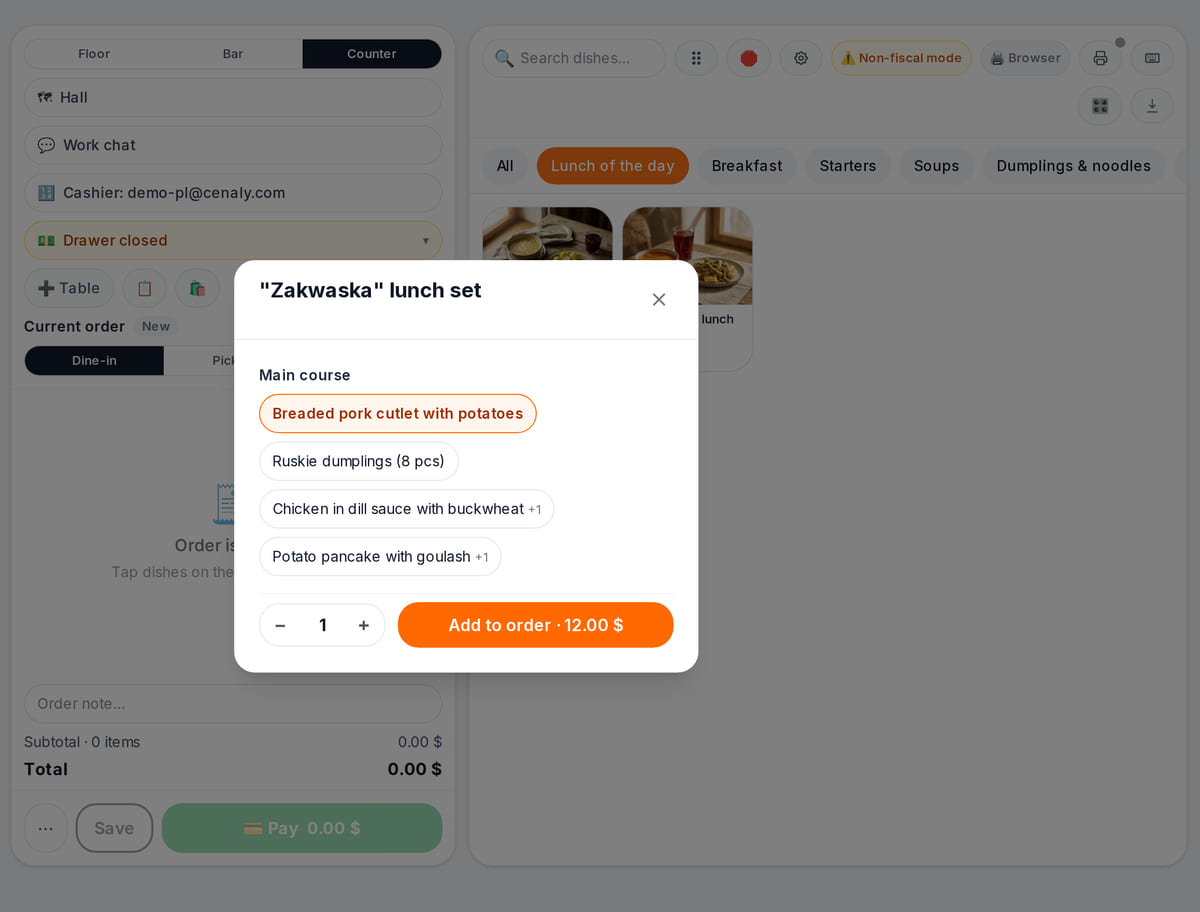
Real screen, demo data, 3 October 2026. Required choices and surcharges right in the tile Order in the kitchen
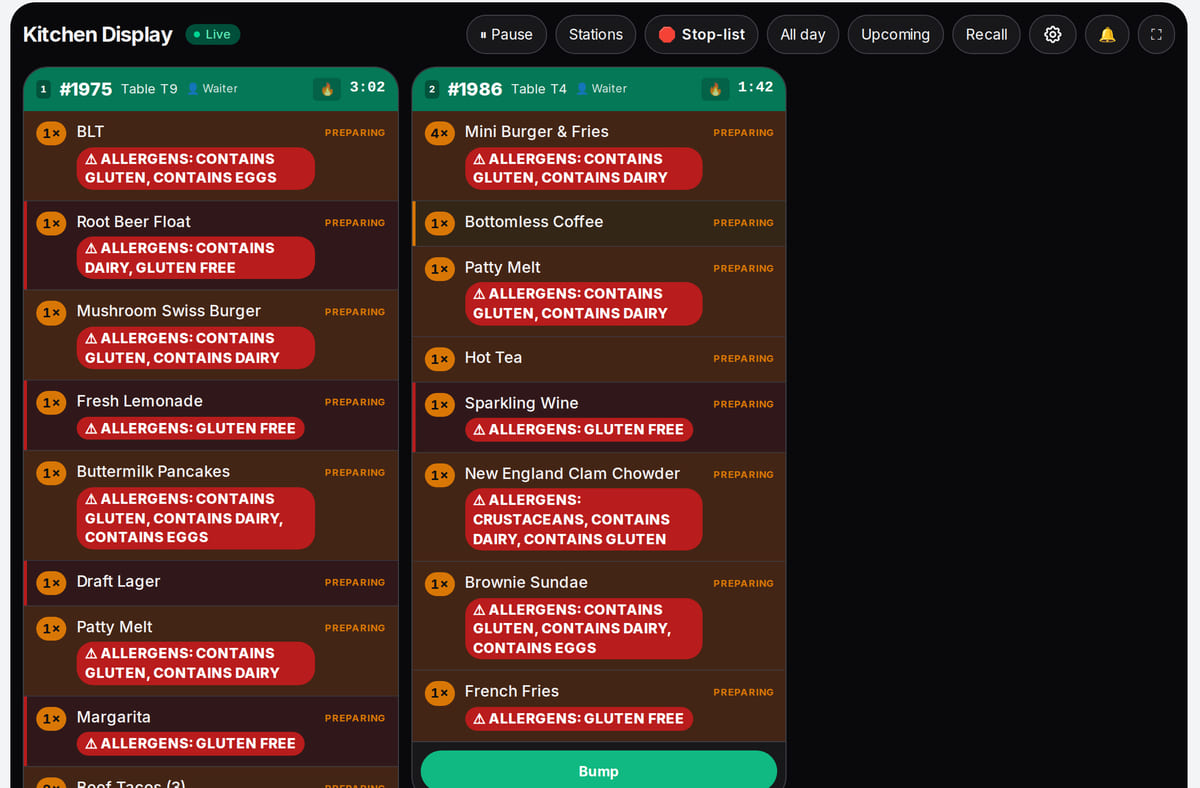
Real screen, demo data, 3 October 2026. An order rung up at the POS goes straight to the kitchen display


How it works in practice
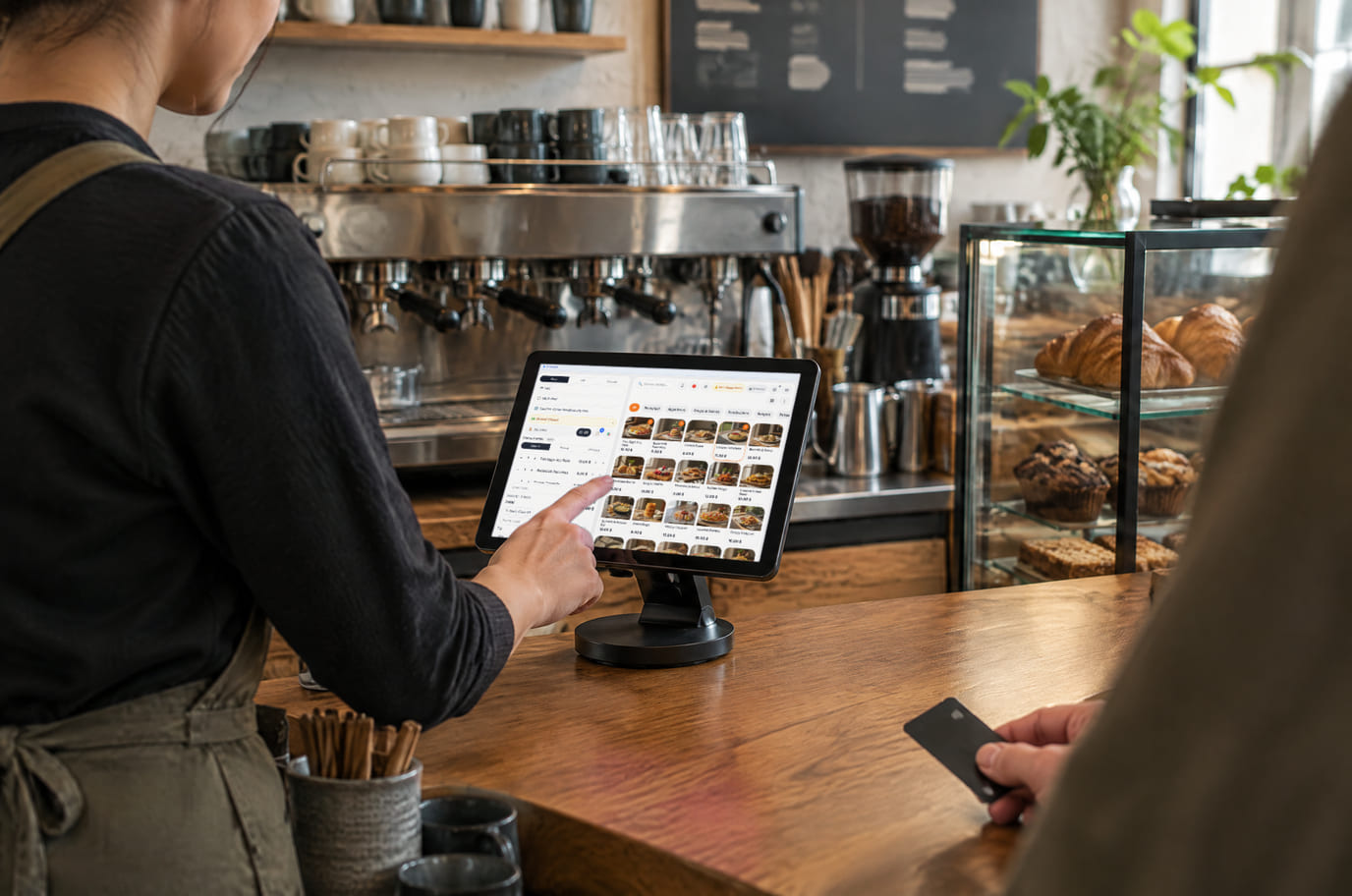
Illustration; the screen shows the real interface, demo data, 3 October 2026. The POS on a tablet at a coffee shop counter 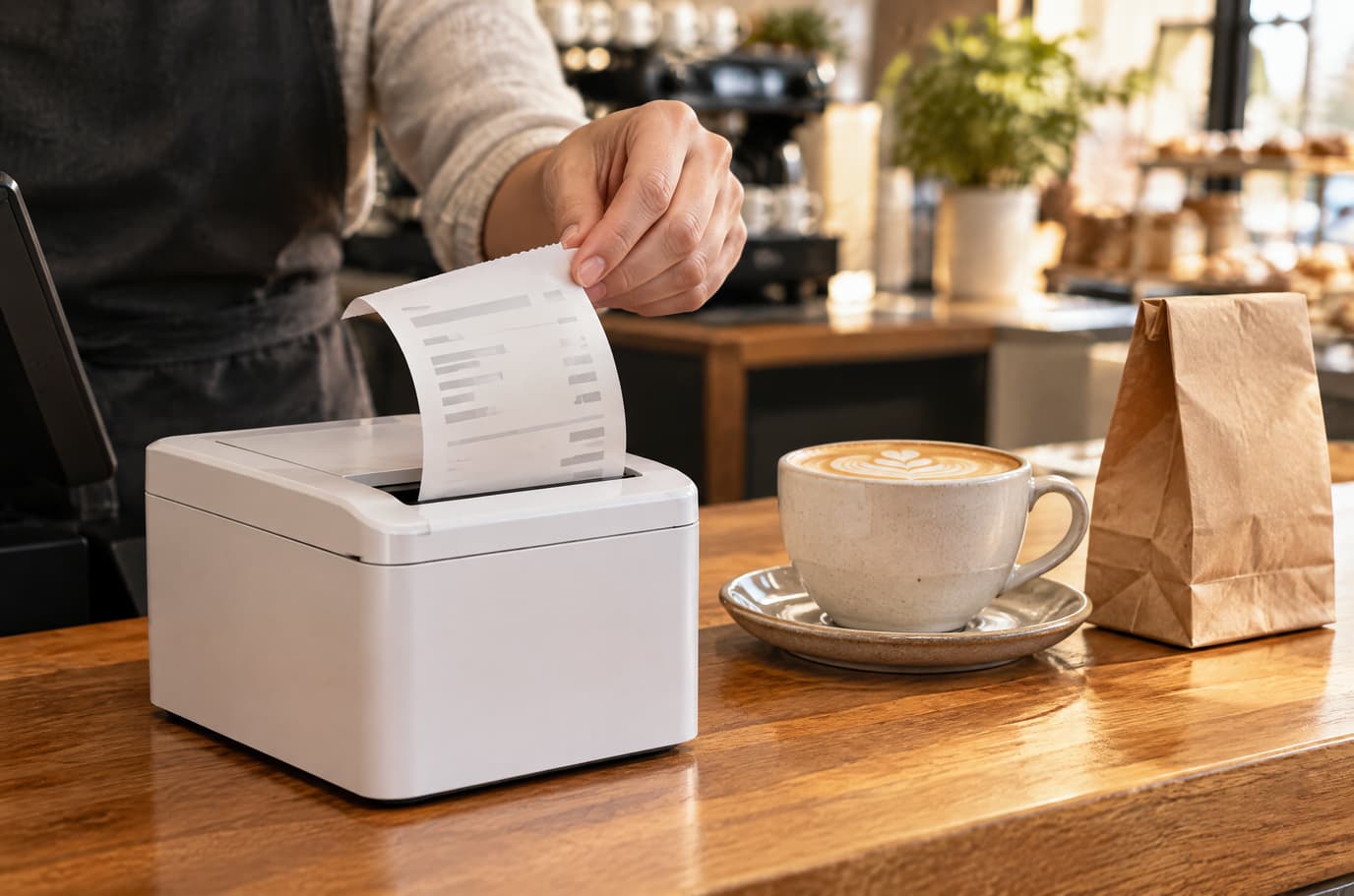
Illustration. The receipt prints on a printer connected through the bridge


Built as one system
Modules share one menu, one order flow and one shift — no exports between programs.
Kitchen display (KDS)
Tickets by station on a tablet or monitor: statuses, timers, an expo screen and kitchen printing.
QR menu and guest ordering
A menu in 45 languages behind a table QR code: guests order themselves and the order arrives with the table number.
Reservations and floor
Floor plan, bookings from your storefront and website, deposits, a waitlist and waiter calls — in the floor panel of the POS.
Inventory and purchasing
Receipts, movements and physical counts for shops and venues, starting with one item.
Hardware
No dedicated POS computer is required — a tablet or laptop with a browser will do. Devices are connected by the bridge, a program on the POS computer: it finds network printers on its own and works with scanners and scales attached to the computer.
How to connect hardware →- Network receipt and kitchen printers
- Scales and barcode scanners
- Customer display
- Card terminal — beta, protocols vary by country
Pricing
Available from the plan
Basic
$19 / month
$190 / year when paid annually
Priced per account; the plan sets location, device and order limits.
Good to know
- The POS, kitchen display and cash shifts come in the same plan
- Devices and monthly orders follow the plan limits
- Hardware and card acquiring are paid separately
Start for free
A free account with one location: build your menu and test the workflow before choosing a plan.
Start for freeHonest limits
- The POS does not replace a certified cash register where the law requires one: check hardware models and fiscal rules separately.
- Offline, the POS and bridge printing keep working. The kitchen display, card payments and the X report wait for the connection.
- Changing an item price directly on the guest check is not available yet.
- A bridge serves its own computer: printing from another register needs a bridge there too.
Test your workflow on a free account before buying hardware.
FAQ
Does the POS work offline?
Yes, with limits. An open POS keeps taking orders and payments: operations queue up and reach the server without duplicates when the connection returns. Bridge printing on the same computer works. The kitchen display, card payments and the X report wait for the connection.
What hardware do I need?
To start, any tablet or computer with a modern browser. Printers, scales, scanners and a customer display connect through the bridge on the POS computer; check model compatibility before buying.
Can I switch from another POS?
Your menu moves over by import: from a CSV or XLSX sheet, a website link, a photo or PDF, or from Poster and GloriaFood. This page does not promise to migrate sales history or stock from your old system.
How much does the POS cost?
The POS is part of a paid plan — which one and at what price is shown below and on the pricing page. The free plan covers the QR menu and first orders. Hardware, acquiring and AI are paid separately.
Can I use it on a phone?
The POS layout is designed for tablets; on a phone it is compact. Waiters have an Android app, currently in beta.
How do I prevent abuse at the register?
Each job role has its own rights: discount ceiling, refunds and reprints. Above a threshold a manager approves with their PIN, and the server records the action in the log.
Step-by-step guides — Help article →
Try the POS on your own menu
Create an account, add a few items and ring up a test order — before you buy any hardware.
Talk to us →No card required. Paid plans are chosen in the admin — signing up does not start one.