Digital signage for venues and shops
Your products and offers on the TV
Show menus, products or services with prices from your Cenaly.com catalog. Update the screen from your dashboard, without USB sticks or redesigning price tags.
No bank card · open the ad monitor after sign-up
- Price on screen = price in the catalog: cards have no manual price
- Publish from the dashboard — the TV picks it up, no USB stick
- A screen goes quiet during opening hours — a message in team chat

What brought you here?
Every problem has its own page: what it looks like today, what the ad monitor changes and what it honestly does not do.
Screen prices from your catalog
Prices, the 86 list and happy hour come from the catalog. Screen cards have no manual price.
Menu board with live prices →
Your products instead of a TV channel
Items with photos and prices, promos and a QR code to the item — by time of day.
An in-venue ad screen →
Edit the screen yourself, no designer
Ready-made styles, a preview identical to the TV, AI copy and background removal.
Screen editor →
No USB stick: publish and the TV picks it up
A code on the screen, OK on the remote — updates arrive by themselves.
Updates over the network →
Every location’s screens under watch
What plays on each screen, and a team-chat alert when a screen goes quiet.
Screens under watch →
Guest languages and national ad rules
A language per screen, manual translations, checks of restricted categories and the state language.
Languages and ad rules →
What a screen program is made of
Cards play in a loop, each with its own duration. Morning, afternoon and evening can show different things.
Catalog item
Large photo, name, price and item badges. Price and availability come from the catalog — nobody types them in; AI can cut out the photo background in one click.
Promo or announcement
Your headline and text over an image, video or colour, with an optional QR code. A promo can be linked to a catalog item: when the item runs out, the promo stops playing.
Menu board
A menu or price list as a list, photo tiles or large price tags. Columns are chosen automatically, and what does not fit is not shrunk into unreadable text.
Ticker and schedule
A line at the bottom of the screen — Wi-Fi password, promo, announcement. Morning / Day / Evening slots or your own, by weekday and the location’s hours.
What it looks like on the TV and in the dashboard
What the screen does
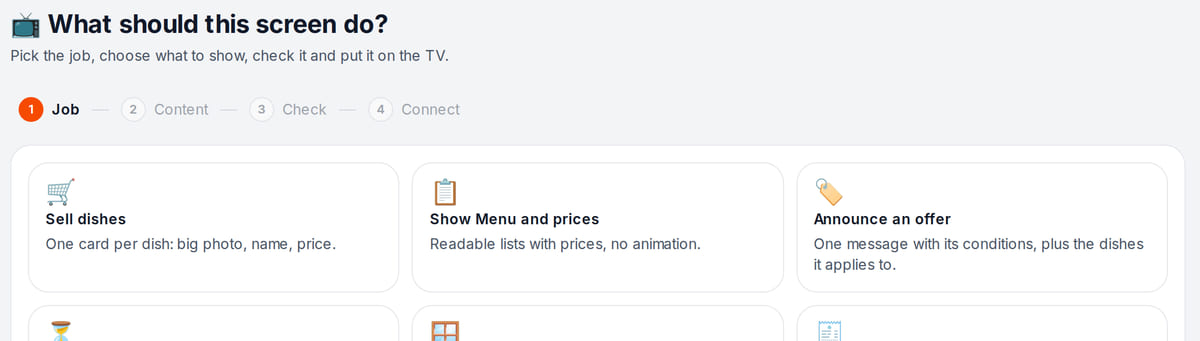
Real screen, demo data, 3 October 2026. You start with a job, not a template What to show
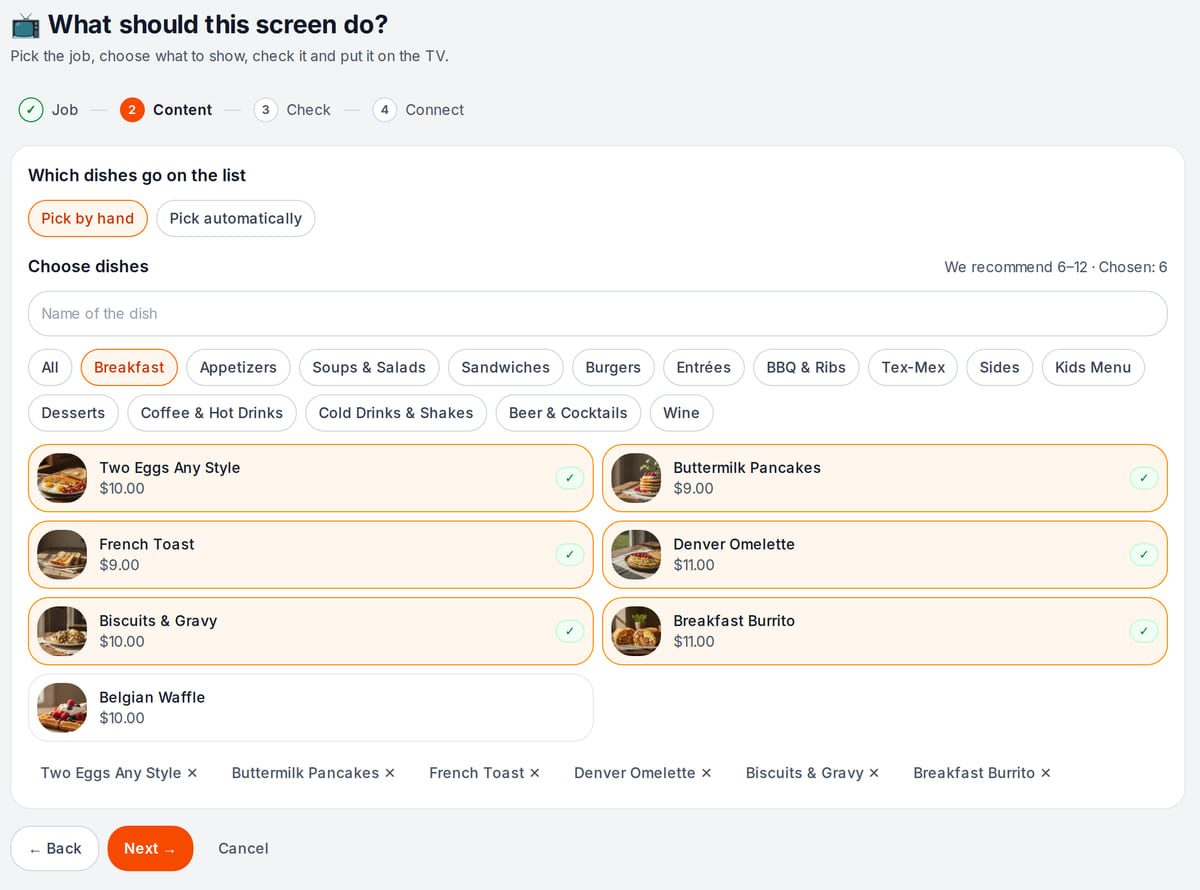
Real screen, demo data, 3 October 2026. Items and prices come from the same catalog as the register What the TV will show

Real screen, demo data, 3 October 2026. The preview uses the same rendering as the screen in the venue


How it works in practice
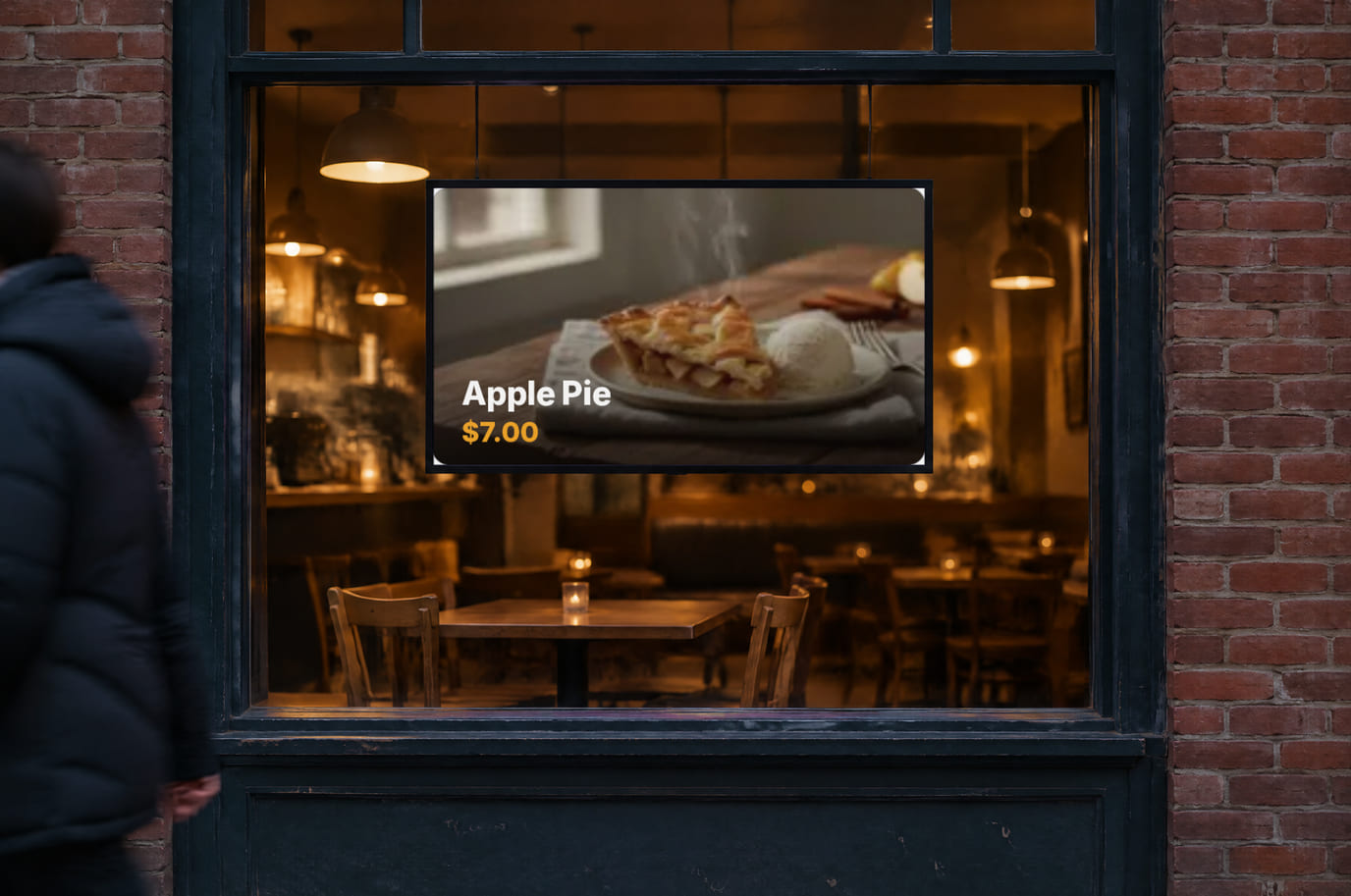
Illustration; the screen shows the real interface, demo data, 3 October 2026. Window mode uses very large text

How to launch a screen
- 1
Build the program
The “What should this screen do?” wizard asks for the job — sell items, show the menu and prices, announce a promo — and builds the first cards from your catalog.
- 2
Open tv.cenaly.com on the TV
The screen shows a six-character code and a QR code. Enter the code in the dashboard or point your phone camera at the QR — then press OK on the remote.
- 3
Press “Publish”
The TV usually receives the program within 1–6 minutes and keeps checking for updates by itself. The dashboard shows that the version was applied.
What you need
A TV or monitor with HDMI
Use HDMI to connect the box. Landscape and portrait formats are supported: 16:9, 9:16, 4:3, 3:4, 1:1 and 21:9.
An Android TV or Google TV box
Recommended: a box running Chrome 105 or newer. Built-in Smart TV browser support depends on the model; test it before buying.
Internet at the venue
Needed for setup and updates. Saved content may keep playing for up to a week during an outage; prices and ads require confirmed freshness.
Who it is for
Cafés, bars, quick service
A menu board above the counter, breakfast in the morning and lunch at midday by schedule, “Sold out” instead of a price when a dish is 86’d.
Start for a café →Shops
New arrivals and discounted items picked by a catalog rule, large price tags, a screen in the window and at the till.
Start for a shop →Salons and services
The service price list in the waiting area, monthly offers and a QR code to the service page instead of a news channel.
Start for a salon →Hotels
A lobby screen: the hotel restaurant and breakfast, announcements for guests in their language on a schedule.
Pricing
Included in every plan, the free plan too
- No per-screen fee — several screens per location
- Your own streaming box instead of a subscription player
- AI suggestions and background removal use AI credits
- Sign up without a bank card
FAQ
Why is this better than a USB stick in the TV?
A USB stick has to be pulled out and rewritten, and the prices on it go stale. Here the program changes in the dashboard, the TV picks it up by itself and re-reads prices and the 86 list from the catalog every 5 minutes.
Do I need a POS integration?
Not if you sell through the Cenaly.com POS: the POS, the storefront and the screen read prices from one catalog. If your main POS is a different one, the screen shows Cenaly.com catalog prices — keep them up to date manually or by import.
Can the screen show different things in the morning and evening?
Yes. A screen has Morning / Day / Evening slots or your own, by weekday and the location’s hours; each card marks which slots it belongs to.
Who can change the screen?
The owner or a staff member with the “Ad monitor” permission edits the program. Quick actions — pause ads, take an item off or put it on screen — are available by default to cashiers, sales assistants, bartenders, reception and shift managers, from a phone and without the editor.
Can it play video?
Yes: the background of a promo or announcement can be an image or a video.
Do I need to buy a special player?
You usually do not need a new TV: connect an Android TV or Google TV box running Chrome 105 or newer over HDMI. Test a built-in Smart TV browser before buying: older models may not work. A verified list of TV models is not yet available.
What happens if the internet goes down?
An already running player can continue with saved content for up to 7 days after confirmed connectivity. Prices and ads are shown only while freshness is confirmed; then a neutral screensaver takes over. Offline TV restarts are not yet promised.
Who creates the pictures?
Use photos from your catalog, upload a finished design or build an offer in a ready-made style. AI suggestions are optional and use credits.
Can I manage several locations?
Yes: one dashboard shows screens across your locations. Each location has its own program; copying programs between locations is not yet available.
How much is it and how many screens can I connect?
The ad monitor is included in every plan, including Free. There is no per-screen fee. Bring your own TV and box; AI suggestions use AI credits.
Step-by-step guide — in the help center. How to connect a TV →
Works together with
Schedules and happy hour
The 86 list, item schedules and time-based prices — the screen calculates them exactly like the POS.
QR menu and storefront
The QR code on a screen card opens that item’s page in your storefront.
Team chat
Messages about a silent screen arrive here, together with the location’s other tasks.
Ad monitor help
Connecting a TV, publishing, working offline and advertising rules by country.
Put your first screen on air today
The wizard builds a program from your catalog, and the TV connects with a code and the remote.
Set up your first screenNo bank card · open the ad monitor after sign-up