For food-hall managers · one operator
Single-operator food hall: orders split by kitchen
One order from two kitchens — each sees its own items. After the operator accepts an order, cooks work on their own items on separate screens. Whole-order readiness depends on all its items.
Basic plan: $19 per month. Separate: kitchen screens, tablets, printers and internet, payment provider services.
No card to register. Free covers a limited menu; kitchen screens require a plan with KDS.
For one business running its own kitchens. Independent vendors, space rental, commissions and split payouts are outside this workflow.
- One guest menu for kitchens run by one business
- A station and screen link for each kitchen
- One ready item does not make the whole order ready
Does this fit your food hall?
A good fit when
- All kitchens belong to one business and share one menu
- Your operator accepts orders and each kitchen sees its own items on its screen
- You need whole-order readiness, not just one dish
Not a fit or check separately
- Independent tenants, venue commissions and split payouts to vendors
- Kitchen screens on Free: KDS starts with a plan that includes it
- Printing, POS and payments need their own setup and compatibility checks
- shared by your kitchens
- Menu
- each kitchen’s categories
- Stations
- operator confirms the order
- Acceptance
- all order items matter
- Readiness
Who handles each stage
Guest chooses
- One operator’s menu
- Different kitchen categories
- One order with selected items
Operator accepts
- Checks items and notes
- Accepts the guest order
- Sends it to kitchens under location rules
Cook prepares
- Category-filtered station screen
- Individual item statuses
- Timers and queued-item totals
Manager coordinates
- Checks category assignment
- Assigns kitchen screens
- Checks whole-order readiness
What you need to start
Categories by kitchen
Each item needs a clear preparation kitchen. Stations filter categories; a mixed category cannot separate dishes for you.
Screens and connection
Prepare a browser tablet or monitor per station and reliable internet. KDS is designed for a large screen, not a cook’s phone.
Order acceptance
Guest orders wait for acceptance by default. Direct-to-kitchen handling is a separate location setting to test.
Plan and connections
Check KDS access and device/location limits. Printing, POS and payments need separate configuration and compatibility checks.
Your first workflow
- 1
Create a shared menu
Choose Restaurant at registration. Add one item from each of two kitchens at one location, using separate categories.
- 2
Assign a screen to each kitchen
On a plan with KDS, save each kitchen’s categories as a station. Open its link on the kitchen tablet or monitor.
- 3
Accept and test an order
Order both items and accept the order in Orders. Check each kitchen sees its own item, then mark one and finally both items ready.
Try your own example
Product steps, not testimonials or promised results.
A screen per kitchen
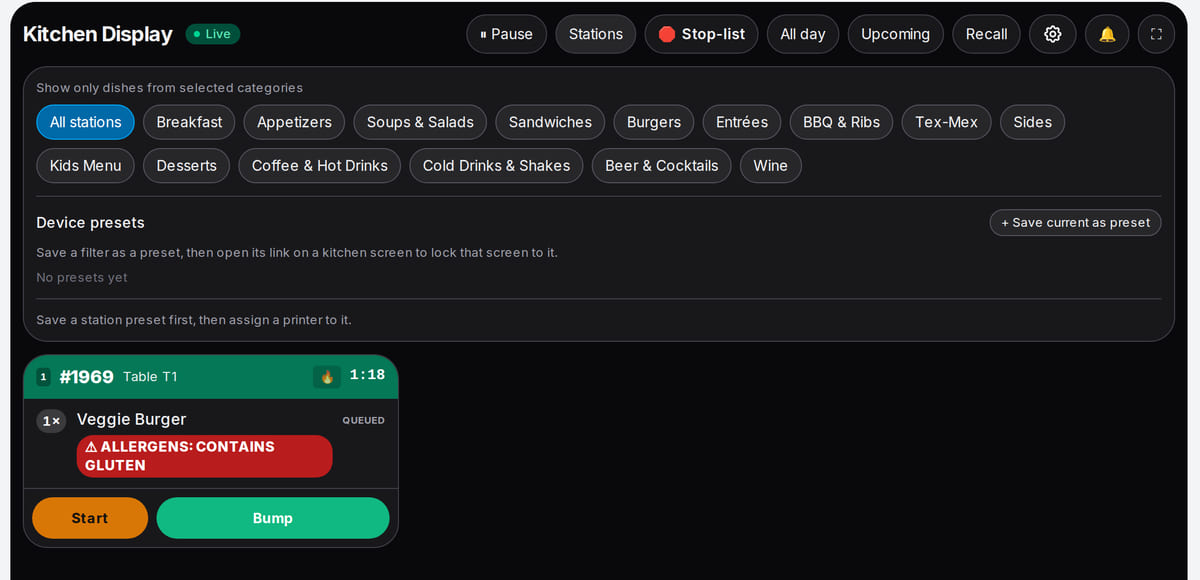
Real screen, demo data, 3 October 2026. Pizza goes to the pizza kitchen, coffee to the coffee bar Kitchen tickets
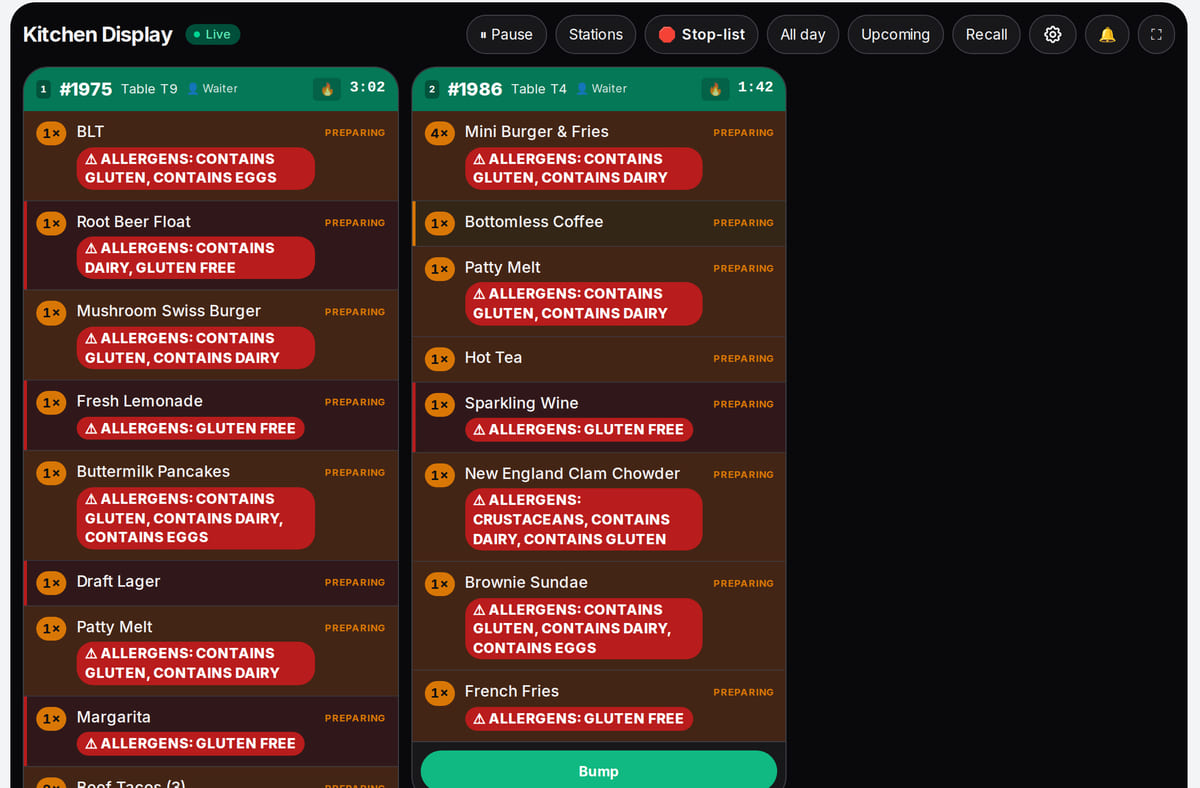
Real screen, demo data, 3 October 2026. An order is ready only when all its items are ready


Test one order before connecting the whole food hall
Example: pizza and coffee from one operator. Local product tests verify station filtering and readiness across all items. They do not test a live order, network or hardware.
- 1
Each kitchen gets its items
The pizza station selects the pizza category; the coffee counter selects drinks. Check the item list on both screens, not just the order number.
Stations → - 2
First ready is not all ready
Coffee is ready while pizza is preparing. The first kitchen must not mark the entire order ready.
Order statuses → - 3
Check completion across the order
After pizza is ready, verify the final status. Preparation and physical handoff are separate staff actions.
Readiness workflow →
How it works in practice
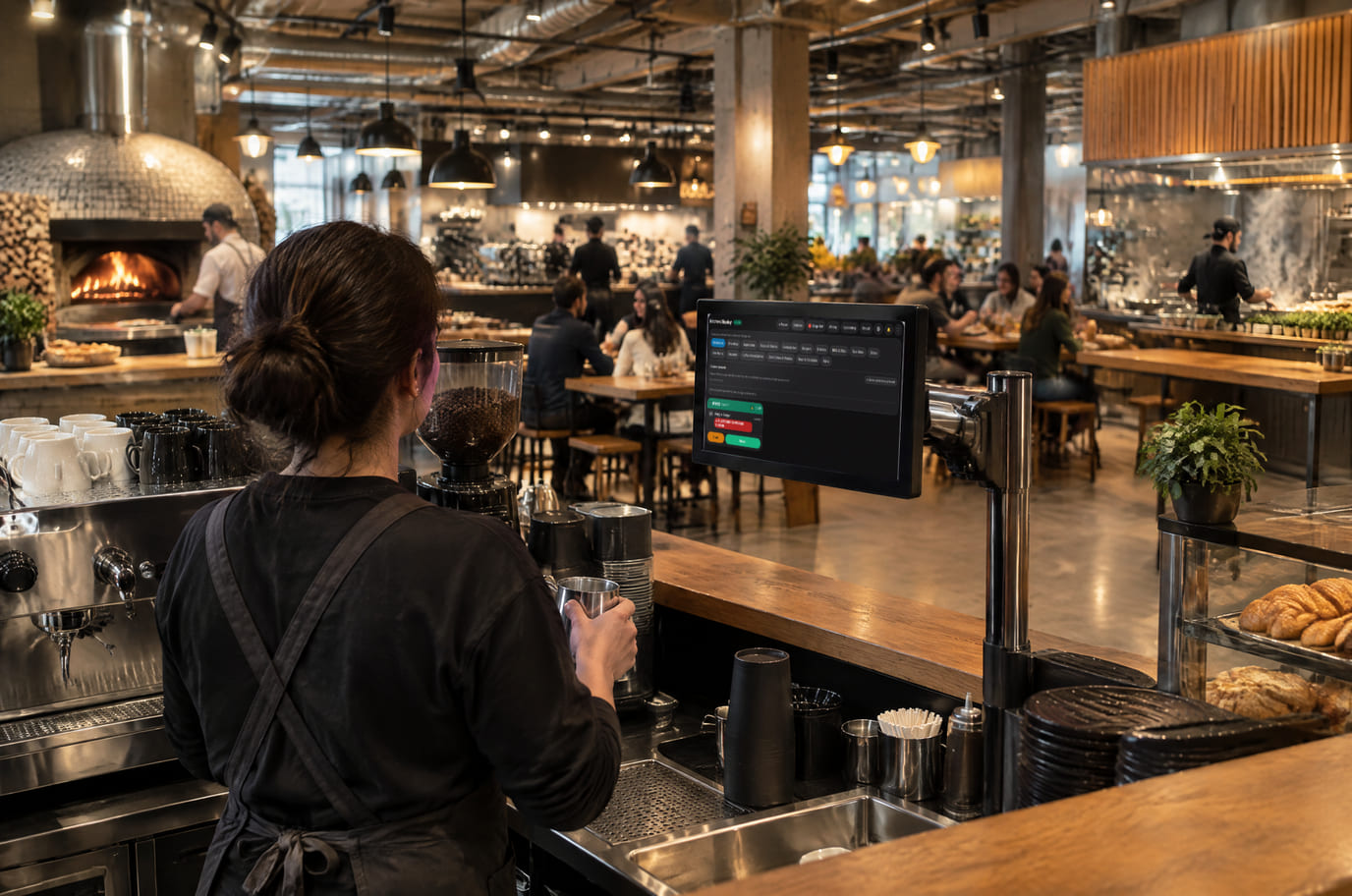
Illustration; the screen shows the real interface, demo data, 3 October 2026. The coffee bar screen in a shared food hall 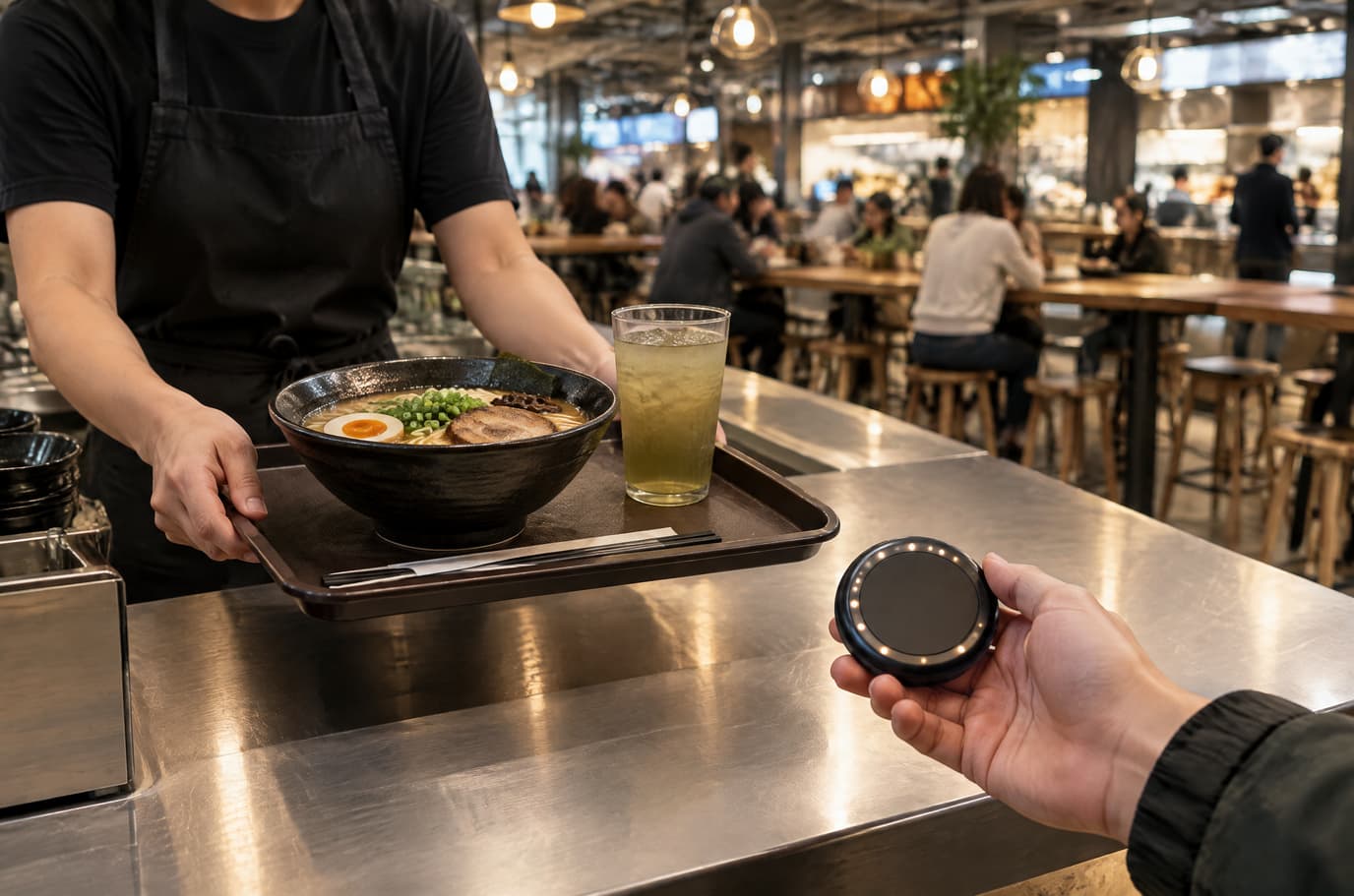
Illustration. Guests pick up the finished order at the kitchen counter


Where it helps the owner
Before opening
Example: add a new kitchen’s dish. Check its category is assigned to the correct station and the item appears on that screen.
Peak service
Example: a drink is ready before hot food. Check item statuses and timers instead of collecting verbal updates from each kitchen.
Replacing a tablet
Example: open the saved station link on a new screen. Verify its station name and item list: a stale link can show all categories.
Example situations. Measure time and costs with your own operations.
What it costs
Plan for the basic workflow described here
Basic
$19 per month
$190 per year when billed annually
Per account per month. Location and device limits depend on the plan; screens and hardware cost extra.
Features and terms
- KDS starts with Basic; check account device and location limits
- Screens, internet, printers and payment-provider services cost extra
- Test two kitchens at one location before connecting the rest
- Measure manual order relays and time waiting for readiness checks during your own shift
What you can start for free
Free: 1 location, 50 menu items and 100 orders per month. Kitchen displays are not included.
Set up menu and kitchensNo card to register. Free covers a limited menu; kitchen screens require a plan with KDS.
What to consider before you start
- One operator’s kitchens. Independent tenants, marketplace commissions, space rental and automatic settlements are not supported by this workflow.
- A station filters categories of a shared order; it is not a separate vendor account or split payment.
- New or unknown categories may appear on several screens to avoid losing an order. A stale link removes filtering with a warning. Recheck filters after menu changes or screen replacement.
- Online payment, POS and printing depend on country, connections and equipment; KDS readiness does not confirm payment or handoff.
Test your workflow and required connections before migrating data.
Frequently asked questions
Is this for independent tenants?
No. One operator runs its own kitchens. Rental contracts, commissions, split payouts and automatic vendor settlements are not offered.
Does every kitchen need a separate location?
Within one location, create KDS stations from shared-menu categories. A station is a preparation screen, not a separate location or legal entity.
Do cooks immediately see guest orders?
By default an operator first accepts them in Orders. Direct handling is a separate location setting to verify before launch.
Can I test two kitchen screens for free?
Free lets you start a limited menu, without KDS. Check plan access and device limits first. Paid-plan purchasing is unavailable on .ru.
Details for every screen are in the help centre. Where to start →
Start with an order from two kitchens
Two items, two stations and one person accepting orders. Verify who sees each item and when the whole order becomes ready.
No card to register. Free covers a limited menu; kitchen screens require a plan with KDS.