Phone as a mobile computer (handheld scanner): getting started
A handheld terminal (mobile computer) is a scanner with a screen that warehouse staff use to receive goods, count stock and pick orders. You don't have to buy one: the Warehouse / Handheld module turns any staff or owner smartphone into it. The phone scans, keeps working without the internet, and a manager in the browser sees its work live and posts the documents.
The scanner mode is included in inventory at no extra cost. It is a new feature in beta: it has been tested on Android smartphones; on iPhone it has so far only been verified as a build.
What the phone scanner is#
| Where | Who | What |
|---|---|---|
| Work app (Android, iPhone) | stock keeper, buyer, sales assistant, picker | the "Warehouse / Handheld" mode: operations allowed by the role |
| Business app (Android, iPhone) | owner | the same module: on Android — "Warehouse / Handheld", on iPhone — the warehouse terminal tile |
Browser: Inventory → 📱 Scanner (admin.cenaly.com/inventory/tsd) |
owner, manager | phone sessions, posting, discrepancy report, tasks, log and KPIs, settings |
Every piece of work on a phone is a session — a shared draft document on the server. Several phones can scan into the same receiving or stocktake at once. Until the session is posted, stock does not change; "Post" turns it into an ordinary inventory document.
What you need to start#
| What | Why |
|---|---|
| The Inventory section and at least one warehouse at the location | the phone works with a warehouse: catalog, stock, documents |
| Items with barcodes | the phone finds an item by its barcode; an unknown code can be attached to an item right from the phone |
| A staff member with a role that includes inventory and a login (Staff) | rights on the phone are the role's rights; "Stock keeper" records but does not post |
| An Android 8+ smartphone or an iPhone (iOS 16+) with the Work or Business app | the camera is already a scanner; for volume — a Bluetooth scanner or an Android handheld |
| Optional: a label printer | price and shelf labels from the phone over Wi-Fi/Bluetooth or through a computer with the bridge |
Step 1. Warehouse and staff#
- In Inventory, create the location's warehouse and items (or import the catalog). Item barcodes live in the item card.
- In Staff, add an employee with a login and the "Stock keeper" role (or your own role with inventory access).
- Decide who will post: the owner, a manager, or a role with the "Post stocktake" ability. By default a stock keeper only records and submits.
Step 2. Turn on the scanner mode on the phone#
- Android, Work: sign in → mode selection → "Warehouse / Handheld" (or the chip in the app settings).
- Android, Business: the "Warehouse / Handheld" card in mode selection or the icon in the header.
- iPhone, Work: the "Warehouse / Handheld" mode; iPhone, Business: the warehouse terminal tile (mode selection or the "Account" tab).
Pick a warehouse — the phone downloads a copy of the catalog, prices and stock. The home screen shows operation tiles, your own and open sessions, and a freshness badge for the copy. An operation you can't use is shown greyed out with the reason: no permission, turned off in the warehouse settings, bin locations required.
If you connect an external scanner, run the "Scanner check" wizard on the home screen (Android): it checks that the whole code comes through. More in Which scanner to choose.
Step 3. Your first receiving#
- The "Receiving" tile → basis: purchase order (there will be a plan), invoice photo, or no document.
- Scan items: each scan is +1 (or the phone asks for the quantity — a warehouse setting). You can type the quantity or receive by packs.
- Against an order you see plan versus actual: waiting, short, matched, over, "not in the order", unknown code.
- For items with a shelf life, the phone takes the lot and expiry from the GS1 barcode or asks for them.
- Need a second person? "Receive together": the second phone scans the session QR and writes into the same receiving.
- "Submit" sends the session for review. If you have the right — "Post" straight from the phone.
Differences from the order — the discrepancy report button (PDF).
Step 4. Review and post in the office#
Open Inventory → 📱 Scanner. The "Sessions" tab lists every receiving, transfer, stocktake and write-off from phones: status, participants, number of lines.
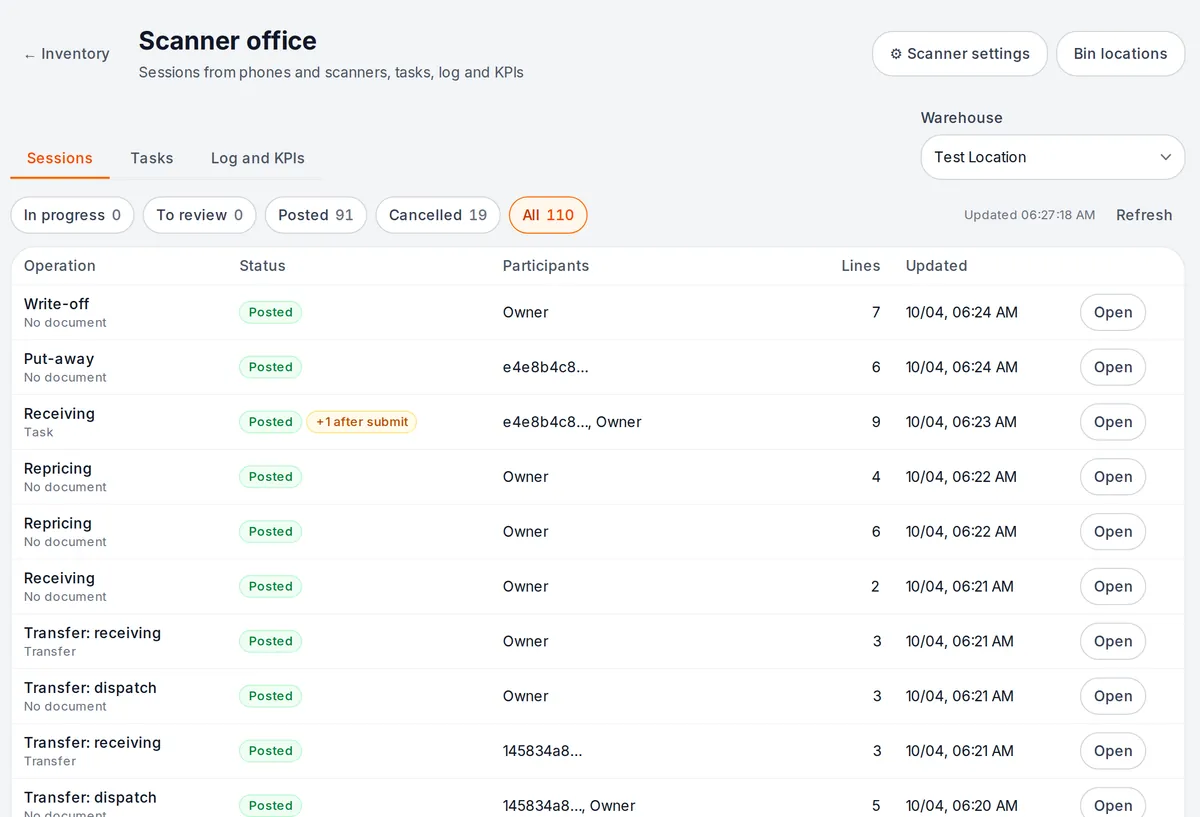
The session window shows plan versus actual, the line log (who, when, from which phone) and the participants. A live session refreshes every 5 seconds — you can watch the stock keeper scan. Buttons: "Post" (submitted sessions only), "Return to work", "Cancel", "Discrepancy report (PDF)". If new lines arrived from a phone after you opened the window, "Post" asks you to refresh — you post exactly what you saw.
Step 5. Configure the warehouse#
Inventory → 📱 Scanner → ⚙ Scanner settings. Settings are set for all warehouses, a location or a specific warehouse; the nearest level wins, and each field shows where its value comes from.
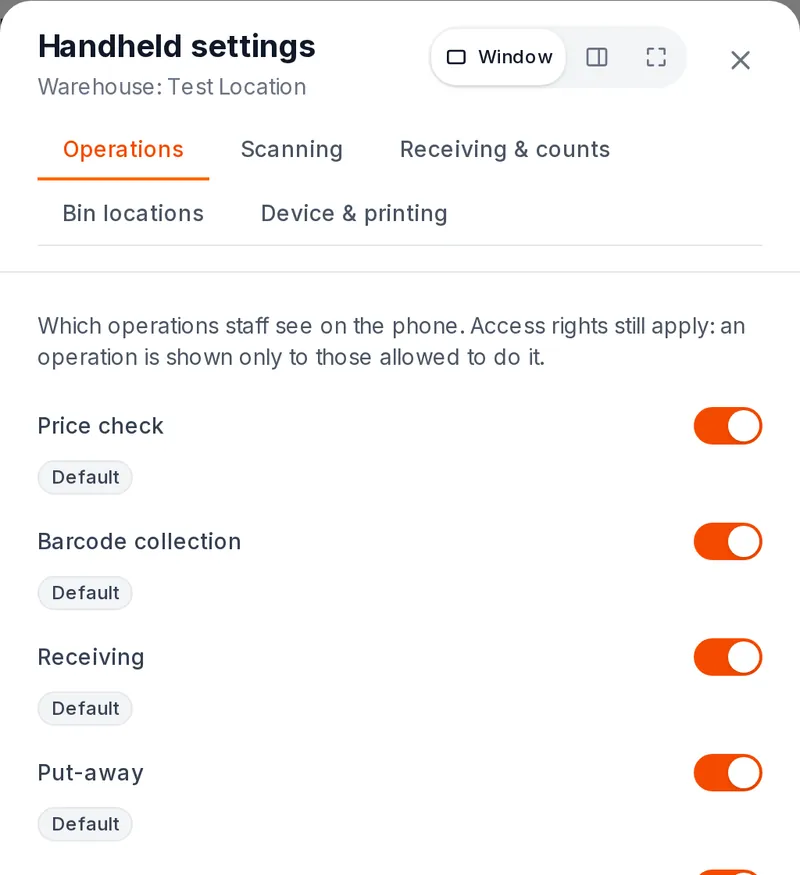
| Tab | Main options | Default |
|---|---|---|
| Operations | which operations the phone shows | all on |
| Scanning | +1 per scan or ask for quantity; weight barcodes | +1; prefixes 20–29, weight in the code |
| Receiving and counting | blind receiving; "more than ordered"; blind stocktake; photo on write-off; FEFO | off; warn; on; not required; warn |
| Bin locations | bin storage, mandatory bin scan, picking check by someone else | off; on; off |
| Device and printing | posting offline, sign-out on a shared phone, where to print | off; 5 min; the computer's print queue |
Only the owner and managers can change the settings. Role rights always win: a setting can only narrow what is allowed.
What else the phone can do#
| Operation | In short |
|---|---|
| Price check | scan → price, stock per warehouse, lots and expiry, bin |
| Barcode collection | unknown code → "New item" with a photo or "Add barcode to item"; a list of codes → CSV or into receiving |
| Transfer | dispatch → "in transit" → receiving at the destination warehouse with discrepancies |
| Write-off | reason, photo above the amount set in settings, hint about expired lots |
| Return to supplier | supplier and the basis order, or without receiving |
| Stocktake | whole warehouse, categories, suppliers, bins or a list; several phones by zones; recount of discrepancies by another employee |
| Bin locations | put-away with a "where it already is" hint, moves between bins, "Find", stocktake by bins |
| Order picking | a pick list from orders "To ship", route by bins, scan of every item, packages, check, "Packed" in shipments |
| Repricing and labels | new price → "Apply prices" → print price labels; shelf price-label audit |
| Tasks | the office assigns a task, the employee gets a push and takes it; "My work" and reports on the phone |
Without the internet#
Scans, lines and counts are kept on the phone and sent automatically when the connection is back; a badge shows how many are waiting. You can't post offline unless the warehouse allows "posting without network".
Limitations#
- Beta: on iPhone the module has only been verified as a build; on cenaly.ru the scanner mode on iPhone does not work yet (Android only).
- iPhone has no built-in scanner and no scanner-check wizard — use the camera or a Bluetooth scanner in keyboard mode.
- When picking, shortages and substitutions don't change the order contents — the order is edited by hand.
- There is no full scanner app in the browser: the admin panel has a camera scanner on the inventory page and the office.
Troubleshooting#
| Symptom | What to check |
|---|---|
| An operation is missing or greyed out | the reason is on the tile: role permission, warehouse setting ("Operations"), bin locations |
| A stock keeper has no "Post" | by design: the owner, a manager or a role with "Post stocktake" posts |
| An item isn't found by scan | refresh the warehouse copy (button on the home screen); code not registered — "Add barcode to item" |
| The scanner beeps but no line appears | scanner and GS setup, the "Scanner check" wizard |
| Lines are "waiting to send" | no connection — they will go automatically; the "not accepted" list explains server refusals |
FAQ#
Do I need a dedicated handheld?#
No. Any Android 8+ or iPhone with a camera already reads barcodes and DataMatrix codes. For hundreds of items per shift a Bluetooth scanner or an Android handheld is more convenient.
How much does it cost?#
It is included in inventory at no extra cost.
Can two people receive one delivery?#
Yes: "Receive together" on the first phone, the second one scans the session QR. Repeats are never double-counted.
Related sections#
- Which scanner to choose
- Setting up the GS character
- Inventory — stock, documents, suppliers
- Mobile apps — Work and Business
- Staff and shifts — roles and logins
- Hardware and Cenaly Hardware Bridge — printers and printing through a computer
- Offline mode