Set up the handheld and review sessions in the scanner office
You will set up an employee's phone for warehouse work and learn how to review submitted sessions in the browser.
What you need to get started#
- A warehouse and product cards in the Inventory section.
- Owner or manager access to set up the handheld.
- A supported mobile app with the "Warehouse / Handheld" mode. For
cenaly.ru, use Android.
Step 1. Warehouse and staff#
- Check the location's warehouse and the barcodes of your main products.
- In "Staff", give the employee a personal login and access to the right location.
- Assign the "Stock keeper" role or another role with the warehouse permissions you need.
- Decide who will review and post documents.
By default a stock keeper scans and submits a session but does not post it. A stocktake needs the right to post stocktakes; for other operations the permissions of the matching document are checked. The "Operations" setting alone is not enough to extend a role's permissions.
Step 2. Turn on the handheld mode on the phone#
- Sign in with the employee's login.
- Open the "Warehouse / Handheld" mode in mode selection, or the available warehouse tile in the owner app.
- Choose a warehouse and wait for its data to download.
- Check the operation tiles you need. For a greyed-out tile, read the reason for the restriction.
- If you use an external scanner on Android, run "Scanner check" on the handheld home screen.
The camera needs permission to take pictures. Setting up an external scanner is covered in a separate guide.
Step 3. Configure warehouse behavior#
- In the browser, open "Inventory" → "Scanner (TSD)".
- Choose a warehouse.
- Click "Scanner settings".
- Choose the level the settings apply to: all warehouses, a location or a single warehouse.
- Change the rules you need on the tabs.
- Click "Save".
A single warehouse's value beats the location's value, and the location's value beats the general one. Each field shows where its value comes from. "Reset" returns the inherited value.
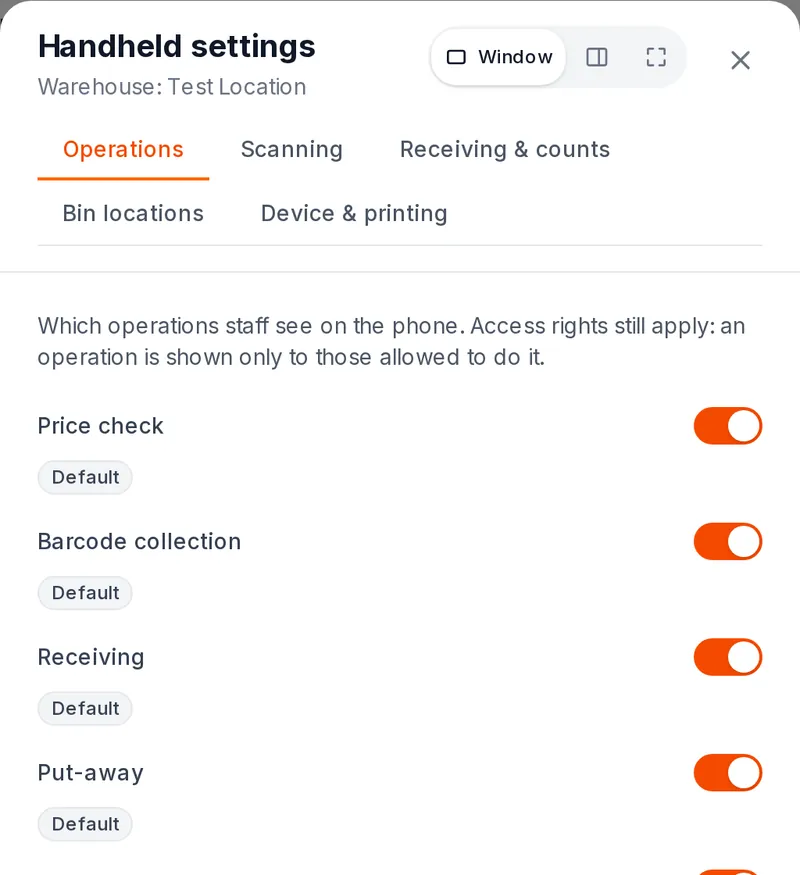
| Tab | What to check | Default |
|---|---|---|
| Operations | Which operations are allowed at the warehouse; role permissions still apply | No operations are turned off by the setting |
| Scanning | +1 or ask for quantity, manual entry, packs and weight barcodes |
+1 per scan; weight prefixes 20–29 |
| Receiving & counts | Blind modes, over-plan receiving, adding up zones, creating products, write-off photos, FEFO expiry order | Blind receiving off; stocktake blind; zones add up; over-plan and FEFO give a warning; no photo required |
| Bin locations | Bin storage, bin scan and picking check by another employee | Storage off; when used, bin scan on; independent check off |
| Device & printing | Offline permission, sign-out on a shared device, print route | Offline posting off; sign-out after 5 minutes idle; printing through the computer's queue |
Step 4. Review and post in the office#
- Wait until the employee taps "Submit" and their phone has sent all lines.
- In "Inventory" → "Scanner (TSD)" → "Sessions", choose "To review".
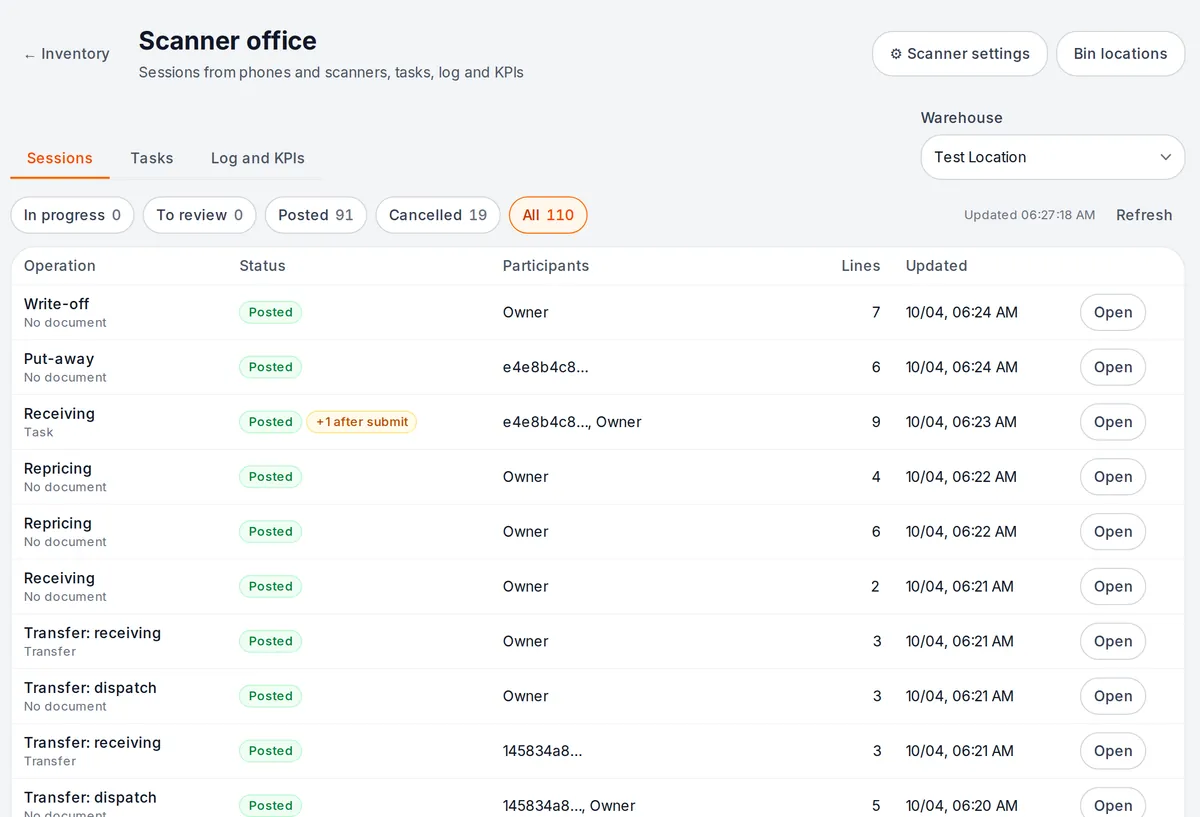
- Open the session.
- Check "Items": quantities, discrepancies and unrecognized codes.
- If needed, open "Line log" and "Participants" to see who entered the data.
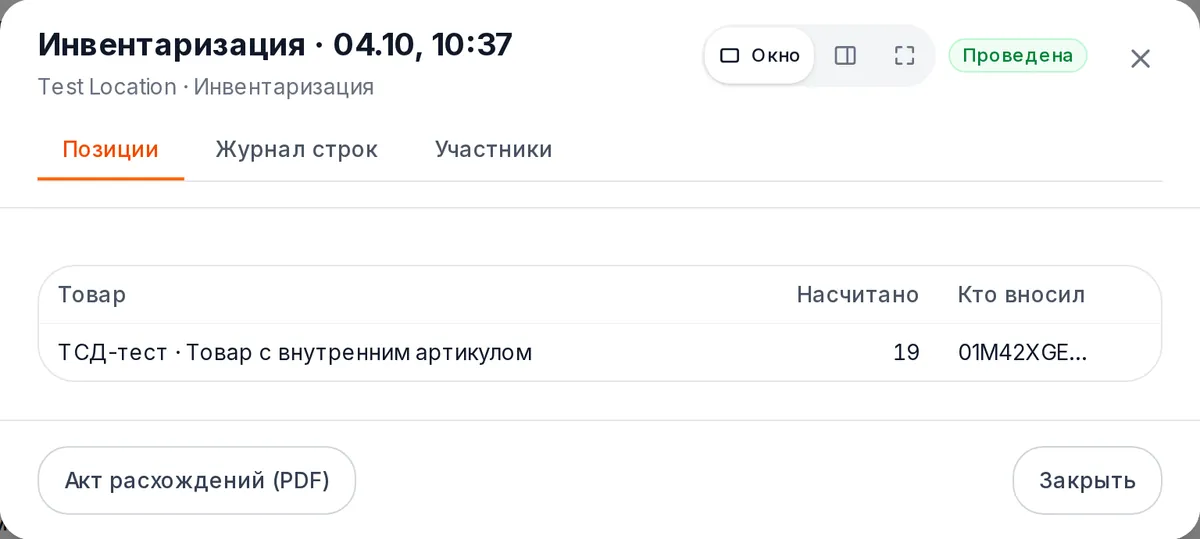
- If "Discrepancy report (PDF)" is available for the session, save it for review and signatures.
- Click "Post" if the result is correct and you have the right to post.
- Confirm posting in the dialog.
Reviewing a scanner session in the office
After a session is submitted and its lines reviewed, choose one outcome: post correct data, return it for fixes or cancel a mistaken unposted session.
- Result is correct Post Posting requires the appropriate right and dialog confirmation. If new lines arrived, refresh the card and review them before retrying.
- Data needs fixing Return to work Return the session to the employee to fix the data.
- Mistaken session Cancel session An unposted session can be cancelled. Stock balances will not change.
Use Line log and Participants for review. If Discrepancy report (PDF) is available, save it for review and signatures.
If the data needs fixing, choose "Return to work" instead of posting. For an unposted session created by mistake, use "Cancel session": stock will not change.
While the session is open and the browser tab is visible, the data refreshes automatically. If new lines arrived after your review, posting will ask you to refresh the card. Check the new data before trying again.
The page also has "Tasks" and "Log and KPIs". There a manager assigns work to employees and sees stats for the selected period: lines per hour, corrections and repeats.
Limitations#
- The web office needs a connection. It does not see all scans until the phone's queue has been sent.
- Settings do not give an employee permissions and do not add a screen missing from the app version.
- Posting without a network requires a separate device permission and support for the operation. Plan to post receivings and stocktakes online; offline posting is not allowed for marking.
- Correcting a result that has already been posted requires the correction method provided for that document. The button that cancels a draft does not replace it.
Troubleshooting#
| Problem | Solution |
|---|---|
| The session list is empty | Check the warehouse and the filter; wait for the phone's queue to be sent |
| The employee does not see the warehouse | Check access to the location and to the warehouse section in the role |
| Settings are not saved | Check owner or manager permissions; if a colleague edited at the same time, refresh the window |
| Posting asks for a refresh | Load the latest card and review the added lines again |
| An unknown code prevents posting | Sort out the code or return the session to the employee; do not replace the quantity with zero just to close it |
FAQ#
Can I watch receiving as it happens?#
Yes. Open the session with the "In progress" filter. Keep in mind that lines scanned without a connection stay on the phone for now.
Do I need to set up each warehouse separately?#
No. Set general rules and add exceptions only where you need them.