Free · clips from your own menu
Show the dish in motion — and let guests order it straight from the clip
A bubble with a clip in the corner of your website: a silent preview, then video with sound on tap, a caption and an “Order” button that opens exactly this dish in the ordering widget. Clips come from your Cenaly.com menu cards — nothing to upload or store separately.
The widget is free. You need at least one video in a menu or catalogue item card.
- Up to 6 clips from menu and catalogue cards
- The button under a clip leads to ordering, booking, appointments or chat
- The clip file does not load until the guest can see it

- clips per bubble — beyond that it is a feed, not a highlight
- 6
- pixels — the bubble diameter, 96 by default
- 64–160
- widget weight gzipped; clip files are not included
- ≈20 KB
- for the widget, impressions and clip views
- $0
How it works for the visitor
- 1
The guest sees a bubble in the corner
First the clip’s poster. A silent preview starts only once the page has finished loading and the bubble is in the visible part of the screen.
- 2
Taps it and watches with sound
A window opens with the clip: sound comes on from the guest’s tap, with the caption alongside. With several clips, arrows switch between them.
- 3
Taps the button under the clip
“Order” opens exactly this dish in the ordering widget on your site. Instead of ordering you can offer table booking, an appointment, chat, a callback or a link.
- 4
Closes it if not interested
The cross on the bubble hides it for 7 days. You set the period yourself — up to 90 days, or only until the end of the visit.
Set up in three steps
Create an account and add your site
Signup opens setup for the selected product. Have your domain and permission to insert code ready.
Configure and install
Follow your platform instructions. Blocking trackers before consent requires the early CMP script, not just the shared async tag.
Test your published site
Enable the widget and try the visitor action on the published page. Settings may appear after the cache refreshes.
The tag
<script src="https://cdn.cenaly.com/site/v1.js" data-domain="your-site.com" async></script>Shared widget tag. See the separate CMP instructions for blocking trackers before consent.
What the video bubble does
Use clips from your menu, not a new storage
A bubble clip is the video of a menu or catalogue item, uploaded to its card. There is no separate “upload for the widget”: the same video works both in the dish card and in the bubble on your site.
Make a clip from a dish photo
No video yet? Generate one with AI from a photo right in the dish card, then pick it for the bubble. Generation is a dish-card feature with its own terms; the bubble itself does not charge for it.
Lead from the clip to the order
The “Order” button opens, in the ordering widget, exactly the dish the guest has just watched. Instead of ordering: table booking, an appointment, chat, a callback, the multi-button, help, a document, support or an external link in a new tab.
Keep the page fast
Until the widget decides to show a preview, the page has no video element pointing to the clip and makes no request for its file. Preview switched off, page still loading, bubble off screen, the guest prefers reduced motion or saves data — the poster is shown.
Serve the right quality for the screen
When 360p to 1080p versions of a clip are ready, the widget picks the one that fits the width: a light one in the bubble, a larger one in the open window. Sound only after the guest taps.
Place it where it fits
Bottom-left or bottom-right corner, a diameter from 64 to 160 pixels, your own ring and button colour. Page masks, delay, device and schedule — including your location’s opening hours.
Where it pays off
Dish of the day on the home page
A clip of your signature dish being served plus an “Order” button: the guest goes from appetite to basket without browsing the menu.
Restaurant with table booking
A serving video and a “Book a table” button — the booking form opens on the same page.
Shop with product videos
A product clip from the catalogue and an “Order” button open that product in the ordering widget.
Several clips in a row
Up to six videos in one bubble: the guest flips through them with arrows, and each has its own caption and button.
Only on the pages that matter
Masks keep the bubble on the home page and the menu, and the schedule shows it only during opening hours.
What it looks like in the product
Clip opened
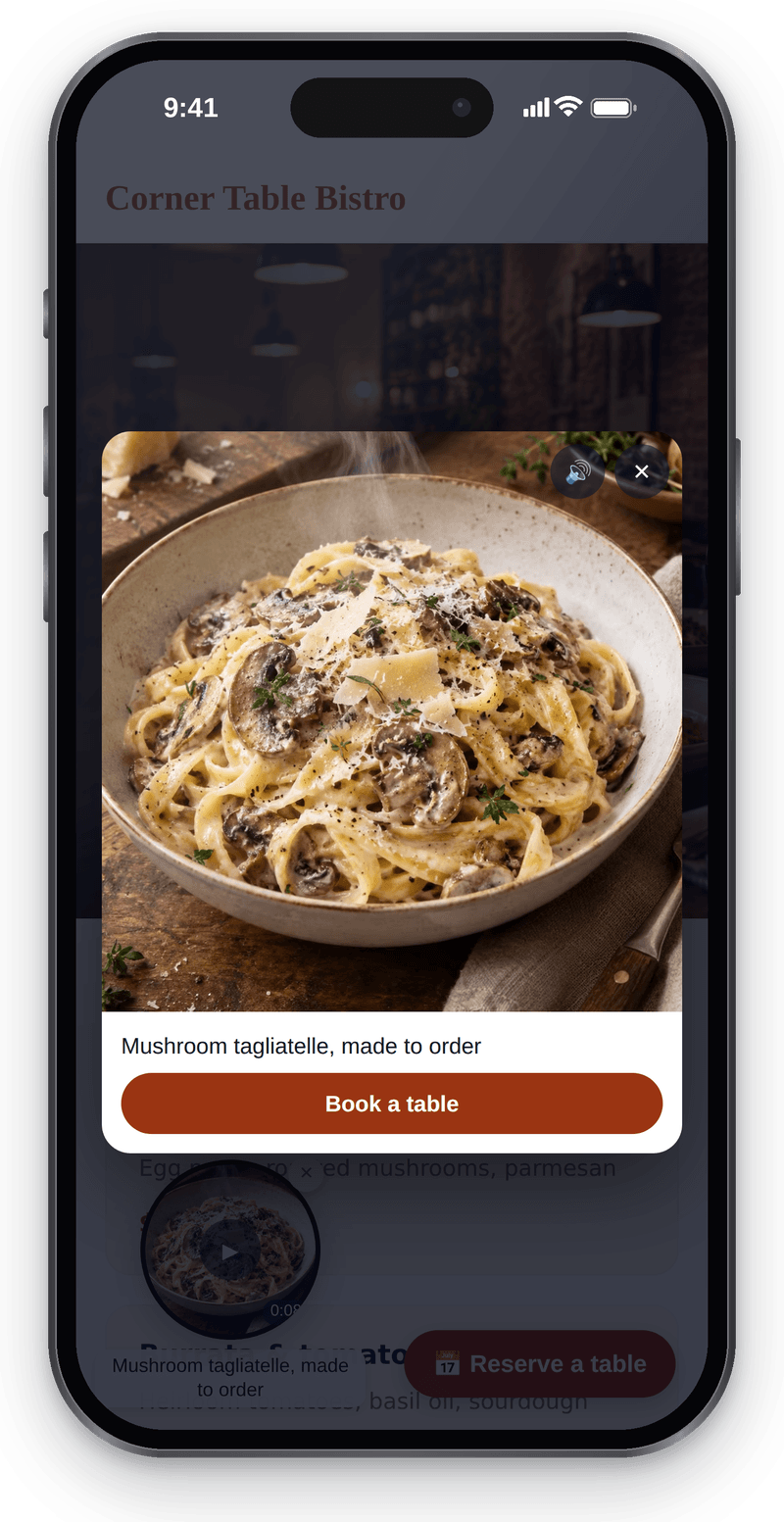
Real screen, demo data, 3 October 2026. The button under the clip opens table booking

Settings
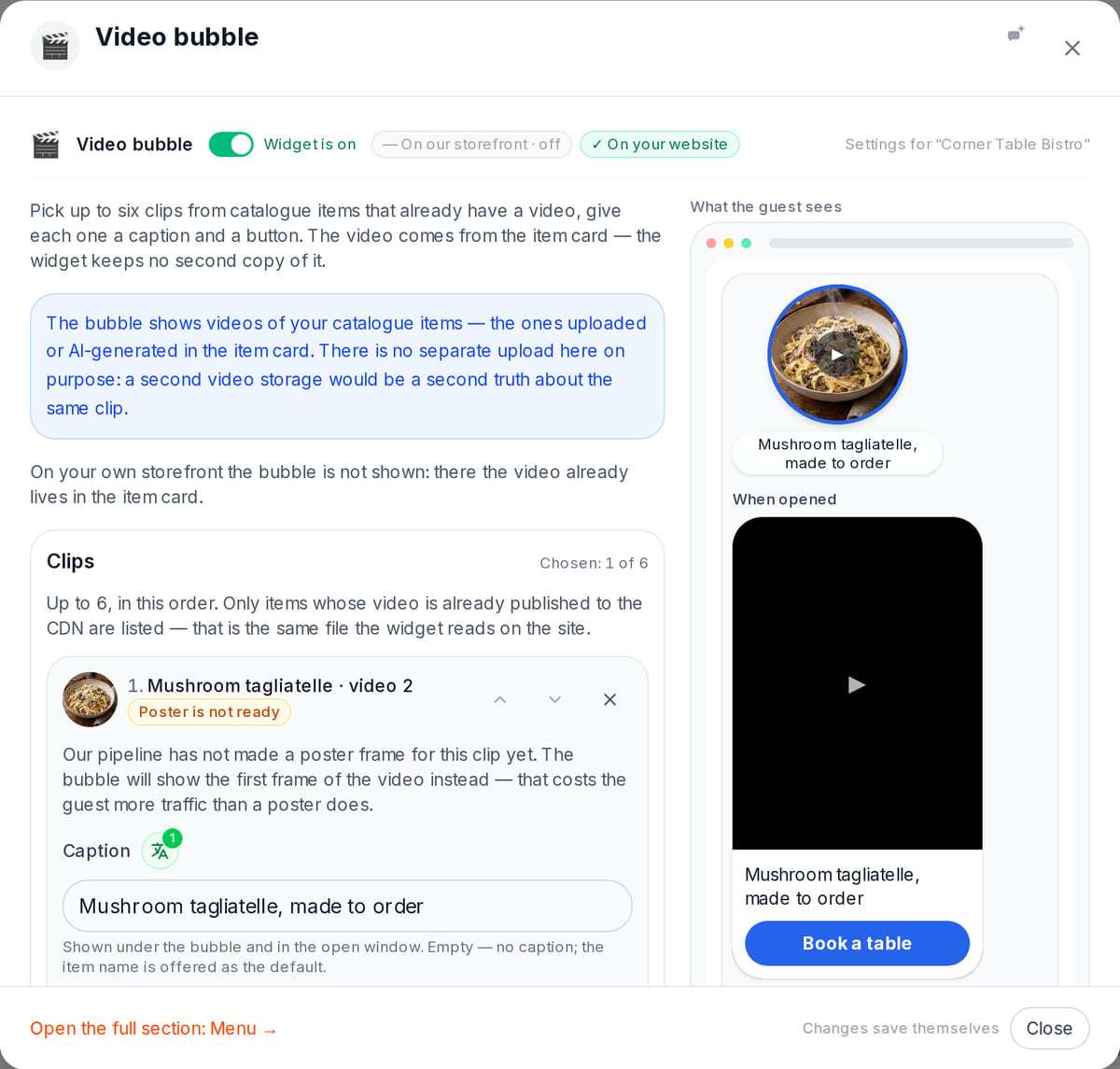
Real screen, demo data, 3 October 2026. The clip comes from the menu item card — no second copy

How it works in practice
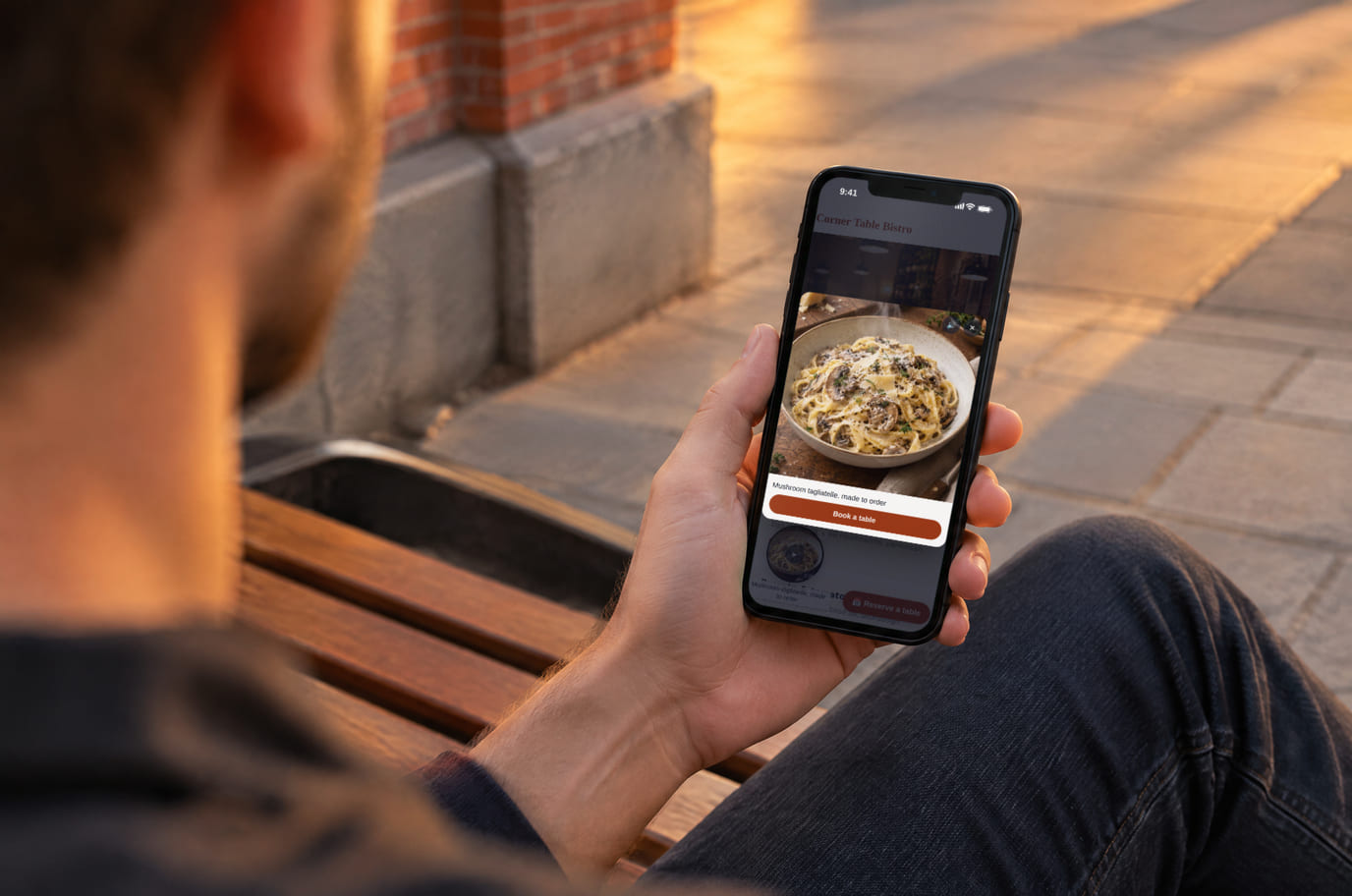
Illustration; the screen shows the real interface, demo data, 3 October 2026. A short clip shows what is on the plate

How it looks on your site
Example interface. Customise colours, position and labels, then check your page on desktop and mobile.
On desktop
On mobile
On your side: The bubble appears only when it holds at least one clip the browser can play. Before the preview the guest downloads a poster, not the video.
On desktop
On mobile
On your side: “Order” opens this dish in the ordering widget, and the order lands in Orders like any order from your site. Bubble statistics show impressions, opens, views with sound and taps by button type.
Where it goes
Exact menu names and plan requirements, taken from each platform’s own help center.
Sites built with our website builder ship with the widgets already wired — nothing to paste.
Step-by-step guides per platform — in the help center →Pricing
Free
- No separate fee for the widget, impressions or clip views
- Clips are the files of your menu items: the widget neither copies nor stores them separately
- The button under a clip works when the target widget is on the site: ordering, booking, appointments, chat
What is included and what costs extra
Basic versions of 9 of the 13 widgets are free. Table booking, popups, help and legal pages on external sites are extensions. Connected services can cost extra.
With and without
| Without the widget | With the widget | |
|---|---|---|
| Where the clip comes from | ✕ You place the video on the page yourself or in a third-party service | ✓ The video of a menu or catalogue item already uploaded to Cenaly.com |
| After watching | ✕ You build the path from video to order yourself: a link, a button, a jump to the menu | ✓ The button under the clip opens this dish in the ordering widget — or booking, appointments, chat |
| Page speed | ✕ Depends on how the player is embedded | ✓ No request for the clip file until the preview is decided |
| Where the files live | ✕ Wherever you uploaded them | ✓ In your item cards; there is no second storage |
| Cost | ✕ Depends on the service you pick or a developer’s work | ✓ The widget is free |
Honest about the limits
- One format — a bubble in a bottom corner. No stories, carousel or player embedded in the page.
- A clip can only be the video of a menu or catalogue item. You cannot upload a “plain clip” separately from a card.
- YouTube and TikTok links are not supported: a third-party player sets its own cookies and is heavier than the speed contract allows.
- A clip in a format browsers cannot play (for example .mov or .avi) is shown only if quality versions are ready for it; otherwise it does not make it into the bubble.
- The bubble is not shown on the Cenaly.com storefront: the dish video is already in the item card there.
- The action button appears only if the widget it leads to is enabled on the site; otherwise the guest sees the clip without a button.
- The bubble’s built-in labels come in four languages (en, ru, ka, tr); other languages get English. You set clip and button captions per language yourself.
Who it's for
- Restaurants and cafés with dish videos in the menu
- Shops with product videos in the catalogue
- Anyone already taking orders, bookings or appointments through Cenaly.com widgets
What a website video widget is and why it needs an order button
A video widget is a small bubble with a clip in the corner of the page. It is more noticeable than a static button and shows what a photo struggles to convey: the serving, steam over the plate, the chef’s hands. On tap the clip opens large and with sound.
Such widgets are usually sold as a separate subscription, and their clips are uploaded to the service’s own storage — a second copy of the same video. “Shop from the video” there means a link to a product in another store.
The Cenaly.com video bubble works differently: the clip is the video of an item in your menu or catalogue, and the button under it opens exactly that item in the ordering widget on your own site. There is no second storage, and the order arrives where all orders from your site arrive.
The bubble is not for you yet if your items have no videos: without a clip it simply does not appear. And it is not a feed or a video gallery — up to six clips per bubble.
Questions and answers
How heavy is the widget, and will it slow my site down?
About 20 KB gzipped, loaded with async. Clip files are not part of that weight and are not downloaded until the widget decides to show a preview: before that the page has no video element pointing to the clip.
When does the bubble play the clip on its own?
Only muted, and only if the silent preview is not switched off in settings, the page has finished loading, the bubble is visible on screen and the guest has neither reduced motion nor data saving turned on. Otherwise the clip’s poster is shown, or the first frame if there is no poster. Sound comes on only from the guest’s tap.
Where do the clips come from?
From menu or catalogue item cards: a video uploaded to the card, or a clip generated by AI from a dish photo. In the bubble settings you pick up to six such clips, their order, captions and the button under each.
What happens to the clips if I switch the bubble off or leave?
Nothing: the clips are files of your menu items, and the bubble stores only links to them. Switch the widget off and the videos stay in the dish cards. The bubble has no storage of its own, so there is nothing to move out of it.
What does the button under the clip do?
By default it is “Order”: it opens exactly this dish in the ordering widget. You can choose table booking, an appointment, chat, a callback, the multi-button, help, a document, support or an external link — it opens in a new tab. If the needed widget is not on the site, there is no button.
Can I show a YouTube or TikTok video?
No. A third-party player sets its own cookies and weighs more than the bubble’s speed contract allows. Upload the clip to the item card — then it works both in the menu and in the bubble.
A guest closed the bubble — when will they see it again?
After 7 days by default. The period can be set from 0 to 90 days; 0 means the bubble returns on the next visit.
What data does the widget send?
Only anonymous statistics: a bubble impression, an open, a view with sound longer than 3 seconds and a button tap by action type. No names, contacts or clip identifiers.
What do I need to install it?
An account, your website domain and permission to insert code. Prepare the selected widget’s data and test your published page. Follow the separate cookie banner instructions for early tracker blocking.
Will it work on my page?
Style isolation reduces conflicts but does not replace testing. Check buttons, forms, mobile layout and other scripts on your site.
What about languages and data?
Set your own texts separately; built-in labels fall back to English where translations are missing. Core data is stored in the brand’s cloud. Connected AI, telephony and other services have separate processing terms.
More — installation per platform, settings and troubleshooting — in the help center. Installation guide →
Works together with
All 13 widgets →Put a dish in motion in the corner of your website
After signing up, open My Website → Video bubble, pick clips from your menu and the button under each. Check the bubble on the published page and on a phone.
Choose clipsThe widget is free · you need at least one video in an item card