Dinstar MTG200/1000/2000/3000 (E1/T1) — setup for our PBX
Sometimes a venue's landline numbers arrive neither over SIP nor on an ordinary phone socket, but as a digital E1 trunk (T1 in North America) with ISDN PRI signalling: the phone company runs a cable into the building that carries up to 30 simultaneous calls. You see this in hotels, chains and venues with an old on-site PBX. To take those calls in our PBX — on operators, with recording and ring groups — you put an E1/T1 ISDN gateway between the trunk and the network.
Dinstar MTG (Media Trunk Gateway) digital gateways convert an E1/T1 trunk to SIP. A venue only needs the small models: the desktop MTG200 or the rack-mount MTG1000 (1–2 trunks). The MTG2000/2000B, MTG3000 and MTG5000 are chassis for dozens of trunks, built for carriers and call centers, but their web interface and setup order are the same. Besides ISDN PRI the gateways speak SS7 and R2 MFC signalling — carrier scenarios you will hardly meet in a venue.
If the phone company can give you a SIP trunk instead of an E1, take it: no hardware is needed, and outbound calls work over a SIP trunk (“Connecting a provider's number”). Common credentials, network rules and gateway limitations are on the overview page “GSM gateways, landlines and ISDN in your PBX”. This page is the step-by-step guide for Dinstar MTG, with screenshots from the vendor's manual.
What you need#
- Extension credentials from the admin panel: SIP server, extension number, login, password, port
5060, transportUDP. Where to get them — “Extension credentials for the gateway” (Telephony → Staff & groups → “Reset password”). An MTG can hold many SIP accounts, but for our PBX one extension for the whole gateway is enough. Create a separate operator for the gateway with a clear name (“E1 trunk, landline numbers”). - The number the gateway will dial inside the PBX — a ring group number (Telephony → “Ring groups”, numbers from 700) or an operator's extension. If the trunk carries several landline numbers, you can route them to different groups (step 4).
- An E1 trunk from the phone company, plugged into the gateway's
E1/T1port, and the trunk parameters from the carrier: frame format and which PRI side the carrier takes (see “The E1 trunk from your phone company”). - An E1 cable with an RJ-48C plug — not an ordinary Ethernet patch cord; the pinout is different. If the carrier hands over the trunk on BNC coax connectors, you need an adapter (balun).
- Internet on the venue network for the gateway's service port, and a computer with a browser.
- In case the gateway's address was changed and is unknown — an RS-232 console cable with an RJ-45 plug.
Step 1. Find the gateway's IP address#
The MTG has two network ports with different factory addresses, both static (DHCP is not mentioned in the documentation):
| Port | Purpose | Factory address |
|---|---|---|
| Management port | settings access only | 192.168.11.1 / 255.255.255.0 |
| Service port | registration with the PBX and voice (SIP and RTP) | 192.168.1.111 / 255.255.255.0 |
The Quick Installation Guide labels the management port GE0 and the service port GE1. The rear-panel tables of the MTG200 and MTG1000 manuals and the FAQ for the small models (which calls the ports FE0/FE1) swap the labels, while the addresses by purpose are the same everywhere. So go by the address: management — 192.168.11.1, service — 192.168.1.111.
- Connect the computer to either port with a cable.
- Give the computer an address in the same subnet: for the management port, e.g.
192.168.11.2/255.255.255.0; for the service port,192.168.1.2/255.255.255.0. - Check
ping 192.168.11.1(or192.168.1.111).
If the address was changed and is unknown. Connect the computer to the CONSOLE port with an RS-232 cable (speed 115200), log in with the same login and password as the web interface, and type show int in ROS# mode — the gateway shows the port addresses. The MTG has no network discovery utility and no voice menu.
Step 2. Log in to the web interface#
Open http://192.168.11.1 in the browser (or the address of the port your computer is plugged into). Both HTTP and HTTPS work.
Factory login and password: admin / admin@123# — per the manuals from revision 2023-05-04 and the 2024 Quick Installation Guide. On gateways with old firmware the password is admin / admin (Dinstar FAQ). If one does not work, try the other. The same password is used for Telnet and SSH.
Change the password right away: Management → Password Modification. In Management → Management Parameter you can allow HTTPS only (HTTPS Only) and, under Access Control, choose which port accepts web, Telnet and SSH logins. A 30-line trunk gateway with the factory password exposed to the internet is a direct route to fraudulent calls at your expense.
Give the service port an address on the venue network. Network Parameter Config → Network Config: for the service port (192.168.1.111) set a free address on the venue network with internet access, the mask, the default gateway (the router's address) and DNS. Save and restart the gateway: Management → Device Restart (the vendor requires a restart for network settings to take effect). Leave the management port on 192.168.11.1 — it is handy for logging in from a laptop.
Step 3. Enter the PBX credentials#
MTG registration with an external server has two levels: SIP Trunk — where to register (our PBX address), and SIP Account — under which account (the extension's login and password). The mode in which the gateway registers with the server itself is what the vendor calls Access (“MTG registers to a softswitch”). Peer mode (an IP connection without registration) does not work for us: our PBX does not know the gateway by IP.
1. Codecs and DTMF. PSTN Group Config → Codec Group: group 0 cannot be changed, so select group 1 and put G711A and then G711U in it; remove G.729, G.723 and iLBC — our PBX does not use them, and the call will fail to agree on audio. Then PSTN Group Config → PSTN Profile → Modify on the profile: Codec Group ID = 1, DTMF Tx Priority 1st = RFC2833 (RFC2833 Payload = 101). This profile must be set on your trunk's group in PSTN Group Management.
2. SIP Trunk. SIP Config → SIP Trunk → Add:
- BI = the service port (
GE1in the screenshot). If the trunk is bound to the management port, calls go through without audio (Dinstar FAQ); - Remote Address = the SIP server from the credentials window;
- Protocol Type =
UDP, Remote Port (UDP) =5060; - Outbound Proxy — empty;
- Register to Remote =
Yes(the manual's screenshot showsNo— that is the Peer-mode example); - Rport =
Enable— the gateway sits behind the venue router; - Enable SIP Trunk =
Yes→ OK.
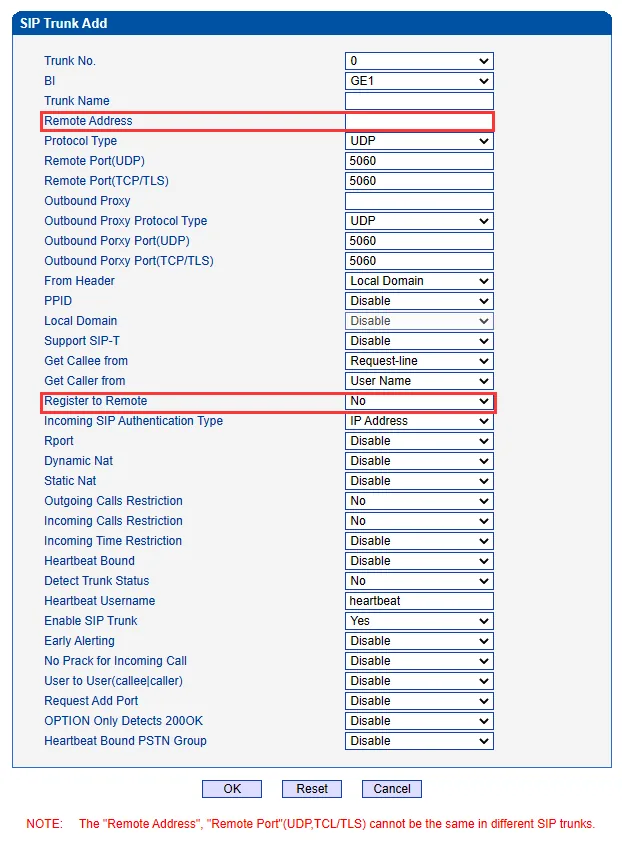
Screenshot: MTG200 Trunk Gateway User Manual V1.2, p. 80.
3. SIP Account. SIP Config → SIP Account → Add:
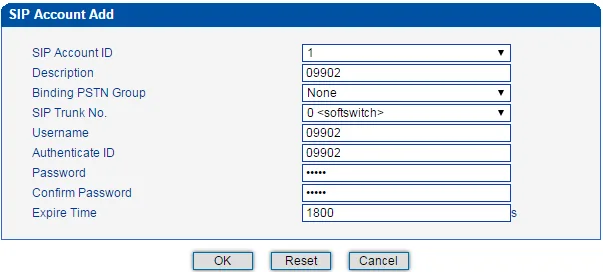
Screenshot: MTG200 Trunk Gateway User Manual V1.2, p. 81.
Fill in the values from the “Extension credentials” window:
| Field in the admin window | Value | Field in the gateway |
|---|---|---|
| SIP server | our PBX address | SIP Trunk → Remote Address |
| Port | 5060 |
SIP Trunk → Remote Port (UDP) |
| Transport | UDP |
SIP Trunk → Protocol Type (not TCP, not Auto) |
| — | on | SIP Trunk → Register to Remote = Yes |
| Login | sip-…-<number> — the whole string, not just the number |
SIP Account → Username |
| Login | the same whole string | SIP Account → Authenticate ID |
| Password | the extension password (shown once) | SIP Account → Password and Confirm Password |
| — | the trunk from item 2 | SIP Account → SIP Trunk No. |
| — | your trunk's group | SIP Account → Binding PSTN Group |
| — | 1800 (default) |
SIP Account → Expire Time — re-registration period, s |
| Extension number | — | not entered anywhere; useful to know which extension the gateway occupies |
Click OK. The manual does not state the maximum length of the Username field: if the gateway does not save the whole login, check with your supplier.
NAT, audio and what not to enable
- NAT. For a gateway behind the venue router, Rport on the trunk is enough; Static Nat and Dynamic Nat are not needed. On the router, turn off SIP ALG.
- Audio ports. The gateway's RTP range (Voice & Fax → RTP Start Port) must not overlap SIP port
5060— the vendor recommends starting at8000or above. - Incoming SIP Authentication Type on the trunk checks calls that come from the PBX into the gateway. It is not needed for incoming calls from the trunk; leave the factory value.
- Do not enable:
TLStransport and SRTP (PSTN Group Config → SRTP Param) — our PBX has neither; leave Outbound Proxy empty. - To limit the number of calls under one account, use the Max Calls field in SIP Account.
Step 4. Send incoming calls to the PBX#
The gateway must itself dial a number inside our PBX for each call from the trunk. That takes two rules: a route “trunk → SIP trunk” and replacing the landline number with a group number. The trunk must be up — the E1/T1 port LED is steady (see “The E1 trunk from your phone company”).
1. Route. Call Routing → PSTN -> IP Routing → Add:
- Source Type =
Group, PSTN Group — your trunk's group (orAny); - Callee Prefix =
.and Caller Prefix =.— the dot means “any number”; - Destination Type = SIP trunk, IP Trunk No. — the trunk from step 3 → OK.
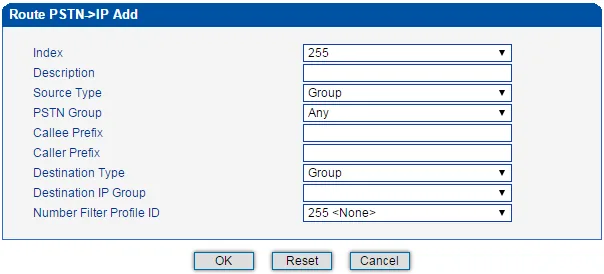
Screenshot: MTG200 Trunk Gateway User Manual V1.2, p. 93.
2. Which number to dial on our side. Over PRI the carrier sends the dialed landline number. Our PBX does not know that number — it needs a ring group number (from 700) or an operator's extension. Two ways:
- All trunk calls to one group. PSTN Group Config → Port Number → the
E1port: Port Binding Number = the group number, e.g.700; Type of Incoming Callee =Replace. The gateway puts this number in place of the dialed one on every call from the port. - Different landline numbers to different groups. Number Manipulation → PSTN -> IP Callee → Add — one rule per number: Callee Prefix — the landline number (or its beginning); Number of Digits to Strip from Left — how many digits the number sent by the carrier has; Prefix to Be Added — the group number. For example, main number →
700, delivery number →701.
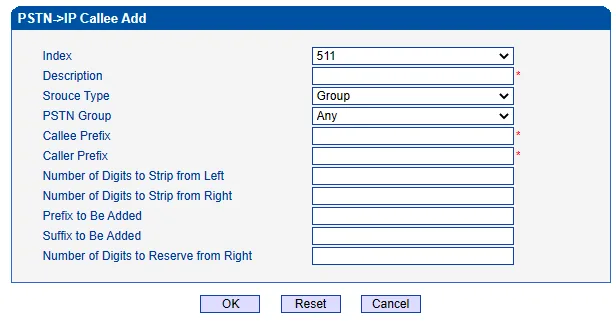
Screenshot: MTG200 Trunk Gateway User Manual V1.2, p. 96.
How many digits the carrier sends is shown in Status & Statistics → Call Info Status (Called Number column) during a test call.
Caller number. The gateway passes the caller's number from the trunk into the SIP call; Number Manipulation → PSTN -> IP Caller rules can shorten it or add a prefix. According to the manual, in Access mode the MTG puts the caller's number in the From field and its own account in the Contact header. Our PBX identifies the extension by its login, so a call may be rejected even with a green registration. If that happens, contact support: on the PBX side, identification by authentication name (Authenticate ID) can be enabled for the gateway's extension. In the operator panel the call currently shows as coming from the gateway's extension.
About outbound calls — honestly. You cannot call out from the PBX through this gateway's trunk yet: to our PBX the gateway is an extension, and the outbound rule can only send calls to a SIP provider line. The gateway itself supports the reverse direction (Call Routing → IP -> PSTN Routing), but the PBX side does not support it yet — see “Outbound calls through a gateway — not yet”. Today the MTG is a way to receive calls on the trunk's landline numbers; for outbound calls use a SIP provider number.
Step 5. Check registration and a call#
- Registration on the gateway. Status & Statistics → SIP Registration Status: your account should show
normalin the Registration Status column. The trunk state is in the same place, IP Trunk Status. - Registration in the admin panel. The gateway's extension on the “Staff & groups” tab should show a green dot.
- A call. Call a landline number of the trunk from a mobile — the group or operator whose number you set in step 4 should ring. No call — check Status & Statistics → Call Info Status: did the call from the trunk reach the gateway, and which number was dialed.
- Audio — the
*43echo test. Registration says nothing about audio: it travels as a separate stream. Temporarily set Port Binding Number (or Prefix to Be Added in the number rule) to*43and call the landline number: the PBX answers, plays a short beep and starts returning your own voice with a small delay. You hear yourself — audio flows both ways. You hear the beep but not yourself — audio does not get from the gateway to the PBX. No beep at all — it does not get from the PBX to the gateway (check the trunk's BI — it must be on the service port). After the test, put the group number back.
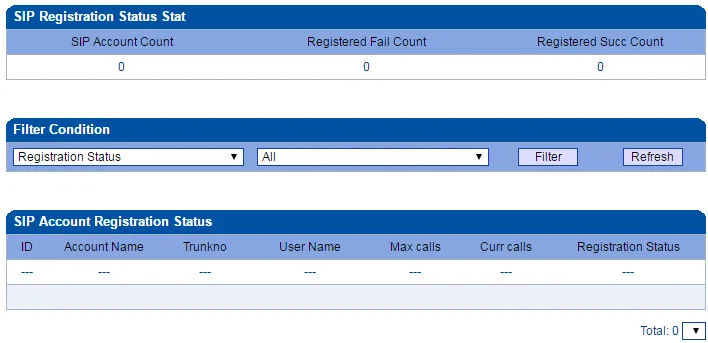
Screenshot: MTG200 Trunk Gateway User Manual V1.2, p. 30.
The E1 trunk from your phone company#
Usually the phone company's installer brings the trunk up. If it was left to you, get the parameters from the carrier and set them before step 4.
- Cable.
RJ-48Cplug, 120 Ohm, working pins 1, 2, 4, 5 (1 — Rx Ring−, 2 — Rx Tip+, 4 — Tx Ring−, 5 — Tx Tip+). A coax trunk (BNC, 75 Ohm) needs an adapter. - PSTN Group Config → E1/T1 Parameter: Work Mode =
E1(T1 only in North America; the mode changes on all ports at once), PCM Mode = A-law for E1 (µ-law for T1), Frame Format — as the carrier uses (defaultCRC-4), Line Code =HDB3for E1 (B8ZSfor T1). - PSTN Group Config → Clock Source — the gateway should take its clock from the carrier's trunk; Select Remote Clock Source Port — the E1 port number. The manual's descriptions of Remote and Local contradict each other, so go by the result: after choosing, Status & Statistics → E1/T1 Status should show no frame errors. A wrong clock causes clicks and dropped calls.
- PRI Config → PRI Trunk → Add: E1/T1 Port No. — your port, Protocol =
ISDN, Switch Side — opposite to the carrier: carrier — Network Side, gateway — User Side (towards an old on-site PBX — the other way round). Channel ID — as the carrier has it. - PSTN Group Config → PSTN Group and PSTN Group Management — a group containing the trunk's port, with the profile from step 3.
How to tell the trunk is up: the E1/T1 LED is steady; off — the trunk is not connected or the cable is faulty; flashing — line errors or the frame format does not match (change Frame Format; if that does not help, call the carrier). The state is also shown in Status & Statistics → E1/T1 Status / PSTN Trunk Status.
Factory reset#
A reset is needed if the web password is forgotten, the gateway came from a previous owner with their settings, or the configuration is hopelessly tangled. The MTG has no dedicated full-reset button.
With the button. A short press of RST is a restart, not a reset. If you hold RST with the gateway on until the RUN LED changes its behaviour and then restart the gateway, only the management port returns to factory settings (address 192.168.11.1); the service port, accounts and routes stay. The vendor describes this as restoring the login information. The MTG1000 does not support this.
From the web interface (full reset). Management → Data Restore → in the Database row upload the file with the factory configuration (“blank database file”) → Restore → restart the gateway. The vendor does not publish the file itself — request it from Dinstar support (support@dinstar.com). Before any experiments, save the current configuration: Management → Data Download.
What a full reset erases: all gateway settings — the SIP trunk and accounts, routes and number rules, trunk parameters, network addresses and the password.
What to do after the reset: the gateway answers again on 192.168.11.1 (management) and 192.168.1.111 (service), login admin / admin@123# (on old firmware admin / admin). Repeat steps 2–5 and the trunk section. You will have to issue the extension password again: the admin panel shows it only once, so go to Telephony → Staff & groups → “Reset password”.
Forgot the password and the button did not help (or you have an MTG1000) — connect an RS-232 console cable to the CONSOLE port and contact Dinstar support, as the Quick Installation Guide advises. General rules are in the overview's “Factory reset” section.
If the gateway does not register#
- The login is incomplete. Username and Authenticate ID must hold the whole
sip-…-<number>string, not the extension number. - The trunk is in Peer mode. SIP Trunk must have Register to Remote =
Yes, and the account must be bound to that trunk (SIP Trunk No. in SIP Account). - The trunk is on the management port. BI = the service port. The management port usually has no internet access, and if it does, calls go without audio.
- The service port has no internet access — default gateway and DNS are not set, or the gateway was not restarted after the address change (Management → Device Restart).
- Wrong transport or port. Protocol Type =
UDP, Remote Port (UDP) =5060; our PBX has noTLS. - SIP ALG on the router — turn it off and restart the gateway.
Registered but no call arrives: the trunk is not up, there is no PSTN -> IP Routing route, the number was not replaced with the group number (step 4), or the PBX did not recognise the gateway by the From field — see “Caller number” in step 4. General causes are in the overview's “If the gateway does not register” section; network and NAT — “Venue network”.
Models in the family#
| Model | Trunks and channels | Network and chassis | Setup differences |
|---|---|---|---|
| MTG200 | 1 or 2 × E1/T1, up to 60 channels | 2 × GE, RJ-45 console; desktop, external 12 V power supply | the manual's main example; the best fit for a venue |
| MTG1000 (MTG1000B) | 1–2 × E1/T1, up to 60 channels | 2 × GE, console; 1U, two power supplies | does not support resetting the management port with RST |
| MTG2000 | 4–20 × E1/T1 (DTU boards of 4 E1), up to 600 channels | 2 × GE; 1U, removable boards | RST on the MCU board — restart |
| MTG2000B | 4–16 × E1/T1, up to 480 channels | 2 × GE; 1U, redundant MCU and power | as MTG2000 |
| MTG3000 | 16–63 × E1/T1 and STM-1 optics | 2 × GE; 2U, MCU 1+1, hot swap | has SDH Config → SDH Param for the optics |
| MTG5000 | 4–64 × E1/T1 | 2 × GE; 3.5U, redundant power and MCU | up to 2000 SIP accounts |
Not for this task: the MTG3000T is a transcoder between SIP networks with no E1 ports — you cannot plug a trunk into it. The MTG600 is an old model no longer in the line-up; it is mentioned in the Dinstar FAQ, and the setup is the same in substance.
SS7 and R2 MFC
Besides ISDN PRI, MTG gateways handle SS7 (ISUP/TUP) and R2 MFC signalling — the SS7 Config and R2 Config menus. SS7 needs parameters from the carrier (protocol type, OPC, DPC, CIC channel numbers) — a carrier-grade connection. Whether national R2 variants are supported is not stated in the documentation — check with your supplier. The SIP side (steps 3–5) does not depend on the trunk's signalling.
FAQ#
Which model should a venue buy?#
MTG200 — if you need a compact desktop gateway for 1–2 trunks. MTG1000 — if the gateway goes into a rack and you want two power supplies. The larger models are built for dozens of trunks and carrier signalling; they are overkill for a venue.
How many extensions does a gateway need for one E1 trunk?#
One is enough: a single SIP Account registers the whole trunk, and all its calls go through one extension. If the trunk carries several landline numbers, you tell them apart in the PBX not by accounts but by number rules (step 4): each number to its own ring group.
Can I call out through the trunk from the PBX?#
Not yet. Through this gateway our PBX can only receive calls; outbound calls go through a SIP provider number. More — “Outbound calls through a gateway — not yet”.
Which password does the gateway have — admin@123# or admin?#
Since 2023 the manuals and the Quick Installation Guide give admin / admin@123#; the Dinstar FAQ gives admin / admin — the password of old firmware. If one does not work, try the other.
Registration is green, but calls have no audio#
Check the BI field in SIP Trunk: the trunk must be bound to the service port. Bound to the management port, calls go through without audio — the vendor's FAQ describes exactly this. Then check that the gateway's RTP range starts at 8000 or above and that SIP ALG is off on the router.
The E1 LED is flashing — is it the PBX settings?#
No, it is the physical trunk: line errors, a wrong cable or a mismatched frame format. Check the cable (pins 1, 2, 4, 5), Frame Format in E1/T1 Parameter and the clock (Clock Source); if that does not help, call the phone company.
Sources#
Manufacturer documentation (Shenzhen Dinstar Co., Ltd.), accessed 2026-09-10.
- MTG200 Trunk Gateway User Manual V1.2 (software 02 06 21.05 p4, revision 2023-05-04) — factory password, ports, SIP Trunk and SIP Account, codecs and DTMF, routes and number rules, Port Number, Data Restore. Source of all screenshots on this page.
- MTG Series Digital VoIP Gateway Quick Installation Guide (2024-06) — models and trunk counts, management and service port addresses,
admin@123#, PRI Switch Side, E1 LEDs, forgotten address and password. - MTG1000 Trunk Gateway User Manual (2023-05-04), MTG2000 Trunk Gateway User Manual V1.2, MTG2000B, MTG3000 (2024-06-14), MTG5000-64E1 — panels, the RST button, differences of the larger models.
- DINSTAR Support Center — FAQ — port addresses,
admin/admin, Data Restore, the RST button and the management port, the E1 cable, “IP trunk bind at Service port”, RTP from 8000. - Product pages MTG200, MTG1000, MTG2000, MTG2000B, MTG3000, MTG5000, MTG3000T — the line-up.