Skyline GSM/LTE gateways — setup for our PBX
Skyline SK are multi-channel GSM/3G/LTE gateways from China Skyline Telecom (Shenzhen): 4, 8, 16, 32 or 64 channels and, on the bigger models, several SIMs per channel (one is live, the others wait their turn). The manufacturer's manual calls the device “SK GoIP”, but it is not the GoIP from Hybertone/DBL — that one has a different menu, address and password, and its guide (GoIP) does not apply to Skyline. The model index reads like this: SK8-32 = 8 channels and 32 SIM slots; SK-WCDMA-… is 3G, SK-4G-… is LTE, no prefix means 2G (GSM) only. The gateway suits a business that needs to bring several mobile numbers at once into one PBX.
To our PBX the gateway is just another extension: the whole Skyline registers on the PBX server with one account, and it has to dial an incoming SIM call through to a ring group or an operator itself. What is the same for all gateways (credentials, where to send incoming calls, network, limitations) is in the overview “GSM gateways and landlines”. This page is the step-by-step guide for Skyline, with screenshots from the manufacturer's manual.
What you need#
- Extension credentials from the admin panel: Telephony → Staff & groups → create an operator for the gateway (for example, “Skyline GSM gateway”) → “Reset password” → the “Extension credentials” window: SIP server, Extension number, Login, Password, Port
5060, TransportUDP. The password is shown once — copy it into the gateway right away. Details — “Extension credentials for the gateway”. - How many extensions: the Skyline manual describes one account for the whole gateway — you need one extension. A separate account per channel is not documented.
- The number the gateway will send incoming calls to: a ring group number (Telephony → “Ring groups”, numbers from 700) or an operator's extension number.
- SIM cards with a voice plan and caller ID enabled. The format is a standard mini-SIM; on models with several slots per channel the cards go in differently: slots
AandC— contacts up,BandD— contacts down. Better remove the PIN in a phone beforehand; if you keep it, enter it in Gateway Settings → Mobile Setting (fieldsA–Dper slot). - A gateway for your country's network. Models without a prefix work only where 2G is still alive. Where 2G is switched off you need an
SK-4G-…with an LTE module for your region — the module is chosen when ordering (the manufacturer lists EC25-EUX for Europe, EC25-AUX for Latin America and Australia, EC25-AFX or EG91-NAX for North America, EC25-J for Japan). The manual has no VoLTE settings — ask the seller whether voice over VoLTE works with your operator. - Antennas — one per channel (SMA connector); screw them on before powering up.
- A network cable, a computer with a browser and a mobile phone — to call the gateway's SIM and check the call.
Step 1. Find the gateway's IP address#
Out of the box the Skyline WAN port has a static address 192.168.1.10 (DHCP is off by default).
- Screw on the antennas, insert the SIM cards, connect WAN to the venue's router and power the gateway on.
- The venue network is 192.168.1.x (router
192.168.1.1): a computer on the same network simply openshttp://192.168.1.10. Make sure no other device uses that address — the manufacturer itself warns about address conflicts. - A different subnet (for example, router
192.168.0.1) — the manufacturer suggests adding a second address from 192.168.1.x to the computer (in the TCP/IPv4 properties of the Windows network adapter), openinghttp://192.168.1.10and changing the gateway's address to fit the venue network.
The permanent address is set in Gateway Settings → Network Setting → the wan settings block: WAN Type = Static IP (fields WAN IP, IP Mask, Default Gateway, DNS Gateway — an address from the router's network that nobody else uses), Dynamic IP (DHCP) or PPPoE. The new address takes effect after a reboot (System Settings → Save & Reboot → Reboot). If you turn on DHCP, look for the address in the router's DHCP lease list: the manufacturer's documentation has no discovery utility and no voice menu that reads out the IP. The case has a USB console (115200, 8N1), but the manual gives no console commands.
Step 2. Log in to the web interface#
| What | Value |
|---|---|
| Address | http://192.168.1.10 (or the address from step 1) |
| Login | root |
| Password | root |
If the SIP fields are still empty, the Initial Setting wizard opens after login — it has the same address and SIP account as steps 1 and 3; fill it in or go straight to the menu.
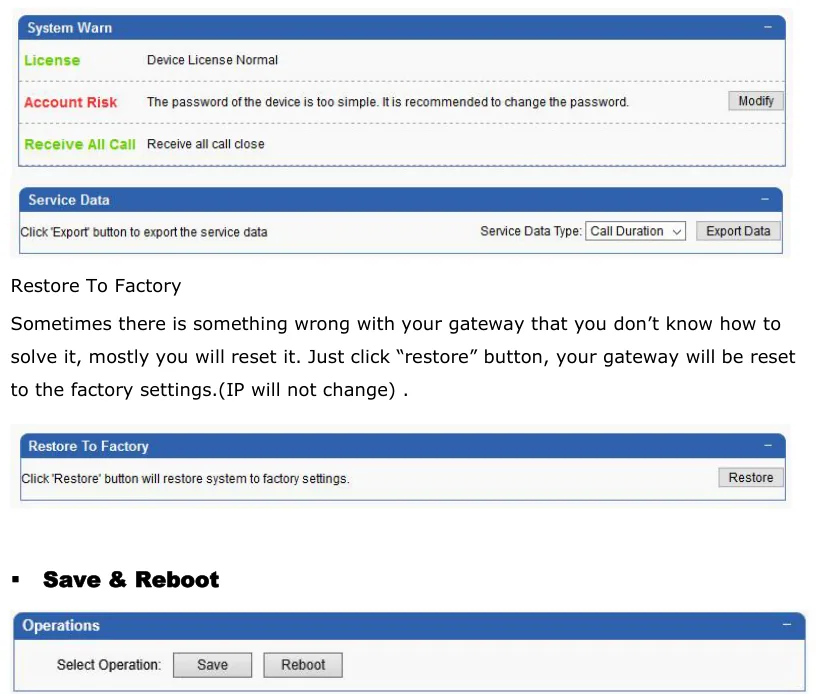
There is no forced password change on first login — change it yourself right away: System Settings → User & Device (the same page has new users with roles and the “allowed IP” / “not allowed IP” lists for web and telnet access: allow access only from your own network). The System Settings → System Warn page reminds you about the factory password with the Account Risk line (“The password of the device is too simple”). With root/root anyone on your network can see the extension password and the SIM balance.
Remote access and the manufacturer's cloud
- The gateway needs neither port forwarding nor a public address for our PBX — it registers on the server by itself. Do not expose the gateway's web interface or telnet to the internet; if you need outside access, use a VPN (the gateway can act as a PPTP VPN client, Gateway Settings → Network Setting).
- The manufacturer configures customers' gateways remotely via TeamViewer or AnyDesk and offers its own management cloud (System Settings → User & Device → Network Management System,
ERM/ETMS). It is not needed to work with our PBX.
Step 3. Enter the PBX credentials#
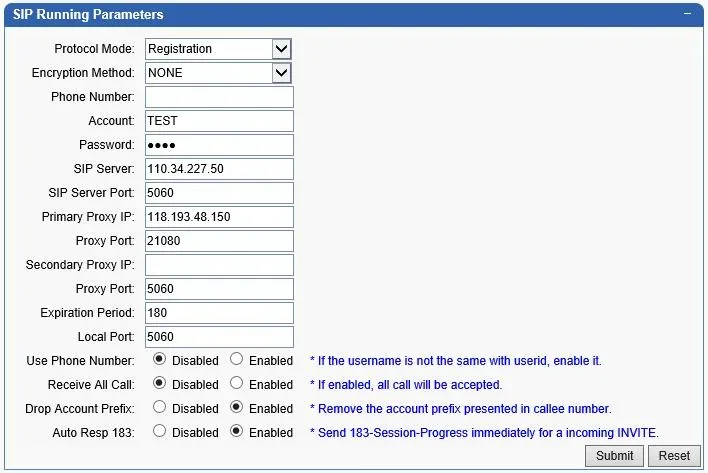
The PBX account is set up in Gateway Settings → SIP Setting → the SIP Running Parameters block (a short version of the same fields is in the Initial Setting wizard). The mode is Protocol Mode = Registration: point-to-point mode does not suit our PBX, which does not know the gateway's address.
| In the admin panel (“Extension credentials”) | Gateway field (SIP Setting → SIP Running Parameters) |
|---|---|
| — | Protocol Mode — Registration |
| — | Encryption Method — NONE (our PBX does not understand the proprietary Security and VOS2000) |
| SIP server | SIP Server (accepts both an IP address and a domain name) |
Port 5060 |
SIP Server Port — 5060 |
Login sip-…-<number> |
Account — the whole string |
| — | Phone Number — the same whole login (the manual: “same with SIP id or keep it empty”) |
| Password | Password |
Transport UDP |
there is no separate field on this page; the manual does not show a TCP or TLS choice |
| Extension number | not entered — just remember which extension the gateway uses |
| — | Primary Proxy IP, Secondary Proxy IP — empty (this is Skyline's proxy server, not our PBX) |
| — | Expiration Period — 180 (as in the manual's screen), Local Port — 5060 |
| — | Use Phone Number and Receive All Call — Disabled |
 Screenshot: SKYLINE SK Gateway User Manual (SK GoIP User Manual V7.0), PDF 07.06.2022, p. 26.
In the manual's screen, Primary Proxy IP and Proxy Port contain the manufacturer's sample proxy — do not copy it, these fields must stay empty. Click Submit, then System Settings → Save & Reboot → Save and Reboot. A reboot drops ongoing calls — configure the gateway outside peak hours.
Do not put the SIM number into Phone Number. It is the “caller” number of the gateway in its SIP calls, while our PBX recognises its extension by the login: enter the same login there or leave it empty. Keep Receive All Call off: according to the manufacturer, when enabled it accepts any call — third-party servers could call through the gateway at the expense of your SIM balance.
Codecs, DTMF, NAT
- Codecs — System Settings → Codec Setting: use the
Up/Downbuttons to move PCMA (G.711 A-law) and PCMU (G.711 µ-law) to the top. Our PBX does not use G.729, G.723 or G.726; G.722 is in the list, but GSM voice is narrowband and the gateway gains nothing from it. - DTMF — SIP Setting → Advanced Settings →
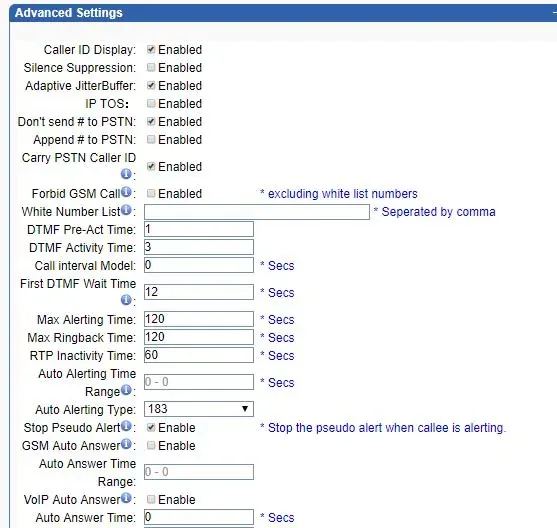
DTMF Mode=RFC2833,RFC2833 Payload Type=101(as in the manual's screen). The manufacturer advises leaving the other “advanced” fields alone. - NAT — behind the venue's router the gateway works without port forwarding: it registers and renews the registration by itself (
Expiration Period). LeaveSTUN Support(SIP Setting → STUN)Disabled.
Step 4. Send incoming calls to the PBX#
Now the gateway needs to be told what to do with a call to the SIM: dial a ring group number (from 700) or an operator's extension number on the PBX. In the model cards the manufacturer calls this feature “Hot-line call”, but its manuals (V7.0 and V1.6) do not show where the Hot-line number is set — neither on the SIP Setting page nor in Advanced Settings.
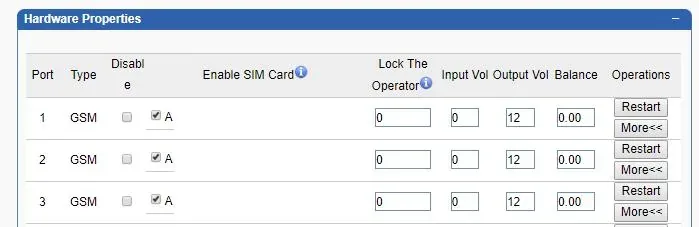
- Open Gateway Settings → Port Setting → the Hardware Properties table. Each channel has a
More<<button on the right — it expands additional channel settings that the manual does not describe. If there is a Hot-line number field there, enter the ring group or operator number for every channel with a SIM and click Submit → Save & Reboot. - If your firmware has no such field, ask the supplier or Skyline support how to enable Hot-line on your model. Without it the gateway answers the call and waits for the caller to dial a number in tone mode (two-stage dialling, see below).
- Do not tick
Disablein the table;Enable SIM Cardstays ticked for slots with a SIM.
 Screenshot: SKYLINE SK Gateway User Manual (SK GoIP User Manual V7.0), PDF 07.06.2022, p. 28.
Why no Hot-line is bad. Then the gateway answers the call itself and waits for a number dialled in tone mode (First DTMF Wait Time — 12 seconds in the manual's screen), and if nothing is dialled it hangs up. A guest does not know what to dial and is already paying for the connection. Callback Setting (the gateway drops the call and calls back) is a scheme for “insiders” — keep it off for guests. Routing rules for provider numbers (schedule, voice menu) do not apply to calls from a gateway — a ring group with its own time-based variants covers the same need (see “Where to send incoming calls”).
Caller number. Passing the mobile caller's number into the SIP call is enabled by SIP Setting → Advanced Settings → Carry PSTN Caller ID (enabled in the manual's screen), but the manufacturer does not say which field of the call the gateway puts it in. Start with the option off; if you turn it on and calls stop reaching the group while registration is green, turn it back off. In any case the operator panel does not show the caller's number yet: the call appears to come from the gateway's extension. Do not enable Forbid GSM Call (reject all calls to the SIM except a white list) in a venue.
 Screenshot: SKYLINE SK Gateway User Manual (SK GoIP User Manual V7.0), PDF 07.06.2022, p. 27.
Outgoing calls. Calling out from the PBX through this gateway's SIM cards is not possible yet: the PBX outgoing rule only routes to a SIP provider line. The Skyline itself can do it (prefixes in Rules Setting, Drop Account Prefix, Callerid Hidden), but leave these settings alone for our PBX. For outgoing calls from your own number use a SIP provider — see “Outgoing calls through a gateway — not yet”.
Step 5. Check registration and a call#
- SIM on the network. Status Information → Port Status and Call status: for a slot with a SIM the
SIM Ledindicator showsRegistered,Provider idshows the operator code (MCC+MNC), and there is a signal level.Register fail,Invalid SIM— the SIM did not register;Locked— the gateway itself locked the SIM with its own limits (to clear — Port Status →Batch Reset Locked Sim). - PBX registration on the gateway side. Status Information → Device status — the
Registration Statuscolumn (“the status of connecting to SIP server”) for each port. - Registration in the admin panel. Telephony → “Staff & groups” tab — the gateway's extension shows a green dot.
- A call. Call the SIM number from a mobile — the operators of the group (or the operator) entered in Hot-line should ring.
- Audio — the
*43echo test. Registration says nothing about audio. Temporarily enter*43in the channel's Hot-line, click Submit and Save & Reboot, then call the SIM from a mobile: the PBX plays a short beep and then returns your voice with a delay — talk for about ten seconds. If your firmware has no Hot-line, try dialling*43in tone mode when the gateway answers and waits for a number. You hear the beep and yourself — audio works both ways; beep but no echo — audio does not reach the PBX from the gateway; not even a beep — audio does not reach the gateway from the PBX. The test result is shown in the call log. After the check, put the ring group or operator number back (and Save & Reboot again).
If the audio is one-way, open Status Information → Media Statistics during the call: according to the manufacturer, Rx Rate = 0 means the mobile party cannot hear the voice. Everything about checking is in the overview, section “How to check”.
Factory reset#
A reset is needed if the web password is forgotten, the gateway came with someone else's settings (for example, after working as a traffic “terminator”) or behaves unpredictably. Before resetting a working gateway, save its settings: System Settings → Update & Restore → Export Configuration.
With the RESET button. With the gateway powered on, hold the RESET button on the case for more than 5 seconds — the gateway returns to factory settings.
From the web interface. System Settings → Update & Restore → the Restore To Factory block → the Restore button.
 Screenshot: SKYLINE SK Gateway User Manual (SK GoIP User Manual V7.0), PDF 07.06.2022, p. 72.
What is erased: all settings — the PBX account, channel settings, SIM PIN codes, users; the login is root / root again. What is NOT erased: the WAN address. The manufacturer says it plainly: after Restore “IP will not change”, and the gateway opens at its old address. Whether the RESET button brings back the factory 192.168.1.10 is not stated in the documentation — ask the supplier. So write down the gateway's address before resetting; if it is forgotten and WAN was static, find the gateway with a network scanner or in the router's ARP table.
What to do next: log in at the old (or found) address with root / root, repeat steps 2–5 and change the password again. Resetting the gateway does not change the extension login and password in the admin panel; if you did not keep the extension password, issue a new one with “Reset password”. General notes on resetting gateways — in the overview.
If the gateway does not register#
- The settings were not applied. You clicked Submit but did not do Save & Reboot — Skyline network settings take effect only after a reboot.
- The sample proxy was copied or encryption is on.
Encryption Method— onlyNONE, thePrimary Proxy IPandSecondary Proxy IPfields — empty. With Skyline's proxy and encryption, registration or audio will be lost. - Wrong mode.
Protocol Modemust beRegistration. - The login is incomplete. Account must hold the whole
sip-…-<number>string, not just the number. - The SIM is not on the network. Port Status does not show
Registered: the antenna is not screwed on, the SIM is inserted the wrong way (in slotsB/D— contacts down), the PIN is not removed or entered, a 2G model where 2G is switched off, or anSK-4Gwith a module for another region — the SIM is visible but there are no calls. TheLockedstatus means the gateway's own limits (Automation, Call Dur, InterCall functions): on a second-hand gateway check that they are switched off. - Registration is green but calls do not arrive. Hot-line is not set (the caller ends up in two-stage dialling), Phone Number contains the SIM number instead of the login, or
Carry PSTN Caller IDis on — fix it following steps 3 and 4.
General causes (SIP ALG on the router, UDP 5060 blocked) — in the overview, section “If the gateway does not register”; about network and SIM — “Venue network, NAT and SIM card”.
Models in the family#
The web interface and SIP account fields are the same on all models; they differ in the number of channels, SIMs per channel and network. Index SKnn-mm: nn — channels (simultaneous calls), mm — SIM slots.
| Model | Channels / SIMs | Network | Setup differences |
|---|---|---|---|
| SK4-4 | 4 / 4 | 2G GSM 850/900/1800/1900 | not in the manufacturer's 2024 catalogue — check availability with the supplier |
| SK8-8 / SK8-32 | 8 / 8 or 32 | 2G GSM 850/900/1800/1900 | -32 has 4 SIMs per channel (slots A–D); SK8 has a LAN port besides WAN |
| SK16-16 / -64 / -128 / -256 / -512 | 16 / 16…512 | 2G GSM | SIMs per channel = slots ÷ 16, one is live |
| SK32-32 / -128 / -256 / -512 | 32 / 32…512 | 2G GSM | -128 — 4 SIMs per channel, -256 — 8, -512 — 16 |
| SK64-64 / -256 / -512 | 64 / 64…512 | 2G GSM | only in one of the manufacturer's catalogues — check with the supplier |
| SK-WCDMA-4-4 / -8-8 / -8-32 / -32 / -64 | 4…64 | 3G WCDMA | 3G is already switched off in many countries |
| SK-4G-4-4 | 4 / 4 | 4G LTE + 3G/2G | the regional LTE module is chosen when ordering; check availability with the supplier |
| SK-4G-8-8 / SK-4G-8-32 | 8 / 8 or 32 | 4G LTE + 3G/2G | regional module (EC25-EUX for Europe, etc.) |
| SK-4G-16 | 16 / 16…512 | 4G LTE | regional module; no separate index in the manufacturer's tables |
| SK-4G-32-32 / -128 / -256 / -512 | 32 / 32…512 | 4G LTE + 3G/2G | regional module; VoLTE badge on the card, no VoLTE settings in the manual |
| SK-4G-64-64 / -256 / -512 | 64 / 64…512 | 4G LTE | only in one of the manufacturer's catalogues — check with the supplier |
For a venue an SK4 or SK8 is enough: a 2G model where 2G works, an SK-4G with a module for your region where it is switched off. Models with hundreds of SIMs and rotation are designed for traffic operators. SK Voice Pool and SIMPOOL / SIMBANK are not gateways but remote SIM storage for them; a venue does not need them.
FAQ#
Can I call out from the PBX with the SIM number through this gateway?#
Not yet — with us the gateway handles incoming calls only. The Skyline itself can make outgoing calls, but our PBX does not yet send calls to a gateway extension as if it were a line. For outgoing calls from your own number use a SIP provider.
Is this the same GoIP as Hybertone and DBL make?#
No. Skyline calls its gateway “SK GoIP” and also resells genuine GoIP units from other manufacturers. The SK has its own address (192.168.1.10), password (root/root) and menu; the GoIP guide does not apply to it, and vice versa.
How many extensions does an 8-SIM gateway need?#
One: in the Skyline manual the whole gateway registers with one account. A separate account per channel is not documented, so the PBX cannot tell by extension which SIM was called.
Will the gateway work where 2G has been switched off?#
Models without a prefix will not — they work on GSM only. You need an SK-4G-… with an LTE module for your region (the module is chosen when ordering and cannot be changed later). The manual has no VoLTE settings — before buying, check with the seller and the operator whether voice will go over VoLTE.
Why does the gateway have IMEI changing, InterCall, Automation, “Human Behavior”?#
These are tools for bulk traffic termination (SIM boxes), which the manufacturer designs the series for. In a venue keep them switched off — check this especially on a second-hand gateway: they drop or reject ordinary calls, operators block SIMs for such behaviour, and changing the IMEI is illegal in many countries. About SIMs in gateways in general — “Venue network, NAT and SIM card” and the “By country” page.
How do I update the firmware?#
System Settings → Update & Restore → Import File → file type Firmware → choose the file → Submit. The manufacturer has no public firmware page — ask the seller or Skyline support for the file.
Sources#
China Skyline Telecom documents, accessed 10.09.2026:
- SKYLINE SK Gateway User Manual (SK GoIP User Manual V7.0) (72 pp., PDF dated 07.06.2022) — https://sksmsgateway.com/wp-content/uploads/2022/08/SKYLINE-SK-Gateway-User-Manual.pdf
- Downloads — SK Manual (sksmsgateway.com) — https://sksmsgateway.com/downloads/; FAQ — https://sksmsgateway.com/faq/
- SK GoIP User Manual V1.6 (“32-128”, 2016; a copy of the manufacturer's manual on a third-party site) — https://multahost.com/blog/wp-content/uploads/2019/10/SKYLINE-GoIP-User-Manual-32-128-China-Skyline-Telecom-Co.-Ltd..pdf
- SK Voice Gateway cards (sksmsgateway.com): SK 8 — https://sksmsgateway.com/product/sk-8-voice-series/, SK 16 — https://sksmsgateway.com/product/sk-16-voice-series/, SK 32 — https://sksmsgateway.com/product/sk-32-voice-series/
- SK GSM VoIP Gateway cards (chinaskyline.net): SK8-8 / SK8-32 — https://www.chinaskyline.net/sk-gsm-voip-gateway/766.html, SK16 — https://www.chinaskyline.net/sk-gsm-voip-gateway/767.html, SK32 — https://www.chinaskyline.net/sk-gsm-voip-gateway/768.html
- 4 PORTS VoIP Gateway (SK4) (smsvoipgateway.com) — https://www.smsvoipgateway.com/sk-gsm-voip-gateway/857.html
- Model and LTE module tables (bukagateway.com): 4/8 ports — https://www.bukagateway.com/sk-voip-gateway/7.html, 16 — https://www.bukagateway.com/sk-voip-gateway/6.html, 32 — https://www.bukagateway.com/sk-voip-gateway/5.html, 64 — https://www.bukagateway.com/sk-voip-gateway/57.html
- Official website — https://www.chinaskyline.net/