Dinstar UC2000 / UC100 / DWG2000 — setup for our PBX
Dinstar UC2000 are GSM/3G/LTE gateways for 4, 8, 16 or 32 SIM cards (up to 128 SIMs in the Multi-SIM versions): you insert an operator's SIM into the box, and calls to its number reach an IP PBX over SIP. The desktop UC2000-VE with 4 or 8 SIMs suits a café, salon or delivery service whose "main number" is a mobile one; the rack-mount VF and VG are built for call centres. UC100-1V1S1O is a mini gateway for one SIM (LTE/VoLTE) with analogue FXS and FXO ports. DWG2000 is the GSM/CDMA predecessor of the line and has been discontinued.
To our PBX the gateway is just another extension: each of its ports (or the whole gateway on one account) registers on the PBX server, and the gateway itself dials an incoming SIM call through to a ring group or an operator. What is the same for all gateways (credentials, where to send incoming calls, network, limitations) is in the overview “GSM gateways and landlines”. This page is the step-by-step guide for Dinstar, with screenshots from the manufacturer's manuals. The steps are written for UC2000-VE/VF/VG; UC100-1V1S1O has its own web interface, and its differences are given in separate paragraphs.
What you need#
- Extension credentials from the admin panel: Telephony → Staff & groups → create an operator for the gateway (for example, “GSM gateway, Vodafone SIM”) → “Reset password” → the “Extension credentials” window: SIP server, Extension number, Login, Password, Port
5060, TransportUDP. The password is shown once — copy it into the gateway right away. Details — “Extension credentials for the gateway”. - How many extensions: the gateway can register all ports under one login — then one extension is enough. If you need to tell which SIM was called, create one extension per SIM (more in step 3).
- The number the gateway will send incoming calls to: a ring group number (Telephony → “Ring groups”, numbers from 700) or an operator's extension number.
- A SIM card with a voice plan. It is best to remove the PIN in a phone beforehand; if you keep it, enter it in the gateway (Mobile Configuration → PIN Management, per port).
- A gateway with a module for your country's network and antennas — one per channel (modules are listed under “Models in the family”). Where 2G and 3G are switched off, you need a model with the letter
T(LTE with VoLTE). - A network cable, a computer with a browser (Dinstar recommends Chrome or Firefox) and a mobile phone — to call the gateway's SIM to find its address and test a call.
Step 1. Find the gateway's IP address#
Out of the box UC2000 has the static address 192.168.11.1 on both network ports FE0 and FE1 (the ports work as a bridge, so the computer can be plugged into either):
- Screw on the antennas, insert the SIM cards, connect power and a network cable to FE0 or FE1.
- Connect the computer to the gateway directly or through a switch and give it an address in the same subnet — the manual's example is
192.168.11.10. - Open
http://192.168.11.1in a browser and go to step 2.
If the gateway is already on the network and its address is unknown, ask the gateway itself. Call the gateway's SIM number from a mobile phone: it answers with the prompt “dial the extension number”. Dial *158# and the gateway reads out its IP address. The voice menu works if Enable GSM Incoming Configuration and Enable Private Service are turned on in Call Configuration → Service parameter. On UC2000-VG the address is also shown on the LCD.
After logging in, move the gateway to your venue's addressing: Network Configuration → Local Network — set a free address under Use the Following IP Address or turn on Obtain IP Address Automatically (DHCP; the Temporary IP field is a fallback address if DHCP does not answer).
Network settings via the voice menu and the console
The same codes are dialled after the “dial the extension number” prompt when you call the SIM; after each one the gateway says “setting succeeds” or “setting fails”:
| Code | What it does |
|---|---|
*158# |
read out the IP address |
*150*1 / *150*2 |
static address / DHCP |
*152*192*168*1*10# |
set the IP (192.168.1.10 is an example) |
*153*255*255*0*0# |
set the netmask |
*156*192*168*1*1# |
set the default gateway |
*111# |
reboot the gateway |
The console is an RS232 port (115200 bps) with the same login and password as the web interface; the address is shown by enable → show interface.
If you have UC100-1V1S1O. It works as a router: the WAN port gets an address via DHCP from the venue's network, and the LAN port has the fixed address 192.168.11.1. Plug the computer into LAN and open http://192.168.11.1. You can find the addresses from an analogue phone connected to the FXS port: *158 reads out the LAN address, *159 the WAN address. UC100 has Wi-Fi: the network is domain_ plus the last six characters of the MAC address, with no password by default and its own DHCP — set a Wi-Fi password as soon as setup is done.
Step 2. Log in to the web interface#
| What | Value |
|---|---|
| Address | http://192.168.11.1 (or the address you set in step 1) |
| Login | admin |
| Password | admin |
The factory login and password are the same on UC2000 and UC100-1V1S1O. Dinstar strongly recommends changing the password right away: on UC2000 — Tools → Username and Password (the same password is used for the console and Telnet), on UC100 — System → User Manager (where you can also add users with administrator / operator / observer roles). Forgot the password — holding RST for 3–5 seconds restores the factory one (see “Factory reset”).
Web interface security
- UC2000 has Telnet open (port 23) and the web interface on port 80 — ports are changed in Tools → Management Parameter, and access is restricted with rules in Security Center → Access Rules. Do not expose the gateway to the internet.
- On UC100, three failed logins in a row bring up a slider check; after ten, the address is blacklisted. A successful login or a reboot resets the counter.
- Remote Server / SIM Cloud is the vendor's cloud service for remote access to the gateway. Do not turn it on unless you need it.
Step 3. Enter the PBX credentials#
On UC2000 the PBX address is set once, while the login and password are set per port (SIM card).
3.1. PBX address. Open Call Configuration → SIP Configuration:
- SIP Server Address — the SIP server from the credentials window; SIP Server Port —
5060. - Check Net Status —
Yes: the gateway will periodically check the connection to the server (OPTIONS requests), which keeps the connection open through the router. - Outbound Proxy Address — leave empty.
- Use Same Local Sip Port —
Yes(all channels on one SIP port of the gateway). - From Mode when Caller ID Is Available —
Tel/User, From Mode when Caller ID Is Unavailable —Username. This way the From header always keeps the extension login, and the caller's number goes into the display name. In theTel/TelandUser/Telmodes the gateway puts the mobile caller's number in place of the login, and the PBX does not recognise the call as coming from its extension.
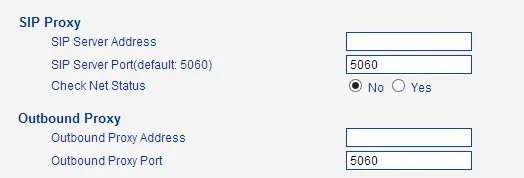 Screenshot: Dinstar UC2000-VE/VF/VG GSM/CDMA/WCDMA VoIP Gateway User Manual v3.3, p. 59.
3.2. Port account. Open Call Configuration → Port Configuration and fill in the row of the port you need:
| In the admin panel (“Extension credentials”) | Gateway field |
|---|---|
| SIP server | SIP Server Address (step 3.1) |
Port 5060 |
SIP Server Port (step 3.1) |
Login sip-…-<number> |
SIP User ID and Authenticate ID — the full string in both fields |
| Password | Authenticate Password |
Transport UDP |
there is no separate field in the manual — see below |
| Extension number | not entered — just remember which extension the gateway uses |
| — | Register to — Sip Proxy (the factory No Register means the port does not register) |
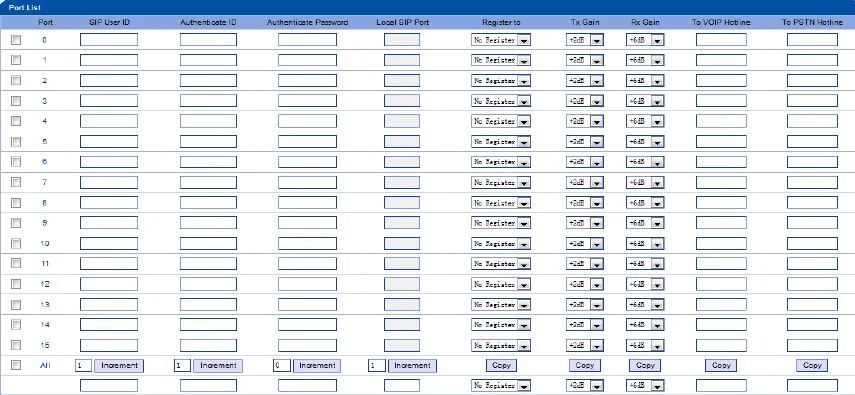 Screenshot: Dinstar UC2000-VE/VF/VG GSM/CDMA/WCDMA VoIP Gateway User Manual v3.3, p. 72.
Click Save. The All row at the bottom of the table with its Copy buttons copies a column value (for example, Register to) to all ports at once.
Transport. The datasheets list SIP over UDP, TCP and TLS, but the manual does not show where the transport is chosen in the web interface. Our PBX needs UDP (TCP is accepted too); if your firmware has a transport field, set it to UDP. Do not turn on TLS, SRTP or the proprietary Signaling & RTP Encryption: our PBX does not support them.
One extension for all SIMs or one per SIM
- One for the whole gateway. Turn on All Ports Register Used Same User ID =
Yes(factoryNo; the flag sits next to Use Same Local Sip Port) and keep Use Same Local Sip Port =Yes— all ports register with one account. This is the simplest option and enough for most venues. - One extension per SIM. In the admin panel — one operator per SIM; in the gateway — its own SIP User ID / Authenticate ID / Authenticate Password in each port's row. This way the PBX shows which number was called.
Do not combine one login with a separate SIP port per channel (Use Same Local Sip Port = No): then every channel registers separately, and one extension collects many registrations. Choose either one login and a shared port, or a separate login for each port.
Codecs, DTMF, registration interval, NAT
- Codecs — Call Configuration → Media parameter, codec list: keep G.711A and G.711U (PCMA/PCMU), remove G.729 and G.723. The gateway does not support G.722 — no need to look for it, G.711 is enough.
- DTMF — in the same place, DTMF Parameter =
RFC2833(not SIGNAL / SIP INFO). - Register Interval in SIP Configuration — the registration period (1–3600 s); the gateway renews it itself.
- NAT. Behind a venue router, Check Net Status =
Yesis usually enough. The Service parameter → Nat Traversal section (Static NAT, Dynamic NAT, STUN) is only needed if audio goes one way. Turn off SIP ALG on the router.
If you have UC100-1V1S1O. The account is set up as a SIP trunk with registration: Trunk → SIP → add:
| In the admin panel | UC100-1V1S1O field |
|---|---|
SIP server / Port 5060 |
Address / Port |
Transport UDP |
Transport — UDP |
Login sip-…-<number> |
Username and Auth Username — the full string |
| Password | Password |
| — | Register — On; Outbound Proxy — empty; Heartbeat — On behind a router (factory Off) |
| — | From Header Username — the registered username, not the caller's number |
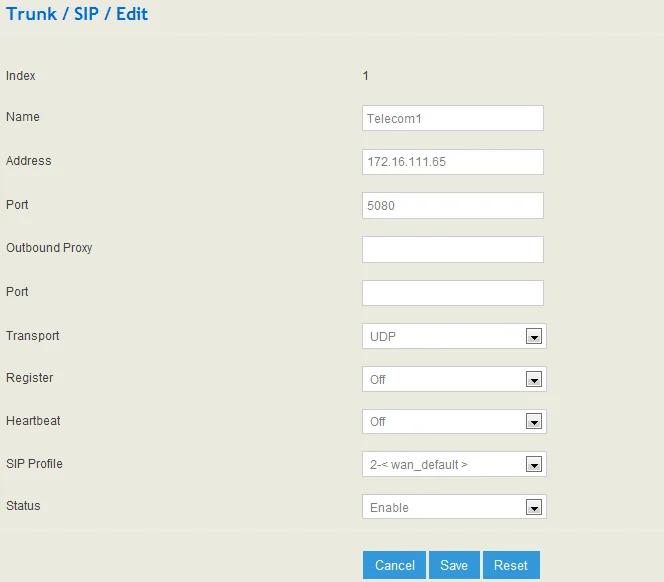 Screenshot: Dinstar UC100-1V1S1O Universal Gateway User Manual V1.0, p. 83.
Then open Trunk → VoLTE Trunk (for a landline — FXO Trunk): Register to SIP Server = On (factory Off), Master Server — the trunk you created, Username, Auth Username and Password — the same login and password. Codecs — Profile → Codec (keep G.711a/μ), DTMF — RFC2833.
Step 4. Send incoming calls to the PBX#
Now the gateway needs to know what to do with a call to the SIM: dial the right number on the PBX.
- Number on the PBX. In Call Configuration → Port Configuration, in the To VoIP Hotline column of the ports you use, enter a ring group number (from 700) or an operator's extension number. According to Dinstar's manual, when this port is called, the gateway forwards the call to the given number itself, and it can be a “DID / Ring Group / Extension of SIP server / IP-PBX”. To put the number into all ports at once — All row → Copy.
- Tel->IP route. The hotline works together with a Call Configuration → Tel->IP Routing rule. The list usually already has a
defaultrule (Any → SIP Server) — do not delete it. If there is no rule, click Add: Source — a port or port group (port-group-0 <all>means all ports), Destination —SIP Server, Call Restriction —Allow Call→ Save. - Do not pick up before the operator does. In Call Configuration → Service parameter set Do Not Answer GSM Incoming Call for Hotline =
Yes. Without it the module answers the mobile call immediately, and the caller starts paying before an operator has answered; with this option the gateway waits for the answer on the PBX side.
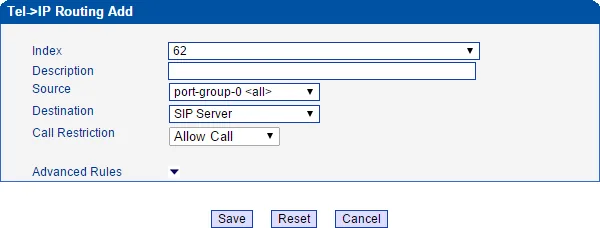 Screenshot: Dinstar UC2000-VE/VF/VG GSM/CDMA/WCDMA VoIP Gateway User Manual v3.3, p. 79.
Without a hotline the gateway picks up and asks to “dial the extension number” — the caller has to dial the number themselves in tone mode. Guests find this awkward, so always fill in the hotline.
UC100-1V1S1O: the ring group or operator number goes into Trunk → VoLTE Trunk → Autodial Number; additional inbound rules are in Call Control → Route.
The caller's number. The gateway passes the mobile caller's number in the SIP call (in Tel/User mode — in the display name), but it is not shown in the operator panel yet: the call appears as coming from the gateway's extension. Routing rules for provider numbers (schedule, voice menu) do not apply to calls from a gateway — a ring group with its own time-based variants covers the same need (see “Where to send incoming calls”).
Outgoing calls. Calling out from the PBX through this gateway's SIM cards is not possible yet: the PBX outgoing rule only leads to a SIP provider's line. The gateway itself can do it (IP->Tel Routing, To PSTN Hotline), but do not set up those routes for our PBX. For outgoing calls from your own number, use a SIP provider — details in “Outgoing calls through a gateway — not yet”.
Step 5. Check registration and a call#
- Registration on the gateway. System Information → SIP Information: every configured port shows Register Status —
Registered.Unregisteredmeans registration failed. - SIM on the network. System Information → Mobile Information: each port shows the operator (Operator), the module state (Status) and the signal level (Signal). On the case, the RUN LED blinking every half second means the gateway is working normally; the green LEDs show signal strength, and a channel's red LED is on during a call.
- Registration in the admin panel. Telephony → “Staff & groups” tab — the gateway's extension shows a green dot.
- A call. Call the SIM number from a mobile phone — the ring group operators (or the operator) from the hotline should ring.
- Audio — the
*43echo test. Registration tells you nothing about audio. Temporarily enter*43in the port's To VoIP Hotline (on UC100 — in Autodial Number), click Save and call the SIM from a mobile phone: the PBX plays a short tone and then returns your voice with a delay — talk for about ten seconds. You hear the tone and yourself — audio works both ways; the tone but not yourself — audio does not get from the gateway to the PBX; not even the tone — audio does not get from the PBX to the gateway. The test result appears in the call log. After the check, put the ring group or operator number back into the hotline.
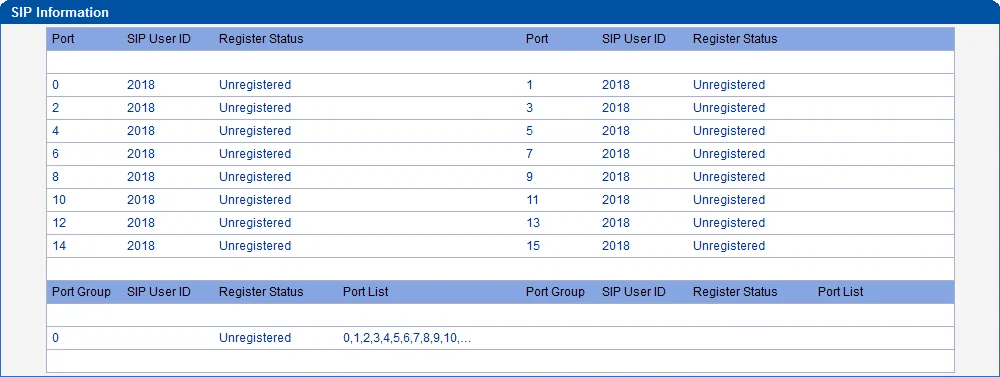 Screenshot: Dinstar UC2000-VE/VF/VG GSM/CDMA/WCDMA VoIP Gateway User Manual v3.3, p. 27.
Everything about checking is in the overview, section “How to check”.
Factory reset#
A reset is needed if the web interface password is forgotten, the gateway came with someone else's settings, or it behaves unpredictably. Before resetting a working gateway, save its settings: Tools → Config Restore and Backup.
With the RST button (UC2000). The button is on the rear panel, the gateway is powered on:
- 3–5 seconds (RUN LED on) — only the IP address, login and password return to factory values; SIP accounts and routes stay. This is the “forgot the password” option.
- 7 seconds (RUN LED blinking) — a full factory reset with a reboot.
From the web interface. Tools → Factory Reset → Apply: “all the parameters will be changed to the factory default”; the changes take effect after the gateway restarts.
Via the voice menu. Call the gateway's SIM and, after the “dial the extension number” prompt, dial *166*000000# — after “setting succeeds” the gateway returns to factory settings. This reset is available to anyone who calls the SIM. So after setup, turn off in Call Configuration → Service parameter both Enable GSM Incoming Configuration (according to the manual, it allows service codes on calls from the mobile side) and Enable Private Service (services like *158#). If you need to find the address by calling again, turn them on temporarily.
UC100-1V1S1O. RST on a running gateway: 3–6 seconds — the IP address, login, password and HTTP/HTTPS/Telnet/SSH ports return to factory values; more than 6 seconds — a full reset. Holding RST for more than 30 seconds with the power off wipes the configuration and reloads the firmware — an emergency method for firmware failures. From the web interface — System → Backup/Restore/Upgrade: tick the parts (system, network, service) → Reset → reboot the gateway.
What is erased by a full reset: port SIP accounts, hotlines, routes, network settings, the password. What to do afterwards: the gateway is again reachable at http://192.168.11.1 with admin / admin — start from step 1. Resetting the gateway does not change the extension's login and password in the admin panel; if you did not keep the extension password, issue a new one with “Reset password”. General notes on resetting gateways — in the overview.
If the gateway does not register#
- The port is not bound to the server. In Port Configuration the port has Register to =
No Register(the factory value) — chooseSip Proxy. - The login is incomplete or not in both fields. SIP User ID and Authenticate ID hold the same string
sip-…-<number>, not just the number. - Registration is green but calls are rejected. Check From Mode when Caller ID Is Available =
Tel/Userand When Caller ID Is Unavailable =Username(step 3.1). In theTel/Tel,User/TelandAnonymousmodes the gateway replaces the login in the From header, and the PBX does not recognise the extension. On UC100 the same happens when From Header Username carries the caller's number. - Outbound Proxy is filled in, TLS is on, or the port is wrong. Outbound Proxy — empty, server port —
5060, transport — UDP. - UC100: the trunk is registered but the SIM is not. Register to SIP Server is not turned on in Trunk → VoLTE Trunk (factory
Off) or Master Server is not selected. - Registered, but calls to the SIM do not arrive. To VoIP Hotline is empty, the Tel->IP Routing rule was deleted, or the hotline number cannot be dialled from PBX phones.
- The SIM is not on the network. The PIN was not removed or was entered wrong, the antennas are not connected, the module is for another region (Type A/E/V/J/AU), or 2G/3G are switched off in the country and the gateway has no VoLTE.
General causes (SIP ALG on the router, UDP 5060 blocked) are in the overview, section “If the gateway does not register”; about network and SIM — “Venue network, NAT and the SIM card”.
Models in the family#
The letter after the channel count is the module's network: G — GSM (2G), W — WCDMA (3G), T — LTE with VoLTE.
| Model | SIMs / channels | Network | Setup differences |
|---|---|---|---|
| UC2000-VE-4T / -8T | 4 / 8 | 4G LTE + WCDMA + GSM, VoLTE | desktop, 2 Ethernet ports (FE0/FE1), DC 12 V power, hot-swappable SIM trays; LTE module by region |
| UC2000-VE-4W / -8W | 4 / 8 | 3G WCDMA + GSM | frequency variant A (850/1900) or B (900/2100) chosen when ordering |
| UC2000-VE-4G / -8G | 4 / 8 | 2G GSM only | not for countries where 2G is off |
| UC2000-VF-8 / -16 (G/W/T) | 8 / 16 | as VE | 1U 19″ case, AC 100–240 V power; menus as on VE |
| UC2000-VF Multi-SIM | 8 channels / 32 SIMs, 16 / 64 | GSM / WCDMA / LTE | 4 SIMs per channel with rotation — for call centres |
| UC2000-VG-32 (G/W/T) | 32 | as VE | 1U, 2.3″ LCD showing the IP address |
| UC2000-VG Multi-SIM | 32 channels / 128 SIMs | GSM / WCDMA / LTE | 4 SIMs per channel |
| UC100-1V1S1O | 1 SIM + FXS + FXO | LTE (VoLTE) + WCDMA + GSM | its own web interface: Trunk → SIP + VoLTE Trunk; WAN via DHCP, LAN 192.168.11.1, Wi-Fi; built-in mini PBX |
| UC100-1G1S1O | 1 SIM + FXS + FXO | 2G GSM only | predecessor of 1V1S1O; only a 2016 manual remains on Dinstar's site, no datasheet |
| DWG2000 | — | GSM / CDMA | discontinued, no documents on Dinstar's site; menus may differ — check with your supplier |
For a venue with 1–4 numbers, UC2000-VE-4T/8T or UC100-1V1S1O fit. New G models and DWG2000 are not worth buying: 2G networks are being switched off. Do not confuse this line with the modular “UC2000” of 2014 (User Manual v1.0) — that is a different product with a different web interface.
Which LTE module to choose for your country
The bands are set by the module, which is chosen when ordering and cannot be changed in the field (UC2000-VE/VF/VG datasheets):
| Module | For | Bands |
|---|---|---|
| Type A | North America | LTE FDD B2/B4/B12, WCDMA B2/B4/B5 |
| Type E | Europe, Middle East, Africa, most of Asia | LTE FDD B1/B3/B5/B7/B8/B20, TDD B38/B40/B41, WCDMA B1/B5/B8, GSM 900/1800 |
| Type V | Verizon-type US networks | LTE FDD B4/B13 |
| Type J | Japan | LTE FDD B1/B3/B8/B18/B19/B26, TDD B41, WCDMA B1/B6/B8/B19 |
| Type AU | Australia, Latin America | LTE FDD B1/B2/B3/B4/B5/B7/B8/B28, TDD B40, WCDMA B1/B2/B5/B8, GSM 850/900/1800/1900 |
Check the bands against those your operator uses, and ask the operator whether it allows this module on VoLTE. UC100-1V1S1O has its own set: LTE FDD B1/B3/B7/B8, TDD B38/B39/B40/B41, WCDMA B1/B8, GSM 900/1800.
FAQ#
Can I call out from the PBX through this gateway using the SIM's number?#
Not yet — with us the gateway works for incoming calls only. Dinstar itself can do outgoing calls (IP->Tel routes), but our PBX does not yet send calls to a gateway extension as if it were a line. For outgoing calls from your own number, use a SIP provider.
Will the gateway work where 2G and 3G have been switched off?#
Only a model with the letter T (LTE) and only with VoLTE: a call through an LTE module without VoLTE falls back to 2G/3G. The network mode is set in Mobile Configuration → Mobile Configuration (Network Mode). It works if the operator allows VoLTE for this module — check with the operator before buying. G and W models and DWG2000 will not take calls on such a network.
How many extensions does a 4- or 8-SIM gateway need?#
One is enough: All Ports Register Used Same User ID = Yes registers all ports with one account. One extension per SIM is only needed if the PBX has to show which number was called.
Why is the caller's number not shown in the panel?#
The gateway passes the number, but our PBX currently shows the call as coming from the gateway's extension. This is a PBX limitation, not a gateway setting. There is no need to change the Tel/User mode because of it.
What about SMS and balance checks?#
The gateway handles SMS and USSD requests itself, in its own web interface: receiving and sending SMS, forwarding SMS to e-mail (SMS and USSD → Email), balance checks via USSD.
What are IMEI Modify, Human behavior and SIM Bank?#
These are tools of bulk traffic-termination operators: changing the module's IMEI, imitating “human” calling patterns, rotating SIMs. Do not turn them on in a venue: operators block SIMs for this behaviour, and changing an IMEI is illegal in many countries. About SIMs in gateways in general — “Venue network, NAT and the SIM card”.
Sources#
Dinstar documents, accessed 10 September 2026:
- UC2000-VE/VF/VG GSM/CDMA/WCDMA VoIP Gateway User Manual (v3.3, firmware 02/04.23.13.01, 08.2018) — https://www.dinstar.com/WEB/files/15278/2018-09-06/UC2000-VE&VF&VG_GSM%20_LTE_VoIP_Gateway_User_Manual.pdf
- UC2000-VE/VF/VG Wireless Voice Gateway User Manual (Chinese, V2.1, firmware 08231110, 07.2016) — https://www.dinstar.net/WEB/files/46509/2019-07-02/UC2000%E6%97%A0%E7%BA%BF%E8%AF%AD%E9%9F%B3%E7%BD%91%E5%85%B3%E7%94%A8%E6%88%B7%E6%89%8B%E5%86%8C%20V2.1.pdf
- UC2000-VE GSM/LTE VoIP Gateway Datasheet — https://www.dinstar.com/WEB/files/15277/2018-09-06/UC2000-VE%20GSM<E%20VoIP%20Gateway%20Datasheet.pdf
- UC2000-VF GSM LTE VoIP Gateway Datasheet — https://www.dinstar.com/WEB/files/15277/2018-09-06/UC2000-VF%20GSM%20LTE%20VoIP%20Gateway%20Datasheet.pdf
- UC2000-VG GSM LTE VoIP Gateway Datasheet — https://www.dinstar.com/WEB/files/15277/2018-09-06/UC2000-VG%20GSM%20LTE%20VoIP%20Gateway%20Datasheet.pdf
- UC2000-VF Multi-SIM GSM LTE VoIP Gateway Datasheet — https://www.dinstar.com/WEB/files/15277/2020-01-09/UC2000-VF%20Multi-SIM%20GSM%20LTE%20VoIP%20Gateway%20Datasheet.pdf
- UC100-1V1S1O Universal Gateway User Manual (V1.0) — https://www.dinstar.com/WEB/files/46814/2019-04-16/UC100-1V1S1O%20Universal%20Gateway%20User%20Manual.pdf
- UC100-1V1S1O Universal Gateway Datasheet (v2.0) — https://www.dinstar.com/WEB/files/15324/2018-09-06/UC100-1V1S1O%20Universal%20Gateway%20Datasheet%20v2.0.pdf
- UC100-1G1S1O Universal Gateway User Manual (V1.0, 2016) — https://www.dinstar.com/WEB/files/15335/2018-09-06/UC100-1G1S1O%20Universal%20Gateway%20User%20Manual%20V1.0-%E7%BB%88%E7%A8%BF.pdf
- Support → Download → GSM/3G/4G Gateway — https://www.dinstar.com/Download/GSM/3G/4G-Gateway/Datasheet
- 4/8-channel VoIP GSM/3G/4G Gateway — UC2000-VE product page — https://www.dinstar.com/GSM-3G-LTE-voip-gateway/4-8-ports
- Multi-SIM VoIP GSM/3G/4G gateway — product page — https://www.dinstar.com/GSM-3G-LTE-voip-gateway/multi-sim-gateway