Yeastar TG (GSM/LTE) — setup for our PBX
Yeastar TG gateways take 2, 4, 8 or 16 SIM cards: you insert an operator's SIM into the box, and calls to its number reach an IP PBX over SIP. The current line-up (TG200, TG400, TG800, TG1600) works on 4G LTE networks only, with voice over VoLTE where the operator supports it. Such a gateway suits a café, salon or pickup point that has a "mobile number" for guests and couriers but no landline or SIP provider — or serves as a backup number.
To our PBX the gateway is just another extension: it registers on the PBX server with an extension account, and dials an incoming SIM call through to a ring group or an operator. What is the same for all gateways (credentials, where to send incoming calls, network, limitations) is in the overview “GSM gateways and landlines”. This page is the step-by-step guide for Yeastar TG, with screenshots from the manufacturer's manual.
What you need#
- Extension credentials from the admin panel: Telephony → Staff & groups → create an operator for the gateway (for example, “GSM gateway, Vodafone SIM”) → “Reset password” → the “Extension credentials” window: SIP server, Extension number, Login, Password, Port
5060, TransportUDP. The password is shown once — copy it into the gateway right away. Details — “Extension credentials for the gateway”. - How many extensions: one for the whole gateway is enough — the incoming route can take calls from all SIMs at once. If you need to tell which SIM was called, create one extension per SIM (more in step 3).
- The number the gateway will send incoming calls to: a ring group number (Telephony → “Ring groups”, numbers from 700) or an operator's extension number.
- A SIM card with a voice plan. Better remove the PIN in a phone beforehand; if you keep it, you will have to enter it in the gateway.
- The gateway with an LTE module for your region, and the antennas from the box (modules — see “Models in the family”).
- A network cable and a computer with a browser that you can temporarily connect straight to the gateway or to the same network.
Step 1. Find the gateway's IP address#
The TG has no display and no voice menu, so you cannot get the address from the device itself. From the factory the gateway has the static address 192.168.5.150, and that is how you log in the first time:
- Connect the gateway by cable to its LAN port (TG800 and TG1600 also have a WAN port — use LAN for the first login) and power it on. The gateway is ready when the RUN LED blinks.
- Give the computer an address in the same subnet, for example
192.168.5.10, mask255.255.255.0(or connect the computer directly to the gateway). - Open
http://192.168.5.150in the browser and go to step 2.
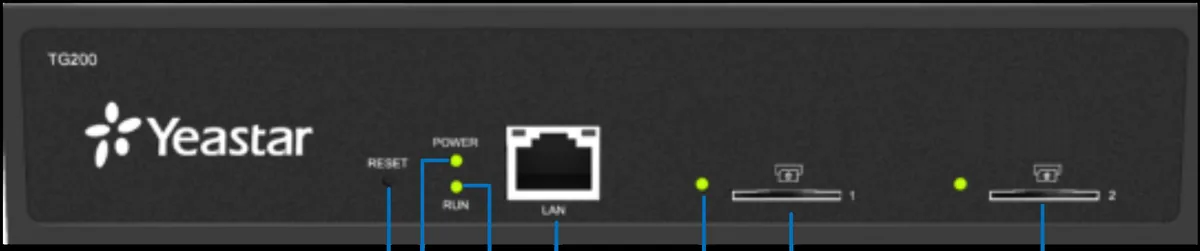 Illustration: Yeastar TG Series VoIP 4G Gateway User Guide (TG200/TG400/TG800/TG1600, V91.3.0.23), p. 8.
After logging in, move the gateway into your venue's addressing: System → Network Preferences → Network Settings → LAN — enter a free address of your network in Static IP Address (or enable DHCP) → Save → Reboot Now. On the TG100 the same is under System → Network Preferences → LAN Settings; Yeastar recommends a static address for a stable connection.
If the gateway does not answer at 192.168.5.150 and your network has a DHCP server, look for the gateway in the router's address table. The gateway's MAC address is shown under Status → System Status → Network Status.
Step 2. Log in to the web interface#
| What | Value |
|---|---|
| Address | http://192.168.5.150 (or the address you set in step 1) |
| Login | admin |
| Password | password |
Yeastar explicitly recommends changing the password after the first login: System → System Preferences → Password Settings — old password, the new one twice, Save (the gateway then asks you to log in again). The SMS section has its own account — sms / password; change it too (on TG200–TG1600 — SMS → SMS Account Setting, on TG100 — “Change Password of SMS Center”). A password cannot be recovered — if you forget it, only a factory reset helps.
The key rule of this interface: Save only stores your changes; they take effect after the Apply Changes button in the upper right corner of the page.
Step 3. Enter the PBX credentials#
Yeastar TG has three ways to connect to an IP PBX, and only one of them works with our PBX — Register Trunk: the gateway registers on the PBX with an extension account. The Account mode (the PBX registers on the gateway) and Service Provider mode (IP peering without registration) do not work with our PBX.
Open Gateway → VoIP Settings → VoIP Trunk → Add VoIP Trunk, tab General:
| In the admin panel (“Extension credentials”) | Gateway field (Add VoIP Trunk → General) |
|---|---|
| — | Trunk Type — Trunk |
| — | Type — SIP |
| — | Provider Name — any name, for example PBX |
| SIP server | Hostname/IP and Domain — the same address in both |
Port 5060 |
the field after the colon next to Hostname/IP — it already says 5060, leave it |
Login sip-…-<number> |
User Name and Authorization Name — the whole string in both fields |
| Password | Password |
| Extension number | not entered — just remember which extension the gateway uses |
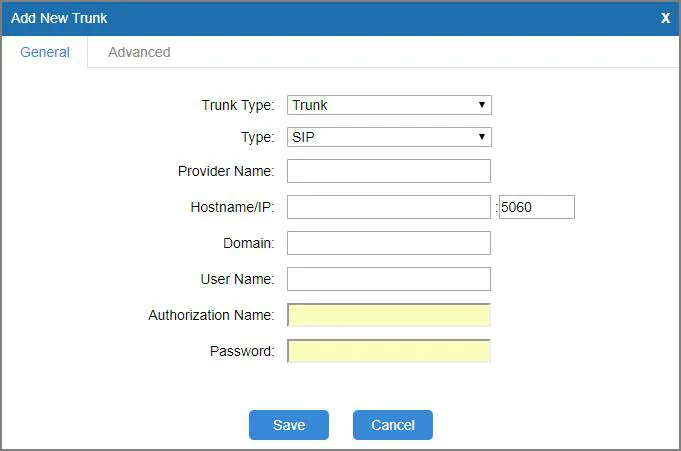 Screenshot: Yeastar TG Series VoIP 4G Gateway User Guide (TG200/TG400/TG800/TG1600, V91.3.0.23), p. 41.
Then open the Advanced tab of the same window:
| PBX setting | Gateway field (Add VoIP Trunk → Advanced) |
|---|---|
Transport UDP |
Transport — UDP (factory value; our PBX also accepts TCP, not TLS) |
| Codecs G.711 A-law / µ-law | Codec — a-law and u-law first; remove G.729 from the list |
| DTMF RFC 2833 | DTMF Mode — rfc2833 (factory value) |
Login sip-…-<number> |
From User — the same whole login |
| — | Qualify — on: the gateway checks the link and keeps it open through the router |
| — | Enable SRTP and Enable outbound proxy server — off |
Why From User: in an incoming call the gateway may put the mobile caller's number into the From header, and then the PBX does not recognise the call as coming from its extension. With From User filled in, all the gateway's calls come from the extension account.
Click Save, then Apply Changes.
The Advanced tab fields are listed in detail in the TG100 manual; the TG200–TG1600 manual does not spell them out. If a field is missing in your firmware, leave the factory value.
One extension for all SIMs or one per SIM
Each VoIP trunk in the gateway is one registration, that is, one extension. The incoming route (step 4) picks which SIM to take calls from and which trunk to hand them to, so there are two options:
- One trunk for the whole gateway. One operator in the admin panel, one VoIP trunk, and the route's source is the SIM group (Mobile Group). Simplest, and enough for most venues.
- One trunk per SIM. One operator per SIM in the admin panel, and in the gateway a VoIP trunk for each plus a route for each SIM. This way the PBX shows which number was called.
Gateway-wide SIP settings, NAT, codecs
- Global SIP settings live in Gateway → VoIP Settings → SIP Settings; Yeastar advises leaving them at the defaults (UDP port 5060, DTMF
rfc2833). - NAT. For a gateway behind the venue's router, Qualify on the trunk is usually enough. The NAT tab of the same SIP Settings (STUN, External IP Address) is needed only if audio goes one way.
- Calls drop exactly every 15 minutes — turn off Session-timers in SIP Settings → Advanced Settings (Yeastar's own advice).
- G.722 was removed from the TG200–TG1600 firmware in version 91.3.0.21 — the mobile module does not support it; no need to look for it.
- TLS and SRTP are supported by the gateway but not by our PBX: do not enable them, or you get silence without a clear error.
Step 4. Send incoming calls to the PBX#
Now tell the gateway what to do with a call to the SIM: hand it to the trunk you created and dial the right number on the PBX. This is the Mobile to IP route.
Open Gateway → Routes Settings → Mobile to IP → Add Mobile to IP Route:
- Simple Mode —
Yes; Route Name — for exampleSIM → PBX. - Call Source — a SIM card (4G trunk) or a SIM group (Mobile Group) if one trunk serves all SIMs.
- Call Destination — the trunk from step 3 (it appears in the list as
SIP Trunk -- <name>). - Hotline — the number the gateway dials on the PBX: a ring group number (from 700) or an operator's extension. “If you set hotline to a PBX extension number, the incoming call will be routed to the extension directly,” says the Yeastar manual.
- Save, then Apply Changes.
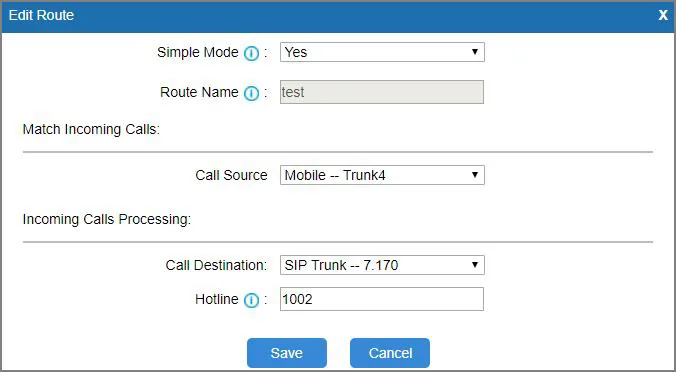 Screenshot: Yeastar TG Series VoIP 4G Gateway User Guide (TG200/TG400/TG800/TG1600, V91.3.0.23), p. 42.
Without Hotline the gateway uses two-stage dialling: it answers, the caller hears a dial tone and has to key in the number by tone. That is awkward for guests — always fill in Hotline.
Caller's number. The gateway knows the caller's number, but the operator panel does not show it yet: the call appears as coming from the gateway's extension. Routing rules of provider numbers (schedule, voice menu) do not apply to calls from a gateway — a ring group with its own time-based variants covers the same need (see “Where to send incoming calls”).
Outgoing calls. Calling out from the PBX through this gateway's SIM cards is not possible yet: the PBX outgoing rule only leads to a SIP provider line. Do not set up IP to Mobile routes in the gateway for our PBX. For outgoing calls from your own number use a SIP provider — see “Outgoing calls through the gateway — not yet”.
More: filter by caller number, blocklist
- With Simple Mode =
Nothe route gets an Inbound Caller Pattern — the route applies only to calls from certain numbers (empty — any number). - Unwanted numbers — Gateway → Routes Settings → Blocklist, type
Inbound.
Step 5. Check registration and a call#
- Registration in the gateway. Status → System Status → Trunk Status: the VoIP trunk must show Registered.
Unregistered— registration failed,Request Sent— registering,Waiting— waiting for authentication. - SIM on the network. On the same page the mobile trunk shows a signal-strength icon, not a PIN/PUK error or “no SIM”. The module LED on the case is steady green when the module and SIM card work; slow blinking means no SIM was detected.
- Registration in the admin panel. Telephony → “Staff & groups” tab — the gateway's extension has a green dot.
- A call. Call the SIM number from a mobile — the operators of the group (or the operator) set in Hotline should ring.
- Audio — echo test
*43. Registration says nothing about audio. Temporarily put*43into the Hotline of the Mobile to IP route, click Save and Apply Changes, and call the SIM from a mobile: the PBX gives a short tone and then plays your voice back with a delay — talk for about ten seconds. You hear the tone and yourself — audio works both ways; tone but no voice — audio does not reach the PBX from the gateway; not even the tone — audio does not reach the gateway from the PBX. The test result shows up in the call log. Afterwards put the group or operator number back into Hotline.
More on checking — overview, section “How to check”.
Factory reset#
A reset is needed when the web password is forgotten, the gateway came with someone else's settings, or it behaves erratically after a firmware update.
With the button. Press and hold Reset for 10 seconds while the gateway is on. On TG100, TG200, TG400 and TG800 the button is on the front panel (see the picture in step 1), on TG1600 — on the back.
From the web interface. System → System Preferences → Reset and Reboot → Reset to Factory Defaults. The reset “will erase all configuration data on the system”; do not power off until the RUN LED starts blinking again — otherwise the gateway may be damaged. Another way is the “Reset Configuration to Factory Defaults” checkbox when updating firmware (System → System Preferences → Firmware Update).
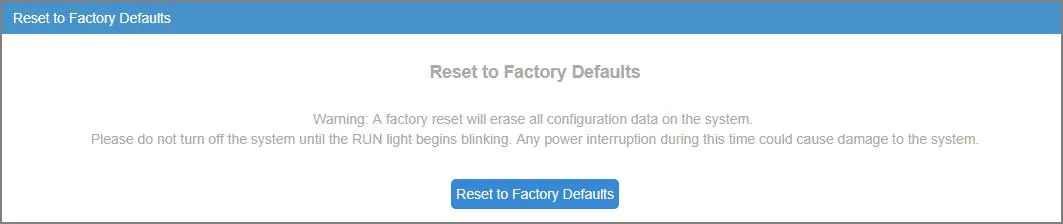 Screenshot: Yeastar TG Series VoIP 4G Gateway User Guide (TG200/TG400/TG800/TG1600, V91.3.0.23), p. 76.
What is erased: the whole configuration — VoIP trunks, routes, network settings, passwords.
What to do next: the gateway is back at http://192.168.5.150 with admin / password — start again from step 1. Resetting the gateway does not change the extension's login and password in the admin panel; if you did not keep the extension password, issue a new one with “Reset password”. Before resetting a working gateway, save its settings: System → System Preferences → Backup and Restore. General notes on resetting gateways — in the overview.
If the gateway does not register#
- Wrong trunk mode. You need Trunk Type =
Trunk. WithAccountthe gateway waits for the PBX to register on it; withService Providerit does not register at all. - Login not entered in full or not in both fields. User Name and Authorization Name hold the same string
sip-…-<number>, not just the number. - Apply Changes not clicked. After Save the settings are not active yet.
- Outdated password. Someone clicked “Reset password” in the admin panel — enter the new one in the gateway.
- TLS, SRTP or G.729 only. Transport
UDP, SRTP off,a-law/u-lawfirst in the codec list. - Registered, but calls to the SIM do not arrive. Check From User (step 3) and Hotline (step 4): without Hotline the caller hears the gateway's dial tone and silence; the Hotline number must be diallable from any PBX phone.
- SIM not on the network. Wrong PIN (entered in Gateway → Mobile List → Mobile List → ✎ → Advanced Settings → PIN Code; the gateway does not accept a PUK — after three wrong attempts unlock the SIM in a phone), antennas not connected, an LTE module for another region, or the operator does not allow VoLTE for this module.
General causes (SIP ALG on the router, UDP 5060 blocked) — in the overview, section “If the gateway does not register”; network and SIM — “Venue network, NAT and the SIM card”.
Models in the family#
| Model | SIMs / channels | Network | Setup differences |
|---|---|---|---|
| TG200 | 2 | 4G LTE, VoLTE if the operator supports it | LAN port; Reset on the front; antenna connectors 3 and 4 are unused |
| TG400 | 4 | 4G LTE, VoLTE | LAN port; “4 in 1” antenna splitter |
| TG800 | 8 | 4G LTE, VoLTE | LAN and WAN ports; 19″ case |
| TG1600 | 16 | 4G LTE, VoLTE | LAN and WAN ports; Reset on the back panel; 19″ case |
| TG200W / TG400W / TG800W / TG1600W | 2 / 4 / 8 / 16 | 3G WCDMA | end of sale 2022-04-15, supported until 2027-04-15; same menus as TG200–TG1600 |
| TG100 | 1 | 2G GSM, no 4G | end of life 2025-12-31 (replacement — TG200); its own 51.x firmware and its own manual |
| TG100W | 1 | 3G WCDMA | end of sale 2022-04-15, supported until 2027-04-15 |
TG200–TG1600 units with a GSM (2G) module still turn up in older offices; the module reached end of life on 2025-12-31, and where 2G has been switched off such a gateway will not take voice calls. Very old NeoGate TG gateways of the second revision (V2, support ended 2023-04-18) have different menus; this guide fits them only roughly.
Which LTE module to buy for your country
The gateway's LTE bands depend on the regional module, chosen when ordering from a distributor (Yeastar table “4G LTE Module Band and Operators”, rev. 2025-06):
| Module | Regions | Bands |
|---|---|---|
| E | Europe (incl. Italy, UK, Spain, France), Russia, Hong Kong, Thailand, South Korea, South Africa | B1, B3, B5, B7, B8, B20 |
| A | USA, Canada | B2, B4, B12 |
| AU | Australia, New Zealand, Taiwan, South America, Mexico | B1, B2, B3, B4, B5, B7, B8, B28, B40 |
| J | Japan | B1, B8, B18, B19 |
| CE | China, India | B1, B3, B5, B8, B38–B41 |
If your operator is not in the table, Yeastar advises checking with the operator which bands it uses before buying.
Firmware: do not mix up the branches
TG200–TG1600 run firmware branch 91.x (latest as of 2026-09-10 — 91.3.0.37 of 2026-06-02), the TG100 runs branch 51.x (latest — 51.18.0.60). Yeastar warns: install 91.x only on a third-revision gateway (serial number starting with 331); on other hardware it crashes the system. Updating — System → System Preferences → Firmware Update.
FAQ#
Can I call out from the PBX through this gateway using the SIM number?#
Not yet — with us the gateway handles incoming calls only. Yeastar TG itself can do outgoing calls (the IP to Mobile route), but our PBX does not yet send calls to a gateway extension as if it were a line. The workaround with Account mode requires opening the gateway's SIP port to the internet, and an open SIP port on a GSM gateway is a direct risk of strangers calling at the expense of your SIMs; we do not recommend it. For outgoing calls from your own number use a SIP provider.
Will the gateway work where 2G and 3G are switched off?#
Only an LTE model (TG200, TG400, TG800, TG1600) and only with VoLTE: in the SIM settings (Gateway → Mobile List → ✎ → Advanced Settings) set Network Type = LTE Only and tick Enable VoLTE. It works if the operator allows VoLTE for this module — check with the operator before buying. Models with GSM and 3G modules will not take calls on such a network.
How many extensions does a 4- or 8-SIM gateway need?#
One is enough: the Mobile to IP route can take calls from the whole SIM group. One extension per SIM is only needed if the PBX must show which number was called.
Why does the panel not show the caller's number?#
The gateway knows the number, but our PBX currently shows the call as coming from the gateway's extension. This is a PBX limitation, not a gateway setting.
What about SMS and balance checks?#
The gateway handles SMS and USSD requests (balance, top-up) itself — in the SMS section of its own web interface, with its own sms account. The gateway does not use mobile data from the SIM.
Can the operator block a SIM used in a gateway?#
It can: many operators forbid SIM cards in GSM gateways in their plan terms and block them based on calling patterns. For receiving calls to the venue's number this is rare, but check the plan terms in advance — see “Venue network, NAT and the SIM card”.
Sources#
Yeastar documents, accessed 2026-09-10:
- TG Series VoIP 4G Gateway User Guide (TG200/TG400/TG800/TG1600, version 91.3.0.23, rev. 2025-09-02) — http://help.yeastar.com/download/docs/tg200-tg400-tg800-tg1600-user-guide-en.pdf
- TG100 VoIP GSM/3G Gateway User Guide (version 51.18.0.60, rev. 2024-12-11) — http://help.yeastar.com/download/docs/tg100-user-guide-en.pdf
- Yeastar TG Series VoIP 4G Gateway Datasheet — https://www.yeastar.com/download/Yeastar_TG_Series_VoIP_GSM_Gateway_Datasheet_en.pdf
- 4G LTE Module Band and Operators (rev. 2025-06) — https://www.yeastar.com/download/Yeastar_TG_VoIP_Gateway_Supported_Cellular_Operators.pdf
- TG VoIP GSM Gateways FAQ — https://www.yeastar.com/neogate-tg-faq/
- Release Note for TG Series Gateway V91.3.0.37 — https://www.yeastar.com/download/TG_Series/Yeastar_Release_Note_for_TG_Series_V91.3.0.37_en.pdf
- End-of-Sale and End-of-Life Policy — https://www.yeastar.com/eol-policy/
- Firmware Download — https://www.yeastar.com/firmware-download/
- TG Series VoIP 4G Gateway — product page — https://www.yeastar.com/voip-gsm-gateway/