2N VoiceBlue Next / BlueTower / BRI Lite — setup for our PBX
2N VoiceBlue Next and the related gateways from the Czech company 2N Telekomunikace are boxes for 2–4 SIM cards (the rack-mounted BlueTower and StarGate take 8 and 32 channels) that turn a call to the SIM into SIP. All models in the family run the same firmware with the same web interface, so this page applies to any of them.
⚠️ The whole family is discontinued, and its modules support 2G and 3G only — no model has LTE or VoLTE. Buying one today makes no sense; this page is for venues where such a gateway is already on the wall and the country still runs 2G or 3G (shutdown list — “By country”). For a new installation choose an LTE gateway, for example Yeastar TG.
To our PBX the gateway is just another extension: it registers on the PBX server with an extension account, and dials an incoming SIM call through to a ring group or an operator. What is the same for all gateways is in the overview “GSM gateways and landlines”. This page is the step-by-step guide for 2N, with screenshots from the manufacturer's documentation.
What you need#
- Extension credentials from the admin panel: Telephony → Operators → create an operator for the gateway (for example, “GSM gateway 2N”) → “Reset password” → the “Extension credentials” window: SIP server, Extension number, Login, Password, Port
5060, TransportUDP. The password is shown once. Details — “Extension credentials for the gateway”. - One extension for the whole gateway. A 2N has a single SIP registration for the entire box: all its SIM cards appear in the PBX as one extension.
- The number the gateway will send incoming calls to: a ring group number (Telephony → “Ring groups”, numbers from 700) or an operator's extension number.
- An unlocked SIP licence. SIP is a licensed feature on 2N gateways, and some licences are limited by operating hours. You check it in step 2; if the licence is missing or expired, the gateway passes no calls at all, and only a 2N dealer can help.
- A SIM card of the standard size (not micro or nano) with a voice plan, preferably without a PIN — remove it in a phone beforehand. Set up call forwarding and barring there too, if you need them.
- The antenna from the box. ⚠️ Never power the gateway on without the antenna connected — the manufacturer warns that this damages the module's transmitter.
- A network cable and a computer that you can temporarily connect straight to the gateway.
Step 1. Find the gateway's IP address#
Unlike most gateways, a 2N ships with DHCP turned off: it sits on the static address 192.168.1.2 (mask 255.255.255.0, gateway 192.168.1.1) and is “invisible” on a venue network with a different subnet. So the first login is done directly:
- Connect the gateway by cable to the computer (directly or through a separate switch) and power it on.
- Give the computer an address in the same subnet, for example
192.168.1.200, mask255.255.255.0. - Open
http://192.168.1.2in the browser and go on to step 2.
If the address has been changed and nobody knows it, 2N offers two ways: the 2N IP Scanner utility (from the 2N website) scans the network; if it does not see the gateway, run Wireshark on the same network with an ARP filter and re-plug the gateway's cable: its packet arrives with the manufacturer's MAC prefix 2nTeleko. A third way is a button reset (see “Factory reset”), which brings back 192.168.1.2.
After logging in, move the gateway into the venue network: Gateway configuration → Ethernet configuration — IP address, Subnet mask, Default gateway from your network and, without fail, DNS server 1 and DNS server 2 (without DNS the gateway cannot find our SIP server by name). Save, move the gateway to the venue network and log in at the new address. The manufacturer advises against ticking Use DHCP — the address may change and you lose access to the web interface; if you do enable it, reserve the address for the gateway's MAC address in the router.
BlueTower and StarGate: two addresses
The rack-mounted gateways have two network nodes: the basic CPU (192.168.1.2, Admin/2n — it hosts the web interface and SIP) and the VoIP board that carries the audio (factory address 0.0.0.0 — until an address is set, the board does not work). SIP needs both: the board must be installed, its MAC address entered in the settings, and the CPU switched to VoIP-SIP mode. After any change to the VoIP settings the board must be restarted. A version without a VoIP board (ISDN only) cannot be connected to our PBX.
Step 2. Log in to the web interface#
| What | Value |
|---|---|
| Address | http://192.168.1.2 (or the address you set in step 1) |
| Login | Admin |
| Password | 2n |
Change the password right away: Gateway configuration → Login configuration (login and password together — up to 30 characters; the same login also works for Telnet). A forgotten password can only be recovered by a button reset — which also resets the IP address.
Before configuring, check two things without which there is no point going further:
- Licence. Gateway control → Firmware/Licence: Licence status is
unlocked, SIP is among the unlocked features, and the operating-hours limit (Gateway limitation) is not running out. Every restart of the gateway adds an hour to the counter. No SIP or an expired licence — a dealer extends the key, and it is entered on the same page. - Date and time. Gateway control → Date/Time — synchronise with the computer: without power the internal clock lasts only a few hours.
The interface lets one user in at a time and logs out by itself after inactivity. Every settings page has a save button (Save settings, the icon in the bottom-right corner) — leave the page without pressing it and your changes are lost.
Step 3. Enter the PBX credentials#
A 2N has one SIP account for the whole gateway: Gateway configuration → VoIP parameters. Our SIP server is a name (sip.…), not an IP address, so the gateway is set up “for a domain” — the way the 2N FAQ describes it:
| In the admin panel (“Extension credentials”) | Gateway field (Gateway configuration → VoIP parameters) |
|---|---|
| SIP server | SIP registration block → Registration domain (realm) |
| — | IP addresses block → SIP proxy (IP->GSM), SIP proxy (GSM->IP) and SIP registrar — leave 0.0.0.0: then the gateway takes the address for all three from Registration domain |
Port 5060 |
the field after the colon next to SIP proxy (GSM->IP) and SIP registrar — it already says 5060, do not change it |
Login sip-…-<number> |
Username and Caller ID — the whole string in both fields |
| Password | Password |
Transport UDP |
VoiceBlue Next has no separate field — it works over UDP; on VoiceBlue MAX, BlueTower and StarGate leave the Use SIP over TCP for registration / for calls boxes unticked |
| Extension number | not entered — just remember which extension the gateway uses |
And be sure to fill in DNS server 1/2 in Ethernet configuration (step 1) — without them the server name will not resolve.
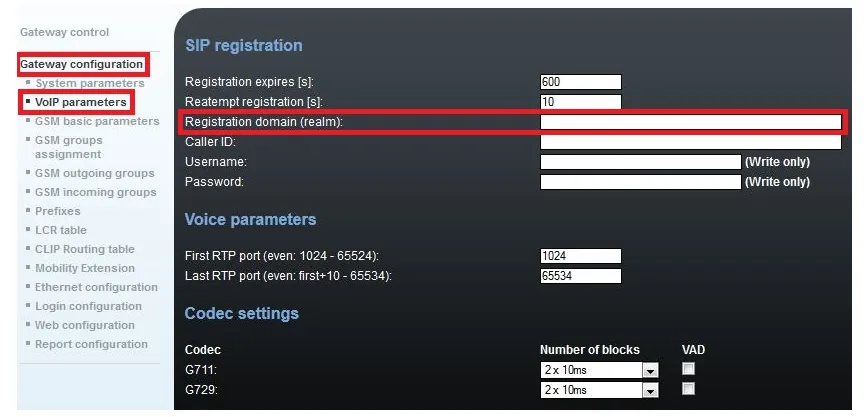 Screenshot: 2N FAQ Telecommunications, “IP setting — How to register the gateway on domain name instead of IP address?” (2N VoiceBlue Next).
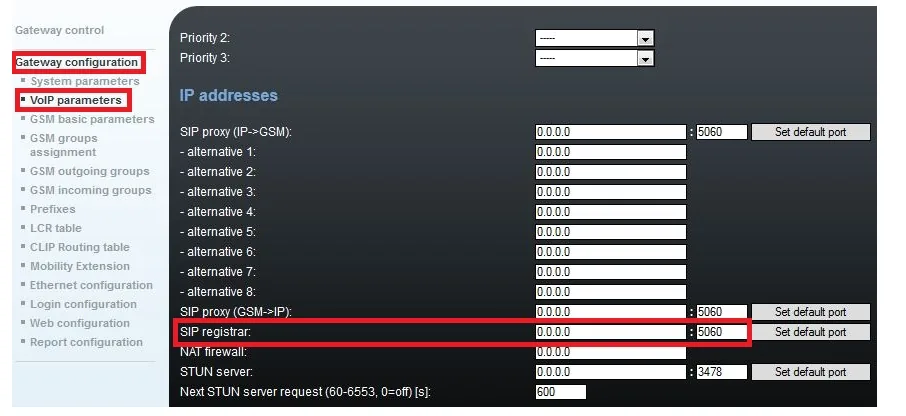 Screenshot: 2N FAQ Telecommunications, “IP setting — How to register the gateway on domain name instead of IP address?” (2N VoiceBlue Next).
The rest on the same page:
| PBX setting | Gateway field (VoIP parameters) |
|---|---|
| Codecs G.711 A-law / µ-law | Codec priority: Priority 1 — G.711a, Priority 2 — G.711u; do not select G.729 (2N has no G.722, and it is not needed) |
| DTMF RFC 2833 | SIP protocol settings → Deny DTMF according to RFC2833 — off (factory setting) |
| Registration | Registration expires [s] — 60–300 s, as for any gateway behind a router (see the overview) |
| NAT | NAT firewall and STUN server — leave 0.0.0.0: the gateway keeps the connection to the PBX itself, no port forwarding needed |
Save the page (Save settings).
Security: why the gateway must not be exposed to the internet
The SIP proxy (IP->GSM) field is the address from which the gateway accepts “call this mobile number” requests. 0.0.0.0 means “from anyone”, and the 2N FAQ warns outright that this can lead to misuse of the equipment by unauthorised persons — that is, calls at the expense of your SIMs. In “domain” mode this field has to stay 0.0.0.0, so the gateway must sit only behind the venue router, with no forwarding of port 5060 from outside. Our PBX does not need forwarding anyway: the gateway connects to it by itself.
Other VoIP parameters fields
- Send 200 OK on REGISTER request — “virtual registration” of devices on the gateway itself; not needed for our PBX, leave it off.
- Replace CLIP from GSM with Caller ID — instead of the SIM caller's number, the gateway puts the value of the Caller ID field into the call. Off by default; when to turn it on — see “If the gateway does not register”.
- First RTP port / Last RTP port — audio ports on the gateway side; the factory values are fine.
- Mobility Extension (a separate page with its own User/Password) is a different feature: an employee's mobile “becomes” a SIP phone. It has nothing to do with receiving calls to the venue's SIM.
Step 4. Send incoming calls to the PBX#
Now tell the gateway what to do with a call to the SIM: dial the ring group or operator number on the PBX straight away. The recipe comes from the 2N FAQ “Forwarding call to one extension number”:
- Gateway configuration → GSM groups assignment — set every module's Incoming column to
1. Group. - Gateway configuration → GSM incoming groups → group 1:
- Mode —
Accept incoming calls + dialtone(or+ voice message); - Minimum digits in DTMF and Maximum digits in DTMF — the length of the number the gateway will dial (for group
701—3); - DTMF dialling timeout [s] —
0: the gateway does not wait for any digits from the caller and immediately dials the number from the list below.
- Mode —
- On the same page, List of called numbers — enter the ring group number (from 700) or the operator's extension number and press Add. You can add several numbers: if the first is busy, the gateway dials the next one.
- Save the page.
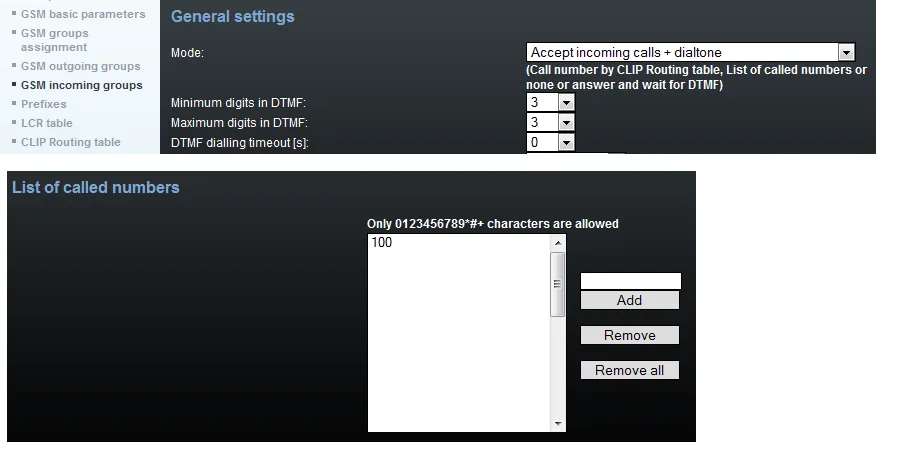 Screenshot: 2N FAQ Telecommunications, “Call routing — Forwarding call to one extension number” (2N VoiceBlue Next). In the manufacturer's example calls go to extension 100 — in your case it is your ring group or operator number.
- LCR table (firmware 1.22 and later) — there must be a row that lets incoming SIM calls out towards the PBX: From (channels/groups) —
GSM ALL, Prefixlist or number of digits —All prefixes, Groups / Tariffs —VoIP (V). In firmware 1.20+ such a row is usually there from the factory — check that nobody deleted it.
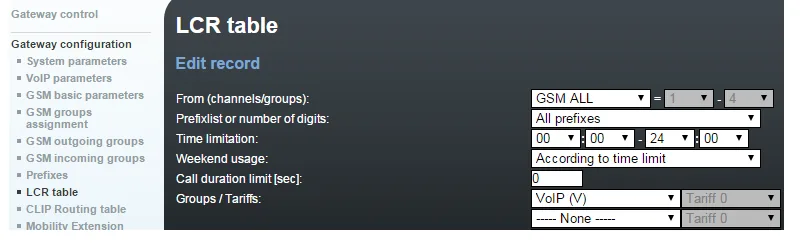 Screenshot: 2N FAQ Telecommunications, “Call routing — Forwarding call to one extension number”, note 2 (2N VoiceBlue Next).
Different numbers for different SIMs. Put the modules into different incoming groups and give each its own List of called numbers. VoiceBlue Next has two incoming groups: “SIM 1 → group 701, SIM 2 → group 702” is possible, four different routes for four SIMs are not.
Caller number. The gateway passes the SIM caller's number into the SIP call (in GSM basic parameters do not tick Disable CLIP from GSM/UMTS to VoIP). If you had to enable Replace CLIP from GSM with Caller ID (see “If the gateway does not register”), the caller's number will not reach the PBX — the call shows as coming from the gateway's extension. Routing rules for provider numbers (schedule, voice menu) do not apply to calls from a gateway — a ring group covers the same need (see “Where to send incoming calls”).
Outgoing calls. Calling out from the PBX through this gateway's SIM cards is not possible yet: the PBX outbound rule can only use a SIP provider line. The 2N itself can place outgoing calls (prefix lists, LCR, GSM outgoing groups), but do not configure them for our PBX. For outgoing calls from your own number use a SIP provider; more in “Outgoing calls through a gateway — not yet”.
BRI Lite / BRI Enterprise and other routing options
- On BRI Lite / Enterprise the VoIP-SIP port is a separate direction on a par with the ISDN ports (the LCR has
BRI1,BRI2andVoIPsources), and incoming SIM calls follow the same rules: List of called numbers, CLIP routing. All of this works only if the SIP licence is unlocked on the gateway (depends on the part number). - CLIP Routing table — routing by caller number (for example, regular customers straight to a manager); DISA — a greeting and the caller dials the extension. For a venue the List of called numbers is usually enough.
Step 5. Check registration and a call#
- Registration in the gateway. Gateway control → SIP registration shows the current state of the gateway's registration on the SIP server.
- SIM on the network. Gateway control → Module control: the module shows the network name and signal level; 2N recommends −65 to −85 dBm. A SIM logged into the network is indicated by its channel LED being off.
- Registration in the admin panel. Telephony → “Operators” tab — the gateway's extension shows a green dot.
- A call. Call the SIM number from a mobile — the ring group operators (or the operator) from the List of called numbers should ring.
- Audio — the
*43echo test. Registration says nothing about audio. Temporarily put*43first in the List of called numbers (the*character is allowed in the list; it is three characters, so with a three-digit group number you do not need to change Minimum/Maximum digits), save, and call the SIM from a mobile: the PBX plays a short beep and then returns your voice with a delay — talk for about ten seconds. You hear the beep and yourself — audio works both ways; beep but not yourself — audio does not get from the gateway to the PBX; not even the beep — it does not get from the PBX to the gateway. The test result appears in the call log. Afterwards put the group or operator number back.
Everything about testing is in the overview, section “How to check”.
Factory reset#
A reset is needed if the password or the gateway's address is forgotten, the gateway came from a previous owner with someone else's settings, or it behaves unpredictably.
With the button (VoiceBlue Next, VoiceBlue MAX, BRI). The RESET button on VoiceBlue Next is to the right of the Ethernet (RJ-45) connector, on BRI to the right of the BRI ISDN connector. A short press (half a second) just restarts the gateway. A long press — hold until the LEDs start flashing red (2N FAQ: about 10 seconds). Everything is reset, including network settings and the login: the gateway returns to 192.168.1.2 with Admin / 2n.
With the button (BlueTower, StarGate). Hold the basic CPU's RESET until only the green PWR LED stays lit. The fallback is the DEF jumper on the CPU board.
From the web interface (all models). Management → Configuration reset → tick what to reset (separate boxes for the LCR table, the CLIP routing table and Mobility Extension) and save. This reset does not touch the network settings and the login — the gateway stays at its address.
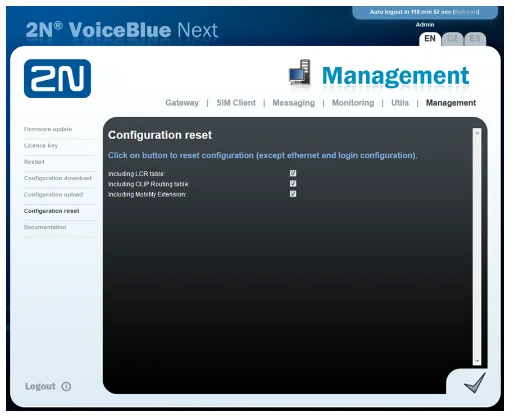 Screenshot: 2N FAQ Telecommunications, “Factory reset — How to make a factory reset VBN” (2N VoiceBlue Next).
What is erased: the SIP registration, incoming groups, List of called numbers, SIM PINs; with a button reset also the address and the web interface password.
What to do afterwards: start again from step 1 (address 192.168.1.2, Admin / 2n), then check the date and the licence (step 2) and go through steps 3–4. Resetting the gateway does not change the extension's login and password in the admin panel; if the extension password was not kept, issue a new one with “Reset password”. General notes on resetting gateways — in the overview.
If the gateway does not register#
- No DNS. In “domain” mode the gateway looks up our server by name — without DNS server 1/2 in Ethernet configuration there will be no registration.
- The address fields are not
0.0.0.0. If SIP proxy (GSM->IP) or SIP registrar still holds an old address (for example, from a previous PBX), the gateway goes there instead of to the Registration domain. - Save settings not pressed. Changes on a page are lost when you leave it without saving.
- The SIP licence is locked or expired. Gateway control → Firmware/Licence: no
SIP, or the hours limit is used up — the gateway handles no calls at all. Only a dealer can fix this. - The login is incomplete or the password is outdated. Username must hold the whole
sip-…-<number>string; if someone pressed “Reset password” in the admin panel, enter the new one in the gateway. - Registration is up, but the PBX rejects calls from the SIM. The gateway may put the caller's number into the call instead of the extension account, and the PBX does not recognise its own extension. Enable VoIP parameters → Replace CLIP from GSM with Caller ID (with your login in Caller ID): calls will come from the account, but the caller's number will not reach the PBX.
If the SIM is not on the network: a wrong PIN (Gateway configuration → System parameters → PIN; on an error the SIM is blocked with the pin-err status and has to be unlocked in a phone), no antenna, weak signal, or 2G and 3G are already switched off in the country — then this gateway cannot help. General causes (SIP ALG on the router, UDP 5060 blocked) — in the overview, section “If the gateway does not register”; about the network and SIM — “Venue network, NAT and SIM card”.
Models in the family#
All models are discontinued; none has LTE.
| Model | Channels / SIMs | Network | Setup differences |
|---|---|---|---|
| VoiceBlue Next 2×GSM | 2 channels, 1 SIM per channel | 2G GSM 850/900/1800/1900 | the base case of this page; powered by 12 V or PoE (not both at once) |
| VoiceBlue Next 2×UMTS | 2 | 2G + 3G UMTS 800/850/900/2100 | same menus |
| VoiceBlue Next 4×GSM | 4, SIM holders on the front | 2G GSM | 1U case; one antenna connector for all modules |
| VoiceBlue Next 4×UMTS | 4 | 2G + 3G | same menus; two incoming groups for 4 SIMs |
| VoiceBlue MAX | 4 GSM/UMTS + 4 FXS | 2G/3G | the same VoIP parameters page plus the Use SIP over TCP boxes (leave them off) |
| BlueTower VoIP | up to 8 channels, up to 8 SIMs per module | 2G/3G, optional ISDN PRI | SIP goes to the basic CPU, audio through the VoIP board with its own address; without a VoIP board it cannot be connected |
| StarGate VoIP | up to 32 channels | 2G/3G, optional ISDN PRI | like BlueTower; oversized for a venue |
| BRI Lite | 1–2 SIMs, 1 ISDN BRI port | 2G/3G + ISDN BRI | SIP only with a licence (depends on the part number) |
| BRI Enterprise | 1–2 SIMs, 2 ISDN BRI ports | 2G/3G + ISDN BRI | like BRI Lite; no more than two simultaneous calls |
Firmware and the old interface
The latest firmware in the manufacturer's manuals is 1.29.1 (VoiceBlue Next, VoiceBlue MAX, BRI). The routing steps on this page are for firmware 1.20 and later; the “GSM ALL → VoIP” LCR row is needed from 1.22. If the gateway runs firmware older than 1.20, routing works differently there — 2N advises updating the firmware (Management → Firmware update). The web interface was designed for the browsers of its time — if some pages render oddly, try another browser.
FAQ#
Can I call out from the PBX through this gateway using the SIM's number?#
Not yet — at our end the gateway handles incoming calls only. The 2N itself can place outgoing calls (LCR and outgoing groups), but our PBX does not yet send calls to a gateway extension as if it were a line. For outgoing calls from your own number use a SIP provider.
Is it worth buying a VoiceBlue Next now?#
No. The whole family is out of production, there will be no new firmware or spare parts, and without LTE/VoLTE the gateway stops working as soon as the country switches off 2G and 3G. If a gateway is already installed and working, connect it using this page; for a new installation choose an LTE gateway.
2N sells the EasyGate IP as a “successor”. Will it do?#
Not for this job. According to its manual, the 2N EasyGate IP connects an analogue handset (for example, a lift phone) to the mobile network: it passes an incoming SIM call to its own phone port, not to a SIP PBX on the venue network.
How many extensions does a 4-SIM gateway need?#
One: a 2N has a single SIP registration for the whole gateway. You can tell SIMs apart only through routing — by splitting them into two incoming groups with different destination numbers.
The SIP licence has expired — what now?#
Ask a 2N dealer for an extension key; it is entered in Gateway control → Firmware/Licence, after which the gateway restarts. With an expired licence the gateway passes neither incoming nor outgoing calls.
Can the operator block a SIM used in a gateway?#
It can: many plans forbid SIM cards in GSM gateways, and 2N states explicitly that it is not responsible for an operator blocking a SIM. Check the plan's terms in advance — see “Venue network, NAT and SIM card”.
Sources#
2N documentation (wiki.2n.com), accessed 10.09.2026:
- 2N VoiceBlue Next — User Manual (rev. 3.15, firmware 1.29.1): Factory Settings, Factory Reset, Gateway Configuration, Management — https://wiki.2n.com/vbnum/latest/en
- FAQ: Configuration — How to set 2N VoiceBlue Next? (firmware 1.20+) — https://wiki.2n.com/faqtel/en/configuration-manual-jak-nastavit-2n-voiceblue-next-104857825.html
- FAQ: Call routing — Forwarding call to one extension number — https://wiki.2n.com/faqtel/en/call-routing-presmerovani-hovoru-na-jedno-rozsirujici-cislo-104857755.html
- FAQ: IP setting — How to register the gateway on domain name instead of IP address? — https://wiki.2n.com/faqtel/en/ip-settings-jak-zaregistrovat-branu-na-nazev-domeny-misto-ip-adresy-104857877.html
- FAQ: IP setting — How to find out the IP address? — https://wiki.2n.com/faqtel/en/aip-settings-jak-zjistit-ip-adresu-2n-voiceblue-next-104857870.html
- FAQ: Factory reset — How to make a factory reset VBN — https://wiki.2n.com/faqtel/en/tovarni-nastaveni-jak-uvest-zarizeni-2n-voiceblue-next-do-tovarniho-nastaveni-104857672.html
- FAQ: Call routing — changes in firmware 1.20+ — https://wiki.2n.com/faqtel/en/call-routing-zmeny-ve-smerovani-hovoru-ve-firmwaru-1-20+-oproti-drivejsim-verzim-na-2n-voiceblue-next-104857744.html
- 2N VoiceBlue MAX — User Manual (rev. 1.13) — https://wiki.2n.com/vbmum/latest/en
- 2N BRI Enterprise / BRI Lite — User Manual (rev. 1.16) — https://wiki.2n.com/brium/latest/en
- 2N StarGate / BlueTower — User Manual: Important Default Settings, Installation (VoIP Connection) — https://wiki.2n.com/btwsgum/latest/en
- FAQ: Factory reset StarGate / BlueTower — https://wiki.2n.com/faqtel/en/factory-reset-tovarni-nastaveni-jak-uvest-zarizeni-do-tovarniho-nastaveni-sg-cz-104859666.html
- Product support for GSM Gateways (model list, including discontinued ones) — https://wiki.2n.com/gsmgw/en
- 2N EasyGate IP — User Manual 1.6.0 (PDF) — https://www.2n.com/-/media/Files/Manuals/8/7/2/0/9/87209/1_6_0/87209-1_6_0-en-t-pdf-public-2N_EasyGate_IP_Uzivatelsky_manual-en.pdf