Grandstream GXW4104/4108 and HT813 (FXO) — setup for our PBX
Your venue has a landline number on an ordinary telephone line — that RJ-11 socket from the operator, the number on your sign that guests have been calling for years. Porting it to a SIP provider is either unwanted or impossible, yet you would like those calls in your PBX: on operators, recorded and distributed across groups. The box that sits between the line and your network is an FXO gateway: the landline plugs into its port and it converts the line to SIP.
Grandstream has three generations of such gateways: HT841 (4 lines) and HT881 (8 lines) — today's models with the new web interface; HT813 — one landline plus one analogue phone, with the older-style interface; and GXW4104/4108 (4 and 8 lines) — a discontinued line that has an important limitation with our PBX. Next to the FXO ports, HT841/HT881 and HT813 also have an FXS port for a plain analogue telephone — that is a different guide.
To our PBX the gateway is just another extension: every FXO port registers on the PBX server with its own credentials, and the gateway itself dials an incoming landline call through to a ring group or an operator. What is the same for all gateways (credentials, where to send incoming calls, network, limitations) is in the overview “GSM gateway, landline or ISDN in your PBX”. This page is the step-by-step guide for Grandstream, with screenshots from the manufacturer's documentation.
What you need#
- Extension credentials from the admin panel — one set per landline: Telephony → Staff & groups → create an operator for the line (for example, “Landline, front desk”) → “Reset password” → the “Extension credentials” window: SIP server, Extension number, Login, Password, Port
5060, TransportUDP. The password is shown once, so copy it into the gateway right away. Details — “Extension credentials for a gateway”. - The number the gateway will dial inside the PBX — a ring group number (Telephony → “Ring groups”, numbers from 700) or an operator's extension number. You will need it in step 4, so write it down in advance.
- The landline from your operator, plugged with an
RJ-11cable into an FXO port (four of them on the HT841, eight on the HT881, one on the HT813). - The gateway on your venue network — a cable into NET1 (HT841/HT881) or WAN (HT813, GXW4104/4108). HT841/HT881 ship without a power supply: you need a 12 V adapter or a PoE switch (power is taken from the NET2 port, 802.3af).
- An analogue phone — optional, but it makes life easier: plugged into the FXS port, it reads out the gateway's IP address (step 1). GXW4104/4108 have no FXS port.
- A computer with a browser on the same network.
- The country of your line. Factory settings target the USA — you will have to change them in “Tune the line for your country”, otherwise calls will hang after the guest hangs up.
Step 1. Find the gateway's IP address#
Every model in the family gets its address over DHCP out of the box — plug the gateway into your venue network and find the address in one of these ways.
- By voice, through a phone in the FXS port (HT841/HT881 and HT813): lift the handset, dial
***, wait for “Enter the menu option” and dial02— the gateway reads out its current address. The menu only works from the FXS port; never plug a phone into an FXO port. - From the second port (HT841/HT881 and HT813): connect a laptop directly to NET2 (
LANon HT813). That port hands out addresses itself, so your computer gets something like192.168.2.100, and the gateway answers athttp://192.168.2.1. - From the router's client list — look up the DHCP lease by the MAC address on the label.
- GXW4104/4108 have no voice menu: the manufacturer offers the Grandstream IP Discovery utility (
IP Query.exe) on the tools page — pick the network interface, press Listen and reboot the gateway, and it announces its address.
Always plug the venue cable into NET1 / WAN. On GXW4104/4108 the second LAN port is only a switch; the gateway routes nothing through it.
Step 2. Log in to the web interface#
Open http://<gateway IP>. There is a single login field — you type a password, and it decides your access level:
| Model | Administrator password | User | Viewer |
|---|---|---|---|
| HT841 / HT881 | a unique password on the sticker on the back of the unit — not admin |
123 — “Status” and “Basic Settings” only |
viewer |
| HT813 | admin |
123 |
viewer (the user and viewer levels are disabled by default) |
| GXW4104 / GXW4108 | admin |
123 |
— |
Photograph the HT841/HT881 sticker before you mount the box on a wall: that password cannot be recovered, only reset together with the whole gateway — and after a reset it is the sticker string again.
Change the password straight away: on HT841/HT881 it is System Settings → Security Settings → User Info Management → New Admin Password (4–30 characters; with “Enable strict password rules” on — at least 8 characters and three character classes), on HT813 and GXW410x it is the Admin Password field on the advanced settings page. The password is case-sensitive.
⚠️ Update is not “apply”. On HT841/HT881 and HT813 the Update button only saves what you typed; settings take effect after Apply. On GXW4104/4108, Update has to be followed by a reboot. This is the most common reason for “I entered everything and nothing works”.
Step 3. Enter the PBX credentials#
The whole family follows one model: the server address is set in a profile, while the login and password live on each FXO port, and the port points at a profile. One FXO port = one of our extensions: one on HT813, up to four on HT841, up to eight on HT881.
HT841 and HT881#
Ports Settings → FXO Profile 1, tab General Settings: Profile Active = Yes, and the address of our PBX in Primary SIP Server. Leave Failover SIP Server, Outbound Proxy and Backup Outbound Proxy empty.
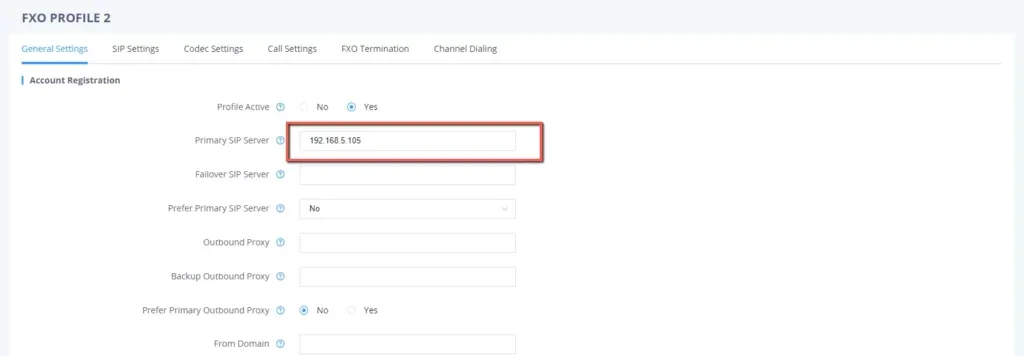
Screenshot: Connecting UCM6xxx with HT841/HT881 FXO Gateway, Grandstream documentation (accessed 2026-09-10); the server address in the shot is an example.
On the SIP Settings tab of the same profile: SIP Registration = Yes, SIP Transport = UDP, SRTP Mode disabled.
Then go to Ports Settings → FXO Ports — a table with one row per port:

Screenshot: Connecting UCM6xxx with HT841/HT881 FXO Gateway, Grandstream documentation (accessed 2026-09-10); the values shown are the example from the document.
| Field in the “Extension credentials” window | Value | Where it goes in the gateway |
|---|---|---|
| SIP server | the address of our PBX | FXO Profile 1 → Primary SIP Server |
| Port | 5060 |
no separate field — 5060 is used by default; you may write the address as server:5060 |
| Transport | UDP |
FXO Profile 1 → SIP Transport |
| Login | sip-…-<number> — in full, not just the extension number |
FXO Ports → SIP User ID |
| Login | the same string in full | FXO Ports → Authenticate ID |
| Password | the extension password (shown once) | FXO Ports → Authenticate Password |
| Extension number | a label for yourself | FXO Ports → Name |
| — | FXO Profile 1 |
FXO Ports → Profile ID |
| — | Yes |
FXO Ports → Enable Port (set unused ports to No) |
Press Apply.
HT813#
The whole SIP account lives on one page — FXO PORT (do not confuse it with the FXS PORT tab, which holds the analogue phone's account):
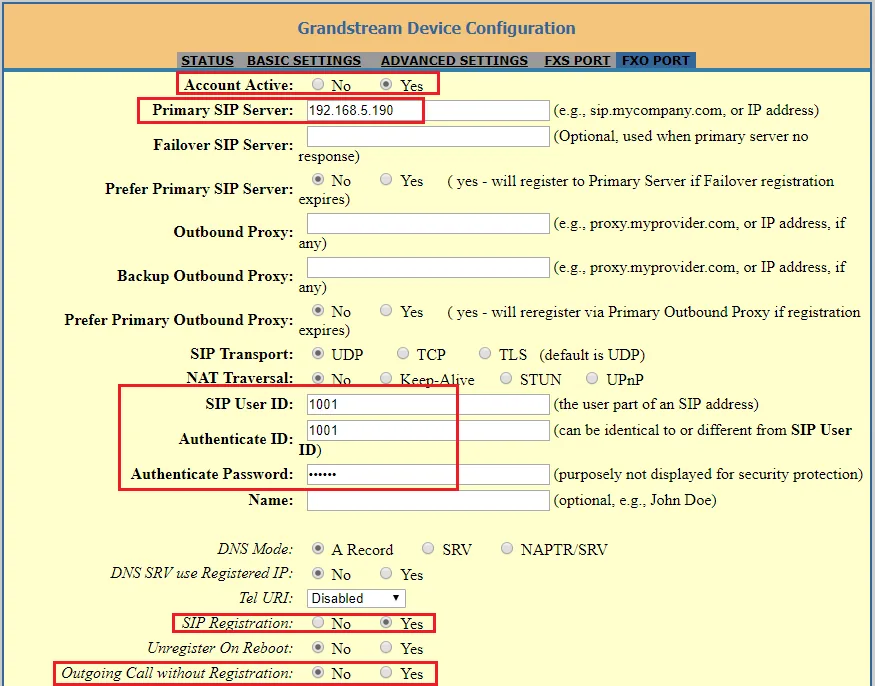
Screenshot: Connecting UCM6xxx with HT813, Grandstream documentation (accessed 2026-09-10); the values shown are the example from the document.
Account Active = Yes, Primary SIP Server = the address of our PBX, SIP Transport = UDP, NAT Traversal = No, SIP User ID and Authenticate ID = the full login, Authenticate Password = the extension password, SIP Registration = Yes. Then Update and Apply.
Codecs, DTMF, NAT and several gateways on one network
- Codecs. Put PCMA and PCMU first — these are G.711 A-law and µ-law (in Europe, the CIS and Georgia PCMA usually comes first, in North America PCMU). On HT841/HT881 the list is under FXO Profile → Codec Settings, on HT813 and GXW410x it is Preferred Vocoder. Our PBX does not use G.729, Opus, iLBC, G.723 or G.726 — do not put them first. These gateways have no G.722 at all, so conversations always run on G.711, and that is fine.
- DTMF — RFC2833 first in the priority list.
- NAT. Behind an ordinary router the gateway works without port forwarding: NAT Traversal =
No, STUN server empty. If registration drops from time to time, enable SIP OPTIONS/NOTIFY Keep Alive with a 30-second interval. Turn SIP ALG off on the router. - Several gateways behind one router — set Use Random SIP Port =
Yeson each, otherwise they interfere with each other's registration. Leave the Local SIP Port fields alone. - TLS and SRTP must stay off — our PBX does not offer them.
Step 4. Send incoming calls to the PBX#
Now tell the gateway what to do with a call arriving on the landline: seize its SIP account and dial a number inside our PBX. In Grandstream gateways this is the Unconditional Call Forward to VOIP field — on HT841/HT881 it sits in the Ports Settings → FXO Ports table (the right-hand part of the port row), on HT813 it is on the BASIC SETTINGS page, and on GXW4104/4108 it lives in the FXO Lines section.
Three cells per port:
| Cell | What to enter |
|---|---|
User ID (labelled CID in the HT841/HT881 table) |
the ring group number (from 700) or an operator's extension number |
| SIP Server | the profile holding our server — FXO Profile 1 on HT841/HT881, the PBX address on HT813, p1 on GXW410x |
| SIP Destination Port | 5060 |
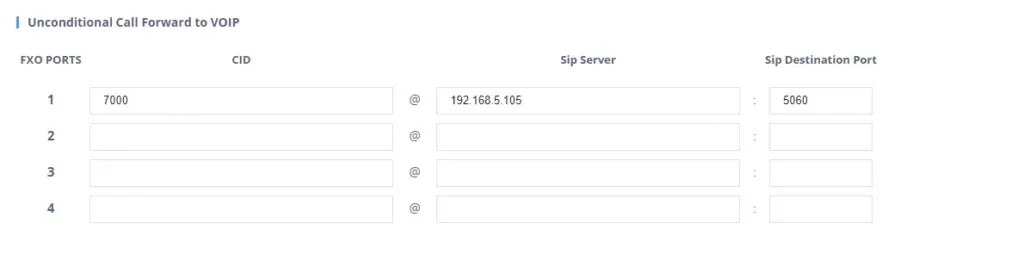
Screenshot: Connecting UCM6xxx with HT841/HT881 FXO Gateway, Grandstream documentation (accessed 2026-09-10); the number 7000 and the address are examples.

Screenshot: Connecting UCM6xxx with HT813, Grandstream documentation (accessed 2026-09-10).
Save and press Apply. Different lines can go to different groups — simply enter different numbers in the rows of the corresponding ports.
⚠️ This field must never be left empty. The gateway then switches to two-stage dialling: a caller from the street hears a dial tone and dials any number inside your PBX themselves. Grandstream warns explicitly that an outsider then gets the same rights in your telephony as the gateway's extension — including calls at your expense.
The caller's number. By default every model uses Caller ID Transport Type = Relay via SIP From: the gateway puts the landline caller's number in place of its own login, while our PBX recognises its extension precisely by that login — such a call will most likely be rejected. Set Caller ID Transport Type = Relay via P-Asserted-Identity (on HT841/HT881 it is FXO Profile → Analog Signal Line Configuration, on HT813 the FXO PORT page, on GXW410x the FXO Lines section): the From field then carries the port's login and the call is recognised. The landline caller's number travels in a separate header, but the operator panel does not show it yet — the call appears as coming from the gateway's extension. Routing rules set for provider numbers (schedules, IVR) do not apply to gateway calls; a ring group with its own time-based options covers the same need — see “Where to send incoming calls”.
About outgoing calls — honestly. You cannot currently call out from the PBX through this gateway's landline: an outgoing rule only points at a SIP provider line, while for the PBX the gateway is an extension. The gateway itself can do it (Stage Method, Unconditional Call Forward to PSTN, Hunting Group), but the PBX side does not support such outgoing calls — do not configure them. Today a Grandstream FXO gateway is a way to receive calls to a landline number; outgoing calls go through a SIP provider number, see “Outgoing calls through a gateway — not yet”.
Step 5. Check registration and a call#
- Registration in the gateway. Status → Port Status: the FXO port must show
Registeredand yoursip-…login in theUser IDcolumn. GXW4104/4108 show the same line on the Status page. Empty orNot Registered— see the next section. - Registration in the admin panel. The extension of this line must light up with a green dot on the “Staff & groups” tab.
- A call. Call the landline number from a mobile — the ring group or the operator from step 4 must ring. Then hang up on the mobile: the call at the operator must end within seconds. If the operator keeps hearing silence or tones, the problem is hang-up detection — the next section of this page.
- Audio — the
*43echo test. Registration says nothing about audio: it travels as a separate stream. Temporarily enter*43into Unconditional Call Forward to VOIP → User ID, press Apply and call the landline number: the PBX answers and starts playing your own voice back with a slight delay. If you hear yourself, audio flows both ways. If you hear the answer but not yourself, audio does not reach the PBX from the gateway. Silence means it does not reach the gateway from the PBX. Put the group number back afterwards and press Apply again.
Everything about verification is in the overview, section “How to check”.
Tune the line for your country#
Out of the box the gateway is set up for the US telephone network: 600 ohm line impedance, American call progress tones and the American caller-ID format. On a line in any other country this is a mandatory step, not fine-tuning — it is exactly what makes calls hang after the guest hangs up.
On HT841/HT881 all of it lives in FXO Profile 1 → FXO Termination; on HT813 and GXW4104/4108 it is in the FXO line settings.
- Line impedance. Set AC Termination Model =
Country-basedwith your country if it is on the list (the firmware has 15: the USA, Austria, Australia and New Zealand, Belgium, China, Finland, France, Germany, Greece, Italy, Japan, Norway, Spain, Sweden, the UK). Russia, the CIS countries, Georgia and Türkiye are not on the list — for them pickImpedance-basedand the value your operator suggests:600R(factory default),900R, or the complexCOMPLEX1…COMPLEX10(most of Europe uses270 Ω + (750 Ω || 150 nF), the UK and India370 Ω + (620 Ω || 310 nF)). Echo and hiss during a conversation are the sign of a wrong value. On GXW4104/4108 the same field is called AC Termination Impedance, and there is also an automatic Line Analysis test there. - Hang-up detection. Turn Enable PSTN Disconnect Tone Detection on (factory value
No): the manufacturer states that hang-up by the busy tone is the method used everywhere outside North America. The tone itself is defined in System Settings → Ringtone → PSTN Disconnect Tone (the factory value is American,480 Hz + 620 Hz, 500 ms each) — enter your country's parameters. Leave loop-current detection (Enable Current Disconnect) enabled, it does no harm. Turn Enable Polarity Reversal on only if your operator really provides polarity reversal on the line: without that service, the manufacturer warns, calls simply will not go through. - The caller's number on the line. Caller ID Scheme must match your operator's format:
Bellcore/Telcordia(USA),ETSI-FSKandETSI-DTMFin several variants (Europe),SIN 227 – BT(UK),NTT(Japan). The gateway does not decode the Russian “AON” scheme with its multi-frequency number request — on such a line the caller's number will not be identified. Number of Rings =4is how many rings the gateway waits for the number before passing the call to the PBX; with no caller-ID service on the line set it to1so that calls arrive faster. - The rest of the same section: Wait for Dial-Tone =
No, Stage Method (1/2) =1, PSTN Ring Thru FXS =No(otherwise the analogue phone in the FXS port of an HT841/HT881 or HT813 rings in parallel — sometimes handy as a “bell in the dining room”, but it should be a deliberate choice).
Factory reset#
A reset is needed when the web interface password is unknown, the gateway comes from a previous owner, or the configuration has become hopelessly tangled.
With the button on the case. Unplug the network cable, put a paper clip into the RESET hole on the back panel and hold it for about 7 seconds. On HT841/HT881 and HT813 a short press only reboots the unit, it is not a reset.
Through the voice menu (HT841/HT881, HT813 — with a phone in the FXS port): *** → 99 → wait for the word “reset” → dial the MAC address from the label as digits, where letters are encoded by repeating a key: A = 22, B = 222, C = 2222, D = 33, E = 333, F = 3333 (for example, MAC 000b8200e395 becomes 0002228200333395). About 15 seconds later the gateway reboots clean.
From the web interface (HT841/HT881, HT813): Basic Settings → Reset Type — Full Reset (everything), ISP Data (network settings only) or VOIP Data (only the SIP server, port accounts and provisioning) → the Reset button.
What is erased: the whole configuration — port accounts, the Unconditional Call Forward to VOIP field, line settings, network settings and the web interface password. The firmware stays as it was.
What to do afterwards: the gateway takes a DHCP address again and asks for the factory password (the sticker string on HT841/HT881, admin on HT813 and GXW410x); then repeat steps 1–5 of this page. Resetting the gateway does not change the extension login in the admin panel, but the password has to be issued again: it is shown only once, so use Telephony → Staff & groups → “Reset password”. General notes on resetting gateways are in the overview.
When a reset will not help: if “Lock keypad update” is enabled in the gateway or the unit is “locked” by a previous telecom operator, the RESET button only reboots it. The latter happens with gateways inherited from a provider. Another second-hand trap is a foreign provisioning server: it restores the old configuration after every reboot, which is cured by clearing the Config Server Path field (and disabling option 66 in your router's DHCP).
If the gateway does not register#
- GXW4104/4108 and our login. Grandstream's own documentation for this line states plainly that a GXW410x SIP User ID may only contain digits, and the gateway will not register non-numeric accounts. Our login looks like
sip-<8 characters>-<number>, so on a GXW4104/4108 registration will not go through according to the manufacturer's documentation. The line is discontinued; for our PBX take HT841/HT881 (the same 4 and 8 lines) or HT813. - Apply was not pressed. On HT841/HT881 and HT813 Update only saves; on GXW410x a reboot is needed after Update.
- The login was not entered in full. SIP User ID and Authenticate ID need the whole
sip-…-<number>string, not the extension number from the credentials window. - SIP Registration = No. The factory value is
Yes, but in the manufacturer's “peer by IP” examples it is switched off; we needYes. - The port is disabled or points at the wrong profile. Check Enable Port =
Yesand Profile ID = the profile where Primary SIP Server is filled in. - Several Grandstream gateways behind one router — enable Use Random SIP Port.
- Registered, but calls from the line do not arrive — an empty or wrong Unconditional Call Forward to VOIP field, or
Caller ID Transport Typestill at its factoryRelay via SIP From(step 4). Check that the number in the User ID field can be dialled from any PBX phone.
General causes (SIP ALG on the router, blocked UDP 5060) are in the overview, section “If the gateway does not register”; about the network — “Venue network, NAT and the SIM card”.
Models in the family#
| Model | Ports | Network and case | Firmware | Setup differences |
|---|---|---|---|---|
| HT841 | 4 × FXO + 1 × FXS | 2 × RJ45 (NET1/NET2, PoE 802.3af on NET2), desktop | 1.0.9.9 (2025-01-28) | new web interface: Ports Settings → FXO Profile / FXO Ports; administrator password on the sticker; no power supply in the box |
| HT881 | 8 × FXO + 1 × FXS | the same | 1.0.9.9 | identical to HT841 apart from the number of lines |
| HT813 | 1 × FXO + 1 × FXS | 2 × RJ45 10/100 (WAN/LAN), desktop | 1.0.19.6 (2025-05-15) | older-style interface: the FXO PORT page, with Unconditional Call Forward to VOIP on BASIC SETTINGS; password admin; FXO and FXS are two separate extensions |
| GXW4104 | 4 × FXO | 2 × RJ45 10/100 (WAN + LAN switch) | 1.4.1.5 | discontinued; settings are written per channel (ch1-4:) and the profile is referred to as p1; SIP User ID digits only — it will not register with our login |
| GXW4108 | 8 × FXO | the same | 1.4.1.5 | the same as GXW4104, with 8 lines |
What to buy for our PBX
HT841 (up to 4 lines) and HT881 (up to 8) are today's choice for receiving calls on existing landline numbers, especially where an analogue phone is also needed nearby: when power fails, their FXS port is hard-relayed to the line, so an ordinary telephone keeps working. HT813 suits a venue with one landline number and one analogue phone. GXW4104/4108 are not worth buying now (discontinued, and they do not accept our login); if such a gateway is already installed, its natural replacement in the range is HT841/HT881.
The even older HT503 (1 × FXS + 1 × FXO) is also in the manufacturer's discontinued-product archive; we have not studied its documentation — if such a gateway came with the premises, check the settings with your supplier.
If the landline number can be ported to a SIP provider, that is more reliable and cheaper than a gateway: “Connecting a provider number”.
FAQ#
How many extensions does a gateway with 8 lines need?#
Eight — one per FXO port: on Grandstream gateways the account belongs to the port, there is no single account for the whole box. That is even convenient: the PBX shows which landline number was called, and each line can be sent to its own ring group. If only three of the eight lines are in use, create three extensions and disable the remaining ports (Enable Port = No).
Can I call out through the landline from the PBX?#
Not yet. Through this gateway our PBX can only receive calls from the line; outgoing calls go through a SIP provider number. Details — “Outgoing calls through a gateway — not yet”.
The call arrives but does not end when the guest hangs up#
This is the classic FXO gateway trouble, and it is cured in the gateway rather than in the PBX: hang-up detection is not set up for your country. Work through “Tune the line for your country” — impedance, Enable PSTN Disconnect Tone Detection and your operator's busy tone.
The operator panel does not show the caller's number — is it broken?#
No. For now a landline call appears in the panel as a call from the gateway's extension: the gateway passes the subscriber's number in a separate header, and the PBX does not display it yet. The factory Relay via SIP From value, which puts the number into the main field, does not suit us — with it the PBX fails to recognise its extension and the call does not arrive at all.
Why is there no G.722 in the codec list?#
No model in this family has it — conversations always run on G.711 (PCMA/PCMU). For a landline that is exactly the quality the line itself provides, so nothing is lost.
Can I receive faxes?#
Yes, these gateways support T.38 and automatic fall-back to G.711. If faxes matter, dedicate a separate line and a separate FXO port to them instead of sharing one with voice.
Sources#
Manufacturer documentation, accessed 2026-09-10.
- HT841/HT881 User Manual — the web interface, the sticker password and access levels, the
***/02voice menu, NET1/NET2 ports and the192.168.2.1address, FXO Profile and FXO Ports, Unconditional Call Forward to VOIP, Caller ID Transport Type, AC Termination Model, reset. - HT841/HT881 Quick Installation Guide — case ports, 12 V power, the RESET button and 7 seconds.
- Connecting UCM6xxx with HT841/HT881 FXO Gateway — registering an FXO port as an extension, Unconditional Call Forward to VOIP, tone versus current disconnect, Wait for Dial-Tone and Stage Method. The source of the HT841 screenshots on this page.
- HT841/HT881 Datasheet — interfaces, codecs, PoE, “Power Supply Not Included”.
- HT813 Administration Guide — the
adminpassword, the FXO PORT and BASIC SETTINGS pages, Caller ID Transport Type values, reset types. - Connecting UCM6xxx with HT813 — configuring the FXO port and Unconditional Call Forward to VOIP on the HT813. The source of the HT813 screenshots on this page.
- HT813 Quick Installation Guide — the voice menu and the factory password.
- GXW410x User Manual and GXW410x User Manual (PDF, firmware 1.4.1.5) — profiles and channels, the
ch1-4:syntax, AC Termination Impedance, Caller ID Scheme, factory passwords, reset. - Connecting GXW410X with Asterisk — “SIP account user IDs may only be numeric”, the warning about two-stage dialling and calls at your expense, per-channel DTMF.
- GXW410x Quick Installation Guide — DHCP by default, the IP Discovery utility, North American call progress tones.
- Grandstream Firmware and Product Archive — current firmware versions; GXW4104/4108 and HT503 in the discontinued-product archive.