OpenVox VS-GW (modular) — setup for our PBX
OpenVox VoxStack gateways are modular chassis: a 2-, 5- or 11-slot enclosure takes boards with 4 GSM/3G/4G channels each (one SIM card per channel) or 8 analog ports FXO/FXS. They suit a venue or a chain with many mobile numbers — a delivery call centre, several outlets with different numbers on their signs, anywhere from 4 to 44 SIM cards in one cabinet — or 8–40 landlines. For one or two numbers a chassis is overkill: a desktop gateway such as Yeastar TG or Dinstar UC2000 is simpler.
The line has three generations sharing the same model numbers; setup is similar, but addresses and menus differ slightly:
- VS-GWP1202 / 1600 / 2120 — the current line (a CSU core unit and WTU radio units);
- VS-GW1202 / 1600 / 2120 V2 — the previous generation with a shared control board, VS-GWM420 modules (GSM/3G/4G) and VS-GWM820 modules (FXO/FXS);
- VS-GW1202 / 1600 / 2120 without “V2” (V1) — a discontinued generation where every 4-SIM module is a separate gateway with its own address and its own settings.
All of them run Asterisk inside, which is why the SIP account is called a SIP Endpoint in the web interface. To our PBX the gateway is just another extension: the endpoint registers on the PBX server with extension credentials, and the gateway itself dials an incoming call from a SIM card or line through to a ring group or an operator. What is the same for all gateways (credentials, where to send incoming calls, network, limitations) is in the overview “GSM gateway, landline or ISDN in your PBX”. This page is the step-by-step guide for OpenVox, with screenshots from the manufacturer's documentation.
What you need#
- Extension credentials from the admin panel: Telephony → Staff & groups → create an operator for the gateway (for example, “OpenVox GSM gateway”) → “Reset password” → the “Extension credentials” window: SIP server, Extension number, Login, Password, Port
5060, TransportUDP. The password is shown once, so copy it into the gateway right away. For VS-GWP and V2, one extension per chassis is usually enough; for V1 — one extension per module. Details — “Extension credentials for a gateway”. - The number the gateway will dial inside the PBX — a ring group number (Telephony → “Ring groups”, numbers from 700) or an operator's extension number. If different SIM cards should reach different groups, write down a group number for each.
- Modules and SIM cards. A GSM/4G module goes into a free slot; each channel gets its own SIM and its own antenna (SMA connector). Remove the SIM PIN with a phone in advance or have it at hand — it is entered in the port settings. For the VS-GWM420L 4G module the regional variant matters (see “Models in the family”).
- A laptop with an Ethernet cable whose address you can set manually: the gateway's factory address is not on your venue network, so the first login is direct only.
- The gateway on your venue network with internet access — after the initial setup.
Step 1. Find the gateway's IP address#
Out of the box VoxStack has a static address with mask 255.255.0.0 (address type Factory) and no DHCP on it — the gateway will not show up in your router's client list:
| Generation | Default address |
|---|---|
| VS-GWP1202 / 1600 / 2120 | 172.16.98.1 |
| V2 with GWM420 modules (GSM/3G/4G) | 172.16.98.1 |
| V2 with GWM820 modules (FXO/FXS) | 172.16.99.1 |
| V1 (GWM400G/W modules) | 172.16.99.X, where X is the module's slot number (1…2, 1…5 or 1…11) |
Give the laptop an address from the same subnet — for example 172.16.0.100, mask 255.255.0.0 — connect it by cable to a chassis port and open the gateway address in a browser.
Moving the gateway onto your venue network: Network → LAN Settings → Type = Static (manual address) or DHCP (address from the router; then look it up in the router's client list). In Factory mode the page cannot be edited — change the type first. The same page has Reserved Access IP — a fallback address in case the main one becomes unreachable: fill it in so you don't lose the gateway. VS-GWP also has a WAN interface (Network → WAN Settings) that takes a DHCP address out of the box; the manual does not say which of the two ETH connectors it corresponds to.
Forgot which address you set? If SMS Control was enabled beforehand (SMS → SMS Settings, where its password is also set), send the SMS get info <password> to the number of any SIM in the gateway — it will reply with its IP address.
V1: ETH1/ETH2 ports and Stand-alone/Cluster modes
A V1 chassis has two (1202/1600) or three (2120) RJ45 connectors on its switch board. ETH1 reaches only the first board, the others through the same address on different port numbers; through ETH2/ETH3 each board opens at its own 172.16.99.X address. The working mode is switched in System → General and Cluster → Working Mode: Stand-alone — one address = one 4-SIM module, each configured separately; Cluster — one address manages all modules in the chassis.
Step 2. Log in to the web interface#
Open http://<gateway IP>. The factory login is admin, password admin — on every generation and on every V1 module.
Change the password straight away: System → Login Settings — a new user name and password for the web interface and for SSH, plus the web port and the “HTTPS only” mode. No need to log out — just sign in with the new details. A gateway with admin/admin and a web interface exposed to the outside is easy prey: do not open it to the internet.
Which generation you have is shown on System → Information — software and hardware versions. Addresses and menu names below depend on it. V2 has a System → Setting Wizard: password, time, network, SIP endpoint and route in one pass — its fields are the same as in steps 3 and 4.
Step 3. Enter the PBX credentials#
The gateway's SIP account is a SIP Endpoint. Where to find it:
- VS-GWP and V2 with GSM/4G modules — VOIP → VOIP Endpoints → Add New SIP Endpoint;
- V1 and V2 with analog modules — SIP → SIP Endpoints → Add New SIP Endpoint.
In Main Endpoint Settings the key setting is Registration = Client (on V1 this option is called “This gateway registers with the endpoint”): the gateway registers on our server itself. The None (no registration) and Server (the gateway becomes the server) modes do not work for us.
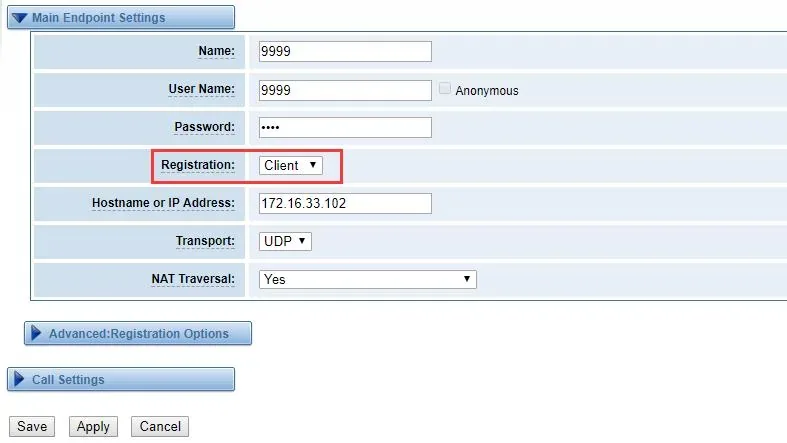
Screenshot: GWP1600/2120 User Manual v1.0 (2022-07-21), p. 39, fig. 5-4; field values are the document's example.
Then expand Advanced: Registration Options:
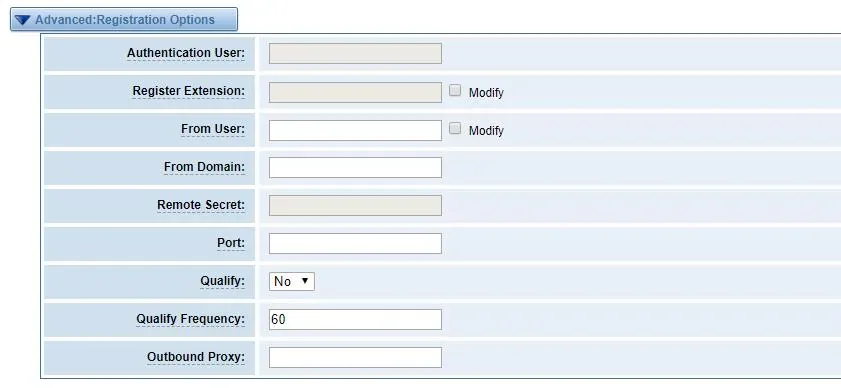
Screenshot: GWP1600/2120 User Manual v1.0 (2022-07-21), p. 40, fig. 5-5.
| Field in the “Extension credentials” window | Value | Where in the gateway |
|---|---|---|
| SIP server | our PBX address | Main Endpoint Settings → Hostname or IP Address (you can put the same address in From Domain) |
| Login | sip-…-<number> — in full |
Main Endpoint Settings → User Name (leave Anonymous unticked) |
| Login | the same full string | Advanced: Registration Options → Authentication User (if the field is editable) |
| Login | the same full string | Advanced: Registration Options → From User — mandatory, see below |
| Password | the extension password (shown once) | Main Endpoint Settings → Password; leave Remote Secret empty |
| Port | 5060 |
Advanced: Registration Options → Port |
| Transport | UDP |
Main Endpoint Settings → Transport |
| Extension number | a label for yourself | Main Endpoint Settings → Name — the endpoint appears under this name in routes |
| — | Client |
Main Endpoint Settings → Registration |
| — | Yes |
Advanced: Registration Options → Qualify (default frequency 60 s) |
Why From User is mandatory. This is how the gateway identifies itself to the server on every call. Left empty, the gateway may put the SIM caller's number there instead — and our PBX, which recognises the extension by its login, will not know who is calling. Put the same full login into From User.
Click Save, then Apply.
Codecs, DTMF, NAT, TCP
- Codecs — Advanced SIP Settings → Codec Settings: put alaw and ulaw (G.711) first, optionally g722; remove G.729, G.726 and GSM or move them down — our PBX does not use them and a call will not negotiate with them.
- DTMF — the endpoint's Call Settings block, DTMF Mode =
rfc2833(which is the default). - NAT. Behind an ordinary router the gateway works without port forwarding: NAT Traversal can stay as it is, and Qualify =
Yeskeeps the link to the server alive. The Advanced SIP Settings → NAT Settings fields (Local Network, External Address) are not needed. Turn SIP ALG off on the router. - TCP — if you need it instead of UDP: Advanced SIP Settings → Networking → Enable TCP =
Yesand Transport = TCP. Our PBX has no TLS — do not enable it. - UDP Bind Port (Advanced SIP Settings → Networking) is the gateway's own port; no need to change it.
- Registration timers — Advanced SIP Settings → Parsing and Compatibility: registration expiry, timeout (20 s by default), number of attempts.
- Changed the server address to a different name — restart the gateway: Asterisk re-reads the server name only at start-up.
Step 4. Send incoming calls to the PBX#
The gateway has to send a call to its SIM card or line through our endpoint and dial a number inside the PBX. That is a routing rule: Routing → Call Routing Rules → New Call Routing Rule.
- Routing Name — any name in Latin letters, for example
gsm2pbx. - Call Comes in From — where the call comes from: a single port (
gsm-1.1,lte-2.5; an FXO port on analog modules) or a port group (groups are created in Routing → Groups). - Send Call Through — our SIP endpoint from step 3.
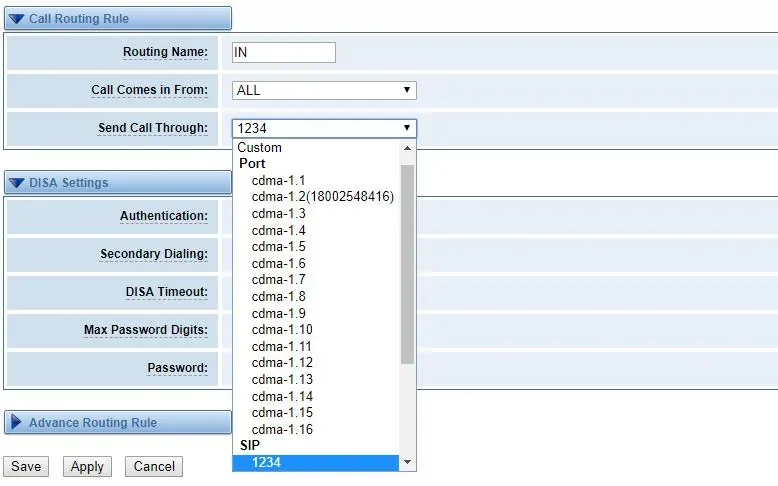
Screenshot: GWP1600/2120 User Manual v1.0 (2022-07-21), p. 68, fig. 6-2; the example shows CDMA module ports — on GSM and 4G modules they are named gsm-… and lte-….
- Expand Advance Routing Rule and in the Change Rules block fill in Forward Number — the ring group number (from 700) or an operator's extension number. The manufacturer describes this field as the number sent to the target server as the dialled number of the incoming call.
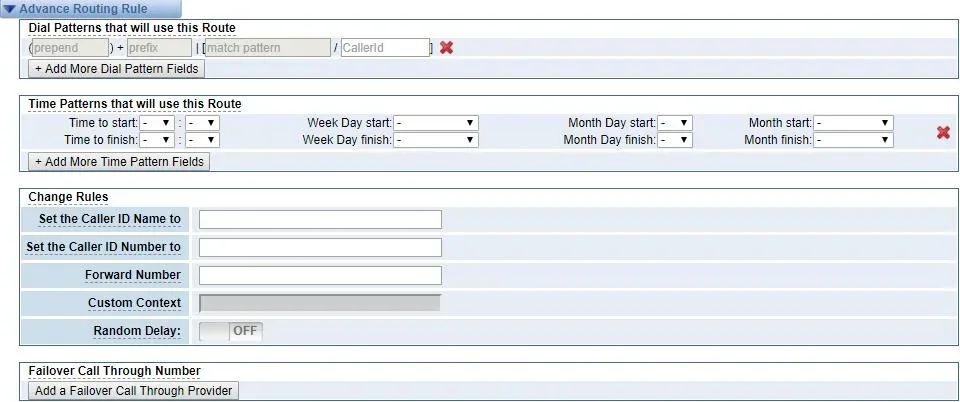
Screenshot: VoxStack Series Wireless Gateways User Manual v1.0 (2019-04-04), p. 69, fig. 5-1-4.
- Save, then Apply.
⚠️ Without Forward Number the call goes nowhere: the gateway does not know our PBX numbers and will dial something of its own. For calls coming in from a GSM/4G port, the prepend, prefix and match pattern fields in Advance Routing Rule have no effect — only the caller number filter (CallerID) works, so the group number is set precisely through Forward Number.
Different SIMs to different groups: create one rule per port, each with its own Forward Number. Rules are checked top to bottom; reorder them by dragging and the Save Orders button. For many ports at once there is Routing → Batch Creating rules — one row per port with the SIM number, SIP endpoint and caller number; after batch creation open the resulting rules and check the Forward Number field. Analog modules are set up the same way: a rule “FXO port → our endpoint” with a Forward Number.
The caller's number. With From User filled in (step 3), the caller's number can be passed in a separate header: in the endpoint, Call Settings → Send Remote-Party-ID = Yes, Remote-Party-ID Format = P-Asserted-Identity. For now the operator panel shows such a call as coming from the gateway's extension — the PBX does not display the caller's number. Routing rules for provider numbers (schedules, IVR) do not apply to gateway calls — a ring group with its own time-based options covers the same need, see “Where to send incoming calls”.
About outgoing calls — honestly. You cannot currently call out from the PBX through this gateway's SIM cards or lines: an outgoing rule in the PBX only points at a SIP provider line, while for the PBX the gateway is an extension. The gateway itself can do it (a reverse rule “endpoint → GSM port group”, two-stage DISA dialling), but our PBX does not support such calls — do not configure them. Today OpenVox is a way to receive calls to SIM and line numbers; outgoing calls go through a SIP provider number, see “Outgoing calls through a gateway — not yet”.
Step 5. Check registration and a call#
- SIM cards. On the Status page, module block: every port with a SIM should show Registration Status
Registered (Home network)and Module StatusREADY.Undetected SIM Cardmeans no card or a card inserted the wrong way; a red flashing LED on the module means the same. - Registration in the gateway. Same page, SIP Information block: your endpoint's row with Registration
client. With Qualify =Yesthe SIP Status column showsOKwith a delay in milliseconds; anything else — see the next section.

Screenshot: GWP1600/2120 User Manual v1.0 (2022-07-21), p. 15, fig. 2-1 (fragment).
- Registration in the admin panel. The gateway's extension on the “Staff & groups” tab should get a green dot.
- A call. Call the SIM card number (or the line's landline number) from a mobile — the group or operator from step 4 should ring.
- Audio — the
*43echo test. Registration says nothing about audio: it travels in a separate stream. Temporarily set the rule's Forward Number to*43, click Save and Apply, and call the SIM card: the PBX answers and starts playing your own voice back with a short delay. You hear yourself — audio flows both ways. You hear the answer but not yourself — audio does not get from the gateway to the PBX. Silence — it does not get from the PBX to the gateway. Afterwards put the group number back.
Everything about verification is in the overview, section “How to check”.
Factory reset#
A reset is needed if the web password is unknown, the gateway address is lost, or the gateway came from a previous owner with someone else's settings. Before resetting, save the configuration: System → Tools → Backup Configuration → Download Backup — it can only be restored onto the same firmware version.
From the web interface. System → Tools → Restore Configuration → Factory Reset: the gateway returns all configuration files to factory values and reboots itself. In newer firmware the same item looks like System → Tools → Restore System → choose which data to clear → Recover System.
With the button. Find the RST button on the enclosure, press and hold it until all LEDs start flashing (about 10 seconds), then release. To check, ping the factory address from a laptop in the 172.16.0.0/16 subnet: a reply means the reset worked, no reply — repeat. On VS-GWP there is an RST button on the CSU core unit (which hosts the web interface and the 172.16.98.1 address) and on every WTU radio unit; what exactly the WTU button resets — only its own unit or the whole chassis — the documentation does not say, check with your supplier. On V2 with analog modules the Reset button is on the chassis front panel.
By SMS. If SMS Control was enabled beforehand: restore configs <password> sent to a gateway SIM number returns the configuration to factory defaults.
What gets erased: SIP endpoints, routes, network settings and the web password (with Restore System — the sections you ticked). The firmware stays the same.
What to do afterwards: the gateway is reachable again at its factory address (172.16.98.1, 172.16.99.1, or 172.16.99.X on V1) with login and password admin — repeat steps 1–5. Resetting the gateway does not change the extension login in the admin panel, but if you did not keep the extension password it has to be issued again: Telephony → Staff & groups → “Reset password”. General notes on resetting gateways are in the overview.
If the gateway does not register#
- Registration is not
Client. InNoneandServermodes the gateway does not register on our server. The manufacturer also warns that an endpoint withNonepointing at the same server interferes with other endpoints registering there — do not mix them. - The login is not entered in full or only in one field. User Name, Authentication User (if editable) and From User all need the whole
sip-…-<number>string, not the extension number from the credentials window. - Registered, but a call to the SIM does not arrive. An empty From User (the PBX does not recognise the calling extension), an empty or wrong Forward Number, or the rule sits below another one that catches the same port. Check that the Forward Number can be dialled from any PBX phone.
- The call connects with no audio or drops. G.729 or GSM is still first in Codec Settings — put alaw/ulaw first.
- V1: only one of several modules configured. On V1 in Stand-alone mode every module is a separate gateway with its own address, password, endpoint and routes; SIM cards in a neighbouring module do not take calls without that module's own setup.
- The SIM is not on the network —
Undetected SIM Card, the PIN is not entered (Module → Module Settings → the port's button), the antenna is not connected, or a 4G module is used in a country where 2G/3G are already switched off: voice over VoLTE is not explicitly stated for these modules in the manufacturer's documentation — check with your supplier before buying.
General causes (SIP ALG on the router, blocked UDP 5060, an outdated password) are in the overview, section “If the gateway does not register”; about the network and SIM cards — “Venue network, NAT and the SIM card”.
Models in the family#
| Model | Slots / channels | Network or line | Setup differences |
|---|---|---|---|
| VS-GWP1202 | 2 slots → 4–8 SIMs | GSM/3G/4G (per module) | desktop, 12 V; address 172.16.98.1; VOIP → VOIP Endpoints menu |
| VS-GWP1600 | 5 slots → 4–20 SIMs | GSM/3G/4G | 1U, 100–240 V or −48 V power; CSU core + WTU radio units, RST buttons on both; firmware 2.0.8 (2026-04-26); CE and MIC certified |
| VS-GWP2120 | 11 slots → 4–44 SIMs | GSM/3G/4G | 2U, redundant power; otherwise as GWP1600 |
| VS-GW1202 / 1600 / 2120 V2 + VS-GWM420 modules | 2 / 5 / 11 slots → up to 8 / 20 / 44 SIMs | GSM/3G/4G | one system per chassis, address 172.16.98.1; discontinued, last firmware 2.2.0 (2022-10-24) |
| VS-GW1202 / 1600 / 2120 V2 + VS-GWM820 modules | up to 16 / 40 / 88 ports | FXO / FXS | a module = 8 FXO, 8 FXS or 4 FXO + 4 FXS; address 172.16.99.1; SIP → SIP Endpoints menu |
| VS-GW1202 / 1600 / 2120 (V1) + VS-GWM400G / 400W | 2 / 5 / 11 slots, 4-SIM module | GSM (400G) / 3G (400W) | discontinued; every module is a separate gateway at 172.16.99.<slot>; SIP → SIP Endpoints menu |
GSM/4G modules, analog modules and E1
- VS-GWM420G — 4 GSM channels, 850/900/1800/1900 MHz: works wherever 2G is still alive and fits both VS-GWP and V2 chassis.
- VS-GWM420L — 4 channels of 4G + 3G + GSM; the variant is chosen by country:
-CE(China, India),-E(Europe, Middle East, Africa, Korea, Thailand),-AU/-AUX(Australia, New Zealand, Taiwan, Brazil),-AF(North America). According to the module page it is for VS-GW1600/2120 and VS-GWP1600/2120. Voice over VoLTE is not explicitly stated in the manufacturer's documentation — if 2G/3G are already switched off in your country, check with your supplier before buying. - VS-GWM420W — 3G + GSM (variants
-E,-A,-T); 3G networks are being switched off worldwide, do not buy it new. - VS-GWM820-O / -S / -O/S — 8 FXO, 8 FXS or 4 + 4. For landlines, Analog → FXO holds busy-tone hang-up detection (Busy Detect, Busy Count, tone country), and Analog → Driver / Advanced Settings holds impedance and the caller ID format. FXS ports (analog phones) are extensions — see the phones section.
- GWM401G/W/L, GWM801S/O — module boards with their own system: address
172.16.80.Xby slot number,admin/admin. - E1/T1 (ET2001/2002/2004, DTU-301) are listed by the manufacturer among its modular gateways, but the VoxStack manuals do not describe them as chassis modules — for ISDN, check with your supplier.
- GSM and analog modules can share one chassis (manufacturer's application note).
FAQ#
How many extensions does a 20-SIM chassis need?#
On VS-GWP and V2 — usually one: an endpoint is not a port but a connection to the server, and one routing rule can send calls from all SIMs into it at once. If different SIMs must ring different groups, different rules with different Forward Numbers are enough. Separate extensions per port are needed only if you want to tell SIM cards apart by extension in the PBX. On V1 in Stand-alone mode — one extension per module (4 SIMs): modules do not see each other's settings.
Can I call out through the gateway's SIM cards?#
Not yet. Through this gateway our PBX can only receive calls; outgoing calls go through a SIP provider number. Details — “Outgoing calls through a gateway — not yet”.
How do I tell which generation I have: V1, V2 or GWP?#
By address and menu: VS-GWP and V2 with GSM modules have their web interface at 172.16.98.1 and a VOIP menu; V1 is at 172.16.99.X by slot number, and every module opens separately. For certain — on System → Information (software and hardware versions). By the name: “VS-GWP…” is the current line, “… V2” the previous one, no suffix — V1.
Will a 4G gateway work in a country where 2G and 3G are switched off?#
OpenVox documentation mentions LTE but does not explicitly state VoLTE voice for the VS-GWM420L module. If 2G/3G are already off in your country, check with your supplier before buying; where 2G works, the VS-GWM420G module is simpler and cheaper. Country notes — in the overview.
The menu has IMEI change, call limits, SIM rotation — should I enable them?#
No. They are not needed to receive calls to your venue's numbers, and changing the IMEI is illegal in many countries and leads to the operator blocking the SIM. These functions are designed for bulk traffic resale, not for incoming guest calls.
The operator panel does not show the caller's number — is it broken?#
No. For now a call from a SIM card shows up as coming from the gateway's extension: the gateway passes the caller's number in a separate header (step 4), and the PBX does not display it yet.
Sources#
Manufacturer documentation, accessed 2026-09-10.
- GWP1600/2120 (VS-GWP Series) Gateway User Manual v1.0 —
172.16.98.1address andadmin/admin, CSU and WTU panels with RST buttons, the Status page, SIP Endpoint and Registration Options, Call Routing Rules and Forward Number, Restore Configuration, LAN/WAN Settings, SMS Control. Source of the screenshots from pp. 15, 39, 40 and 68. - VoxStack Series Wireless Gateways User Manual v1.0 (V2) — None/Server/Client modes, Forward Number as the dialled number for inbound calls, the prepend/prefix limitation for GSM/4G ports, Batch Creating rules, Setting Wizard. Source of the screenshot from p. 69.
- VoxStack Series Analog Gateway User Manual v2.0 — VS-GWM820 modules,
172.16.99.1address, Reset button, FXO settings. - VS-GW2120 Series User Manual (V1), VS-GW1600 User Manual (V1) and VS-GW1202-8G User Manual (V1) — module addresses by slot, ETH1/ETH2/ETH3, Stand-alone/Cluster, “This gateway registers with the endpoint”.
- FAQ “Default IP and login information of various Gateways” — factory addresses of all generations and modules, mask
255.255.0.0. - FAQ “How To Restore Factory Settings Via Web Or RST Button” — Restore System, RST button for about 10 seconds,
pingcheck. - App Note “How to bind the GSM gateway ports with PBX SIP extension” and “How to Integrate the Analog Gateway and the GSM Gateway in One OpenVox Box” — an endpoint per port or a shared one, GSM and analog modules in one chassis.
- GWM420 Series Wireless Gateway Module Datasheet and the VS-GWM420L page — GWM420G/W/L modules and regional variants.
- VS-GWP1202/1600/2120 Series Datasheet and the VS-GWP1600 page — ports, power, codecs, CE and MIC certification.
- Firmwares (Document Center) and the EOL-Product section — firmware versions; V1 and V2 in the discontinued section.