Patton SmartNode (SN41xx/SN43xx/SN49xx) — setup for our PBX
Patton SmartNode is a line of "office" gateways from the US-Swiss company Patton, with long-lived firmware. Three lines matter for a venue: the analogue SN4141 for 2–8 landlines (FXO ports; there are versions with FXS ports for old phones), the SN4131 for 2–8 ISDN BRI lines, and the SN4171 / SN4970A for ISDN PRI E1/T1 trunks. It is a choice for a site whose landline number arrives over a copper line or ISDN, especially if a Patton is already installed. For one or two analogue lines there are simpler and cheaper gateways — see the family table in the overview.
To our PBX the gateway is just another extension: it registers on the PBX server and, when someone calls the line, dials a ring group or an operator by itself. What is the same for all gateways (credentials, where to send incoming calls, network, limitations) is in the overview “GSM gateways and landlines”. This page is the step-by-step guide for SmartNode, with diagrams and examples from Patton's documentation.
The main difference from other gateways: SmartNode has no web page with "SIP server / login / password" fields. The gateway is set up with a configuration — commands over Telnet/SSH or a ready-made file uploaded through the web interface. The steps below give ready configuration blocks in which you only need to fill in the credentials. If you have never worked with a command line, plan for an integrator to do the installation. The steps are written for current models on Trinity firmware (SN4141, SN4131, SN4171, SN4970A); the differences of discontinued models on SmartWare are in the "SmartWare" blocks.
What you need#
- Extension credentials from the admin panel: Telephony → Staff & groups → create an operator for the gateway (for example, “Patton gateway, landline”) → “Reset password” → the “Extension credentials” window: SIP server, Extension number, Login, Password, Port
5060, TransportUDP. The password is shown once — copy it into the configuration right away. Details — “Extension credentials for the gateway”. - How many extensions: one for the whole gateway. Patton's FXO template registers one account and sends incoming calls from all lines through it.
- The number the gateway will send incoming calls to: a ring group number (Telephony → “Ring groups”, numbers from 700) or an operator's extension number.
- A line: an analogue landline in an FXO port (RJ-11) of the SN4141, or an ISDN line from the operator's equipment in a BRI / E1 port (RJ-45) of the SN4131 / SN4171.
- A network cable, a computer with a Telnet or SSH client (and a browser) and a mobile phone to call the line.
Step 1. Find the gateway's IP address#
On all Trinity models the ETH 0/0 (WAN) port gets an address from the venue's router via DHCP. The gateway also has a factory static address, which you can reach by connecting a laptop directly:
| Model | Factory address | Also |
|---|---|---|
| SN4141 with one Ethernet port | 192.168.200.20 on ETH 0/0 + DHCP client |
give the laptop an address in 192.168.200.x with mask 255.255.255.0; one table of the manual lists 192.168.200.10 for this model — if .20 does not answer, try that one |
| SN4141/2ETH (two ports) | ETH 0/1 (LAN) — 192.168.200.10 or the name smartnode.local |
the LAN port runs a DHCP server: a laptop on it gets an address by itself |
| SN4131 (two ports) | ETH 0/1 (LAN) — 192.168.1.1 |
the LAN port runs a DHCP server (192.168.1.10–99) |
| SN4171 | ETH 0/0 — 192.168.1.1 + DHCP client |
— |
| SN4110 (SmartWare) | DHCP only on eth0 |
— |
If the gateway is already on the venue's network and its address is unknown, there are two ways:
- SmartNode Discovery Tool — a free Patton program for Windows (page
www.patton.com/SNDiscovery). It finds all Patton devices on the network and shows their IP address, MAC address, model and firmware build. Double-clicking a row opens the gateway's web interface. If the gateway is not in the list, check that the computer is on the same subnet and turn off its firewall. - The DHCP lease list in the venue's router — look for the MAC address from the gateway's label.
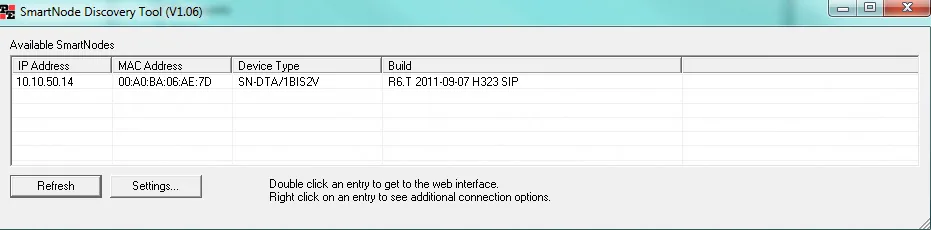 Screenshot: SmartNode 4520 & 4110 Series User Manual (07MD4524-GS Rev. J), p. 66.
You can switch the WAN address to a static one in the CLI (context ip ROUTER → interface WAN → ipaddress WAN <address>/<mask>), but our PBX does not need that: a DHCP address is fine.
SmartWare: console port
SmartWare models (SN4110, SN4120, SN4960/SN4970) have an RS-232 console (RJ-45 connector, 9600 bit/s, 8N1; the SN4112S has no console). It gives access to the gateway without a network — handy when the address is unknown and you do not want to reset.
Step 2. Log in to the gateway#
| What | Trinity (SN4141, SN4131, SN4171, SN4970A) | SmartWare (SN4110, SN4120, SN4970) |
|---|---|---|
| How | Telnet or SSH to the gateway's address; web interface over HTTP/HTTPS | Telnet or console; a web interface exists |
| Login | admin |
administrator |
| Password | empty — just press Enter at the password prompt | empty |
After logging in over Telnet, the enable and configure commands take you into configuration mode (the prompt changes to …(cfg)#). Changes apply immediately and the gateway does not need a reboot, but to survive a reboot they must be saved: copy running-config startup-config.
Change the password right away — Patton states plainly that creating your own administrator is the owner's responsibility: administrator <name> password <password>, then copy running-config startup-config. Do not leave the gateway on the network with an empty password.
The Trinity web interface is not a settings form but a shell for wizards and configuration files (you will need it in step 3). Its login and password are the same as for Telnet: in Patton's templates the web server uses the same access profile profile aaa DEFAULT. According to the CLI reference, the web server is disabled by default. If the browser does not open the gateway's page, enable it over Telnet: web-server → no shutdown → copy running-config startup-config.
Step 3. Enter the PBX credentials#
SmartNode registration on a PBX is described by three configuration blocks: authentication-service (login and password), location-service (the PBX address and the account registration — the identity) and context sip-gateway (the gateway's SIP port). This is how Patton describes registration on an external server both in the CLI reference and in its templates for the 3CX PBX.
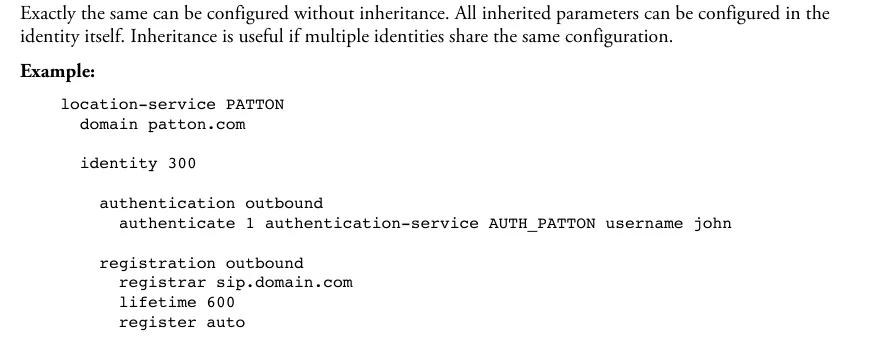 Screenshot: Trinity Release 3.14.X Command Line Reference Guide, chapter 51 “Location Service”, p. 611.
Here is the same block with our credentials — paste it in configure mode (or into a configuration file, see below). The names AUTH_PBX, LOC_PBX, GW_PBX are arbitrary labels; replace the angle brackets with values from the credentials window:
authentication-service AUTH_PBX
  username <Login> password <Password>

location-service LOC_PBX
  domain 1 <SIP server>
  identity-group DEFAULT
    authentication outbound
      authenticate 1 authentication-service AUTH_PBX username <Login>
  identity <Login>
    authentication outbound
      authenticate 1 authentication-service AUTH_PBX
    registration outbound
      registrar <SIP server> 5060
      lifetime 300
      register auto

context sip-gateway GW_PBX
  bind location-service LOC_PBX
  interface IF_GW_PBX
    transport-protocol udp+tcp 5060
    no transport-protocol tls
    bind ipaddress ROUTER WAN WAN

context sip-gateway GW_PBX
  no shutdown
In the bind ipaddress line, give the IP interface from context ip ROUTER through which the gateway reaches the venue's network (usually WAN; in Patton's 3CX templates — LAN). The identity-group DEFAULT block makes the gateway answer the PBX's password challenge during calls too. Then save: copy running-config startup-config.
| In the admin panel (“Extension credentials”) | Where in the SmartNode configuration |
|---|---|
| SIP server | domain 1 …, registrar … and remote … from step 4 — the same value in all three places |
Login sip-…-<number> |
username in authentication-service, the identity name, username in authenticate 1 … and from-header … fix from step 4 — the whole string |
| Password | password in authentication-service |
Port 5060 |
the second number in registrar <server> 5060 and remote <server> 5060 |
Transport UDP |
transport-protocol udp+tcp 5060 and no transport-protocol tls (we accept TCP too; we have no TLS) |
| Extension number | not entered — just remember which extension the gateway uses |
Easier — with a ready file. Patton publishes full Trinity configuration templates for FXO, FXS, BRI, E1 and T1 (the NewTemplates.zip archive from knowledge-base article KB 478) and wizards at www.patton.com/wizard/. The templates are made for the 3CX PBX: they are XML files containing the configuration text with %%…%% placeholders. Take the template for your line type, copy the configuration text into a separate file, replace all placeholders with our values from the table above (and the blocks from step 4) and upload the file through the web interface: menu (button at the top left) → System / Configuration Files → “+” → choose the file → save it as startup-config → OK; then menu → Reboot → Yes. The file takes effect after the reboot. Remove the realm 1 3CXPhoneSystem line from the 3CX template: our PBX has no separate realm.
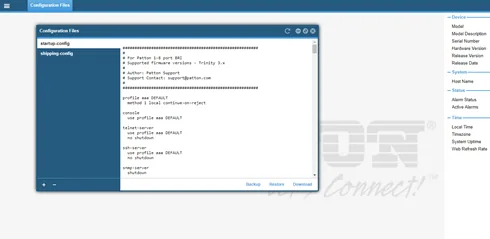 Screenshot: Patton Knowledge Base, article 478 “Patton Trinity SmartNode configuration with 3CX”.
Codecs, DTMF, NAT
- Codecs — in
profile voip DEFAULT. Patton's templates are American: µ-law comes first and G.729 is included. For Europe and Russia put A-law first and remove G.729 or put it last (our PBX does not have it):profile voip DEFAULT codec 1 g711alaw64k rx-length 20 tx-length 20 codec 2 g711ulaw64k rx-length 20 tx-length 20 - DTMF — leave it alone: per the CLI reference,
profile voiphasdtmf-relay defaultby default, which is RFC 2833 with SIP. Theno dtmf-relaycommand switches DTMF to in-band — do not use it. - NAT — the gateway works behind the venue's router without port forwarding: it registers by itself and repeats the registration every
lifetimeseconds. Turn off SIP ALG on the router. - TLS and SRTP are paid licences on SmartNode; our PBX does not need them.
SmartWare (SN4110, SN4120, SN4960/SN4970)
The authentication-service, location-service → identity → registration outbound blocks work the same way (articles KB 197 and KB 198). Differences: log in as administrator; the gateway's SIP port is set with bind interface eth0 context router port 5060 in context sip-gateway; the transport is preferred-transport-protocol udp inside registration outbound; the route in SmartWare templates is route .T dest-interface …. Details are in the SmartWare Release 6.8 Software Configuration Guide.
Step 4. Send incoming calls to the PBX#
A call from the line enters the port's interface (interface fxo … on the SN4141, interface isdn … on ISDN), goes from there to a routing table and to the interface sip that points to our PBX. An analogue line has no called number, so the number the gateway dials in the PBX is fixed in interface sip — that is what Patton's FXO template does.
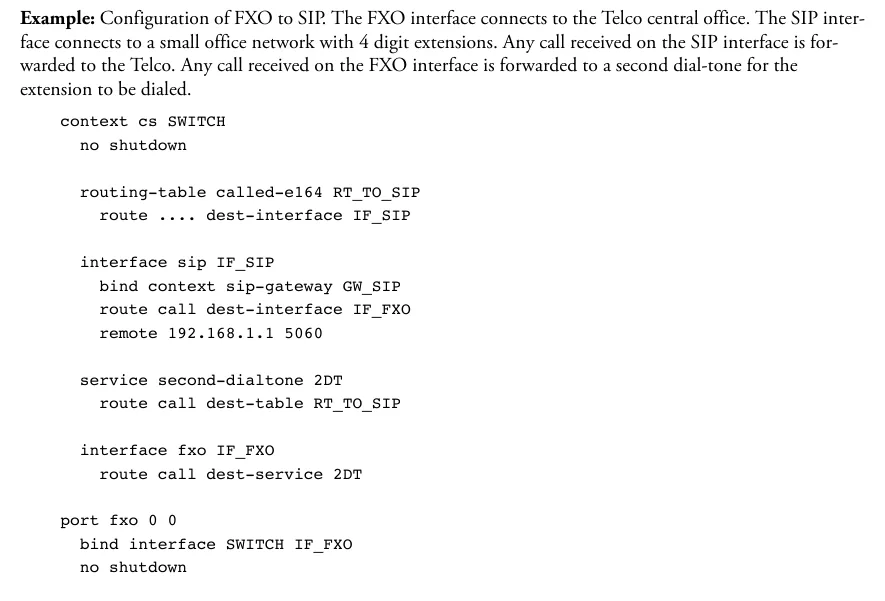 Screenshot: Trinity Release 3.14.X Command Line Reference Guide, chapter 67 “FXO Interface Configuration”, p. 906. In Patton's example a call from the line goes to a second dial tone (
service second-dialtone) so the caller dials the extension; for our PBX a route to the ring group number is used instead — see the block below.
For our PBX (line in FXO port 0/0; for other ports repeat interface fxo and port fxo):
context cs SWITCH
  routing-table called-e164 RT_TO_PBX
    route default dest-interface IF_SIP_PBX

  interface sip IF_SIP_PBX
    bind context sip-gateway GW_PBX
    remote <SIP server> 5060
    address-translation outgoing-call request-uri user-part fix <ring group number> host-part to-header target-param none
    address-translation outgoing-call from-header user-part fix <Login> host-part call

  interface fxo IF_FXO_00
    route call dest-table RT_TO_PBX

context cs SWITCH
  no shutdown

port fxo 0 0
  bind interface SWITCH IF_FXO_00
  no shutdown
request-uri user-part fix <ring group number>— the number the gateway dials in the PBX: a ring group number (from 700) or an operator's extension. Without this line a call from the line reaches the PBX without a number and goes nowhere.from-header user-part fix <Login>— puts our login into the "From" field. By default SmartNode puts the caller's number from the line there, while our PBX recognises the extension by the login in that field: the registration would be green but incoming calls would be rejected. Patton's template for an Asterisk PBX with registration (KB 200) does the same; theaddress-translationcommand in Trinity is the same (CLI reference, chapter 55).- The FXO port is disabled by default — without
no shutdowninport fxothe line will not ring.
Caller's number. With the from-header … fix setting, the caller's number does not get into the SIP call, and in the operator panel the call shows as coming from the gateway's extension. Routing rules for provider numbers (schedule, voice menu) do not apply to calls from the gateway — a ring group with its own time-based variants covers the same need (see “Where to send incoming calls”).
ISDN (SN4131, SN4171, SN4970A). The scheme is the same, only the route is set on interface isdn …. The operator sends the dialled number (MSN/DDI) over ISDN, but our PBX does not know such numbers for a gateway extension — fix the ring group number the same way, with the request-uri user-part fix line. All the trunk's numbers will then arrive at one group. It is easier to start from Patton's BRI or E1 template from the same archive and change our values in it.
Outgoing calls. Calling out from the PBX through this gateway's lines is not possible yet: the PBX's outgoing rule only leads to a SIP provider's line. SmartNode itself can do it (a hunt group of FXO ports in Patton's template — service hunt-group and route call dest-service on interface sip), but do not configure that part for our PBX. Outgoing calls from your own number go through a SIP provider; more in “Outgoing calls through a gateway — not yet”.
FXO lines: country profile and hang-up detection
- Line profile —
profile fxo DEFAULT→electrical-standard <code>. The Trinity code list hasau,ch,etsi(rest of Europe),gb,it,mx,nl,nz,us,za. If your country is missing, Patton advises starting withetsiorus. The built-in profile is alreadyetsiwith thefsk-etsicaller ID format, while the 3CX template setselectrical-standard usandcaller-id standard fsk-bell: outside North America setetsiandfsk-etsiback. - Tones — the 3CX XML template contains tone sets for about 30 countries (
ToneSet_<country>), including Russia (425 Hz dial tone); by default the gateway uses American tones. - Hang-up —
disconnect-signal busy-toneanddisconnect-signal loop-breakin the FXO profile. If the busy tone does not match the country, the gateway will not notice that the caller hung up, and the call will hang on the operator's side. - Echo — the built-in echo canceller is on by default.
Step 5. Check registration and a call#
- Registration in the gateway. In the CLI —
show location-service: it shows the registration state of alllocation-serviceblocks andidentityentries. On the front panel the VoIP LED is lit when the gateway is registered on a SIP server and off when there is no registration. - Registration in the admin panel. Telephony → the “Staff & groups” tab — the gateway's extension has a green dot.
- A call. Call the landline number from a mobile — the operators of the group (or the operator) from
request-uri user-part fixshould ring. During the call the FXO port LED blinks. Hang up — the call should end on the operator's side within seconds; if it hangs, see "FXO lines" in step 4. - Sound — the
*43echo test. Registration says nothing about sound. Temporarily replace the ring group number in therequest-uri user-part fixline with*43and call the line: the PBX plays a short beep, then plays your voice back with a delay — talk for about ten seconds. If you hear the beep and yourself, sound works both ways; beep but no voice — sound is not getting from the gateway to the PBX; no beep at all — sound is not getting from the PBX to the gateway. The test result is shown in the call log. After the check, put the group number back and save the configuration.
Everything about checking is in the overview, section “How to check”.
Factory reset#
A reset is needed if the password or address is forgotten, the gateway came with someone else's configuration, or it does not boot. Before resetting a working gateway, save its configuration: in the CLI — copy startup-config config:backup, in the web interface — the Backup button in the Configuration Files window.
With the Reset button (Trinity: SN4141, SN4131, SN4171). Press it while the gateway is running and the Power LED is steady:
| How long to hold | What happens |
|---|---|
| less than 1 s | reboot |
| 1–4 s | nothing |
| 5–14 s | startup-config is erased, reboot (all LEDs blink slowly) |
| 15–20 s | factory reset: the whole flash memory is erased except the factory configuration (shipping-config), wizards, root certificates and licences; reboot (LEDs blink fast) |
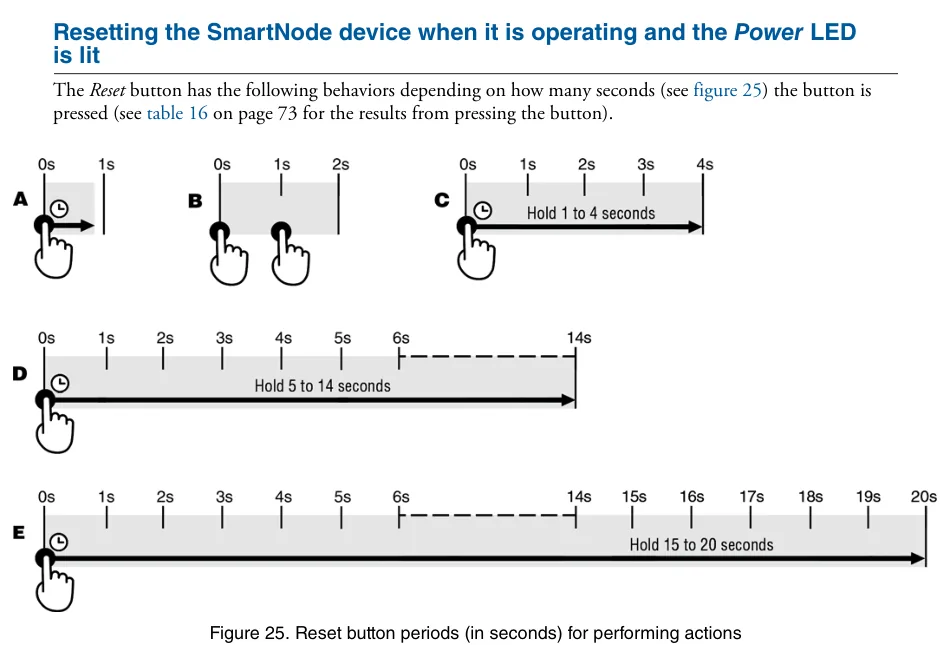 Screenshot: SmartNode 5540 and 4140 Series User Manual (07MDSN5540-SN4140-UM Rev. G), appendix F, p. 72.
Do not hold it longer than 20 seconds and do not hold the button while powering on: that is an emergency mode in which the flash memory can be erased entirely, including purchased licences. After it the gateway comes up with a minimal configuration: Telnet and web are off, only SSH works (on the SN4141 — address 192.168.200.20).
SmartWare (SN4110). Hold Reset for about 5 seconds until the Power LED starts blinking — the gateway restarts with the factory configuration. A forgotten password without the button: console cable → power-cycle → at the "Press ^C to abort boot script" line press Ctrl+C → fis load → go -s factory-config → log in as administrator with no password; the current configuration is lost.
From the web interface Patton's documents do not describe a factory reset: through the web you can upload another file as startup-config and reboot the gateway (menu → Reboot).
What to do afterwards: the gateway again takes an address via DHCP and is reachable at the factory address from step 1 with login admin (SmartWare — administrator) and no password — start from step 1. The factory configuration is shown by show config:shipping-config. A gateway reset does not change the extension's login and password in the admin panel; if the extension password was not kept, issue a new one with the “Reset password” button. General notes on resetting gateways — in the overview.
If the gateway does not register#
- Settings disappeared after a reboot. CLI changes take effect immediately, but without
copy running-config startup-configthey vanish on restart. - The server address is not everywhere. It is needed in three places:
domain 1,registrarandremote. Miss one and you get registration without calls, or the other way round. - The server rejects the registration.
usernameand theidentityname must contain the whole loginsip-…-<number>, the password must be the last one issued; norealmline from the 3CX template may remain inauthentication-service; the transport isudp+tcpwithno transport-protocol tls, port5060. - Registration is green, but incoming calls are rejected.
interface siplacks thefrom-header user-part fix <Login>line and the caller's number goes into the "From" field, or theidentity-group DEFAULTblock is missing (step 3). - The call reaches the PBX but goes nowhere. There is no
request-uri user-part fix <ring group number>, or the group number cannot be dialled from PBX phones. The FXO port is not enabled (no shutdowninport fxo). - The web interface does not open. The web server is off (
web-server→no shutdown), or the gateway is in the minimal configuration after an emergency reset — log in over SSH.
General causes (SIP ALG on the router, UDP 5060 blocked) are in the overview, section “If the gateway does not register”; about the network — “Venue network, NAT and SIM card”.
Models in the family#
The model number encodes the configuration: JO — FXO ports, JS — FXS, BIS — ISDN BRI, E — E1/T1, V — number of voice channels, 2ETH — two Ethernet ports, HP — high-precision clock, R — bypass relay (lifeline/fallback).
| Model | Ports / channels | Network / line | Setup differences |
|---|---|---|---|
| SN4141/2JO2V, /4JO4V, /8JO8V | 2, 4 or 8 FXO (RJ-11), 1 or 2 Ethernet ports | analogue landline | Trinity; login admin with no password, address 192.168.200.20 / .10; industrial version — SN4141E |
| SN4141/2JS2JO4V, /4JS4JO8V | 2+2 or 4+4 FXS+FXO | lines + analogue phones | FXO — as above; phones on FXS are extensions, see “SIP phone setup” |
| SN4131/2BIS4VHP, /4BIS8VHP, /8BIS16VHP | 2, 4 or 8 BRI S0 (RJ-45), 4–16 channels | ISDN BRI | Trinity; port mode TE/NT and PtP/PtMP set in software; TE mode towards the operator's line; LAN 192.168.1.1 |
| SN4171/1E15V30HP, /1E30VHP, /2ETH2E30VRHP | 1 or 2 E1/T1 (RJ-45), 15–30 channels | ISDN PRI | Trinity; straight cable to the operator's equipment, crossover to a small PBX; address 192.168.1.1; /1E24VHP (T1) — pre-order |
| SN4970A/4E30V60RHP, /4E60VRHP, /4E120VRHP | 4 E1/T1, 30–120 channels | ISDN PRI | Trinity only; replaces SN4970/SN4971 |
| SN4112 / SN4114 / SN4116 / SN4118 | 2–8 FXS and/or FXO, 1 Ethernet port | lines / phones | discontinued, support ended 22.10.2021; SmartWare, login administrator; replacement — SN4141 |
| SN4120 | 1–2 BRI | ISDN BRI | discontinued, "not recommended for new installations"; SmartWare; replacement — SN4131 |
| SN4970 / SN4971 | 1–4 E1/T1 | ISDN PRI | discontinued (31.12.2018); SmartWare or Trinity; replacement — SN4970A |
For analogue lines take the SN4141/xJO, for ISDN BRI the SN4131, for an E1 trunk the SN4171. Do not buy the SN4110, SN4120 and SN4970 new: there will be no more firmware for them, and used SmartWare units are configured by the SmartWare guide, not the Trinity one. The multi-port SN43xx (SN4300) chassis and the SN5xxx models (routers and SBCs) are not covered by the documents this page is based on — check with your supplier. Models with two channel numbers in the name (…15V30…, …30V120…) ship with the lower number of voice channels; the rest are added with a licence.
FAQ#
Can I call out from the PBX through this gateway with the landline number?#
Not yet — with us the gateway only handles incoming calls. SmartNode itself can do outgoing calls (a hunt group of FXO ports), but our PBX does not yet send calls to a gateway extension as to a line. Outgoing calls from your own number go through a SIP provider.
Where are the "SIP server" and "Password" fields in the web interface?#
There are none: SmartNode is set up by configuration. The Trinity web interface is for wizards and for uploading a ready file (System / Configuration Files). The credentials go into the authentication-service and location-service blocks (step 3) — with Telnet/SSH commands or in a template file.
Why can't I see the caller's number in the panel?#
For the PBX to recognise the call as coming from the extension, the gateway puts our login into the "From" field (from-header … fix, step 4), so the caller's number does not get into the call. Do not remove this line — without it incoming calls will stop being accepted.
How many extensions does a gateway with 4 or 8 lines need?#
One: Patton's FXO template registers one account and sends calls from all lines through it to one ring group number.
I have ISDN with several numbers — can I route them to different groups?#
Not now: with us all calls from a gateway extension go to one number set in request-uri user-part fix, so all the trunk's numbers arrive at one ring group.
My country is not in the FXO line profile list. What should I set?#
Patton advises starting with etsi (or us in North America); the built-in Trinity profile is already etsi. What matters most is the right busy tone for the country, otherwise the gateway will not notice the caller hanging up (see "FXO lines" in step 4).
Sources#
Patton documents, accessed 10.09.2026:
- SmartNode 5540 and 4140 Series User Manual (07MDSN5540-SN4140-UM Rev. G, 12.04.2022) — https://www.patton.com/manuals/SN5541-SN4141-UM.pdf
- SmartNode 4140 Datasheet (07MSN4141-DS3) — https://www.patton.com/datasheet/sn4141-a4_datasheet.pdf
- SmartNode 4131 ISDN BRI VoIP Gateway User Manual (07MSN4130-GS Rev. F, 13.06.2019) — https://www.patton.com/manuals/sn4130-um.pdf
- SmartNode SN4170 E1/T1 PRI VoIP Gateway User Manual (07MSN4170-GS Rev. E, 18.06.2019) — https://www.patton.com/manuals/sn4170-um.pdf
- SmartNode 4520 & 4110 Series User Manual (07MD4524-GS Rev. J, 08.10.2015) — https://www.patton.com/manuals/sn4520-4110.pdf
- Trinity Release 3.14.X Command Line Reference Guide — https://www.patton.com/manuals/trinity3.14cli.pdf
- SmartWare Release 6.8 Software Configuration Guide — https://www.patton.com/manuals/smartware_scg_r68.pdf
- KB 478 — Patton Trinity SmartNode configuration with 3CX — https://www.patton.com/support/kb_art.asp?art=478
- Patton templates for 3CX (
NewTemplates.zip, FXO template of 04.05.2019) — https://patton.com/files/support/3cx-templates/NewTemplates.zip - KB 200 — SmartNode T1 gateway – Asterisk IP-PBX with registration template — https://www.patton.com/support/kb_art.asp?art=200
- KB 197 — General example configuration for OUTBOUND registrations and authentication for a SIP trunk — https://www.patton.com/support/kb_art.asp?art=197
- KB 198 — General SIP outbound registrations example — https://www.patton.com/support/kb_art.asp?art=198
- KB 74 — How can I reset the IP addresses of a SmartNode to the factory default? — https://www.patton.com/support/kb_art.asp?art=74
- KB 73 — How can I reset a forgotten password on SN4xxx series? — https://www.patton.com/support/kb_art.asp?art=73
- End of Life Notice SN4110/SN4520/SN4830 (22.10.2020) — https://www.patton.com/datasheet/EOL-Notice-SN4110_SN4520_SN4830_102020.pdf
- Product Change Notice PRI SmartNodes SN4970/80/90 (01.2018) — https://www.patton.com/datasheet/SN4970-80-90_Change-notice_2018-01-29.pdf
- Product pages SN4140, SN4130, SN4170, SN4970A — https://www.patton.com/voip-gateway/sn4140 · https://www.patton.com/voip-gateway/sn4130/ · https://www.patton.com/voip-gateway/sn4170/ · https://www.patton.com/voip-gateway/sn4970/