Dinstar DAG FXO (DAG1000-4O/8O, DAG2000-16O/32O, DAG2500) — setup for our PBX
Your venue has a landline number on an ordinary telephone line: an RJ-11 socket from the phone company and the number on your sign that guests have known for years. To take calls to it in the PBX — on operators, with recording and ring groups — you put an FXO gateway between the line and the network. The landlines plug into its ports, and the gateway converts them to SIP.
Dinstar DAG FXO gateways are the desktop DAG1000-2O / -4O / -8O (2, 4 or 8 lines) and the rack-mount DAG2000-16O (16 lines). The DAG1000-1S1O / -2S2O / -4S4O and DAG2000-8S8O hybrids share the platform and the web interface: besides FXO ports for lines they have FXS ports for analog phones. For 24–32 lines there are the modular DAG3000 units.
Two models in the title are actually different: DAG2500 is an FXS-only gateway (48/72/96 analog phones) with no FXO ports for landlines. There is no DAG2000-32O at Dinstar: for 32 lines the vendor offers the DAG3000-32S/O (see “Models in the family”). FXS-only DAG models (DAG1000-4S, DAG2000-16S…) are covered in the phones section.
Common credentials, network rules and limitations are on the overview page “GSM gateways, landlines and ISDN in your PBX”. This page is the step-by-step guide for Dinstar DAG, with screenshots from the vendor's manual.
What you need#
- Extension credentials from the admin panel: SIP server, extension number, login, password, port
5060, transportUDP. Where to get them — “Extension credentials for the gateway” (Telephony → Operators → “Reset password”). A Dinstar gateway supports both options: one extension for all lines (a port group) or an extension per line — then the call log shows which number was called. Create a separate operator for the gateway with a clear name (“Landline, dining room”). - The number the gateway will dial inside the PBX — a ring group number (Telephony → “Ring groups”, numbers from 700) or an operator's extension. You will need it in step 4.
- A landline from the phone company, plugged into an
FXOport with anRJ-11cable. - A mobile phone — to call the landline number, find the gateway's address by voice and test a call.
- The gateway on the venue network via Ethernet, and a computer with a browser on the same network.
- The country of your line: the gateway's factory tone settings are American (see “Set up the lines for your country”).
Step 1. Find the gateway's IP address#
- Factory address —
192.168.11.1(theLANport). Give your computer an address on the same network, e.g.192.168.11.10with mask255.255.255.0, plug it into the gateway'sLANport and checkping 192.168.11.1. - By voice, by calling the line. An FXO gateway has no handset of its own, so call the landline number plugged into an FXO port from a mobile phone. Wait for a dial tone or the prompt “please dial the extension number” and dial
*158#— the gateway reads out the LAN port address;*159#— the WAN port address. Hybrids (1S1O/2S2O/4S4O/8S8O) are simpler: plug an analog phone into an FXS port, lift the handset and dial the same codes. - Network mode. Desktop models have two modes: Router (the
WANport faces the venue network, theLANports form the gateway's own small network) and Bridge (all ports are one switch). How theWANport gets its address after a reset is not stated directly in the documentation — the easiest way is to ask with*159#. The DAG2000-16O has noWANport, onlyLAN.
If *158# stays silent, the previous installer most likely disabled configuration from the line (or reassigned the codes): then connect to 192.168.11.1 directly from a laptop.
Other voice codes of the gateway
The codes are dialled the same way — by calling the line (on a hybrid, from the phone in FXS). After each one, wait for “setting successfully” before hanging up.
| Code | What it does |
|---|---|
*150*2# |
get the address via DHCP (then restart the gateway after 10 s) |
*150*1#, *152*…#, *153*…#, *156*…# |
static address: enable, IP, mask, gateway — digits separated by *, e.g. *152*172*16*0*100# |
*157*0# / *157*1# |
Router / Bridge mode |
*160*1# / *160*0# |
allow / deny the web interface from the WAN side |
*168# |
port registration status |
*114# |
port number |
*111# |
restart |
The codes can be reassigned in Advanced → Feature Code, the prompt language is Advanced → System Parameter → Hint Language.
Step 2. Log in to the web interface#
Open http://<gateway IP> in a browser (HTTP and HTTPS both work).
Factory login and password: admin / admin — the same for the web interface and Telnet on all models of the series.
There is no forced password change on first login — change the password yourself: Security → Passwords (on the DAG3000-24O the item is called Security → Password Modification). If the gateway faces the internet, close access from the WAN side: Advanced → System Parameter (the Access WEB by WAN flag and its neighbours) or the code *160*0#, and set an address allow-list in Security → WEB ACL and Telnet ACL. An FXO gateway open to the internet with the factory password is a direct path to fraudulent calls at your expense.
The menu has a three-step Quick Setup Wizard — network, SIP server, port. You can use it, but below the fields are described on the main menu pages, where all the settings we need are visible.
Step 3. Enter the PBX credentials#
On a Dinstar DAG the server address is set once for the whole gateway, and the account — per port (line) or per port group.
1. Server. Open the SIP Server item in the left menu.
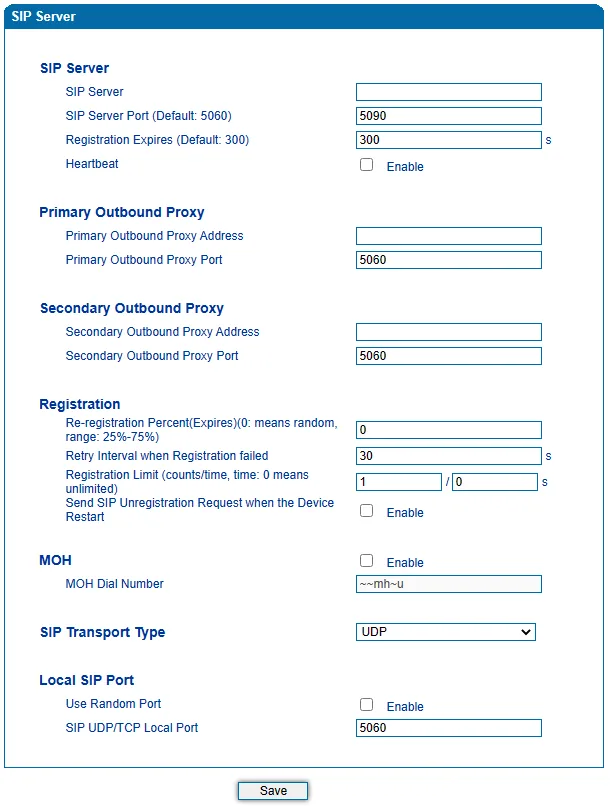
Screenshot: DAG Series FXO Analog Gateway User Manual V2.0, p. 44.
2. Account. Two options — pick one:
- An extension per line — the Port item → Add: choose the port and fill in the account. Repeat for each line with its own extension.
- One extension for all lines — Call & Routing → Port Group → Add: the group account plus the Select Port for this Group button — tick all ports with lines. Do not enter the same login separately on several ports — only as a group or one extension per port.
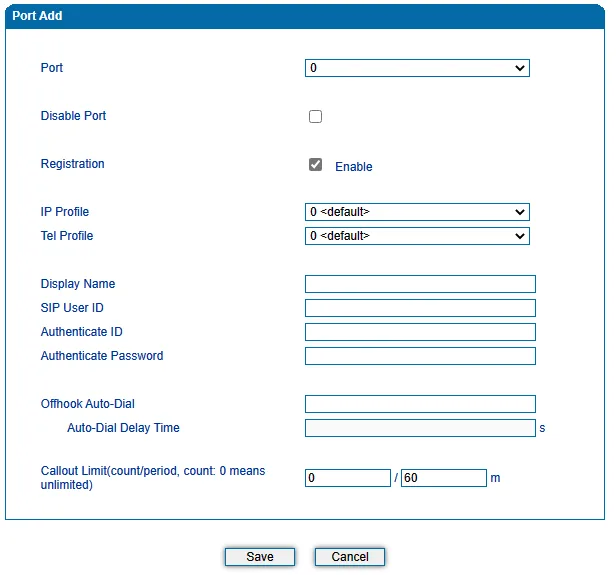
Screenshot: DAG Series FXO Analog Gateway User Manual V2.0, p. 48.
Fill in the values from the “Extension credentials” window:
| Field in the admin window | Value | Field in the gateway |
|---|---|---|
| SIP server | our PBX address | SIP Server → SIP Server |
| Port | 5060 |
SIP Server → SIP Server Port (the manual's screenshot shows 5090 — that is an example, set 5060) |
| Transport | UDP (factory value) |
SIP Server → SIP Transport Type |
| — | empty | Primary / Secondary Outbound Proxy Address |
| Login | sip-…-<number> — in full, not just the number |
Port (or Port Group) → SIP User ID |
| Login | the same full string | Authenticate ID |
| Password | the extension password (shown once) | Authenticate Password |
| — | on | Registration = Enable; Disable Port — unticked |
| Extension number | — | not entered anywhere; useful to know which extension the gateway occupies |
Click Save, then restart the gateway (Tools → Device Restart): the vendor advises this so the new account takes effect.
The manual describes SIP User ID as “usually digits similar to a phone number”, while our login contains letters and hyphens. Whether the field accepts such characters on your firmware is not stated in the documentation. If the gateway does not save the login or registration fails with the correct password, check with your supplier.
Codecs, DTMF, NAT and what not to enable
- Codecs — Advanced → Media Parameter → Preferred Vocoder. From the factory G.729 comes first (“when outgoing calls are made, G.729 will be used”), and our PBX does not use it. Put G.711A and G.711U first, remove G.729, G.723 and G.726. The gateway has no G.722 — the call will go in G.711, which is fine.
- DTMF — same page, DTMF Method =
RFC2833(payload 101). The manual does not say what the factory value is — check it. - NAT — for a gateway behind the venue router, enabling Heartbeat on the SIP Server page is enough (the gateway polls the server periodically and keeps the connection open through the router). STUN is not needed. On the router, turn SIP ALG off.
- Do not enable: the
Release all call when Heartbeat Timeoutflag (after a couple of missed server replies it drops all calls), SRTP Mode,TLStransport, Security → Encrypt,SIP Message with ID Header— we either do not have these or do not need them. - Dinstar cloud and TR-069 (Management → Cloud server, TR069) — turn them off if you do not use them: an external management server can overwrite the account.
- IP Profile does not need to be touched: it is only useful if different ports register to different servers.
Step 4. Send incoming calls to the PBX#
The gateway has to dial inside our PBX by itself when a call comes in on the landline. On a Dinstar DAG this is done by the Offhook Auto-Dial field (a “hotline”) in the port or group account:
- Open the same account from step 3: the port under Port or the group under Call & Routing → Port Group.
- In Offhook Auto-Dial enter the ring group number (from 700) or an operator's extension.
- Auto-Dial Delay Time —
0, so the number is dialled immediately. - Save and restart the gateway.
The vendor says the Offhook Auto-Dial number goes to the SIP server “as the DID number” — so the call lands straight in the specified group. If the field is left empty, the gateway seizes the line and plays its own dial tone with the prompt “please dial the extension number”: the guest would have to dial an extension by tones, and the line would be open for dialling any number. Always fill in Offhook Auto-Dial.
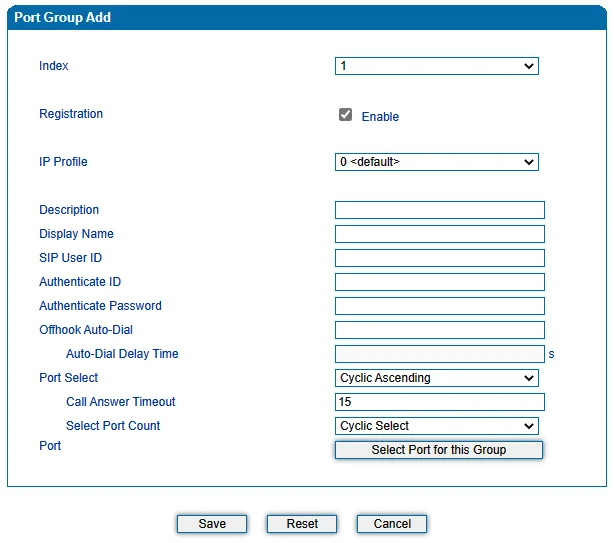
Screenshot: DAG Series FXO Analog Gateway User Manual V2.0, p. 78.
When to seize the line. In Advanced → FXO Parameter enable FXO Keep Onhook until Called Answered (Need Enable Auto-Dial): the gateway will not seize the landline until someone answers in the PBX. The caller hears the normal ringback of their phone company rather than silence.
Tel → IP route. If the port is registered but a call from the line still does not reach the PBX, add a route in Call & Routing → Tel → IP/Tel Routing → Add: Calls from — your port or port group, Caller Prefix and Called Prefix — any, Calls to — SIP Server. IP Trunk mode (an IP connection without registration) does not suit us: our PBX does not know the gateway by IP.
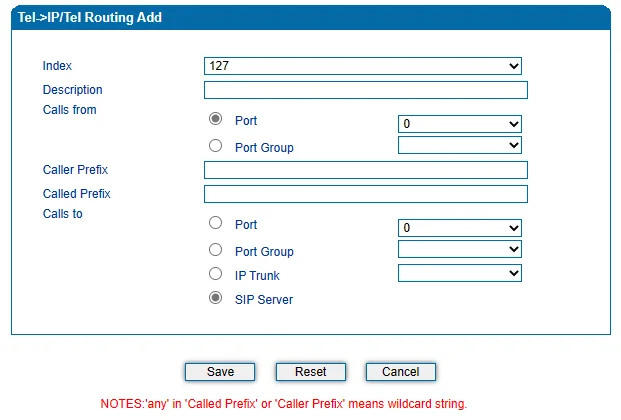
Screenshot: DAG Series FXO Analog Gateway User Manual V2.0, p. 84.
Caller number. The gateway detects the number on the line (FSK and DTMF; Advanced → FXO Parameter → Detect CID — before or after the first ring, depending on how your phone company sends it). The Send Original CID when Call from PSTN flag decides what the gateway puts into the SIP call: off — its own port number, on — the caller's number. Start with the flag off: our PBX recognises the gateway by its login in the call, and if the gateway replaces it with the caller's number, the call may be rejected. If you turn the flag on and calls stop arriving, turn it back off.
About outgoing calls — honestly. Calling out of the PBX through this gateway's landline is not possible yet: to our PBX the gateway is an extension, and the outbound rule can only send a call to an SIP provider line. The gateway itself can do the reverse direction (an IP → Tel Routing route), but the PBX side does not support it yet — see “Outgoing calls through the gateway — not yet”. Today a DAG is a way to receive calls on your landline number; for outgoing calls use an SIP provider number.
Step 5. Check registration and a call#
- Registration on the gateway. Status & Statistics → Port Status: the port (or group) must show
Registeredin the User Status column. A second sign is the RUN LED on the case: slow flashing (every 2 s) — the gateway is running but not registered; fast flashing (every 0.5 s) — at least one account is registered. From the line, code*168#reports the port status. - Registration in the admin panel. The gateway's extension on the “Operators” tab must show a green dot.
- A call. Call the landline number from a mobile phone — the group or operator from Offhook Auto-Dial must ring. Answer, check the audio, then hang up on the mobile: the call at the operator must end within seconds. If it “hangs”, go to “Set up the lines for your country”.
- Audio — the
*43echo test. Registration says nothing about audio: it travels as a separate stream. Temporarily put*43into Offhook Auto-Dial, save, restart the gateway and call the landline number: the PBX answers, plays a short beep and starts playing your voice back with a small delay. You hear yourself — audio flows both ways. You hear the beep but not yourself — audio does not get from the gateway to the PBX. No beep at all — it does not get from the PBX to the gateway. After the test, put the group number back into Offhook Auto-Dial.
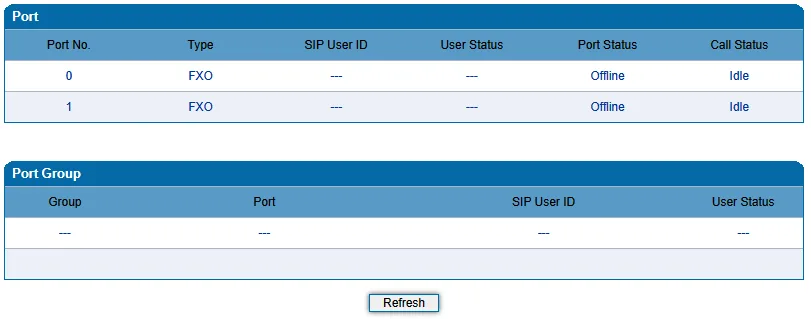
Screenshot: DAG Series FXO Analog Gateway User Manual V2.0, p. 27.
Set up the lines for your country#
The gateway's factory tone profile is USA. On a line in another country the gateway does not recognise the local busy signal, and the call “hangs” after the guest has hung up. This step is mandatory, not fine-tuning.
- Advanced → Line Parameter → Call Process Tone — choose your country. The manual does not list all countries: if yours is missing, check with your supplier.
- Tools → FXO Test → Auto-detect Busy Tone — the gateway measures your phone company's busy signal itself. Choose a port with a live line, enter a number that is guaranteed to be busy, click Start (about a minute) and save the Recommended Cadence.
- Advanced → FXO Parameter — enable disconnect on busy tone (On-hook when Busy Tone Detected), and if your phone company reverses polarity on hang-up, also On-hook when Polarity Normal Detected: it is more reliable than the tone.
- Tools → FXO Test → Impedance Test — line impedance matching: Simple / Standard / Exact modes take about 15 / 30 / 45 minutes per port. Do not leave the page until the test finishes, and save the result. Without matching you may get echo and quiet audio.
- Advanced → Line Parameter → Work Mode =
Voice Only: our PBX does not handle fax.
In the Quick Installation Guide these settings are on the Advanced → FXS/FXO page, in the full manual — on Advanced → FXO Parameter. Go by what you see on your screen.
Factory reset#
A reset is needed if the web password is forgotten, the gateway came from a previous owner with someone else's settings, or the configuration has become hopelessly tangled.
With the button on the case. With the power on, press and hold the RST button on the back panel for 7 seconds (DAG1000-2O/4O/8O, 1S1O/2S2O/4S4O). On hybrids the sign of a reset is the RUN LED stopping flashing and then flashing slowly again. The panel drawings of the DAG2000-16O and DAG2000-8S8O show no button — reset them by voice or from the web interface. On the DAG3000-24O a short press of RST restarts the unit, and 6–10 seconds resets it.
By voice, by calling the line. Call the gateway's landline number (on a hybrid, lift the handset of the phone in FXS) and dial *166*000000#; after “successful setting” hang up and restart the gateway. The code *165*000000# restores only the factory address, login and password and keeps the port accounts — handy if the web password is forgotten.
From the web interface. Tools → Factory Reset → Apply, then Tools → Device Restart.
What is erased: port and group accounts, Offhook Auto-Dial and routes, line settings (country, disconnect detection, impedance), network and the web password.
What to do after the reset: the gateway answers on 192.168.11.1 again, the login is admin / admin. Repeat steps 2–5 and the lines section. You will have to issue the extension password again: the admin panel shows it only once, so go to Telephony → Operators → “Reset password”. General rules are in the overview's “Factory reset” section.
If the gateway does not register#
- The login is not entered in full. SIP User ID and Authenticate ID must hold the whole
sip-…-<number>string, not the extension number. - No restart. After saving the account the vendor requires a gateway restart (Tools → Device Restart).
- Wrong server port or transport. SIP Server Port =
5060(not the5090from the manual's screenshot), SIP Transport Type =UDP. - The port is disabled or not registering. In the port account Registration =
Enable, Disable Port unticked. If the port is in a group, the group registers — check its row in Port Status. - One login on several ports separately. Such registrations interfere with each other: either a Port Group with one account or an extension per port.
- SIP ALG on the router, or the gateway in Router mode sits behind yet another router — turn SIP ALG off, enable Heartbeat and restart the gateway.
Registered, but no call arrives — Offhook Auto-Dial is empty or holds a non-existent number; check that the number can be dialled from any PBX phone. General causes are in the overview's “If the gateway does not register” section; network and NAT — “Venue network”.
Models in the family#
| Model | Ports | Network and case | Setup differences |
|---|---|---|---|
| DAG1000-2O | 2 × FXO RJ-11 |
1 WAN + 1 LAN 10/100, desktop, 12 V adapter | the manual's main example; RST button |
| DAG1000-4O | 4 × FXO | 1 WAN + 2 or 3 LAN (documents disagree), 12 V adapter | RST button on the back panel |
| DAG1000-8O | 8 × FXO | same as 4O | same as 4O |
| DAG2000-16O | 16 × FXO | 3–4 LAN, no WAN; 1U rack, 100–240 V, grounding terminal, RS232 | no RST button on the panel drawing — reset by voice or from the web; a port group is convenient |
| DAG1000-1S1O / -2S2O | 1 + 1 / 2 + 2 (FXS + FXO) | 1 WAN + 1 LAN | hybrid: on power or network loss the phone in FXS is connected straight to the landline; the address is found from the phone in FXS |
| DAG1000-4S4O | 4 FXS + 4 FXO | 1 WAN + 2–3 LAN, 12 V adapter | hybrid, same failover to the line |
| DAG2000-8S8O | 8 FXS (ports 0–7) + 8 FXO (ports 8–15) | 3–4 LAN, rack, 100–240 V | hybrid; put the line accounts on ports 8–15 |
| DAG3000-32S/O | up to 32 ports: 4 slots for boards of 8 FXS or 8 FXO | 2 × GE, 1U rack | modular, for call centres and 9+ lines |
| DAG3000-24O | up to 24 FXO (boards of 8, RJ45 connectors) | 2 × GE, 2 power supplies | the manual is in the downloads, but the model is not in the product menu — check with your supplier; RST 6–10 s resets; password — Security → Password Modification |
Not FXO: DAG2500 (48/72/96 ports) is a gateway for analog phones only (FXS); a landline cannot be plugged into it. There is no DAG2000-32O at Dinstar — for 32 lines there is the DAG3000-32S/O.
Older DAG1000-4O/8O units
The 2012 Chinese manual describes the DAG1000-4O/8O with 110–240 V mains power and a Chinese web interface with a different menu layout. If your venue has such an older unit, the menu items may not match this page; the meaning of the settings (server, port account, hotline, line country) is the same. There is no firmware on Dinstar's download page — updates come from the supplier; the current version is shown in Status & Statistics → System Information.
FAQ#
Will a DAG2500 or DAG2000-32O work for landlines?#
No. The DAG2500 is an FXS-only gateway for analog phones; it has no FXO ports for a landline. The DAG2000-32O does not exist in Dinstar's line-up. For 2–16 lines take a DAG1000-2O/4O/8O or DAG2000-16O, for 24–32 — the modular DAG3000.
How many extensions does a 4- or 8-line gateway need?#
One is enough: a port group account (Call & Routing → Port Group) registers all lines under one login. An extension per line is needed if you want to tell the lines apart in the PBX — for example, to see calls to the delivery number separately from the booking number.
Can I call out over the landline through the PBX?#
Not yet. Through this gateway our PBX can only receive calls from the line; outgoing calls go through an SIP provider number. More in “Outgoing calls through the gateway — not yet”.
The call does not end when the guest hangs up#
This is a gateway setting, not a PBX one: the factory tone profile is American, and the gateway does not recognise the local busy signal. Go through “Set up the lines for your country”: Call Process Tone, Auto-detect Busy Tone, polarity disconnect if your phone company provides it.
The operator panel shows the gateway's number, not the caller's#
That is expected with Send Original CID when Call from PSTN turned off — the safe default on this page. If the caller's number is not detected on the line at all, first ask your phone company whether caller ID is enabled, and check Detect CID (before or after the first ring).
I forgot the web password — do I have to reset everything?#
Not necessarily. Call the gateway's landline number and dial *165*000000#: the factory address 192.168.11.1 and the admin / admin login come back, and the port accounts stay.
Will a phone work if the venue loses power?#
On the DAG1000-1S1O/2S2O/4S4O and DAG2000-8S8O hybrids — yes: on power or network loss the analog phone in an FXS port is connected straight to the landline. Which pair of ports is used for this is not specified in the documentation — check on site. FXO-only models have no such function.
Sources#
Manufacturer documentation, accessed 2026-09-10.
- DAG Series FXO Analog Gateway User Manual V2.0 (2023-07-05) — factory address and password, voice codes, SIP Server, Port, Port Group, FXO Parameter, routes, FXO Test, Factory Reset. Source of all screenshots on this page.
- DAG Series FXS&FXO Analog Gateway User Manual V2.0 (2023-06-15) — hybrids, the RST button and RUN LED during reset,
*165*/*166*, failover to the line. - DAG1000-4O/8O, DAG2000-16O, DAG1000-4S4O, DAG2000-8S8O Quick Installation Guide (2019) — RST 7 seconds, port group and Offhook Auto-Dial as DID, restart after the account, impedance matching.
- DAG1000-1S1O/2S2O/2O Quick Installation Guide (2019) — DAG1000-2O ports, reset button.
- DAG3000-24O FXO Analog VoIP Gateway User Manual V1.0 — RST 6–10 seconds, Security → Password Modification.
- DAG1000-2O/4O/8O Datasheet and DAG2000-16O Datasheet — ports, power, codecs, caller ID detection.
- DAG2500 Series FXS Analog VoIP Gateway Datasheet 2025 — DAG2500 is FXS-only.
- FXO VoIP Gateway — line-up page, FXS/FXO Hybrid and DAG3000-32S/O — composition of the line-up.
- DINSTAR Support Center — Download — list of manuals and guides for analog gateways.