Ejoin ACOM5xx (GSM/LTE) — setup for our PBX
Ejoin ACOM5xx are multi-channel GSM/LTE gateways from China's Shenzhen Ejoin Technology (brand Ejointech): 8, 16 or 32 channels and, on the bigger models, up to 512 SIM slots with several SIMs per channel (one is live, the others wait their turn). The letter in the name is the network: G — 2G (GSM) only, L and PL — 4G LTE; the number after the dash is the number of SIM slots (ACOM516L-64 = 16 channels and 64 SIMs). This is rack equipment: it suits a business that needs to bring many mobile numbers at once into one PBX — a chain of outlets or a delivery call centre. For one to four numbers the family is overkill; Yeastar TG or Dinstar UC2000 are more convenient.
To our PBX the gateway is just another extension: the whole ACOM (or each of its channels) registers on the PBX server, and the gateway itself dials an incoming SIM call through to a ring group or an operator. What is the same for all gateways (credentials, where to send incoming calls, network, limitations) is in the overview “GSM gateways and landlines”. This page is the step-by-step guide for the ACOM5xx, with screenshots from the manufacturer's manual.
What you need#
- Extension credentials from the admin panel: Telephony → Operators → create an operator for the gateway (for example, “Ejoin GSM gateway”) → “Reset password” → the “Extension credentials” window: SIP server, Extension number, Login, Password, Port
5060, TransportUDP. The password is shown once — copy it into the gateway right away. Details — “Extension credentials for the gateway”. - How many extensions: the ACOM registers with one account for the whole gateway — then one extension is enough. If you need to tell which SIM was called, create one extension per channel (
Multiple Port Supportmode, step 3); with 16–32 channels the accounts are entered by hand, row by row. - The number the gateway will send incoming calls to: a ring group number (Telephony → “Ring groups”, numbers from 700) or an operator's extension number.
- SIM cards with a voice plan and caller ID enabled. The format is a standard mini-SIM (2FF, 25×15 mm); micro and nano need an adapter. SIMs can be inserted and removed while the gateway is powered on. Better remove the PIN in a phone beforehand; if you keep it, enter it in the gateway (Gateway Settings → PIN Settings, enable
PIN Unblock). - A gateway for your country's network.
Gmodels work only where 2G is still alive. For the 4G models the manufacturer does not publish the LTE bands — before buying, ask the seller for the LTE module model and its band list and match them against your operator's network; where 2G and 3G are switched off you also need voice over VoLTE. - Antennas — one per channel (SMA connector); the manufacturer forbids mounting them inside a metal case, so in a rack you need external antennas.
- A network cable, a computer with a browser and a mobile phone — to call the gateway's SIM and check the call.
Step 1. Find the gateway's IP address#
The ACOM has a single network port — WAN — and out of the box it has a static address 192.168.1.67 (DHCP is off by default). The gateway takes 1–2 minutes to boot.
- Screw on the antennas, insert the SIM cards, connect WAN to the venue's router and power the gateway on.
- Venue network is 192.168.1.x (router at
192.168.1.1): a computer on the same network simply openshttp://192.168.1.67. Make sure that address is not used by another device — otherwise you get an address conflict. - A different subnet — give the computer an address in 192.168.1.x (for example,
192.168.1.10, mask255.255.255.0) and openhttp://192.168.1.67, or change the gateway's address through the USB console (below).
A permanent address is set in Basic Settings → Wan Settings: WAN Type = Static IP (fields WAN IP, IP Mask, Default Gateway, DNS Gateway), Dynamic IP (DHCP) or PPPoE → Submit. If you switch to DHCP, look up the address in the router's DHCP lease list: the manufacturer's documentation has no way to “ask the gateway for its address” by SMS or voice.
Change the address through the USB console (if the subnet differs and you cannot change the computer's address)
The manufacturer intends the USB (Console) port exactly for this — “in case the user cannot find the IP”. From “How to Set Ejointech Device IP” v2.0 (Windows):
- Connect the gateway to the computer with a USB cable and install the CH341SER driver (SETUP.EXE → Install).
- In Device Manager, find the “USB-SERIAL CH340” port (for example, COM4).
- In PuTTY choose
Serial, setSerial lineto that COM port andSpeedto 115200 (for “U serial” —1500000) → Open. - Log in:
Login: root,Password: root. Thesh wcommand shows the current address. - Set an address in your subnet, the router gateway and DNS, then save and reboot:
set wanip ipaddress 192.168.1.46
set wanip gatewayip 192.168.1.1
set wanip dnsip 192.168.1.1
save
reboot
After the reboot, open the new address in the browser.
Step 2. Log in to the web interface#
| What | Value |
|---|---|
| Address | http://192.168.1.67 (or the address from step 1), port 80 |
| Login | root |
| Password | root |
The gateway does not force a password change on first login — change it yourself right away: System Settings → User Mgmt (also new users, roles in Role Mgmt and the list of IP addresses allowed to log in). Check Advanced Settings → Network Settings: Telnet Port and System Telnet Port = 0 (0 means disabled; the second field opens the gateway's system shell, and the interface itself warns about the risk of attack). On System Settings → System Warning the Account Risk line should read “Device account no risk”.
Remote access and security
- Ejoin's remote access guide suggests forwarding the gateway's web port to the internet (external 8080 → 80) and setting up DDNS. Don't do this: with the factory
root/rootit is an open door to your extension password and to the SIM balances. If you need access from outside, use a VPN: the gateway can act as a VPN client itself (Advanced Settings → Network Settings → VPN Settings, OpenVPN or PPTP). - For our PBX the gateway needs neither port forwarding nor a public address — it registers on the server by itself.
Step 3. Enter the PBX credentials#
The PBX account goes into SIP Setting → Basic Settings (a quick version of the same fields is Basic Settings → Sip Server Settings; changes on one page show up on the other). The mode is Protocol Mode = Registration: the other mode, Point-to-Point, is limited by the manufacturer to a single local network or public addresses and does not suit our PBX.
| In the admin panel (“Extension credentials”) | Gateway field (SIP Setting → Basic Settings) |
|---|---|
| — | Protocol Mode — Registration |
| — | Encryption Method — NONE (our PBX does not understand the proprietary EJOIN and VOS2000) |
| SIP server | SIP Server (in the quick form — SIP Server IP; accepts an IP address or a domain name) |
Port 5060 |
SIP Server Port — 5060 (factory default) |
Login sip-…-<number> |
Account — the whole string |
| — | Phone Number — the same whole login |
| Password | Password |
Transport UDP |
Transport Protocol — UDP (factory default; a change takes effect after a reboot) |
| Extension number | not entered — just remember which extension the gateway uses |
| — | Primary Proxy IP, Secondary Proxy IP — empty (this is Ejoin's proxy, not our PBX) |
| — | Use Phone Number, Receive All Call, Route By From — Disabled |
| — | Expiration Period — factory default (180 on the manual's screen), Local Port — 5060 |
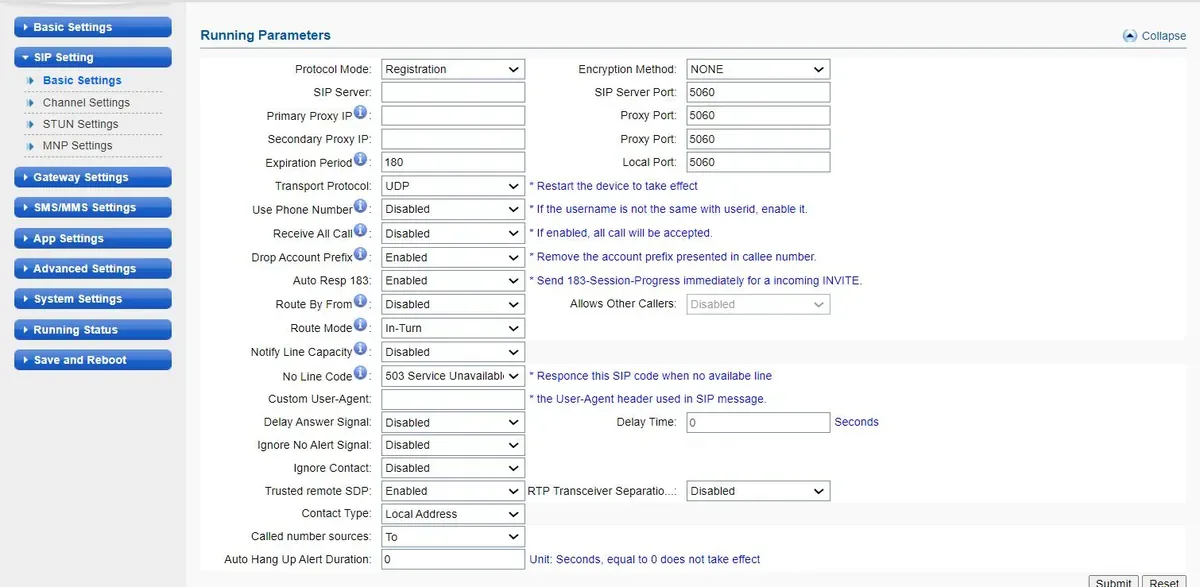 Screenshot: Ejointech VoIP Gateway User Manual (ACOM5XX Series), PDF of 5 April 2026, p. 13.
Click Submit, then Save and Reboot in the left menu. On the ACOM, changes take effect only after saving and rebooting (manual, section 11); a reboot drops calls in progress, so configure the gateway outside peak hours.
Do not put the SIM number into Phone Number. It is the gateway's “caller” number in its SIP calls, while our PBX recognises its extension by the login: enter the same login there. Keep Receive All Call disabled — the manufacturer itself warns that enabling it lets any server send calls to the gateway and risks theft of SIM balance.
One extension per channel (Multiple Port Support)
In the admin panel — one operator per channel. In the gateway — SIP Setting → Channel Settings: Multiple Port Support = Enabled (“each port can register a SIP account”), then in each channel's row — Account (the whole login), Password and Phone Number (the same login); if the table has a SIP Server column — the server address (no need to add the port, it is 5060 anyway). The Dynamic Registration option unregisters a channel whose SIM has been removed — that operator then turns grey in the admin panel. The Allowed Prefix column is not needed for incoming calls; leave it empty.
Codecs, DTMF, NAT
- Codecs — Advanced Settings → Codec Settings (the “Voice and Codec Settings” page) →
Voice Codec Priority: use Up/Down to move PCMA (G.711 A-law) and PCMU (G.711 µ-law) to the top. Our PBX does not use G.729, G.723.1, iLBC or G.726. - DTMF — Advanced Settings → Other Settings →
DTMF Mode=RFC2833(factory default),RFC2833 Payload Type=101(factory default). - NAT — behind the venue's router the gateway works without port forwarding: it registers and renews its registration by itself. Leave
Contact TypeatLocal Address(factory default). If registration is green but calls from the PBX do not reach the gateway, tryPublic Address— the gateway will insert its external address itself. STUN (SIP Setting → STUN Settings) is not needed.
Step 4. Send incoming calls to the PBX#
Now tell the gateway what to do with a call to a SIM: dial the right number on the PBX. Open Advanced Settings → Port Settings:
- In each channel's row — the
Hot-linefield: “when a GSM client calls this channel, the gateway will automatically forward the call to the specified hot-line”. Enter the ring group number (from 700) or the operator's extension number. - Do not tick
Disable Port— it switches the channel off entirely.Unconditional Forward,No Answer Forward,Busy Forwardforward calls back into the mobile network; leave them empty for our setup. - Click Submit, then Save and Reboot.
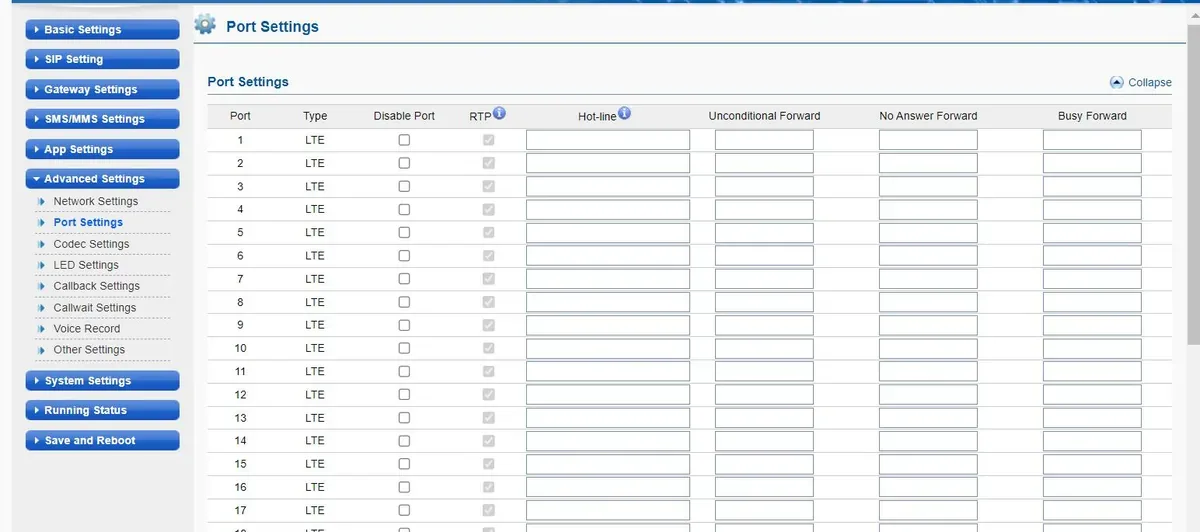 Screenshot: Ejointech VoIP Gateway User Manual (ACOM5XX Series), PDF of 5 April 2026, p. 63.
Do not leave Hot-line empty. Without it the gateway answers the call itself, plays “Please dial a number” in English, waits for the caller to dial a number with tones and, if nothing is dialled, hangs up after 12 seconds. By then the caller is already paying for the connection.
In Ejoin's guide for the VOS platform the Hot-line number is written with # at the end (# means “number complete, dial now”). For our PBX, enter the ring group or operator number without #. The pause before the Hot-line number is dialled is set by Hotline Number Dial Delay in Advanced Settings → Other Settings.
Caller number. Passing the mobile caller's number into the SIP call is enabled by Advanced Settings → Other Settings → Carry PSTN Caller ID, but the manual does not say which field of the call the gateway puts it in. Start with the option off; if you turn it on and calls stop reaching the group while registration is green, turn it back off. In any case the operator panel does not show the caller's number yet: the call appears to come from the gateway's extension. Routing rules for provider numbers (schedule, voice menu) do not apply to calls from a gateway — a ring group with its own time-based variants covers the same need (see “Where to send incoming calls”).
Outgoing calls. Calling out from the PBX through this gateway's SIM cards is not possible yet: the PBX outgoing rule only routes to a SIP provider line. The ACOM itself can do it (channel choice with Route Mode, Allowed Prefix prefixes, target number from Called number sources), but leave these settings alone for our PBX. For outgoing calls from your own number use a SIP provider — see “Outgoing calls through a gateway — not yet”.
Step 5. Check registration and a call#
- SIM on the network. Running Status → Port Status: every slot with a SIM shows a green
Register OKicon. GreyCard Detectedmeans the card is there but not in use right now (on multi-slot models only one SIM per channel is live); redRegister Failed,SIM Problem,Locked By Operatormean the SIM did not register. The list view (List Mode) of the same page shows the signal level and the SIM number. - PBX registration on the gateway side. SIP Setting → Channel Settings — the
Statuscolumn =Ready: this is how the gateway shows it is registered on the server. - Registration in the admin panel. Telephony → “Operators” tab — the gateway's extension shows a green dot.
- A call. Call the SIM number from a mobile phone — the operators of the group (or the operator) in
Hot-lineshould ring. - Audio — the
*43echo test. Registration tells you nothing about audio. Temporarily enter*43in the channel'sHot-line, click Submit and Save and Reboot, then call the SIM from a mobile phone: the PBX plays a short tone and then returns your voice with a delay — talk for about ten seconds. You hear the tone and yourself — audio works both ways; the tone but not yourself — audio does not get from the gateway to the PBX; not even the tone — audio does not get from the PBX to the gateway. The test result appears in the call log. After the check, put the ring group or operator number back (and Save and Reboot again).
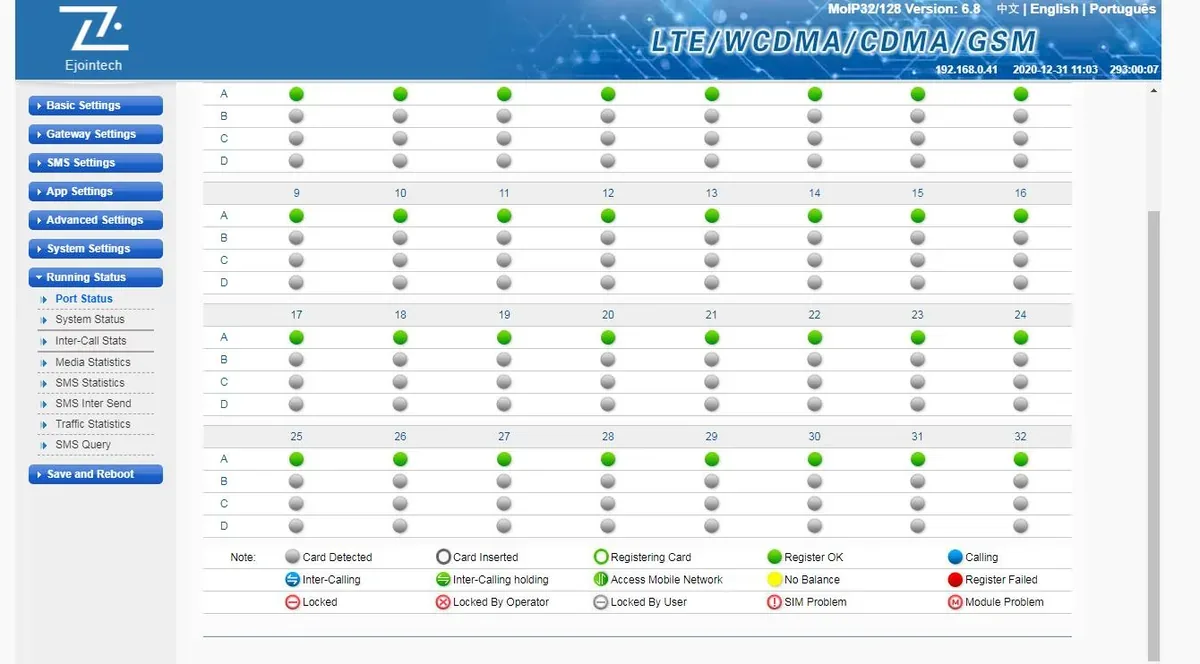 Screenshot: Ejointech VoIP Gateway User Manual (ACOM5XX Series), PDF of 5 April 2026, p. 85.
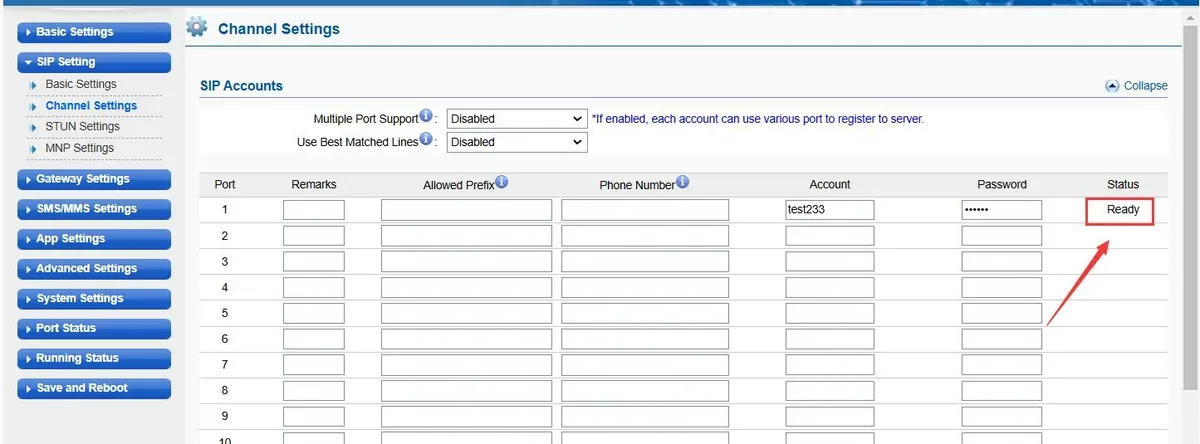 Screenshot: Ejoin, Instructions for Integrating Ejoin Gateway with VOS for Inbound and Outbound Calls, November 2024, p. 2.
Everything about checking is in the overview, section “How to check”.
Factory reset#
A reset is needed if the web password is forgotten, the gateway came with someone else's settings (for example, after being used as a traffic “terminator”) or behaves unpredictably. Before resetting a working gateway, save its settings: System Settings → System Update → Export Configuration.
With the RST button. The RST button is next to the power button. On a powered-on gateway, hold it for 10 seconds — the gateway returns to factory settings.
From the web interface. System Settings → System Update → the Restore To Factory section → the Restore button. The manufacturer: clicking “Restore” erases all custom settings and data.
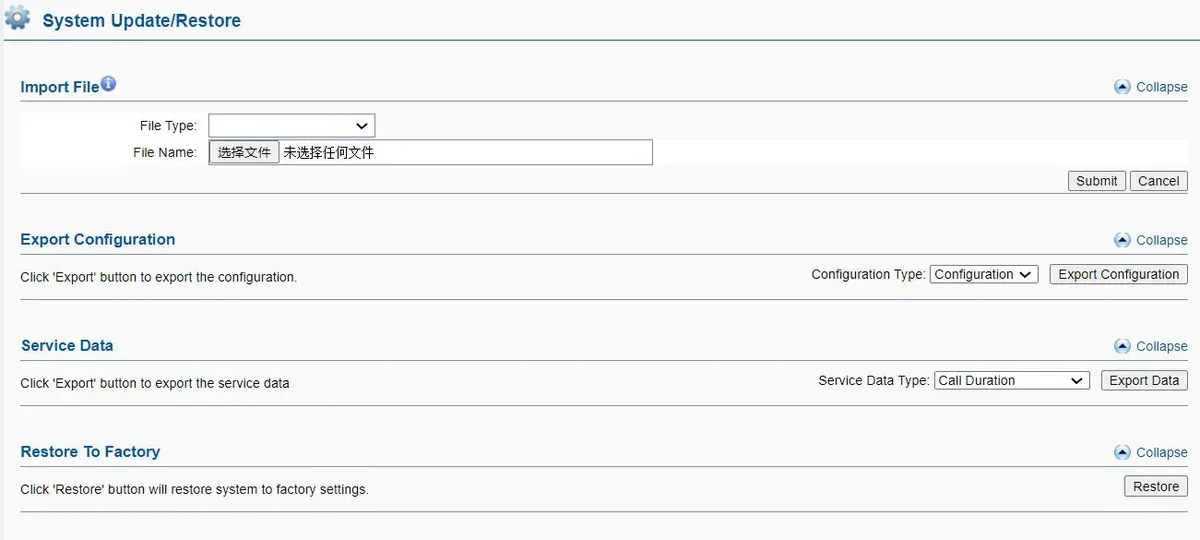 Screenshot: Ejointech VoIP Gateway User Manual (ACOM5XX Series), PDF of 5 April 2026, p. 79.
What is erased: the entire configuration — the PBX account, the channels' Hot-line, SIM PIN codes, network settings, users and passwords; the login is root / root again. What to do next: the documentation does not say whether the WAN port returns to 192.168.1.67 — start from step 1: try http://192.168.1.67, and if it does not open, use the USB console and sh w. Then repeat steps 2–5 and change the password again. Resetting the gateway does not change the extension login and password in the admin panel; if you did not keep the extension password, issue a new one with “Reset password”. General notes on resetting gateways — in the overview.
If the gateway does not register#
- Settings were not applied. The most common cause on the ACOM: Submit was clicked but Save and Reboot was not. Until the reboot the gateway runs on the old settings.
- SIM not on the network. Port Status shows no green
Register OK. Check the antenna and that the SIM is inserted the right way round; move the SIM to a free port (the manufacturer's advice). An unremoved or unentered PIN, aGmodel where 2G is switched off, or a 4G model without the right bands or without VoLTE at the operator also belong here. If you use per-channel accounts, withDynamic Registrationa channel without a SIM does not register at all: a grey operator in the admin panel then means “check the SIM and antenna”, not the password. - Encryption or the Ejoin proxy is enabled.
Encryption Method— onlyNONE;Primary Proxy IPandSecondary Proxy IP— empty. WithEJOINorVOS2000registration or audio will be lost. - Wrong mode.
Protocol Mode=Point-to-Pointdoes not work with our PBX — you needRegistration. - Login not entered in full. Account must hold the whole
sip-…-<number>string, not just the number; Phone Number — the same login, not the SIM number. - Registration is green but calls do not arrive. An empty
Hot-line(the caller hears “Please dial a number”) or a number written differently from “Ring groups” (with#at the end, with extra digits);Carry PSTN Caller IDturned on — turn it off (step 4).
General causes (SIP ALG on the router, UDP 5060 blocked) — in the overview, section “If the gateway does not register”; about network and SIM — “Venue network, NAT and SIM card”.
Models in the family#
The web interface, the SIP account fields and the Hot-line route are the same on every model; what differs is the number of channels, SIMs per channel and the network. All current models have one WAN port and a USB console.
| Model | Channels / SIMs | Network | Setup differences |
|---|---|---|---|
| ACOM508G | 8 / 8 | 2G GSM only | 8 antennas; suits places where 2G is alive |
| ACOM508PL | 8 / 8 | 4G LTE + GSM | called “ACOM508L” in the manufacturer's spec table; LTE bands not published |
| ACOM508-8 / ACOM508-32 | 8 / 8 or 32 | “2G/3G/4G” and “2G” variants | sold on ejointech.cn; the -32 has 4 SIMs per channel |
| ACOM516G-16 / -64 / -128 / -256 / -512 | 16 / 16…512 | 2G GSM | SIMs per channel = slots ÷ 16 (1…32), one live |
| ACOM516L-16 / -64 / -128 / -256 / -512 | 16 / 16…512 | 4G LTE + GSM | the ACOM516L-512 uses a 12 V / 8 A power supply |
| ACOM532G-32 / -128 / -256 / -512 | 32 / 32…512 | 2G GSM | -128 — 4 SIMs per channel, -256 — 8, -512 — 16 |
| ACOM532L-32 / -128 / -256 / -512 | 32 / 32…512 | 4G LTE + GSM | like the ACOM532G, but 4G |
| ACOM532 (eSIM) | 32 / 32 SIMs + 32 eSIMs | GSM/CDMA/WCDMA/LTE | eSIM profiles instead of some physical cards |
| ACOM516-64 (2015 revision) | 16 / 64 | GSM, CDMA, WCDMA | discontinued; it has LAN and WAN ports |
| ACOM504 | not stated in the documentation | not stated in the documentation | mentioned only in the 2019 manual and absent from the manufacturer's catalogues — check with your supplier |
For a single venue an ACOM508 (8 SIMs) is enough: G where 2G works, PL where 2G is switched off, after checking the LTE bands with the seller. Models with hundreds of SIMs and rotation are built for traffic operators; a venue does not need them.
FAQ#
Can I call out from the PBX through this gateway using the SIM's number?#
Not yet — with us the gateway handles incoming calls only. The ACOM itself can make outgoing calls, but our PBX does not yet send calls to a gateway extension as if it were a line. For outgoing calls from your own number use a SIP provider.
How many extensions does a gateway with 8 SIMs need?#
One: in SIP Setting → Basic Settings the whole gateway registers with one account, and a call to any SIM follows its channel's Hot-line. One extension per channel (Multiple Port Support) is only needed if the PBX must show which number was called.
Will the gateway work where 2G has been switched off?#
G models — no, they work on GSM only. You need an L/PL model, but the manufacturer does not publish its LTE bands: before buying, ask the seller for the module model and band list, and ask your operator whether it will let such a gateway onto VoLTE.
What are IMEI change, SIM rotation, “anti-blocking” and automatic call drop for?#
These are tools for bulk traffic termination (SIM boxes), which the manufacturer designs the series for. In a venue keep them switched off — check this especially on a second-hand gateway: they drop or reject ordinary calls, operators block SIMs for such behaviour, and changing the IMEI is illegal in many countries. About SIMs in gateways in general — “Venue network, NAT and SIM card” and the “By country” page.
How do I update the firmware?#
System Settings → System Update → Import File → choose the firmware file → Submit. The gateway reboots by itself; refresh the page after about three minutes. The manufacturer has no public firmware page — ask the seller or Ejoin support for the file.
Can the gateway be used in China?#
No: the manufacturer explicitly forbids using Ejointech gateways in mainland China and gives no licence or support there. Our PBX is not available in China either.
Sources#
Ejoin (Shenzhen Ejoin Technology Co., Ltd.) documents, accessed 10 September 2026:
- Ejointech VoIP Gateway User Manual — Applicable to ACOM5XX Series (96 pages, PDF of 5 April 2026) — https://cdn.shopify.com/s/files/1/0727/2729/8323/files/Ejoin_VoIP_Gateway_ACOM5XX_User_Manual_cd5e0013-4b89-44e8-8ca3-fb092485eb8d.pdf?v=1775447515
- How to Set Ejointech Device IP (v2.0, 14 February 2025) — https://cdn.shopify.com/s/files/1/0727/2729/8323/files/How_to_Set_Ejointech_Device_IP_Login_v2.0.pdf?v=1739514647
- Instructions for Integrating Ejoin Gateway with VOS for Inbound and Outbound Calls (November 2024) — https://cdn.shopify.com/s/files/1/0727/2729/8323/files/Instructions_for_Integrating_Ejoin_Gateway_with_VOS_for_Inbound_and_Outbound_Calls.pdf?v=1735204696
- Ejoin Device Remote Access Configuration Guide (March 2025) — https://cdn.shopify.com/s/files/1/0727/2729/8323/files/Ejoin_Device_Remote_Access_Configuration_Guide.pdf?v=1741157601
- Document & Download — User Manual & Documents (ejointech.shop) — https://ejointech.shop/pages/download
- ejointech.store VoIP gateway catalogue — https://ejointech.store/collections/voip-gateway; product pages: ACOM508G — https://ejointech.store/products/8-ports-2g-voip-gateway, ACOM508PL — https://ejointech.store/products/sip-gateway-voip-acom508pl, ACOM516L-16 — https://ejointech.store/products/16-ports-16-sims-voip-gateway-acom516, ACOM532L-32 — https://ejointech.store/products/32-ports-32-sims-voip-gateway, ACOM532G-512 — https://ejointech.store/products/32-ports-512-sims-2g-voip-gateway, ACOM532 eSIM — https://ejointech.store/products/32-ports-esim-voip-gateway
- ACOM508-8 (ejointech.cn) — https://ejointech.cn/products/ejointech-8-port-gsm-voip-gateway-8-sim-gateway-for-voip-vpn-support-acom508-8
- Official website — http://www.ejointech.com/
- Copies of older manufacturer manuals on ManualsLib: ACOM516 User Manual V1.2 (17 July 2015) — https://www.manualslib.com/manual/1861162/Ejoin-Acom516.html; ACOM5xx VoIP Gateway User Manual V1.4 (17 October 2019) — https://www.manualslib.com/manual/3233411/Ejoin-Acom5-Series.html