GoIP-1/4/8/16/32 (and 4G versions) — setup for our PBX
GoIP are the most widespread and affordable GSM gateways: a box for 1, 4, 8, 16 or 32 SIM cards (up to 128 SIMs on the GoIP32-X4) into which you insert an operator's SIM so that calls to its number reach an IP PBX over SIP. They are made by two related companies — Hybertone (English site hybertone.com) and DBL Technology (Chinese site dbltek.com with the newer manuals and firmware); the product and the web interface are the same. The classic GoIP-1…32 work on 2G (GSM) networks, while GoIP8-4G, GoIP16-4G and GoIP32-X4-4G work on 4G with VoLTE. For a café, salon, pickup point or delivery service whose "main number" is a mobile one, a GoIP-1 or GoIP-4 is enough.
To our PBX the gateway is just another extension: the whole GoIP (or each of its SIMs) registers on the PBX server, and the gateway itself dials an incoming SIM call through to a ring group or an operator. What is the same for all gateways (credentials, where to send incoming calls, network, limitations) is in the overview “GSM gateways and landlines”. This page is the step-by-step guide for GoIP, with screenshots from the manufacturer's manuals.
What you need#
- Extension credentials from the admin panel: Telephony → Operators → create an operator for the gateway (for example, “GSM gateway, Vodafone SIM”) → “Reset password” → the “Extension credentials” window: SIP server, Extension number, Login, Password, Port
5060, TransportUDP. The password is shown once — copy it into the gateway right away. Details — “Extension credentials for the gateway”. - How many extensions: GoIP registers with one account for the whole gateway (Single Server Mode) — then one extension is enough. If you need to tell which SIM was called, create one extension per SIM (Config. By Line mode, step 3; GoIP-1 does not have it).
- The number the gateway will send incoming calls to: a ring group number (Telephony → “Ring groups”, numbers from 700) or an operator's extension number.
- A SIM card with a voice plan and caller ID enabled (without it the gateway cannot learn the caller's number). It is best to remove the PIN in a phone beforehand; if you keep it, enter it in the gateway (Configurations → SIM → channel → Unlock PIN1).
- A gateway for your country's network and antennas (the gateway must not be powered on without an antenna connected). Where 2G has been switched off, the classic GoIP-1…32 will not work — you need a 4G model (see “Models in the family”).
- A network cable, a computer with a browser (Hybertone names Chrome and Internet Explorer; in other browsers pages may fail to save) and a mobile phone — to call the gateway's SIM and test a call.
Insert SIM cards with the power off if the gateway was made before May 2018: only the newer hardware supports SIM hot-swap. The sign: on GoIP-1/4/8 the “Channel#”/“Card” label under the slot is green, on GoIP-16/32 the slot's green LED lights up. For older models the vendor requires removing power from the slot before changing a SIM (switch off the power, or the channel in Status → Summary, column M).
Step 1. Find the gateway's IP address#
GoIP has two network ports: LAN — to the venue network, gets its address via DHCP out of the box; PC — a service port with the factory static address 192.168.8.1 (mask 255.255.255.0). The first login is easiest through the PC port — Hybertone recommends the same:
- Screw on the antennas, insert the SIM cards, connect power from the original adapter.
- Give the computer the address
192.168.8.2(mask255.255.255.0) and connect it with a cable to the gateway's PC port. - Open
http://192.168.8.1in the browser and go to step 2. - Plug the LAN port into the venue's router. The address it received is shown in Status → General (Network section,
LAN Portline);LAN MACis there too — use it to find the address in the router's DHCP lease list.
If the gateway is already on the network and the address is unknown — ask the gateway itself:
- SMS: send the text
###INFO###to the number of any SIM in the gateway — a reply SMS will contain the LAN port's IP address. - By voice: call the number of any SIM in the gateway and, after it answers, dial
*01— the voice menu will read out the LAN IP address. The menu is part of the "second dial" mode, so this works before you set up the incoming route (step 4): once a forwarding number is set, the call goes straight to the PBX.
A permanent address for the LAN port is set in Configurations → Network → LAN Port: DHCP (factory), Static IP or PPPoE. Hybertone warns: do not change the LAN mode unless you know how you will find the address afterwards. The PC port remains a fallback way in.
Step 2. Log in to the web interface#
| What | Value |
|---|---|
| Address | http://192.168.8.1 through the PC port (or the LAN port address from step 1) |
| Login | admin |
| Password | admin |
Besides the administrator, the gateway has user / 1234 (no VoIP pages) and sms / 1234 (SMS only) levels; in manual v2.6 these logins are disabled by default. Changing the password on first login is not mandatory, but do it right away: Tools → Change Password — the administrator changes the passwords of all three levels. The status page shows the last login time (Last Login Time); if you do not recognise it, the gateway, according to Hybertone, may have been hacked — change the password to a more complex one. Forgot the password — reset with the button (see “Factory reset”).
Web interface security
- Access to the web interface from the LAN port is restricted in Configurations → Preference → Web Access Security:
Access from LAN(Enable/Disable) and allowed addressesIP Address 1/2; the web port is there too (HTTP port, factory 80). Login from the PC port is always open. - Do not expose the gateway's web interface, telnet or SIP port to the internet. Public vulnerabilities have been described for earlier GoIP firmware (a hidden telnet account — 2017; reading web interface files without a password — 2022) that allow extracting the configuration together with the extension password. Update the firmware to the latest (see “FAQ”), and if you suspect a leak, issue the extension a new password with the “Reset password” button.
- Do not enable the vendor's remote management (Preference → Remote Control) or its DDNS unless you need them.
Step 3. Enter the PBX credentials#
The PBX account is set up in Configurations → Basic VoIP. First choose the mode in the Config Mode field — the set of fields depends on it:
| Mode | What it is | For our PBX |
|---|---|---|
| Single Server Mode | the whole gateway registers with one account | ✅ recommended — one extension for the whole GoIP |
| Config. By Line | each line (SIM) has its own account | ✅ if you need to see which SIM was called; not on GoIP-1 |
| Config. By Group | up to 4 line groups, one account per group | ✅ an in-between option; not on GoIP-1 |
| Trunk Gateway Mode | calls exchanged by the server's IP address | ❌ not suitable: the PBX does not connect to the gateway, a registration mode is required |
In Single Server Mode, fill in the fields as follows:
| In the admin panel (“Extension credentials”) | Field in the gateway (Configurations → Basic VoIP) |
|---|---|
| — | Config Mode — Single Server Mode |
| SIP server | SIP Proxy and SIP Registrar — the same address |
Port 5060 |
do not enter it: the gateway uses 5060 by default (otherwise address:5060 in SIP Proxy) |
Login sip-…-<number> |
Authentication ID — the whole string |
| Password | Password |
Transport UDP |
there is no separate field: the vendor documentation describes only UDP |
| Extension number | not entered — just remember which extension the gateway occupies |
| — | Phone Number — empty (the gateway uses the Authentication ID) or the same full login |
| — | Re-register Period (s) — 60 (factory); Outbound Proxy, Home Domain — empty; Backup Server — Disable |
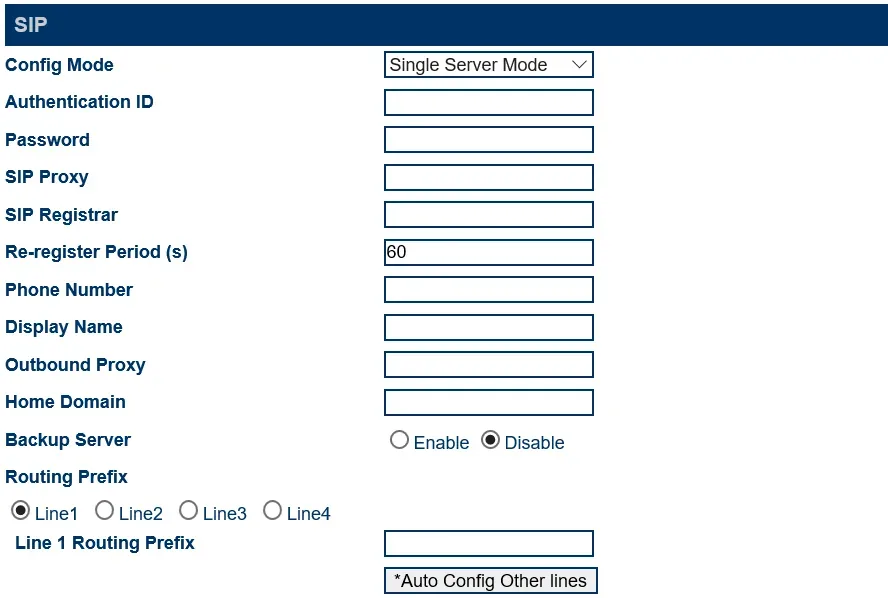 Screenshot: Hybertone GoIP User Manual, rev. 1.5, p. 24.
Click Save Changes. Registration takes about 30 seconds — check it in step 5.
Do not put the SIM number into Phone Number. This is the field the gateway puts into the SIP From header, and our PBX recognises its extension in a call by the login. With the SIM number in Phone Number, registration will be green but calls will be rejected.
One extension per SIM (Config. By Line)
In the admin panel — one operator per SIM. In the gateway choose Config Mode = Config. By Line and enter for each line its own Authentication ID (the full login), Password, SIP Proxy / SIP Registrar. The *Auto Config Other lines button on the line 1 page copies the settings to the other lines but increments the Authentication ID and Phone Number by one — our PBX logins cannot be produced that way, so fill in each line manually.
Codecs, DTMF, NAT, encryption
- Codecs — Configurations → Media → Audio Codec Preference:
a-lawandµ-lawmust come first (as from the factory); G.729 and G.723.1 can be removed. GoIP has no G.722 — G.711 is enough. - DTMF — Configurations → Advanced VoIP: DTMF Signaling =
Outband, Outband DTMF Type =2833, RTP Payload Type =101(all factory values). - NAT — on the same page NAT Keep-Alive =
Enable(factory): the gateway keeps the connection open through the venue's router, no port forwarding is needed. Signaling NAT Traversal and, in Media, Media NAT Traversal =None. - Encryption — Signal Encryption (Advanced VoIP) and Media Encryption (Media) =
None. Our PBX does not understand GoIP's proprietary encryption options (RC4, VOS, AVS and others): with them registration or audio will be lost. - Do not enable Built-in SIP Proxy.
Step 4. Send incoming calls to the PBX#
Now tell the gateway what to do with a call to the SIM: dial the right number on the PBX. Open Configurations → Call IN:
- CID Forward Mode (common to all lines) —
Use Remote Party ID. The caller's number goes into a separate header, andFromkeeps the extension login. TheUse CID as SIP Caller IDmode, which Hybertone uses in its VOS and Elastix guides, puts the caller's number in place of the login. The vendor itself warns that the SIP server may not accept such a call, and our PBX may not recognise its extension in it. - Select line CH1 and set Call IN via GSM =
Enable(factory). - Forwarding to VoIP Number — the ring group number (from 700) or the operator's extension number. The gateway dials this number on the PBX for every call to the line's SIM.
- Click *Auto Config Other lines — the CH1 settings are copied to all lines — then Save Changes.
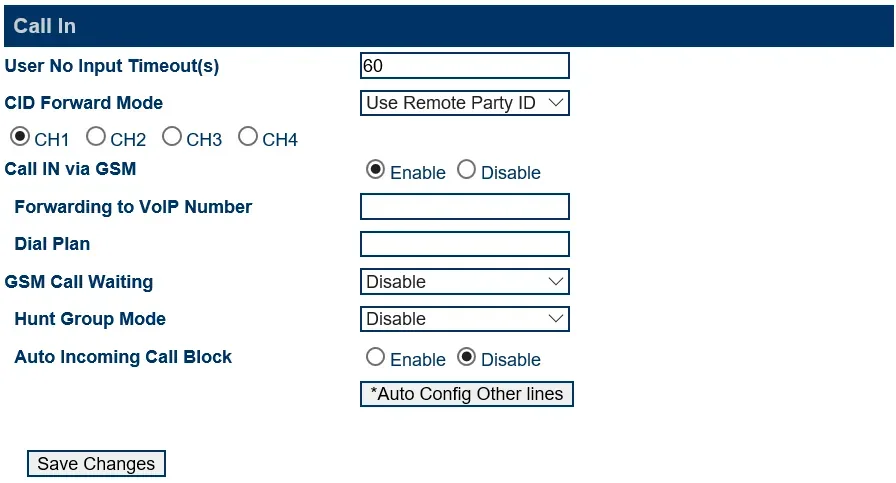 Screenshot: Hybertone GoIP User Manual, rev. 1.5, p. 38.
Do not leave Forwarding to VoIP Number empty. Without it the gateway works in "second dial" mode (Second Dial): it answers the mobile call itself — according to the manual, the caller may be charged — and waits for the caller to dial a number by tone. A guest will hear a dial tone and silence.
Different numbers for different callers
Forwarding to VoIP Number accepts conditional forwarding by caller number: 98765432>108|>101| — a call from 98765432 goes to 108, all others to 101. Each rule ends with |, the whole field is up to 140 characters. Caller filtering (white and black lists) — Configurations → Call IN Auth.
The caller's number. GoIP passes the mobile caller's number in the SIP call (if caller ID is enabled on the SIM; newer firmware passes an unknown number as Anonymous), but it is not shown in the operator panel yet: the call appears as coming from the gateway's extension. Routing rules for provider numbers (schedule, voice menu) do not apply to calls from the gateway — a ring group with its own time-based options covers the same need (see “Where to send incoming calls”).
Outgoing calls. Calling out from the PBX through this gateway's SIM cards is not possible yet: the PBX's outgoing rule leads only to a SIP provider line. GoIP itself can do it (Configurations → Call OUT), but leave those settings alone for our PBX. For outgoing calls from your own number, use a SIP provider; details — “Outgoing calls through a gateway — not yet”.
Step 5. Check registration and a call#
- SIM on the network and registration in the gateway. Status → Summary: for each line the SIM and GSM columns =
Y, VOIP =Y, signal level RSSI above 15 (scale 0–31; 99 means no signal). Important: while GSM =N, the gateway does not register with the PBX at all — a grey extension in the admin panel then means “check the SIM and antenna”, not the password. The registration mode is shown in Status → General as a letter:S— Single Server,L— By Line,Gx— By Group. - LEDs.
RUNblinking once a second — the gateway is ready for calls (fast blinking — VoIP not ready yet). A channel LED blinking slowly — the SIM is registered on the network, fast — it is not, steady — a call is in progress. - Registration in the admin panel. Telephony → “Operators” tab — the gateway's extension shows a green dot.
- A call. Call the SIM number from a mobile phone — the operators of the ring group (or the operator) set in Forwarding to VoIP Number should ring.
- Audio — the
*43echo test. Registration tells you nothing about audio. Temporarily enter*43in the line's Forwarding to VoIP Number, click Save Changes and call the SIM from a mobile phone: the PBX plays a short tone and then returns your voice with a delay — talk for about ten seconds. You hear the tone and yourself — audio works both ways; the tone but not yourself — audio does not get from the gateway to the PBX; not even the tone — audio does not get from the PBX to the gateway. The test result appears in the call log. After the check, put the ring group or operator number back.
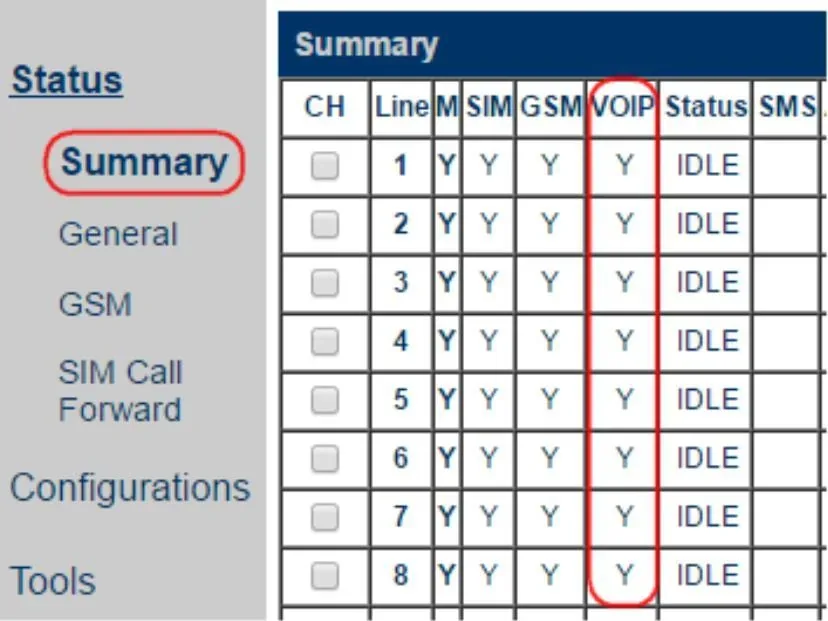 Screenshot: Hybertone, Installing GoIP in VOS and Elastix Platforms, p. 9.
Everything about checking — in the overview, section “How to check”.
Factory reset#
A reset is needed if the web interface password is forgotten, the gateway came with someone else's settings or behaves unpredictably. Before resetting a working gateway, save its settings: Tools → Backup / Restore.
With the Reset button. The button is recessed in the case — press it with a paper clip while the gateway is on. A short press — reboot; holding for 15 seconds or longer — factory reset including the login password. On GoIP32-X4, 10 seconds is enough for a reset.
From the web interface. Tools → Reset → in the “Are you sure to reset to factory default?” window click OK. Tools → Reboot in the same place just reboots.
By SMS. Send RESET <admin password> to any SIM in the gateway — it returns to factory settings and reboots; REBOOT <admin password> — reboot only.
What is erased: the whole configuration — the PBX account, incoming routes, network settings, login passwords. What to do afterwards: the LAN port again gets its address via DHCP, the PC port is again 192.168.8.1, login admin / admin — start from step 1. Resetting the gateway does not change the extension login and password in the admin panel; if the extension password was not saved, issue a new one with the “Reset password” button. General notes on resetting gateways — in the overview.
If the gateway does not register#
- The SIM is not on the network. While Status → Summary shows GSM =
Nfor a line, there will be no registration with the PBX. Causes: the PIN is not removed or entered wrongly, the antenna is not connected, RSSI below 15, a 2G model where 2G is switched off, a 4G model of the wrong regional version, or the operator does not allow it on VoLTE. - The login is not entered in full. Authentication ID must contain the whole
sip-…-<number>string, not just the number; the server address goes into both SIP Proxy and SIP Registrar. - Registration is green but calls are rejected. Phone Number contains the SIM number, or Call IN has CID Forward Mode =
Use CID as SIP Caller ID. Leave Phone Number empty and chooseUse Remote Party ID(steps 3 and 4). - Registration disappeared after a while. The Talk Time Limit in Configurations → SIM is used up: by default the gateway disables SIP registration together with the channel, and incoming calls stop too. Do not set limits, or enable SIP Registration when Talk Time Limit Expires =
Enable. - Wrong mode or encryption enabled. Config Mode =
Trunk Gateway Modedoes not work with our PBX — you need Single Server Mode (or By Line / By Group). Signal Encryption and Media Encryption — onlyNone. - Settings are not saved. Hybertone supports only Chrome and Internet Explorer — open the web interface in Chrome.
General causes (SIP ALG on the router, UDP 5060 blocked) — in the overview, section “If the gateway does not register”; about the network and SIM — “Venue network, NAT and SIM card”.
Models in the family#
SIP and incoming route setup is the same on all models; they differ in channel count, network and details like the reset time. The letter i in the name (GoIP-1i, GoIP-4i, GoIP-8i) means an internal antenna.
| Model | SIMs / channels | Network | Setup differences |
|---|---|---|---|
| GoIP-1 | 1 / 1 | 2G GSM 850/900/1800/1900 | Single Server Mode only (no By Line or By Group); GHSFVT firmware |
| GoIP-4 | 4 / 4 | 2G GSM, 4 bands | GST1610 firmware (old hardware — GS-4.01) |
| GoIP-8 | 8 / 8 | 2G GSM, 4 bands | GST1610 firmware (old hardware — GS-4.01, revision "1310" — GST1310) |
| GoIP-16 | 16 / 16 | 2G GSM, 4 bands | GST1610 firmware (old hardware — GST-1.01) |
| GoIP-32 | 32 / 32 | 2G GSM, 4 bands | GST1610 firmware |
| GoIP8-4G (-C / -E) | 8 / 8 | 4G LTE FDD/TDD + WCDMA + GSM, VoLTE | regional version C or E (see below); VoLTE on from the factory; SIM hot-swap |
| GoIP16-4G | 16 / 16 | 4G LTE FDD/TDD + GSM, VoLTE | listed in the hybertone.com catalogue |
| GoIP32-X4-2G (GoIP324) | 32 channels / 128 SIMs | 2G GSM, 4 bands | 4 SIMs per channel with rotation; button reset — 10 s |
| GoIP32-X4-4G (-C / -E) | 32 channels / 128 SIMs | 4G, as GoIP8-4G, VoLTE | 4 SIMs per channel; button reset — 10 s |
| WoIP-8 | 8 / 8 | 3G WCDMA 850/900/1900/2100 + GSM | in the 2016 manual, not in the current catalogue — check with your supplier |
For a venue with 1–4 numbers, GoIP-1 or GoIP-4 fit where 2G works, and GoIP8-4G-E where 2G has been switched off. The X4 models with SIM rotation are built for traffic carriers; a venue does not need them.
Which 4G version to buy for your country
The bands are set by the regional version, chosen at purchase (GoIP manual v2.6 and GoIP-X4 manual v1.02):
| Version | For whom (per the vendor) | Bands |
|---|---|---|
| 4G-C | mainland China | FDD-LTE B1/B3/B5/B8; TDD-LTE B34/B38/B39/B40/B41; WCDMA B1/B8; TD-SCDMA B34/B39; GSM B3/B8; CDMA BC0 |
| 4G-E | Europe, Middle East, Africa, Korea, Southeast Asia, Hong Kong and Macau | FDD-LTE B1/B3/B5/B7/B8/B20; TDD-LTE B38/B40/B41; WCDMA B1/B5/B8; GSM B3/B8 |
The vendor's tables have no versions with North American bands (B2/B4/B12/B13) or B28 (Australia, Latin America). Compare the bands with those your operator uses, and before buying ask the operator whether it allows this gateway on VoLTE. In newer firmware the network (2G/3G/4G) is chosen in the operator settings (GSM Carrier).
FAQ#
Can I call out from the PBX through this gateway using the SIM's number?#
Not yet — with us the gateway works for incoming calls only. GoIP itself can make outgoing calls (Call OUT), but our PBX does not yet send calls to a gateway extension as to a line. For outgoing calls from your own number, use a SIP provider.
Will the gateway work where 2G has been switched off?#
The classic GoIP-1/4/8/16/32 and GoIP32-X4-2G — no: they work on GSM networks only. You need a 4G model (GoIP8-4G, GoIP16-4G, GoIP32-X4-4G) of the right regional version and an operator that allows it on VoLTE. VoLTE is on from the factory on the 4G models.
How many extensions does a 4- or 8-SIM gateway need?#
One: in Single Server Mode the whole gateway registers with one account, and an incoming call to any SIM follows its line's route. One extension per SIM (Config. By Line) is needed only if it matters in the PBX which number was called.
Why is the caller's number not shown in the panel?#
GoIP passes the number (in Use Remote Party ID mode — in a separate header), but our PBX currently shows the call as coming from the gateway's extension. This is a PBX limitation, not a gateway setting: do not switch to Use CID as SIP Caller ID for the sake of the number — calls may stop getting through altogether.
How do I update the firmware?#
Online only: Tools → Online Upgrade, and do not switch off power during the update. The firmware branch depends on the hardware revision, so on the dbltek.com firmware page pick the link by the prefix of your current version (GHSFVT-, GS-, GST-, GST1310-, GST1610-). From version GST1610-1.01-64 you cannot roll back to an older one.
What about SMS and balance checks?#
The gateway handles SMS and USSD itself, in its web interface: Tools → Send SMS, SMS InBox, SMS OutBox, Send USSD (balance check).
What are the IMEI change, SIM rotation and "behaviour simulation" features?#
These are tools for bulk traffic termination operators (SIM boxes). In a venue do not enable them: operators block SIMs for such behaviour, and changing the IMEI is illegal in many countries (and, per the manual, the factory IMEI cannot be restored after a change). About SIMs in a gateway in general — “Venue network, NAT and SIM card”.
Sources#
Hybertone / DBL Technology documents, accessed 10 September 2026:
- GoIP User Manual (VoIP GSM Gateways GoIP/GoIP-4/4i/8/8i/WoIP-8/16/32, rev. 1.5, 24.06.2016) — http://www.hybertone.com/uploadfile/download/20140304130029308.pdf
- GoIP 用户手册 (Chinese user manual v2.6, 15.11.2018) — http://static.dbltek.com/GoIP%E7%94%A8%E6%88%B7%E6%89%8B%E5%86%8C-v2.6-aidlrBqmKioSRplqqnpiml.pdf
- GoIP-X4 系列网关用户手册 (GoIP-X4 user manual v1.02, 15.11.2018) — http://static.dbltek.com/GoIP-X4%E7%BD%91%E5%85%B3%E7%94%A8%E6%88%B7%E6%89%8B%E5%86%8C-v1.02-aidljBqmKioSRplqqqpiml.pdf
- GoIP32-X4 Quick Setup Manual (08.2018) — http://www.hybertone.com/uploadfile/download/20180808190602858.pdf
- Installing GoIP in VOS and Elastix Platforms (22.09.2016) — http://www.hybertone.com/uploadfile/download/20170222150224722.pdf
- How to Configure GoIP (GSM Gateway) connect to Asterisk — http://www.hybertone.com/en/solutionsClass.asp?Id=78
- How to register GoIP with SMS Server — http://www.hybertone.com/en/solutionsClass.asp?Id=86
- GoIP-1 / GoIP-8 / GoIP-16 datasheets (07.2021) — http://www.hybertone.com/uploadfile/download/20210716174824601.pdf, http://www.hybertone.com/uploadfile/download/20210716174846340.pdf, http://www.hybertone.com/uploadfile/download/20210716174857098.pdf
- hybertone.com product pages: GoIP8-4G — http://www.hybertone.com/en/pro_detail.asp?proid=64, GoIP16-4G — http://www.hybertone.com/en/pro_detail.asp?proid=65, GoIP32-X4-2G — http://www.hybertone.com/en/pro_detail.asp?proid=63
- dbltek.com catalogue and manuals — http://www.dbltek.com/products.html, http://www.dbltek.com/Support.html
- 最新固件版本 (latest firmware) — http://www.dbltek.com/lastestfirmwares.html
- GST1610系列更新日志 (GST1610 firmware changelog) — http://www.dbltek.com/gst1610series_changelog.html
On the family's security (not vendor documents): SecurityWeek, “Backdoor Found in DBLTek GSM Gateways” (02.03.2017) — https://www.securityweek.com/backdoor-found-dbltek-gsm-gateways/; Exploit-DB 50775, “Dbltek GoIP — Local File Inclusion” (21.02.2022) — https://www.exploit-db.com/exploits/50775 (accessed 10 September 2026).