Matrix SIMADO GFX11/GFX44 and SETU VGFX (FXO) — setup for our PBX
Matrix Comsec is an Indian telecom equipment maker. Its brands cover gateways of two quite different kinds, and it matters which one you have:
- SETU — real SIP gateways with the Jeeves web interface: SETU VFX440 / VFX880 (4 and 8 landlines, FXO ports), SETU VFXTH3200 (32 lines, 1U rack), SETU VG4 / VG8 (4 and 8 SIM cards, 2G/3G only) and the discontinued SETU VGFX (SIM cards + lines in one box). They connect to our PBX directly — this page is mostly about them.
- SIMADO GFX11 / GFX44 — GSM terminals that turn a SIM card into an analogue phone port. They have no SIP and no Ethernet: they make a "landline" out of a SIM card for an ordinary phone or an old key system. A SIMADO reaches our PBX only through a chain: SIMADO → FXO port of a SETU VFX (or any FXO gateway) → PBX (see step 4).
To our PBX a SETU gateway is just another extension: it registers on the PBX server with an extension account, and dials an incoming call from the line or SIM through to a ring group or an operator. What is the same for all gateways is in the overview “GSM gateways and landlines”. This page is the step-by-step guide for Matrix, with screenshots from the SETU VFX System Manual (the SETU VG and VFXTH menus are the same).
⚠️ SETU VG, SETU VGFX and SIMADO GFX44 work on 2G/3G networks only — they have no LTE; the SIMADO GFX11 can come with a 4G module, but the documentation does not state VoLTE support. Where 2G and 3G are switched off, or where the SIM card works on LTE only, these gateways will not work (shutdown list — “By country”). The SIMADO and SETU VG product pages have been removed from the manufacturer's site — check with your supplier whether they are still sold and serviced. For landlines the manufacturer still sells SETU VFX and SETU VFXTH.
What you need#
- Extension credentials from the admin panel: Telephony → Operators → create an operator for the gateway (for example, “Landline, Matrix”) → “Reset password” → the “Extension credentials” window: SIP server, Extension number, Login, Password, Port
5060, TransportUDP. The password is shown once. Details — “Extension credentials for the gateway”. - One extension for the whole gateway, or one per line. A SETU holds separate SIP trunks (9 on VFX and VG, 32 on VFXTH), each with its own registration. One extension for all lines is enough; if the lines should ring different ring groups, create one extension per line.
- The number the gateway will send incoming calls to: a ring group number (Telephony → “Ring groups”, numbers from 700) or an operator's extension number.
- A landline plugged into an
FXOport with anRJ-11cable (SETU VFX, VFXTH) — or a SIM card with a voice plan (SETU VG). Turn off call waiting on the SIM beforehand — the manufacturer warns that otherwise a second call drops the current conversation. - A computer with a network cable that you can plug straight into the gateway for a while: the gateway has no DHCP out of the box (step 1).
- The country of your line — you select it first thing (step 2).
Step 1. Find the gateway's IP address#
SETU addresses are static from the factory; the gateway does not get an address via DHCP:
| Model | Port | Factory address | Mask |
|---|---|---|---|
| SETU VFX, SETU VG | LAN | 192.168.2.100 |
255.255.255.0 |
| SETU VFX, SETU VG | WAN | 192.168.1.100 |
255.255.255.0 |
| SETU VFXTH | single Ethernet port (WAN) | 192.168.1.100 |
255.255.255.0 |
| SETU VGFX (legacy) | — | 192.168.1.176 |
— |
The first time, connect directly:
- Plug the computer into the gateway's LAN port with a cable (on VFXTH — into its only port).
- Give the computer an address in the same subnet, for example
192.168.2.10with mask255.255.255.0(on VFXTH —192.168.1.10). The DHCP server on the SETU VFX LAN port is off from the factory. - Open
http://192.168.2.100in a browser (on VFXTH —http://192.168.1.100) and go on to step 2.
After logging in, move the gateway into the venue network: Basic Settings → Network → WAN → Connection Type — DHCP, or Static with your network's address, mask and gateway; in the same place DNS Setting — Automatic with DHCP, or Static with a DNS server address (without DNS the gateway cannot find our server by name). The venue network cable goes into the WAN port. LAN and WAN must be in different subnets: if the venue network is also 192.168.2.x, change the LAN address first (Basic Settings → Network → LAN). Current addresses are shown in Status → Network.
Lost the address? Press the Reset button on the back panel for more than 4 seconds: the LAN port returns to 192.168.2.100 (what else gets reset — see “Factory reset”). SETU VFX440/880 and VG have no voice menu that reads out the IP: they have no phone port. On the legacy SETU VGFX, plug an analogue phone with a display into its FXS port, dial 21-#* and hang up — the IP address appears on the display.
Step 2. Log in to the web interface#
| What | Value |
|---|---|
| Address | http://192.168.2.100 — the gateway redirects to https://192.168.2.100 by itself (on VFXTH — https://192.168.1.100) |
| Login | there is no login field |
| Password | 1234 — the Login Password field (“the default SE Password”) |
The gateway uses a self-signed certificate — the browser will warn you; that is normal for the first login. Right after login Jeeves forces a password change: 6–16 characters, at least one upper-case and one lower-case letter, a digit and a special character; % # = + & \ < > ' " and space are not allowed. Later you change the password in Basic Settings → Login Password.
The Jeeves menu is on the left: Basic Settings, Advanced Settings, Maintenance, Status. On every page the Submit button saves your changes. ⚠️ The Default button next to it restores the factory values of the whole current page — do not press it instead of Submit.
Country first. Basic Settings → Region — select your country (the factory value is India). The region sets the line tones, the caller-number format and audio companding, and changing it resets all regional parameters — so choose the region before setting up lines and trunks.
Access to Jeeves from the internet
From the factory the web interface is also open from the WAN side (Advanced Settings → System Parameters → Web Server Access from WAN = Enabled). Behind the venue router this does no harm; if the gateway sits on a public address, turn WAN access off or restrict it to a list of addresses, and be sure to change the password. Our PBX does not need access from outside: the gateway connects to it by itself.
Step 3. Enter the PBX credentials#
A SIP account on a SETU is called a SIP trunk: Basic Settings → SIP Trunk → tab SIP 1 (SIP 1…SIP 9 in total, up to 32 on VFXTH). Turn on SIP Trunk Enable; you may enter a label in Name — everything else is in the collapsible blocks of the page.
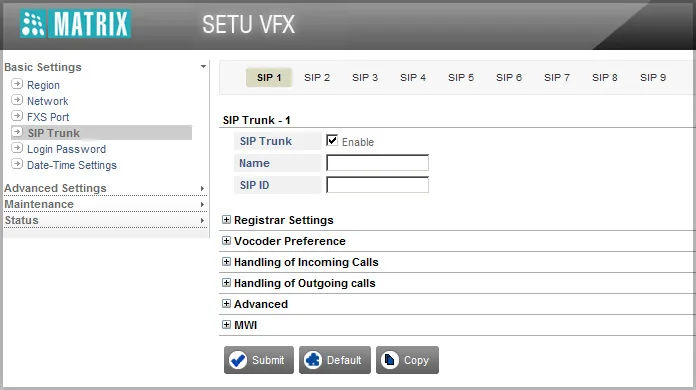 Screenshot: Matrix SETU VFX System Manual V1R15, p. 89.
The key block is Registrar Settings. From the factory SIP Trunk Mode is Peer-to-Peer, and in that mode the gateway does not register — switch it to Proxy:
| In the admin panel (“Extension credentials”) | Gateway field (SIP Trunk → SIP 1 → Registrar Settings) |
|---|---|
| — | SIP Trunk Mode = Proxy (factory value Peer-to-Peer!) |
Login sip-…-<number> |
SIP ID — the whole string (up to 40 characters; letters and hyphens are allowed) |
| Login (again) | Authentication ID — the same whole string |
| Password | Authentication Password |
| — | SIP Registration — Enable (factory value) |
| SIP server | Registrar Server Address — the server address (a name is allowed) |
Port 5060 |
the : Port part of the same field — already 5060 |
| — | Outbound Proxy — leave off |
Transport UDP |
block Advanced → SIP Transport = UDP (factory value); do not choose TLS |
| Extension number | not entered — just remember which extension the gateway uses |
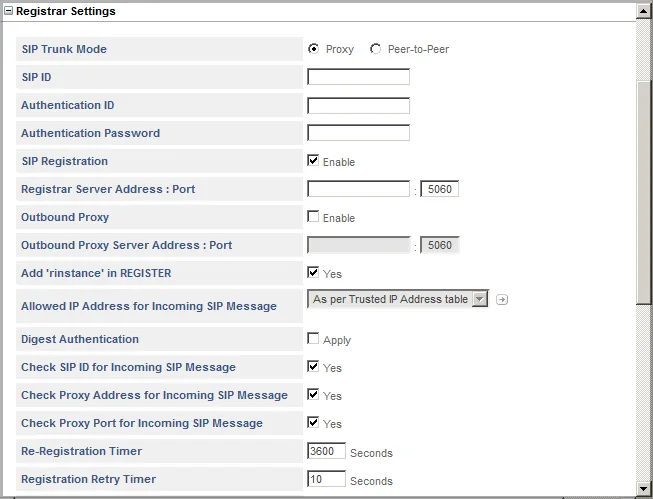 Screenshot: Matrix SETU VFX System Manual V1R15, p. 90.
Codecs — the Vocoder Preference block. From the factory G.729 is first in the Selected Codecs list, and our PBX does not use it. Select G.711 (A-Law) (Europe, India, Russia and most countries) or G.711 (µ-Law) (North America) and move it to the top with the up arrow; keep both G.711 in the list, and you may move G.729 and G.723 to Available Codecs with the left arrow. Matrix has no G.722 — the call runs in G.711, which is fine.
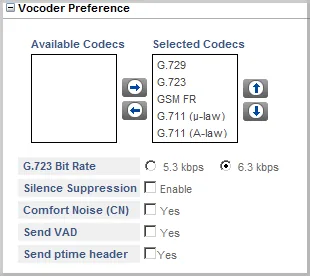 Screenshot: Matrix SETU VFX System Manual V1R15, p. 99. The picture shows the factory order; G.711 has to be moved to the top.
The rest:
| PBX setting | Gateway field |
|---|---|
| DTMF RFC 2833 | Advanced → DTMF = Outband (factory value; this is RFC 2833) |
| No encryption | Advanced → Secure RTP (SRTP) = Disable |
| Registration behind a router | Re-Registration Timer — 60–300 s instead of the factory 3600 (see the overview) |
| NAT | Advanced Settings → System Parameters → NAT → UDP NAT Keep Alive — turn on (off from the factory), Interval 120 s; leave NAT Type on the trunk at Disabled |
| Extension identification | Handling of Outgoing calls → SIP ID in "FROM" header of INVITE message = SIP ID configured (factory value) — do not change |
Press Submit. Turn SIP ALG off on the venue router.
One extension per line
Create one operator per line in the admin panel and set up trunks SIP 1, SIP 2…, each with its own login and password (the Copy button at the bottom of the page copies a trunk's settings, so you only change the account). Then in step 4 route FXO 1 → SIP 1, FXO 2 → SIP 2 and so on. On VFX880 nine trunks cover all 8 lines; on VFXTH3200 there is a trunk for each of the 32 ports. By default a trunk carries up to 8 simultaneous calls (Advanced → Maximum Calls).
Step 4. Send incoming calls to the PBX#
Now tell the gateway what to do with a call on the line: dial the ring group or operator number on the PBX straight away. For a landline this is Basic Settings → FXO Port → tab FXO 1 (and the same for every line) → block Handling of Incoming Calls; on SETU VG — Mobile Port → the SIM port tab → the same block.
- Route all incoming calls (with CLI) — choose
to the Fixed Destination Numberand in the Fixed Destination Number field that appears enter the ring group number (from 700) or the operator's extension number. The FXO factory value iswithout any Destination Number— the call goes to the trunk with no number, and the PBX does not know whom to give it to. - Route all Incoming calls (without CLI) — also
to the Fixed Destination Numberwith the same number. The factory value here isafter Answering the Call and Collecting the Digits: the gateway picks up and plays its own dial tone so the caller dials something. On SETU VG both items are set this way — change both. - Select Destination Port for routing calls =
Fixed(factory value) → Settings button → Edit → pick a SIP trunk as the destination group (SIP 1; with one extension per line — each line's own trunk) → Submit. - Press Submit on the port page.
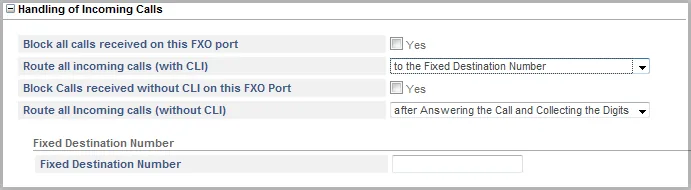 Screenshot: Matrix SETU VFX System Manual V1R15, p. 68. Only the “with CLI” item is set in the picture — switch the “without CLI” item the same way.
Do not enable Allow making New Call using Access Code — with it a caller can dial a code after the conversation and place a new call through the gateway without hanging up. Routing rules for provider numbers (schedule, voice menu) do not apply to calls from the gateway — a ring group does the same job (see “Where to send incoming calls”).
Caller number. The gateway receives the caller's number from the line (format — FXO Port → General → CLI Type, set by the selected region), but passes it to the PBX only in a separate header — Handling of Outgoing calls → Identity header in INVITE = P-Asserted Identity and Send Caller ID received on Source Port. We do not guarantee that the operator panel shows this number: the call may appear with the gateway extension's number. Do not choose Caller ID received on Source Port in SIP ID in "FROM" header — then the PBX will not recognise its extension in the call and will not accept it.
Outgoing calls. Calling out from the PBX through this gateway's lines or SIM cards is not possible yet: the PBX outbound rule only leads to a SIP provider line. The SETU itself can do outgoing calls (Handling of Incoming Calls on the SIP trunk), but do not set them up for our PBX. For outgoing calls from your own number use a SIP provider — details in “Outgoing calls via the gateway — not yet”.
SIMADO GFX11 / GFX44: chaining through a SETU FXO port
A SIMADO delivers a call to its SIM card as a ring on its analogue FXS port — like a landline. So:
- Connect the SIMADO FXS port with an
RJ-11cable to an FXO port of a SETU VFX440/880 (or any FXO gateway from the family list). - On the SETU — everything as for a landline: steps 1–5 of this page.
- The caller-number format must match. From the factory the SIMADO GFX11 sends the number as FSK V.23 (code
222-CLI Type-#*: 3 — FSK V.23, 4 — FSK Bellcore), the SIMADO GFX44 as DTMF; the SETU FXO port expects FSK V.23 from the factory. For a GFX44 switch either the SIMADO to FSK V.23 or the SETU FXO port's CLI Type toDTMF-Any. - Disconnect. The SIMADO signals answer and disconnect by polarity reversal; on the SETU FXO port Disconnect Supervision is
Open Loop Disconnectfrom the factory. If the line "hangs" after a call, setBattery Reversalon the SETU.
A SIMADO is programmed with codes from a phone plugged into its FXS port: GFX11 — #*19 + password (#*191234), exit 00#*; GFX44 — *19 + password (*191234) or the Jeeves program for Windows over the COM port. Change the factory password 1234 right away: on a GFX44 you can also enter programming by calling the SIM number. For the GFX11, change the SIM PIN to 1234 in a phone beforehand — that is the gateway's factory SIM PIN.
The chain doubles the hardware; if you are installing the SIM card anyway, a GSM/LTE gateway with SIP is simpler, for example Yeastar TG.
Step 5. Check registration and a call#
- Registration on the gateway. Status → SIP Trunk: status Active — registered; Registering — waiting for the server's reply; Failed or Inactive — an error, the reason is in the Failed Reason column (see “If the gateway does not register”).
- Registration in the admin panel. Telephony → the “Operators” tab — the gateway extension shows a green dot.
- A call. Call the landline number (or the SIM) from a mobile — the operators of the group (or the operator) whose number is in Fixed Destination Number should ring.
- Audio — the
*43echo test. Registration says nothing about audio. Temporarily enter*43in the port's Fixed Destination Number (the*character is allowed in this field), press Submit and call the line from a mobile: the PBX plays a short beep and then returns your voice with a delay — talk for about ten seconds. You hear the beep and yourself — audio works both ways; beep but not yourself — audio does not get from the gateway to the PBX; not even the beep — it does not get from the PBX to the gateway. The test result appears in the call log. Afterwards put the group or operator number back.
Everything about checking — in the overview, section “How to check”.
Factory reset#
A reset is needed if the password or the gateway's address is forgotten, the gateway came from a previous owner with someone else's settings, or it behaves unpredictably. On a SETU the reset has two stages: the button resets only the network and the password, while SIP trunks and routes are wiped only by the reset from Jeeves.
With the Reset button (SETU VFX, VG, VFXTH) — on the back panel. Shorter than 4 seconds — just a restart. Longer than 4 seconds — resets the password (back to 1234), LAN settings (address 192.168.2.100, mask, DHCP server, DMZ, port forwarding), the WAN connection type, web/FTP/Telnet access from WAN and those servers' ports. The button does not touch SIP trunks, routes or port settings. Jumper J3 on the SETU VFX board does the same (from BC to AB, power on for 15 seconds, power off, put it back to BC).
From the web interface — a full reset. Maintenance → Default System → to the question “This option will assign default values to all the programmable parameters and will Restart” press OK → enter the current password backwards (if the password is 1234 — 4321) → OK, the gateway restarts. Kept: the clock, the call log, the region, language, WAN connection type, DNS, NAT/STUN, server ports, firmware and the login password.
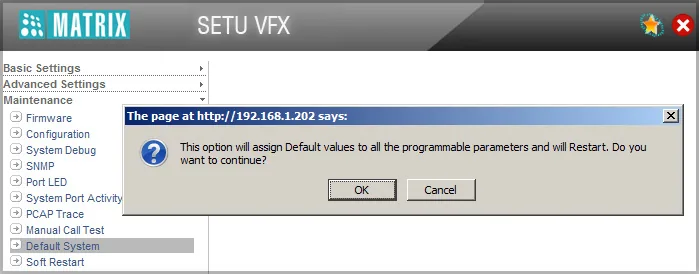 Screenshot: Matrix SETU VFX System Manual V1R15, p. 267.
Gateway from a previous owner, password unknown: first the Reset button for more than 4 seconds (the password becomes 1234, the LAN address 192.168.2.100), then log in and run Default System with the current password backwards — only that removes someone else's trunks and routes.
The legacy SETU VGFX is reset only from Jeeves (Default System) — “There is no option of Hardware Default”; it has no hardware reset.
SIMADO: GFX11 — enter programming (#*19 + password) and dial 106 + the password backwards + #* (with 1234 — 1064321#*); GFX44 — 292 + the password backwards + #*, or Default SIMADO GFX44 in Jeeves. Forgot the SIMADO password — power off, remove the cover, move jumper J2 (GFX11) or J9 (GFX44) from BC to AB, power on for 5 minutes, power off and put it back to BC: the password is 1234 again.
What to do afterwards: start with step 1 (address 192.168.2.100, password 1234 with a change), check the region (step 2) and go through steps 3–4. A gateway reset does not change the extension's login and password in the admin panel; if the extension password was not saved, issue a new one with “Reset password”. General notes on resetting gateways — in the overview.
If the gateway does not register#
- SIP Trunk Mode was left at
Peer-to-Peer. In this mode the gateway sends no registration at all — switch it to Proxy (step 3). - No DNS. Failed Reason Failed to send request — no DNS server is set on the gateway; Local Failure — the DNS query failed. Check Basic Settings → Network → WAN → DNS Setting.
- Authentication Failed. The login was not entered in full (the whole
sip-…-<number>string goes into both SIP ID and Authentication ID) or the password is out of date: if someone pressed “Reset password” in the admin panel, enter the new one on the gateway. - Response timeout. The gateway gets no reply from the server: the venue network cable is in LAN instead of WAN; LAN and WAN ended up in the same subnet; SIP ALG is on at the router, or outbound UDP 5060 is blocked.
- Registered, but the call does not arrive, or the caller hears the gateway's dial tone. Handling of Incoming Calls still has the factory
without any Destination Number/after Answering the Call and Collecting the Digits, or the Destination Port is not a SIP trunk (step 4). The call arrives but the PBX rejects it — SIP ID in "FROM" header is set to the caller's number instead ofSIP ID configured. - The call does not connect — "no common codec". Both G.711 entries were removed from Vocoder Preference — put them back at the top.
If the call arrives but the line is not released after the conversation, set up disconnect detection for your country: FXO Port → Disconnect Supervision and Disconnect Tone Detection (your country's busy tone), and run the AC Impedance Test (FXO) in Maintenance on the real line. On SETU VG check the SIM PIN (Mobile Port → General; a reset does not clear it), that the operator still runs 2G/3G and that the SIM is not LTE-only; the SIM registers on the network about 3 minutes after power-on. General causes — in the overview, section “If the gateway does not register”; network and SIM — “Venue network, NAT and SIM card”.
Models in the family#
| Model | Ports / channels | Network / line | Setup differences |
|---|---|---|---|
| SETU VFX440 | 4 × FXO, 9 SIP trunks | landline | the base case of this page: LAN 192.168.2.100 + WAN |
| SETU VFX880 | 8 × FXO, 9 SIP trunks | landline | the same, 8 lines; the best choice for incoming calls to landline numbers |
| SETU VFXTH3200 | 32 × FXO, 32 SIP trunks | landline | 1U rack, a single Ethernet port 192.168.1.100, one trunk per port |
| SETU VFXTH0808 | 8 × FXO + 8 × FXS | line + phones | VFXTH menu; not listed on the manufacturer's site — check with your supplier |
| SETU VFXTH1600 / 1616 | 16 × FXO (1616: + 16 × FXS) | landline | discontinued, software support still available |
| SETU VG4 / VG8 | 4 / 8 SIM, 9 SIP trunks | GSM 2G / UMTS 3G | Mobile Port instead of FXO Port (SIM PIN, band, network mode); no LTE |
| SETU VGFX8422 / 8440 / 8404 | 4 × GSM + 2 FXO + 2 FXS / 4 FXO / 4 FXS | GSM + line | discontinued; address 192.168.1.176, reset only from Jeeves |
| SIMADO GFX11 / GFX11E | 1 SIM → 1 × FXS | 2G / 3G / 4G depending on module | no SIP — only chained through a SETU FXO port; GFX11E — with a battery for emergency use |
| SIMADO GFX44 | 4 SIM → 4 × FXS | GSM 2G / UMTS 3G | no SIP — chained through a SETU FXO port; configured by codes or by Jeeves over the COM port |
SETU with FXS ports and other models
SETU VFX404 / VFX808 and SETU VFXTH0016 / 0024 / 0032 are FXS gateways: they connect analogue phones as extensions (see “SIP phone setup”). The single FXO port on VFX404/808 is only an emergency line bypass during a power cut; it does not route incoming line calls to the PBX. Common to the whole SETU range: codecs G.711 A/µ, G.723.1, G.729AB, GSM-FR (some models also iLBC), no G.722; UDP, TCP or TLS transport (UDP for us); caller-number reception from the line in DTMF and FSK formats.
FAQ#
Can I call out from the PBX through this gateway?#
Not yet — with us the gateway handles incoming calls only. The SETU itself can do outgoing calls, but our PBX does not yet send calls to a gateway extension as if it were a line. Outgoing calls from your own number go through a SIP provider.
I have a SIMADO GFX11 — can I connect it to the PBX directly?#
No: a SIMADO has neither SIP nor a network port. You need an intermediary — an FXO gateway (for example, a SETU VFX440): the SIMADO FXS port into the gateway's FXO port, then treat it as a landline (see step 4). If you are installing the SIM card anyway, a GSM/LTE gateway with SIP is simpler.
The caller hears a dial tone and has to dial something — why?#
That is the factory route after Answering the Call and Collecting the Digits: the gateway picks up and waits for the caller to dial a number. In Handling of Incoming Calls set both items (with CLI and without CLI) to to the Fixed Destination Number with the group number.
How many extensions does an 8-line gateway need?#
One, if all lines go to the same ring group. If you need to tell the lines apart — one extension per line: SETU VFX has 9 SIP trunks, VFXTH3200 has 32.
Will a SETU VG or SIMADO GFX44 work with my SIM card?#
Only if the operator still runs 2G or 3G and the SIM card works on them: these gateways have no LTE. For example, in India Jio SIM cards work on LTE only — the gateway will not register with them. For Russia and Iran the manufacturer asks you to check the compatibility of its GSM gateways with the Matrix sales team.
After a button reset the gateway still has someone else's trunks — is that expected?#
Yes: the button resets only the network and the password. Trunks and routes are wiped by Maintenance → Default System with the password backwards (see “Factory reset”).
Sources#
Matrix Comsec documentation, accessed 10 September 2026:
- SETU VFX System Manual V1R15 (August 2019): addresses and password, SIP Trunks, FXO Port, NAT, trunk status, Default System, Reset button — https://www.matrixcomsec.com/wp-content/uploads/2024/02/SETU-VFX-V1R15-System-Manual.pdf
- SETU VFX Quick Start V1R15: models, first login, password change — https://www.matrixcomsec.com/wp-content/uploads/2024/02/SETU-VFX-V1R15-Quick-Start.pdf
- SETU VFX — product page (models, codecs, certifications) — https://www.matrixcomsec.com/product/setu-vfx-voip-fxo-fxs-gateway/
- SETU VFXTH System Manual + Quick Start V2R18 (ZIP) — https://www.matrixcomsec.com/wp-content/uploads/2023/08/SETU_VFXTH.zip
- SETU VFXTH — product page — https://www.matrixcomsec.com/product/setu-vfxth-voip-fxo-fxs-gateway/
- SETU VG System Manual V1R5.3: Mobile Port, bands, SIM PIN — https://www.matrixcomsec.com/wp-content/uploads/2024/02/SETU-VG-V1R5.3-System-Manual.pdf
- SETU VG Quick Start V1R5.3 — https://www.matrixcomsec.com/wp-content/uploads/2024/02/SETU-VG-V1R5.3-Quick-Start.pdf
- FAQs on SETU VGFX (archived copy, snapshot of 28 July 2014) — https://web.archive.org/web/20140728071939id_/http://www.matrixtelesol.com/faqs/Matrix-SETU-VGFX.pdf
- SIMADO GFX11/GFX11E System Manual + Quick Start V7R2 (ZIP) — https://www.matrixcomsec.com/wp-content/uploads/2023/08/simado-gfx11.zip
- SIMADO GFX44 System Manual + Quick Start V1 (ZIP) — https://www.matrixcomsec.com/wp-content/uploads/2023/08/SIMADO_GFX44.zip
- Telecom Product Manuals (downloads page) — https://www.matrixcomsec.com/support/telecom-product-manuals/