Portech MV-370/372/374/378 — setup for our PBX
Portech MV-37x are Taiwanese GSM/LTE gateways from PORTech Communications for 1, 2, 4 or 8 SIM cards (MV-370, MV-372, MV-374, MV-378; the same line also has the rack-mount MV-3716 and MV-3732 for 16 and 32 SIMs). You insert an operator's SIM into the box, and calls to its number reach an IP PBX over SIP. The line comes in versions for 2G/3G networks and in a 4G LTE version. The family is an old one — the vendor's manuals date from 2012–2020 — so such a gateway is more often already installed at the venue than bought new.
To our PBX the gateway is an extension, and on a Portech every GSM channel (every SIM) is a separate SIP client with its own account. The gateway itself dials an incoming SIM call through to a ring group or an operator. What is the same for all gateways (credentials, where to send incoming calls, network, limitations) is in the overview “GSM gateways and landlines”. This page is the step-by-step guide for Portech MV-37x, with screenshots from the manufacturer's manuals.
What you need#
- Extension credentials for every SIM. In the admin panel: Telephony → Operators → create an operator for each SIM of the gateway (for example, “GSM gateway, SIM 1”) → “Reset password” → the “Extension credentials” window: SIP server, Extension number, Login, Password, Port
5060, TransportUDP. The password is shown once — copy it into the gateway right away. Details — “Extension credentials for the gateway”. - The number the gateway will send incoming calls to: a ring group number (Telephony → “Ring groups”, numbers from 700) or an operator's extension number.
- A SIM card with a voice plan and caller ID enabled. It is best to remove the PIN in a phone beforehand; if you keep it, enter it in the gateway (Mobile → Settings →
Mobile PIN Code). The SIM goes into the back of the unit (on the MV-370/372, take the slide cover off first). - A gateway for your country's network and antennas. Where 2G and 3G have been switched off, the 2G/3G versions will not register on the network — you need the 4G LTE version (see “Models in the family”), and according to the manual it must be used with a 4G SIM.
- The power supply from the box (12 V; MV-374 — 12 V/5 A, MV-378 — 12 V/9 A), a network cable, a computer and a mobile phone to call the gateway's SIM.
Step 1. Find the gateway's IP address#
Out of the box the gateway has the static address 192.168.0.100 (mask 255.255.255.0, gateway 192.168.0.254), DHCP is off. The network cable goes into the WAN port.
- Screw on the antennas, insert the SIM, connect power — the
PWRLED lights up. - Give the computer an address in the same network, for example
192.168.0.10(mask255.255.255.0), and connect it with a cable to the gateway's WAN port. - Open
http://192.168.0.100in a browser and go on to step 2. - Then, in Network → WAN Settings, give the gateway an address in the venue network: static (
TCP/IP) or via DHCP, thenSubmit→ Save Change. The gateway reboots and is reachable at the new address. If you chose DHCP, look for the address in the router's DHCP lease list — the gateway's MAC address is shown on the same page.
If the address is unknown.
- MV-370 and MV-372 — by voice. Within the first 20 seconds after power-on, call the gateway's SIM number from a mobile phone and dial
#120#— the voice menu reads out the current IP.#121#— whether DHCP is on,#128#— firmware version. You can also change the address there:#111#— switch to DHCP,#112xxx*xxx*xxx*xxx#— set a static IP (star instead of the dot). The manuals for the MV-374 and larger models have no such menu. - With a button — back to the factory address. MV-370/372: hold the SW1 button for 7–8 seconds until the Mobile and LAN LEDs blink — the address is
192.168.0.100again; holding SW2 for 7–8 seconds switches the gateway to DHCP. MV-374/378: the IP Reset button, about 10 seconds (the manual does not say which address it restores; on the MV-3716/3732 the same button restores192.168.0.100, and the DHCP mode button turns DHCP on). These buttons change only the network settings — PBX accounts and routes stay.
Step 2. Log in to the web interface#
| What | Value |
|---|---|
| Address | http://192.168.0.100 (or the address from step 1) |
| Login | voip |
| Password | 1234 |
Changing the password at first login is not mandatory, but do it right away: System Authority — both the login name and the password are changed there.
How settings are saved. The Submit button on a page only stores the fields. They are applied by the Save Change menu item — and that reboots the gateway, dropping all calls in progress on all SIMs. Change settings outside business hours. The exception is switching a channel on or off (ON/OFF on the Mobile → Settings page): Submit is enough for that.
Web interface security
- Do not expose to the internet the web interface (HTTP, port 80), telnet (MV-370/372 — port 23; MV-374/378 — 8023, 8123, 8223, 8323; MV-3716/3732 — 1301…1316) or the gateway's SIP ports. For the MV-372 with 2010 firmware, vulnerabilities were published in 2011: service pages and web interface commands could be opened without a password, and all traffic is unencrypted. No fix was found in the vendor's documents.
- A leaked extension password lets someone call through your PBX at your expense. If you suspect a leak, issue the extension a new password with the “Reset password” button and enter it in the gateway.
- Besides the main web interface, the MV-374/378 has web pages for the channel boards (
:8080,:8180,:8280,:8380) — they are only needed for firmware updates.
Step 3. Enter the PBX credentials#
First switch the channels on: Mobile → Settings → for every channel in use (Mobile 1, Mobile 2…) set the switch to ON → Submit. On the same page check the SIP From field — it must be Tel/User (Standard) (the factory value; more in step 4).
The PBX account is created for each channel separately in SIP Settings → Service Domain. Pick the channel at the top of the page (Mobile 1, Mobile 2… up to Mobile 8 on the MV-378) and fill in the Realm 1 (Default) block:
| In the admin panel (“Extension credentials”) | Field in the gateway (SIP Settings → Service Domain → Mobile N → Realm 1) |
|---|---|
| — | Active — ON |
| SIP server | Proxy Server — the server address from the credentials window; Domain Server — empty (as in the vendor's example) or the same address |
Port 5060 |
this page has no separate field for the server port; 5060 is the standard SIP port |
Login sip-…-<number> |
User Name and Register Name — the whole string in both fields |
| Password | Register Password |
Transport UDP |
no separate field: the vendor's documentation only describes UDP |
| Extension number | not entered — just remember which extension this SIM uses |
| — | Display Name — any name; Outbound Proxy — empty |
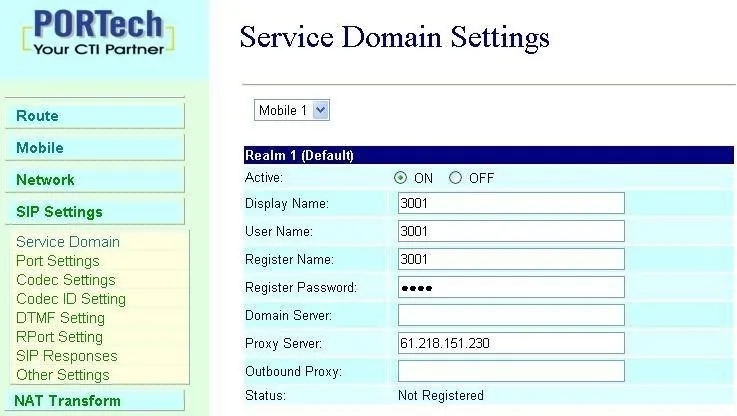 Screenshot: MV-370/MV-372 VoIP GSM Gateway User Manual (2020), p. 54.
Click Submit, repeat for the other channels and finally click Save Change (the gateway reboots). The channel's Status line should change to Registered. The Realm 2 and Realm 3 blocks (a channel's second and third account) are not needed — leave them OFF.
One SIM — one extension. The vendor describes an account per channel (in its Elastix example the four channels of an MV-374 register as four extensions); the manuals do not describe one account for all channels. On the plus side, the PBX shows which SIM was called.
Channel ports, codecs, DTMF, NAT
- Local SIP ports of the channels (SIP Settings → Port Settings / Ports Setting). MV-370 —
5060; MV-372 —5060and5062; MV-374/378 — channel 15064, channel 25066and so on in steps of two, while port5060is taken by the internal Dial Peer. Only the first channel's port can be changed, the others shift automatically; the ports must not overlap with RTP and Dial Peer. They do not affect registration on our PBX — the gateway contacts the server itself, no port forwarding is needed. - Codecs — SIP Settings → Codec Settings: G.711 ulaw and G.711 alaw must be first in
Codec Priority(the factory order). The gateway has no G.722 — G.711 is enough. - DTMF — SIP Settings → DTMF Setting:
Format=2833(factory RFC 2833); Codec ID Setting:RFC 2833 ID=101. - Registration interval — SIP Settings → Other Settings →
SIP Expire Time, 300 seconds out of the box. If the gateway is behind a router and incoming calls disappear a few minutes after registration, lower it to 60–120. - NAT — leave STUN (STUN Setting / NAT Transform) off: our PBX replies to the address the request came from. RPort Setting —
Enable. - Dial Peer (MV-374 and larger) is used for outgoing calls through a free SIM — do not touch its settings for our PBX.
Step 4. Send incoming calls to the PBX#
Now the gateway needs to know what to do with a call to the SIM: dial the right number on the PBX. Open Route → Mobile To LAN Settings and add a rule in the Add New block:
- Position — the table row (0–49), for example
0. - CID — the caller's number the rule applies to:
*— any number. - URL — the number the gateway will dial on the PBX: a ring group number (from 700) or an operator's extension number.
- Click Add, then Save Change.
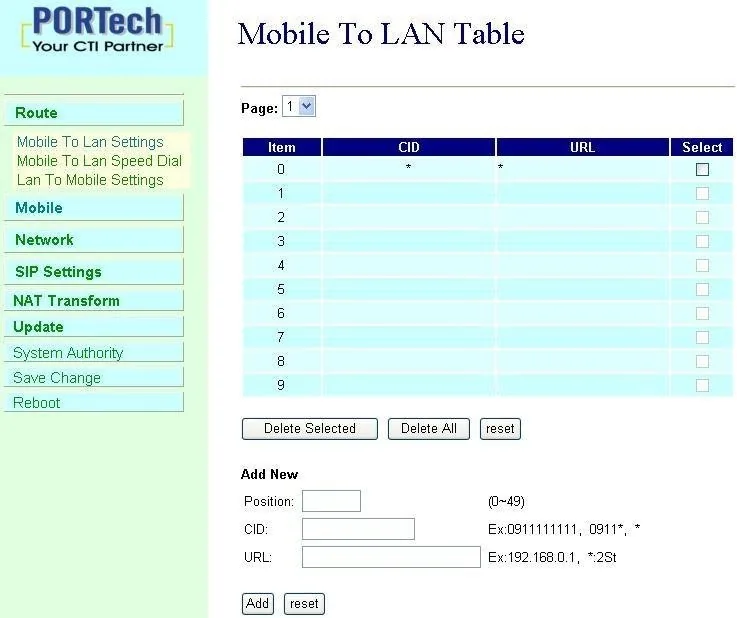 Screenshot: MV-370/MV-372 VoIP GSM Gateway User Manual (2020), p. 12.
The route table is shared by a pair of channels. Two channels (1–2, 3–4, 5–6, 7–8) share the table's 50 rows, and each channel only sees its own part — the channel's Routing Range field in Mobile → Settings. In the screenshot below both channels have the range 0 ~ 49, so a common rule in row 0 works for both SIMs of the pair. If calls to different SIMs must go to different numbers, split the table (for example, Mobile 1 — 0 ~ 24, Mobile 2 — 25 ~ 49) and add a rule within each channel's range.
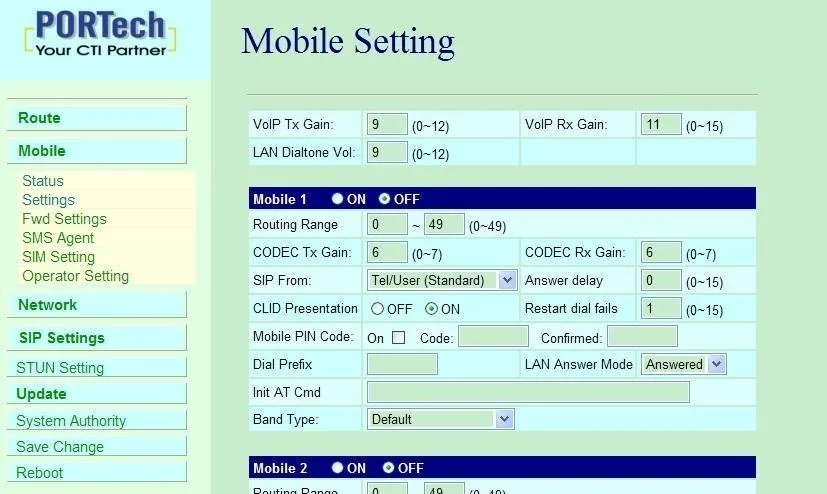 Screenshot: MV-370/MV-372 VoIP GSM Gateway User Manual (2020), p. 19.
Do not leave URL empty and do not use *. An empty field or N — the gateway rejects the call. * means “two-stage dialing”: the gateway answers the call and plays a dial tone, waiting for the caller to dial a number; the guest hears a tone instead of an operator. The Mobile to LAN Speed Dial page must be empty as well: according to the manual it takes priority over Mobile To LAN.
The caller's number. With SIP From = Tel/User (Standard) the gateway puts the mobile caller's number into the call's display name and the extension login into the SIP address itself. The operator panel does not show this number yet: the call appears as coming from the gateway's extension. The vendor's guides for Asterisk and Elastix recommend Tel/Tel — for our PBX do not use Tel/Tel or User/Tel: they put the caller's number in place of the login, the PBX may fail to recognise its extension, and calls will be rejected despite a green registration (the vendor itself says that in these modes the gateway should not register on the server). The routing rules of provider numbers (schedule, voice menu) do not apply to calls from the gateway — a ring group does the same job (see “Where to send incoming calls”).
Outgoing calls. Calling out from the PBX through this gateway's SIM cards is not possible yet: the PBX outbound rule only leads to a SIP provider line. The Portech itself can do it (Route → Lan To Mobile Settings, Dial Peer), but leave those settings alone for our PBX. For outgoing calls from your own number use a SIP provider, more in “Outgoing calls through a gateway — not yet”.
Step 5. Check registration and a call#
- SIM on the network. Mobile → Status → pick the channel:
Operatorshows the operator name,Registration State(Network Registration in the manual's text) — network registration,Signal Quality— signal level. Empty — check the SIM, PIN and antenna. - Registration in the gateway. SIP Settings → Service Domain → channel → the Status line =
Registered. - Registration in the admin panel. Telephony → “Operators” tab — each SIM's extension shows a green dot.
- A call. Call the SIM number from a mobile phone — the operators of the group (or the operator) from the rule's URL should ring. The number of the last incoming mobile call is shown in Mobile → Status (
Incoming Mob). - Audio — the
*43echo test. Registration tells you nothing about audio. Temporarily enter*43in the URL of the Mobile To LAN rule, click Save Change, wait for registration after the reboot and call the SIM from a mobile phone: the PBX plays a short tone and then returns your voice with a delay — talk for about ten seconds. You hear the tone and yourself — audio works both ways; the tone but not yourself — audio does not get from the gateway to the PBX; not even the tone — audio does not get from the PBX to the gateway. The test result appears in the call log. After the check, put the ring group or operator number back.
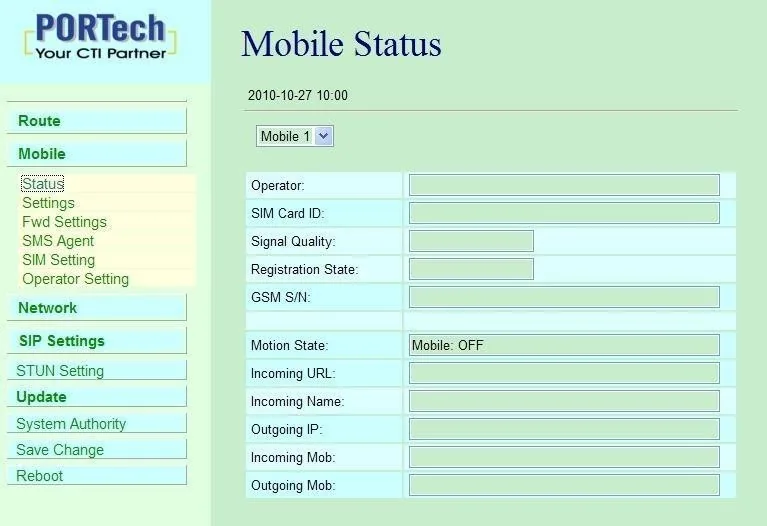 Screenshot: MV-370/MV-372 VoIP GSM Gateway User Manual (2020), p. 18.
Everything about checking is in the overview, section “How to check”.
Factory reset#
A reset is needed if the gateway came with someone else's settings, behaves unpredictably, or after a firmware update (the vendor requires a settings reset after every firmware update).
From the web interface. Update → Default Settings:
Restore default settings(theRestorebutton on the MV-370/372,defaulton the MV-374 and larger) — all settings return to factory values except the IP address: the gateway stays on its current address.Restore factory all settings(thefactoryAllbutton, MV-374/378 and MV-3716/3732) — everything is reset, including the IP: the address is192.168.0.100again.
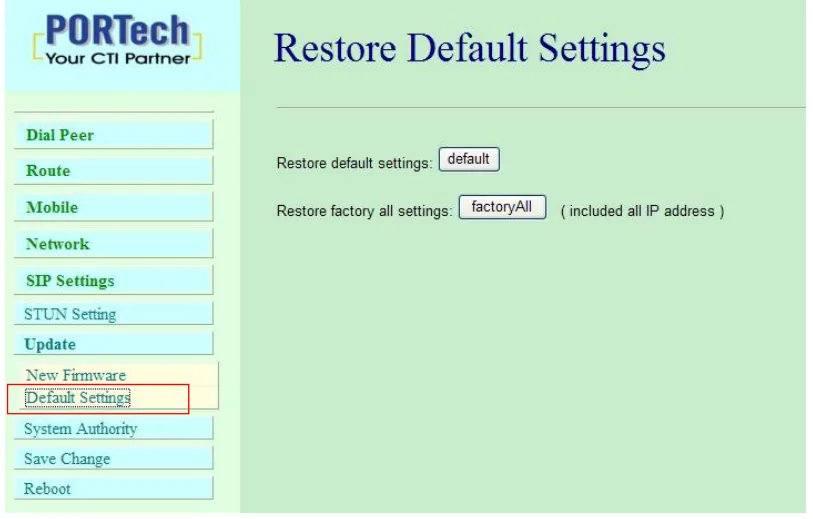 Screenshot: MV-374 / MV-378 VoIP GSM Gateway User Manual (2012), p. 73.
By voice (MV-370/372). Within the first 20 seconds after power-on, call the gateway's SIM and dial #198# — all settings are reset, including the IP. #195# — just a reboot.
Buttons do not do a full reset. SW1/SW2 (MV-370/372), IP Reset (MV-374 and larger) and DHCP mode (MV-3716/3732) change only the network settings (see step 1); the Reboot buttons on the MV-374/378 restart channels without powering off.
What is erased: the PBX accounts on all channels, the Mobile To LAN routes, channel settings; with factoryAll and #198# — the network settings too. Whether the login name and password are reset along with them, the manuals do not say directly; if the password is lost and the model has no voice menu, there is no documented way to log in — contact Portech support or your supplier. What to do afterwards: log in at the address from step 1 (voip / 1234 if the password was reset too) and repeat steps 2–4. Resetting the gateway does not change the extension logins and passwords in the admin panel; if a password was not saved, issue a new one with the “Reset password” button. General notes on resetting gateways — in the overview.
If the gateway does not register#
- The SIM is not on the network. As long as
OperatorandRegistration Statein Mobile → Status are empty, there will be no calls to the SIM. Causes: the PIN is not removed or entered wrongly, no antenna, the channel is off (OFFin Mobile → Settings), a 2G/3G version where those networks are switched off, or a 4G version without 4G voice support from your operator. - You only clicked Submit. The fields are stored but not applied — click Save Change and wait for the reboot.
- The login is not entered in full or not in every field. The whole
sip-…-<number>string goes into both User Name and Register Name; Active =ON; the server address goes into Proxy Server. - The server address cannot be resolved. The gateway cannot resolve the server name if Network → WAN Settings still has the factory DNS
192.168.0.1and there is no DNS server at that address in the venue network. Enter the DNS of your router or provider. - Registration is green but calls are rejected or silent. SIP From is set to
Tel/TelorUser/Tel— go back toTel/User (Standard); the Mobile To LAN rule lies outside the channel's Routing Range; URL is empty,Nor*. - Registration disappears after a few minutes. The venue router forgets the connection before the gateway renews it — lower
SIP Expire Timeto 60–120 seconds (step 3).
General causes (SIP ALG on the router, UDP 5060 blocked) — in the overview, section “If the gateway does not register”; about the network and the SIM — “Venue network, NAT and the SIM card”.
Models in the family#
Menus, the channel account and the incoming route are the same on all models; they differ in the number of channels, the ways to find and reset the address, and the channels' local ports.
| Model | SIMs / channels | Network | Setup differences |
|---|---|---|---|
| MV-370 | 1 / 1 | U/A/G versions (2G + 3G) or 4G LTE | WAN and LAN ports (LAN has its own DHCP server); SW1/SW2 buttons; voice menu #120# / #198#; channel SIP port 5060 |
| MV-372 | 2 / 2 | as MV-370 (the 2020 manual also covers a 4G version) | as MV-370; channels on SIP ports 5060 and 5062 |
| MV-374 | 4 / 4 | U/A/G or 4G LTE | main board + 2 channel boards; IP Reset and Reboot buttons; channels on ports 5064–5070, Dial Peer on 5060; has factoryAll; no voice menu in the manual |
| MV-378 | 8 / 8 | U/A/G or 4G LTE | as MV-374, 4 channel boards, channels 5064–5078; reboot buttons for channel pairs; 2 antennas |
| MV-3716 | 16 / 16 | U/A/G or 4G LTE | 19″, separate manual; IP Reset / DHCP mode / Dial Peer Reset buttons; LAN port for service only |
| MV-3732 | 32 / 32 | U/A/G or 4G LTE | as MV-3716; remote SIM banks are a feature for traffic carriers, a venue does not need it |
For a café, salon or pickup point with one or two mobile numbers, an MV-370 or MV-372 is enough.
Which version to buy for your network
The version is chosen at purchase (product pages and the MV-370/372 manual, section 20.5):
| Version | Bands |
|---|---|
| U | 2G 850/900/1800/1900 + 3G 850/2100 |
| A | 2G 850/900/1800/1900 + 3G 850/1900 |
| G | 2G 850/900/1800/1900 + 3G 800/850/900/1900/2100 |
| 4G LTE (Global) | LTE FDD B1/2/3/4/5/7/8/12/13/18/19/20/25/26/28, TDD B38/39/40/41; WCDMA B1/2/4/5/6/8/19; GSM B2/3/5/8 |
Distributors call the 4G version MV-370L, MV-374L, MV-378L. Where 2G and 3G are switched off, voice over 4G is only possible via VoLTE, and the vendor's documentation says nothing about VoLTE — before buying, check with the supplier and the operator whether the gateway will make calls on their network. Which networks are switched off where — “By country”.
FAQ#
Can I call out from the PBX through this gateway using the SIM's number?#
Not yet — here the gateway works for incoming calls only. The Portech itself can make outgoing calls (Lan To Mobile, Dial Peer), but our PBX does not yet send calls to a gateway extension as to a line. For outgoing calls from your own number use a SIP provider.
How many extensions does a 4- or 8-SIM gateway need?#
One for every SIM in use: on a Portech the account is set per channel (SIP Settings → Service Domain → Mobile N). The incoming route rule can be shared — if the channels of a pair see the same table rows.
Why does every change drop the calls?#
Settings are applied only by Save Change, and it reboots the gateway. Change settings when there are no calls. A channel can be switched on or off without a reboot — with the Submit button on the Mobile → Settings page.
After a power cut, the first call ended up in some menu. What was that?#
On the MV-370/372, a voice setup menu runs for the first 20 seconds after power-on: a call to the SIM during that time lands in it rather than in the PBX. After 20 seconds the gateway switches to normal operation.
How do I update the firmware?#
Update → New Firmware; according to the manual the update page only works in Internet Explorer (on modern Windows — Internet Explorer mode in Edge). On the MV-374/378 the channel boards are flashed first (:8080, :8180…), then the main board, followed by a mandatory Default Settings reset — you will have to enter the settings again. Firmware files are not published on the vendor's website — ask your supplier or Portech support.
What about SMS, balance and SIM bank features?#
The gateway handles SMS and USSD itself: Mobile → SMS Agent and the USSD page (balance check). Remote SIM modes (Mobile → SIM Setting, SIM banks and SIM servers) and “SIM rotation” are tools for mass traffic termination carriers; do not enable them at a venue — the operator may block the SIM for it. About SIMs in gateways in general — “Venue network, NAT and the SIM card”.
Sources#
PORTech Communications Inc. documents, accessed 10.09.2026:
- MV-370/MV-372 VoIP GSM Gateway User Manual (2020) — https://www.portech.com.tw/data/MV-372%20user%20manual.pdf
- MV-374 / MV-378 VoIP GSM Gateway User Manual (2012) — https://www.portech.com.tw/data/MV374_MV378%20Manual.pdf
- MV-3716 / MV-3732 VoIP GSM Gateway User Manual (2014) — https://www.portech.com.tw/data/MV-3716_3732%20manual.pdf
- Elastix Server (Free) with MV-374 VoIP GSM Gateway (2013) — https://www.portech.com.tw/data/MV-374%20works%20with%20Elastix.pdf
- Dial Peer (2011) — https://www.portech.com.tw/data/Dial%20Peer.pdf
- VoIP GSM Gateway catalogue — https://www.portech.com.tw/page/product/p02.aspx?kind=64&lang=US; product pages: MV-370 — https://www.portech.com.tw/page/product/show.aspx?num=56&kind=64&lang=US, MV-374 — https://www.portech.com.tw/page/product/show.aspx?num=60&kind=64&lang=US, MV-378 — https://www.portech.com.tw/page/product/show.aspx?num=61&kind=64&lang=US, MV-3716 — https://www.portech.com.tw/page/product/show.aspx?num=62&kind=64&lang=US, MV-3732 — https://www.portech.com.tw/page/product/show.aspx?num=63&kind=64&lang=US
- Products list (the whole line, including the MV-372) — https://www.portech.com.tw/page/about/index.aspx?kind=34&lang=US
On the family's security (not a vendor document): Full Disclosure, “Portech MV-372 Mobile VoIP Multiple Vulnerabilities” (04.07.2011) — https://seclists.org/fulldisclosure/2011/Jul/26 (accessed 10.09.2026).