Topex MobiLink IP / 4G — setup for our PBX
MobiLink IP is a desktop GSM/3G gateway from the Romanian company Rohde & Schwarz Topex for one or two SIM cards, with a single Ethernet port. You insert an operator's SIM, and calls to its number reach an IP PBX over SIP. There is no 4G version of MobiLink IP — only 2G (GSM) and 3G (HSDPA/HSPA). The family has been removed from the vendor's website and the last firmware came out in 2014, so venues do not buy it new. This page is for those who already have a MobiLink IP installed; for a new purchase choose a current gateway with 4G, for example Yeastar TG.
To our PBX the gateway is an extension: it has to register on the PBX with a login and password. In its own guides (Asterisk, 3CX) the vendor connects MobiLink IP differently — as a "trunk" by IP address, without registration. That does not work with our PBX, so this page describes the Call mode = User mode, in which a GSM port of the gateway registers on the PBX as a user. What is the same for all gateways (credentials, where to send incoming calls, network, limitations) is in the overview “GSM gateways and landlines”. This page is the step-by-step guide for MobiLink IP, with screenshots from the manufacturer's manual.
What you need#
- Extension credentials for every SIM. In the admin panel: Telephony → Operators → create an operator for the gateway (for example, “GSM gateway, SIM 1”; a second one for the second SIM) → “Reset password” → the “Extension credentials” window: SIP server, Extension number, Login, Password, Port
5060, TransportUDP. The password is shown once — copy it into the gateway right away. Details — “Extension credentials for the gateway”. - The SIP server's IP address. MobiLink IP accepts the PBX address only as digits. Look it up on a computer with
nslookup <SIP server>(use the address from the credentials window). - The number the gateway will send incoming calls to: a ring group number (Telephony → “Ring groups”, numbers from 700) or an operator's extension number.
- A SIM card with a voice plan. Remove the PIN request in a phone beforehand. The SIM goes into the slot at the top right, under the LEDs, only with the power off; the left slot is
SIM2, the right one isSIM1. - The antennas from the box (connectors
ANT1/ANT2, connect them with the power off), the 12 V power supply, a network cable, a computer and a mobile phone to call the gateway's SIM.
Step 1. Find the gateway's IP address#
Out of the box the gateway has the static address 192.168.173.1; it is also printed on the label underneath (“Default connect”). DHCP is not used by default. MobiLink IP has no discovery utility, display or voice menu.
- Insert the SIM, screw on the antennas, plug the cable into the
ETHport and connect power. - Give the computer an address in the same network, for example
192.168.173.10, mask255.255.0.0(255.255.255.0also works); gateway and DNS can be left empty. If the browser uses a proxy, add192.168.173.1to the exceptions. - Open
https://192.168.173.1and go on to step 2. - Then, in NETWORK → IP Settings, give the gateway an address in the venue network, a default gateway and DNS →
Save→Commit(the gateway reboots and becomes reachable at the new address). In NETWORK → Firewall and CALL CONTROL → Access In, do not lock out your own computer: by defaultAccess Inallows the192.168.0.0/16network, and a computer from another network will be refused.
If the address was changed and forgotten, the only way is a hardware reset (see “Factory reset”): it brings back 192.168.173.1 together with all other factory settings. You cannot reset only the IP.
Step 2. Log in to the web interface#
The web interface works over HTTPS only. The certificate is self-signed — the browser will warn you; accept it. The start page has two links: Administration Pages (configuration) and SMS Pages (SMS only).
| What | Value |
|---|---|
| Address | https://192.168.173.1 (or the address from step 1) |
| Link | Administration Pages |
| Login | admin |
| Password | 99admin11 |
| SMS-only login | SMS Pages link, user / 99user11 |
If 99admin11 does not work, try password: that is the default password named in the vendor's 3CX guide (2012), although the manuals give 99admin11.
Change both passwords right away: SYSTEM → Password → pick admin (then user) in the Account list → the new password twice → Save. The vendor recommends at least 6 characters, letters and digits.
How settings are saved. The Save button on a page only writes changes to temporary memory. They are stored and applied by the Commit button at the bottom of the left menu — and it reboots the gateway, dropping every call. Change settings outside business hours and press Commit once, at the end. The Default button on any page resets only the fields of that page.
Security of the web interface and SSH
- The gateway has SSH on port
2222(loginadminwith the same password). The vendor's wiki once also published therootpassword, and there has been no firmware since 2014. So never expose the gateway's web interface or SSH to the internet; keep it inside the venue's local network only. - Do not tick “Remember password” in the browser — the vendor advises the same.
- A leaked extension password lets someone call through your PBX at your expense. If in doubt, give the extension a new password with “Reset password” and enter it in the gateway.
Step 3. Enter the PBX credentials#
On MobiLink IP the PBX credentials go into two places: the server address is one for the whole device, while the login and password are set per GSM port.
1. PBX address. CALL CONTROL → Settings, the PBX Settings block:
PBX IP Address— the SIP server's IP address (digits, see “What you need”);Port—5060;Protocol—SIP. The vendor's screenshot showsH323— do not leave it like that, or there will be no SIP registration.
Press Save. The gateway adds the address from this field to the CALL CONTROL → Access In list — the list of addresses it accepts calls from — by itself.
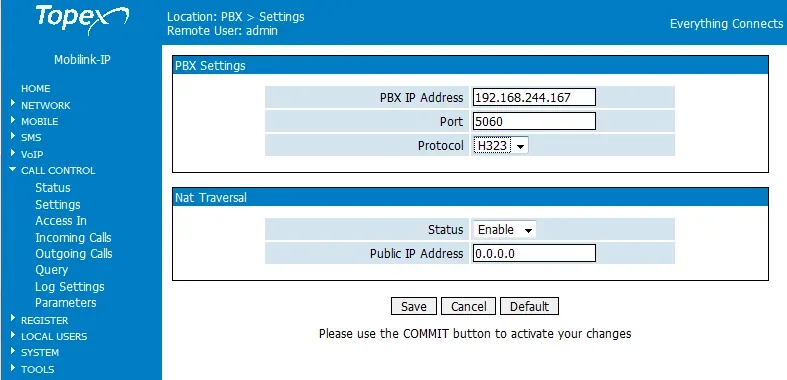 Screenshot: MobiLink IP User Manual, firmware 1.2.8, Rev. M (2011), p. 108.
2. Port login and password. CALL CONTROL → Incoming Calls → press Edit on the mobile1 row, then More. In the window that opens:
Call mode—User(notTrunk): in User mode calls from the GSM module go out to the PBX as a registered user with a login and password; in Trunk mode they go without registration, and our PBX will not accept them;Extension— the Login from the credentials window, in full;Password— the Password from the credentials window.
Press Save. The incoming route in the same row is filled in during step 4, Commit comes at the very end.
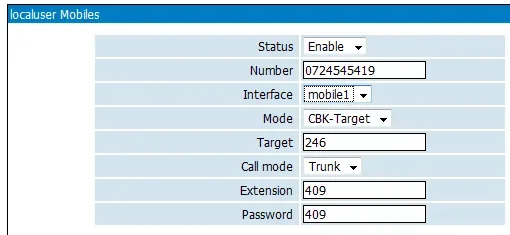 Screenshot: MobiLink IP User Manual, firmware 1.2.8, Rev. M (2011), p. 127. It shows the More window of the Mobile Users section; the manual describes the More window of Incoming Calls only in text (manual sw1.2.21, p. 119), without a screenshot. The
 Call mode, Extension and Password fields are the same there; there is no Number field.
| In the admin panel (“Extension credentials”) | Field in MobiLink IP |
|---|---|
| SIP server | CALL CONTROL → Settings → PBX IP Address — the server's IP in digits; a server name never appears in the vendor's examples |
Port 5060 |
CALL CONTROL → Settings → Port = 5060; leave VoIP → SIP Settings → Local SIP Port at 5060 |
Transport UDP |
there is no separate field: the documentation describes the link to the PBX over UDP only |
Login sip-…-<number> |
Incoming Calls → mobile1 → More → Extension, the whole string |
| Password | same place, Password |
| Extension number | not entered — just remember which extension this SIM uses |
| — | CALL CONTROL → Settings → Protocol = SIP; More → Call mode = User |
The Extension field and our login. In all of the vendor's examples the Extension field holds a short number (409, 441). The documentation does not say whether it accepts a login with letters and hyphens. If after Commit the registration in REGISTER → Status does not turn OK although the login and password are correct, this gateway cannot work with our PBX — see “If the gateway does not register”.
Second SIM (MobiLink IP 2 GSM / 2 HSPA). The mobile2 row has its own More window — give it a second extension (a second login and password from “Operators”). The PBX address is shared by both ports.
Apply. When you have finished steps 3 and 4, press Commit. The gateway reboots and starts registering.
Registration interval, codecs, DTMF, NAT
- Registration interval — REGISTER → Settings:
Expire Time(seconds) — set 60–120 if the gateway is behind a router.NAT Refreshon the same page sets how often the gateway refreshes the connection through the router (50 s in the vendor's screenshot). - Codecs — VoIP → Codec Settings, four
Codec Priorityslots:1=G.711 a-law(Europe),2=G.711 u-law,3and4=none. The gateway has no G.722; our PBX does not use G.723 or G.729. - DTMF — VoIP → DTMF Settings: tick only
RFC 2833(Payload Type=101), untickIn Band,SIP InfoandH.245 alphanumeric. With several methods ticked the PBX may receive a digit twice. - NAT — the vendor describes the Nat Traversal block in CALL CONTROL → Settings (
Status,Public IP Address) for the case where the PBX itself calls the gateway through a router. Our PBX does not call the gateway; it replies to the address the request came from. Turn off SIP ALG on the router. - TLS and SRTP for the link to the PBX are not described in the documentation; there is no auto-provisioning — everything is entered by hand.
Step 4. Send incoming calls to the PBX#
Now the gateway needs to know what to do with a call to the SIM: dial the right number on the PBX. This is the same CALL CONTROL → Incoming Calls row as in step 3. There are two rows — mobile1 and mobile2, one per GSM module; they cannot be deleted and no rows can be added.
- Press
Editon themobile1row. Status—Enable.Mode—Target(the call goes straight to the given number).Target— a ring group number (from 700) or an operator's extension number.- Leave
Ignore(how many leading digits to drop) andLimit(maximum call duration) at their defaults. More— checkCall mode = User, the login and password (step 3) →Save.- For the second SIM do the same on the
mobile2row, thenCommit.
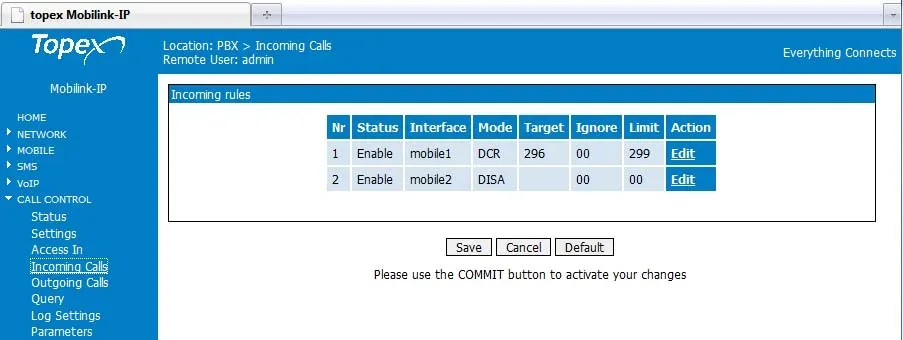 Screenshot: MobiLink IP User Manual, firmware 1.2.8, Rev. M (2011), p. 110. In the vendor's example
 mobile1 uses DCR mode and mobile2 DISA; for our PBX set Target on both rows.
Other Mode options: DISA and DCR
DISA— the caller hears a dial tone and dials an extension number themselves. DTMF must then be handled the same way on both sides (VoIP → DTMF Settings). For a venue's guests,Targetto a ring group is more convenient.DCR(Dynamic Call Routing) — a call back to the SIM is connected to the extension that last called this number through the gateway. We have no outgoing calls through the gateway, so DCR makes no sense with our PBX.CBK(call-back) is not available in Incoming Calls, only in LOCAL USERS → Mobile Users — a venue does not need it.
Caller's number. The gateway does see the SIM caller's number: it is shown in the ANI field on the CALL CONTROL → Status page. But in Call mode = User, according to the manual, the call goes to the PBX “with the ID of the user that you have defined”, i.e. on behalf of the gateway's extension. So in the operator panel the call will most likely appear as coming from the gateway's extension rather than from the guest's number. Routing rules for provider numbers (schedule, voice menu) do not apply to calls from the gateway — a ring group does the same job (see “Where to send incoming calls”).
Outgoing calls. Calling out from the PBX through this gateway's SIM cards is not possible yet: the PBX outbound rule only routes to a SIP provider line. MobiLink IP itself can do it (CALL CONTROL → Outgoing Calls, prefix rules to mobile1/mobile2/any), but leave that table empty for our PBX. Outgoing calls from your own number go through a SIP provider; details — “Outgoing calls through a gateway — not yet”.
Step 5. Check registration and a call#
- SIM on the network. The
MOBILE 1(MOBILE 2) LED is solid green — the module is registered on the network and idle. Blinking red — no SIM or no network; blinking orange — wrong PIN. Details are on the MOBILE → Status page. - Registration in the gateway. REGISTER → Status →
Reload: in the row with your login theStatuscolumn showsOK, thePbxcolumn shows the server IP and:5060. - Registration in the admin panel. Telephony → “Operators” tab — the gateway's extension has a green dot.
- A call. Call the SIM number from a mobile — the operators of the group (or the operator) in the
Targetfield should ring. The call progress is visible on CALL CONTROL → Status (themobile1/mobile2ports turnBUSY). - Sound — the
*43echo test. Registration says nothing about sound. Temporarily put*43intoTargetof themobile1row →Save→Commit, wait for registration after the reboot and call the SIM from a mobile: the PBX plays a short beep and then returns your voice with a delay — talk for about ten seconds. You hear the beep and yourself — sound works both ways; beep but no echo — sound does not get from the gateway to the PBX; not even a beep — it does not get from the PBX to the gateway. The test result appears in the call log. The documentation does not say whether theTargetfield accepts an asterisk; if it does not, check the sound with an ordinary call to an operator. After the check put the group or operator number back and pressCommitagain.
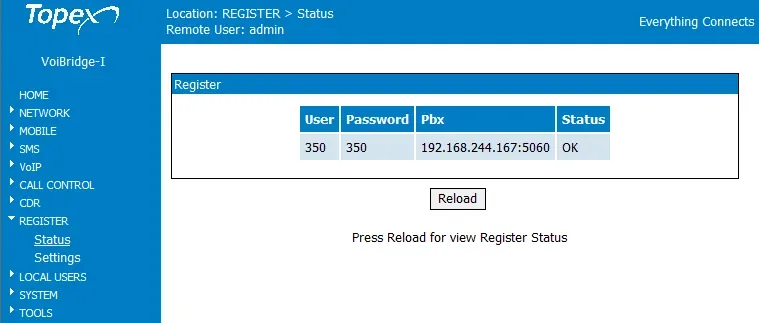 Screenshot: MobiLink IP User Manual, firmware 1.2.8, Rev. M (2011), p. 122 (the header of the vendor's screenshot reads VoiBridge-I; the page is the same).
Everything about checking is in the overview, section “How to check”.
Factory reset#
A reset is needed if you forgot the address or password, the gateway came with someone else's settings, or it behaves unpredictably.
With the RST button. The recessed button is on the bottom panel, between the power socket and ETH. Just pressing it is not enough — the order is:
- Disconnect the power (pull the plug).
- Press
RSTwith a paper clip and hold it. - Connect the power without releasing the button.
- As soon as all three LEDs light up red, release
RSTimmediately. If you hold it longer, there is no reset — start again.
From the web interface. SYSTEM → Defaults (the “Default Configuration” page) → Yes to “Are you sure you want to load default settings?”. The page shows which network address the gateway will have after the reset.
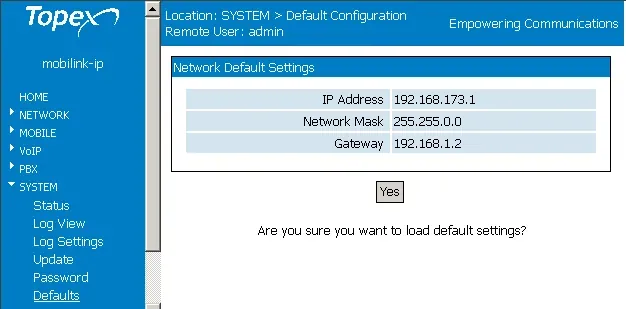 Screenshot: MobiLink IP User Manual, firmware 1.2.8, Rev. M (2011), p. 144.
What is erased: all gateway settings — the PBX address, port logins and passwords, Incoming Calls routes, codecs, network settings (the address is 192.168.173.1 again). The manual does not say directly whether the admin and user login passwords are reset as well. What to do afterwards: log in at https://192.168.173.1 (admin / 99admin11 if the password was reset too) and repeat steps 1–4. A gateway reset does not change the extension login and password in the admin panel; if you did not keep the password, issue a new one with “Reset password”.
Before a firmware update (SYSTEM → Update) the vendor advises making a copy of the settings in SYSTEM → Save and loading it back with Load afterwards: an update may erase part of the settings. Firmware must match the hardware code on the label exactly (for example M2P, not M1P or M2J). General notes on resetting gateways — in the overview.
If the gateway does not register#
Commitwas not pressed.Saveonly stores the fields; withoutCommitthe changes are not applied and are lost on reboot.Trunkmode orH323protocol. The More window must haveCall mode = User, and CALL CONTROL → Settings must haveProtocol = SIPandPort = 5060. In Trunk mode the gateway sends calls without registration — that is how the vendor connects it to Asterisk and 3CX, but our PBX does not accept such calls.- Wrong server IP.
PBX IP Addressneeds the SIP server's IP in digits. If the server's IP changes, the gateway silently stops registering — look the address up again (nslookup) and enter it. - The
Extensionfield does not accept the login. The login must be entered in full, with all letters and hyphens. If the field truncates it or does not save it, this gateway cannot register — you will have to replace it with a current gateway (see “Guides by family”). - The SIM is not on the network. The
MOBILE nLED blinks red or orange: no SIM, wrong PIN (after three reboots with a wrong PIN the SIM is locked until PUK), antenna not connected, or 2G/3G are switched off in your country and MobiLink IP has no 4G. - A call to the SIM does not reach the PBX although registration is green. In the Incoming Calls row
Status=Disable,Modeis notTarget, orTargetholds a number that does not exist in the PBX. If the gateway showsACL_REJECTas the reason a call ended, the address was refused by the CALL CONTROL → Access In list — check that the PBX server's IP is in it.
General causes (SIP ALG on the router, UDP 5060 blocked) are in the overview, section “If the gateway does not register”; network and SIM — “Venue network, NAT and the SIM card”.
Models in the family#
The web menu, port account and incoming route are the same on all MobiLink IP models; they differ in the number of GSM modules and 3G support. The model code is on the label underneath (for example MOBIPC-M2P).
| Model | SIMs / channels | Network | Differences in setup |
|---|---|---|---|
MobiLink IP 1 GSM (MOBIP_GSM_C1P) |
1 / 1 | 2G GSM/GPRS/EDGE | one mobile1 row in Incoming Calls |
MobiLink IP 2 GSM (MOBIP_GSM_C2P) |
2 / 2 | 2G | mobile1 and mobile2 rows, each with its own More window and its own extension |
MobiLink IP HSDPA (MOBIP_GSM_C1W6) |
1 / 1 | 3G UMTS/HSDPA 900/2100 with 2G fallback | MOBILE → Settings gains Network: Auto (3G first) / 2G only / 3G only |
MobiLink IP 2 HSPA (MOBIP_GSM_C2W6) |
2 / 2 | 3G UMTS/HSPA 900/2100 with 2G fallback | like HSDPA, two modules |
MobiLink IP, early M1P / M2P board |
1–2 / 1–2 | 2G | same software; pick firmware strictly by the code on the label |
| VB2SIM / VoiBridge Lite | 2 / 2 | 2G or 3G HSPA | different housing with two Ethernet ports; same RST button reset, but its web menu has not been checked against MobiLink IP in the documentation — ask your supplier |
MobiLink IP has one 10/100 Ethernet port, a 12 V power supply, and VoIP-side codecs G.711 a-law / u-law, G.723, G.729 (no G.722).
2G and 3G in your country
MobiLink IP works only on 2G and 3G networks. Where 3G is already switched off, the 3G models run on 2G; where both 2G and 3G are switched off, the gateway will not register on the network at all — it cannot do VoLTE. Which networks are switched off where, and where a GSM gateway is allowed for your own calls — “By country”.
FAQ#
Can I call out from the PBX with the SIM's number through this gateway?#
Not yet — with us the gateway handles incoming calls only. MobiLink IP itself can make outgoing calls (CALL CONTROL → Outgoing Calls), but our PBX does not yet send calls to a gateway extension as if it were a line. Outgoing calls from your own number go through a SIP provider.
Topex guides connect the gateway to Asterisk and 3CX by IP, without a password. Can I do the same?#
No. In those guides the gateway runs in Trunk mode and the PBX knows its IP address. Our PBX accepts only registered extensions and does not know the gateway's address. You need Call mode = User with the extension login and password (step 3).
Is there a MobiLink IP with 4G or VoLTE?#
No. MobiLink IP comes only in 2G and 3G (HSDPA/HSPA) versions. If 2G and 3G are switched off in your country, or soon will be, take a gateway with 4G and VoLTE — see the families in the overview.
Why does every change drop calls?#
Settings are applied only by the Commit button, and it reboots the gateway. Change settings when there are no calls, and press Commit once after all edits.
The 99admin11 password does not work. What now?#
Try password — that is the password named in the vendor's 3CX guide. If that does not work either, reset the gateway with the RST button (see “Factory reset”) — you will then have to repeat the setup.
What about SMS?#
The gateway sends and receives SMS by itself: log in via SMS Pages (user), which also offers bulk sending from a list and SMS-to-email forwarding. This has nothing to do with our PBX.
Sources#
Documents of Rohde & Schwarz Topex S.A. (TOPEX S.A. before 2009). The vendor's wiki no longer responds, so some documents are given as Web Archive or ManualsLib copies. Accessed 2026-09-10.
- MobiLink IP User Manual, firmware Mobilink-IP-1.2.8-M2P-SAX, Rev. M (2011) — http://web.archive.org/web/20120417045701id_/http://wiki.topex.ro:80/files/manualmobip/Usermanual_MobIPv128_new.pdf
- MobiLink IP User Manual sw1.2.21 (2012), p. 119 — Incoming Calls, the More button and registration on the PBX — https://www.manualslib.com/manual/762198/Rohde-And-Schwarz-Topex-Mobilink-Ip.html?page=119
- Same manual, p. 134 — “6.9.6 Trunk or User” — https://www.manualslib.com/manual/762198/Rohde-And-Schwarz-Topex-Mobilink-Ip.html?page=134
- Topex Wiki: Connect to the IP Mobilink (2012) — http://web.archive.org/web/20121201065118id_/http://wiki.topex.ro:80/index.php?title=Connect_to_the_IP_Mobilink&printable=yes
- Topex Wiki: Basic GSM to Voip configuration — http://web.archive.org/web/20131207074832id_/http://wiki.topex.ro:80/index.php/Basic_GSM_to_Voip_configuration
- Topex Wiki: Basic Voip to GSM configuration — http://web.archive.org/web/20140312035155id_/http://wiki.topex.ro:80/index.php/Basic_Voip_to_GSM_configuration
- Topex Wiki: Interconnect with Asterisk IPPBX — http://web.archive.org/web/20120203212004id_/http://wiki.topex.ro:80/index.php/Interconnect_with_Asterisk_IPPBX
- Topex Wiki: Hardware reset to defaults (VoiBridge Lite) — http://web.archive.org/web/20140816204845id_/http://wiki.topex.ro:80/index.php/Hardware_reset_to_defaults
- Topex Wiki: Mobilink IP — Downloads — Firmware — http://web.archive.org/web/20140927002638id_/http://wiki.topex.ro:80/index.php/Mobilink_IP:Downloads:Firmware
- Configuring Topex Mobilink IP with 3CX (topex.ro, 2012) — http://web.archive.org/web/20120125095312id_/http://www.topex.ro/en/solutions/customer_premisses_equipment/configuring_topex_mobilink_ip_with_3cx
- Fixed Cellular Terminals — Mobilink/Voxell Product Family (brochure, 2017) — https://www.topex.ro/wp-content/uploads/2017/02/FCT-Terminals-Brochure-1.pdf
- EU Declaration of Conformity No. 532, MobiLink IP (2015) — http://web.archive.org/web/20151112211927id_/http://www.topex.ro/user/declaration_mobilinkip_en.pdf