Yeastar TE100/TE200 (E1/T1) — setup for our PBX
Yeastar TE100 and TE200 are desktop digital gateways. A digital E1, T1 or J1 trunk — from a telecom operator or from an old office PBX — plugs into their E1/T1 port, and the gateway converts it to SIP. TE100 takes one trunk (up to 30 simultaneous calls), TE200 takes two (up to 60). The trunk type and signalling — ISDN PRI (Euro ISDN, national, Q.SIG), MFC/R2, SS7 or E&M — are selected in the web interface; the hardware is the same worldwide. The line-up is current: its firmware was released in July 2025, and it is not on the end-of-life list.
This is equipment for venues that already have a trunk: a hotel with a block of numbers and an old PBX on PRI, a sanatorium, a large restaurant, food court or shopping mall, a chain with a legacy PBX. For a café with one or two landline numbers a trunk is overkill — an FXO gateway or a SIP provider number will do (“Connecting a provider number to the PBX”).
To our PBX the gateway is just another extension: it registers on the PBX server with an extension's credentials and dials an incoming call from the trunk through to a ring group or an operator. What is the same for all gateways (credentials, where to send incoming calls, network, limitations) is in the overview “GSM gateway, landline or ISDN in your PBX”. This page is the step-by-step guide for Yeastar TE, with screens from the manufacturer's manual.
The setup order on TE is always the same: the trunk (Gateway → Digital Trunk → E1/T1) → a SIP trunk to our PBX (Gateway → VoIP Settings → VoIP Trunk) → a route (Gateway → Route Settings → Route List). The Save button only stores the changes — they take effect after Apply Changes in the top right corner of the page.
What you need#
- Extension credentials from the admin panel: Telephony → Operators → create an operator for the gateway (for example, “E1 gateway, landline numbers”) → “Reset password” → the “Extension credentials” window: SIP server, Extension number, Login, Password, Port
5060, TransportUDP. One set for the whole gateway is enough: all channels of the trunk (on TE200 — of both trunks) go to the PBX through one SIP trunk. The password is shown once — copy it into the gateway right away. Details — “Extension credentials for the gateway”. - The number the gateway will dial inside the PBX — a ring group number (Telephony → “Ring groups”, numbers from 700) or an operator's extension number. You will need it in step 4.
- Trunk parameters from the operator: E1 or T1, signalling (usually PRI, Euro ISDN or national), CRC4, line coding (HDB3/AMI), your landline numbers (DIDs) and how the operator sends the dialled number — in full or as the last 3–4 digits, all at once or digit by digit.
- The gateway, the 12 V / 2 A power adapter from the box, the operator's cable in the E1/T1 port, a network cable in the LAN port.
- A computer with a browser that you can temporarily connect straight to the gateway or to the same network.
Step 1. Find the gateway's IP address#
TE has no display, no voice menu and no discovery utility — you cannot read the address off the device. Out of the box the gateway has a static address 192.168.5.150 on the LAN port, DHCP is off and the WAN port is disabled. That is the address for the first login:
- Connect the gateway with a cable to the LAN port (not WAN) and power it on. The gateway is ready when the RUN LED blinks.
- Give the computer an address in the same subnet, for example
192.168.5.10, mask255.255.255.0(or connect the computer straight to the gateway). - Open
http://192.168.5.150in the browser and go to step 2.
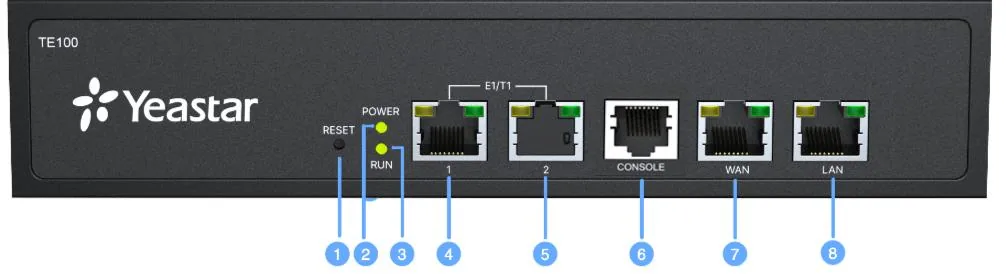 Screenshot: TE100 VoIP Gateway User Manual, version 61.0.0.8, p. 6.
After logging in, move the gateway into the venue's network: System → Network Preferences → LAN Settings — the IP Address, Subnet Mask, Gateway and Primary DNS fields. Yeastar recommends a static address for the gateway and advises against DHCP: the gateway would get an unknown address and be hard to find. A handy trick is the second address IP Address2 / Subnet Mask2: keep 192.168.5.150 there, and the gateway will always be reachable at its factory address too. Save and reboot the gateway. The current addresses are shown in Status → System Status → Network Status.
Step 2. Log in to the web interface#
| What | Value |
|---|---|
| Address | http://192.168.5.150 (or the address you set in step 1) |
| Login | admin |
| Password | password |
| Web interface port | 80 (changed in Gateway → VoIP Settings → General Preferences → HTTP bind port, reboot after the change) |
Change the password right away: a gateway with a trunk and the factory password means strangers' calls at the venue's expense. System → System Preferences → Password Settings — Enter Old Password (password), Enter New Password, Retype New Password; the gateway then asks you to log in again. The gateway itself does not force a password change on first login. A forgotten password cannot be recovered — only a factory reset helps.
SSH access (port 8022) is off by default — our PBX does not need it. Do not expose the gateway's web interface, SSH or SIP port to the internet.
Step 3. Enter the PBX credentials#
Yeastar TE has three VoIP trunk types, and only one suits our PBX — Trunk: the gateway registers on the PBX itself with the extension's login and password. The Account type (the PBX registers on the gateway) and Service Provider (IP-based link without registration) do not work with our PBX: it does not connect to the gateway and does not know its address.
Open Gateway → VoIP Settings → VoIP Trunk → Add VoIP Trunk, General tab:
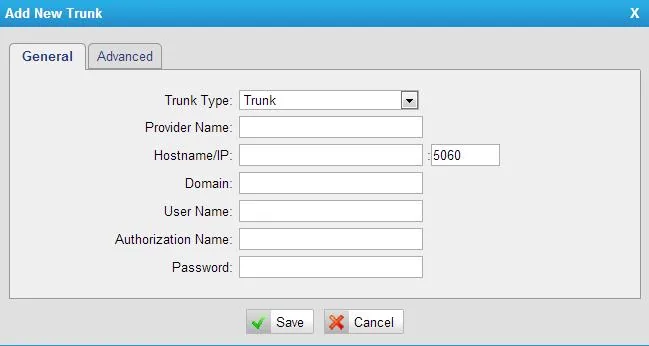 Screenshot: TE100 VoIP Gateway User Manual, version 61.0.0.8, p. 38.
| In the admin panel (“Extension credentials”) | Gateway field (Add VoIP Trunk → General) |
|---|---|
| — | Trunk Type — Trunk |
| — | Provider Name — any name, for example PBX (this is what the trunk is called in routes) |
| SIP server | Hostname/IP and Domain — one and the same address |
Port 5060 |
the field after the colon next to Hostname/IP — it already says 5060, leave it |
Login sip-…-<number> |
User Name and Authorization Name — the whole string in both fields |
| Password | Password |
Transport UDP |
the gateway's factory value: SIP Settings → General → UDP Port 5060; our PBX has no TLS |
| Extension number | not entered — just remember which extension the gateway occupies |
Click Save, then Apply Changes. This is exactly how Yeastar connects a TE100 to its own cloud PBX: type Trunk, the PBX address in Hostname/IP and Domain, port 5060, the same name in User Name and Authorization Name.
The Advanced tab of the same window is not described in the TE manual. If your firmware has a From User field there (Yeastar TG and TA gateways on the same platform do), enter the whole sip-…-<number> login in it, and leave SRTP and outbound proxy off. Why From User matters: in a call from the trunk the gateway may put the caller's number into the From header, and then the PBX will not recognise its own extension in the call. With From User filled in, all the gateway's calls come from the extension's account.
General SIP settings of the gateway: codecs, DTMF, registration attempts, NAT
All in Gateway → VoIP Settings → SIP Settings:
- General → DTMF Mode =
rfc2833(factory value). - General → Register Attempts — how many times the gateway retries registration before giving up; 8 by default. If the password was mistyped or the venue's internet went down for a long time, the trunk stays
Unregistereduntil you click Apply Changes or reboot the gateway. Set a larger value. Register Timeout — 20 s, no need to change. - Codecs —
a-lawandu-lawfirst.G.729works on the gateway only with a licence, and our PBX does not have it — do not put it first. G.722 on the SIP side gains nothing: the E1/T1 trunk audio is narrowband anyway. - NAT — “only required when using remote registry”, which is exactly our case, but the factory values are usually enough. If audio goes one way only — set External IP Address (or Enable STUN) and turn off SIP ALG on the router.
- Advanced Settings → Session-timers — if calls drop at regular intervals, start checking here.
- TLS and SRTP — the gateway supports them, our PBX does not: do not enable them.
One extension for the whole gateway or one per trunk
Each VoIP trunk in the gateway is one registration, i.e. one extension. A route (step 4) connects any trunk — or a trunk group, Gateway → VoIP Settings → Trunk Group — to any VoIP trunk. So there are two options:
- One VoIP trunk for the whole gateway — one operator in the admin panel, one VoIP trunk; on TE200 both E1 trunks lead into it. Enough for almost everyone.
- One VoIP trunk per E1 trunk (or even per range of landline numbers) — one operator in the admin panel and one route for each. This lets the PBX show where the call came from; but you can split numbers into different groups with one VoIP trunk too (step 4).
Step 4. Send incoming calls to the PBX#
Now tell the gateway what to do with a call from the trunk: hand it to our SIP trunk and dial a number inside our PBX — a ring group or an operator. Without this the gateway dials on our side the number it got from the operator (the full landline number or its last digits) — there is no such extension in the PBX, and the call fails.
First, the trunk. If the operator or a previous installer has not set it up yet: Gateway → Digital Trunk → E1/T1 → ✎ next to E1Trunk1. For the link to an operator the key setting is Switch Side = User; the other parameters are in the block below. Save → Apply Changes.
The route. Open Gateway → Route Settings → Route List. Out of the box there are two routes — “E1 → SIP” and “SIP → E1”; click Add New Route (or ✎ on the route from the trunk to SIP):
- Simple Mode —
No: simple mode has no number fields. - Route Name — for example
E1 → PBX. - Call Comes in From — the trunk:
Trunk -- E1Trunk1(on TE200 — the trunk you need, or a trunk group with both). - DID Number — which landline numbers the route catches: empty — any; a range — with a hyphen; the
X,Z,Nand.patterns work. - DID Associated Number — the number the gateway will dial in the PBX: a ring group number (for example,
700) or an operator's extension number. One value covers all numbers in DID Number; a range of the same length as DID Number also works (then each landline number goes to its own PBX number). - Send Call Through — our SIP trunk from step 3.
- Save, then Apply Changes.
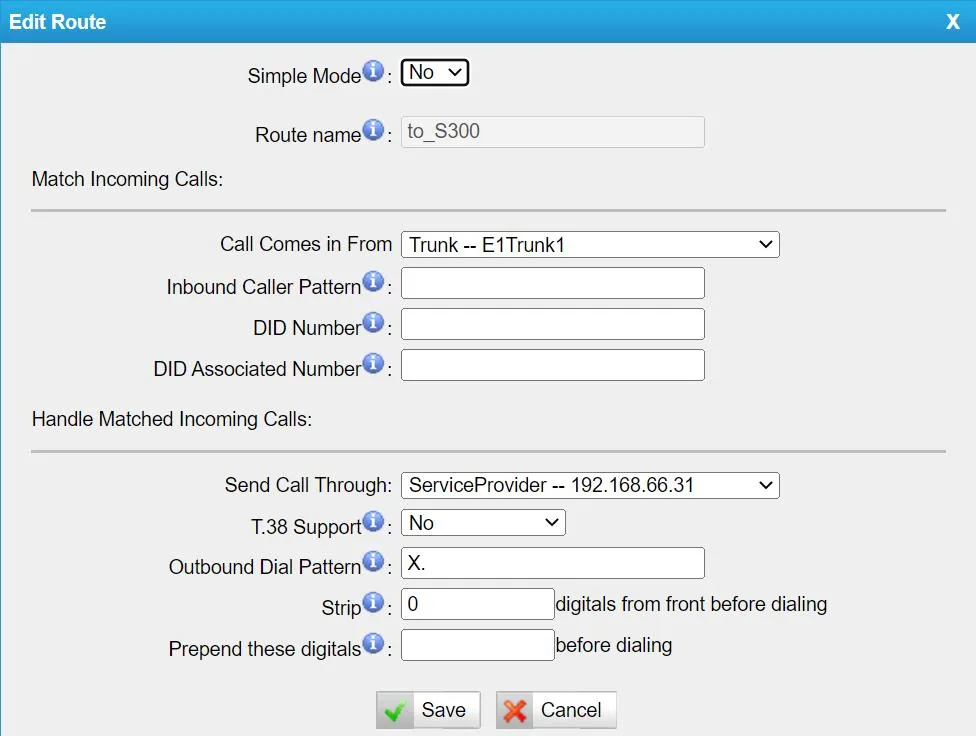 Screenshot: TE100 VoIP Gateway User Manual, version 61.0.0.8, p. 52; in the manufacturer's example Send Call Through leads to a Service Provider trunk — for our PBX select your Trunk-type trunk.
This is also how Yeastar's own guide to receiving inbound trunk calls on its cloud PBX describes the route. The help text in the manual itself notes that DID Associated Number applies to BRI, SIP, SPS and SPX trunks — an E1 trunk is not named in that list. If after Apply Changes the call still reaches the PBX with the landline number, use the fallback in the same window: Outbound Dial Pattern = X., Strip = the number of digits the operator sends (stripping the number entirely), Prepend these digitals = the ring group number (700). It works if the operator always sends a number of the same length.
Digit-by-digit numbers. If the operator sends the dialled number digit by digit (overlap), enable PRI Advanced Option → Over Lap Dial on the trunk: the gateway will then wait for the last digit instead of passing the first one to the PBX.
Caller number. The gateway receives the caller's number from the trunk and passes it into the SIP call; Caller ID Prefix in the trunk settings can add a prefix by call type (international, national, local). The operator panel does not show this number yet — the call appears as coming from the gateway's extension. The routing rules for provider numbers (schedule, voice menu) do not apply to calls from the gateway — a ring group with its own time-based options covers the same need, see “Where to send incoming calls”.
About outgoing calls — honestly. Calling out of the PBX through this gateway's trunk is not possible right now: the PBX outgoing rule leads only to a SIP provider line, and to the PBX the gateway is an extension. TE itself can do it (a SIP → E1 route, the displayed number set in the trunk's DOD Settings), but such outgoing calls are not supported on our PBX's side — do not set up a SIP → E1 route for our PBX. Today this gateway is a way to receive calls to the trunk's landline numbers; outgoing calls go through a SIP provider number, more in “Outgoing calls through the gateway — not yet”.
Trunk parameters: E1/T1/J1, PRI, MFC R2, SS7
Gateway → Digital Trunk → E1/T1 → ✎ (the “Edit Digital Trunk” window). Take all values from the operator — a mistake here does not give “nothing works” but “the trunk is up, yet calls drop or do not go through”.
| Block | Field | What to set |
|---|---|---|
| General Settings | Mode Type | E1 — Europe, CIS, Asia, Africa, Latin America; T1 — USA and Canada; J1 — Japan |
| Signaling | usually PRI; MFC/R2, SS7, E&M — only if the operator provides exactly those |
|
| Linecoding | for E1 — HDB3 or AMI, as the operator uses |
|
| Codec | A-Law for E1, U-Law for T1/J1 |
|
| Echo Cancellation | on — as the manufacturer recommends | |
| Framing | CRC check (CRC4) — as the operator uses | |
| PRI Basic Option | Switch Type | Euro ISDN — Europe and Russia; national — USA (National ISDN 2); Q SIG — link between two PBXs |
| Switch Side | User — towards an operator; Network — if TE replaces the operator for an old PBX |
|
| PRI Advanced Option | Over Lap Dial | on, if the operator sends the number digit by digit |
| Reset interval | in Israel (Bezeq) — never; the manufacturer warns that channel restarts also bother some exchanges in the UK and China |
|
| Caller ID Prefix | International / National / Local / Private / Unknown Prefix | prefixes added to the caller's number by call type |
MFC R2 — variants for Argentina, Brazil, China, the Czech Republic, Colombia, Ecuador, Indonesia, Mexico, the Philippines, Venezuela and ITU; there are no Russian R2 variants in the list — in Russia ask the operator for PRI (Euro ISDN). SS7 — ITU, ANSI, China. Trunk status — Status → System Status → E1/T1 Status.
Step 5. Check registration and a call#
- Registration in the gateway. Status → System Status → IP Trunk Status: our trunk should show Registered — “successful registration, trunk is ready for use”.
Unregistered— registration failed,Request Sent— registering,Waiting— waiting for authentication.
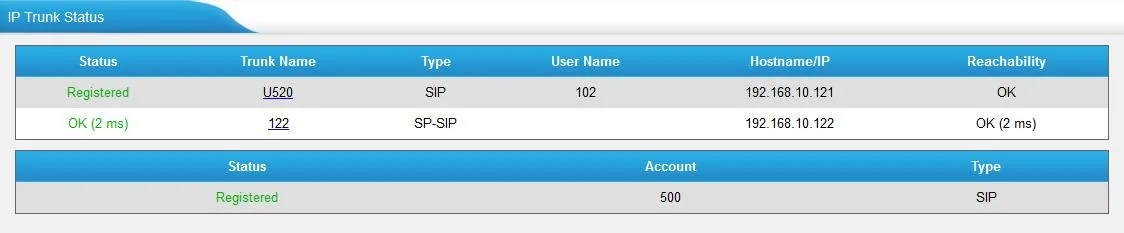 Screenshot: TE100 VoIP Gateway User Manual, version 61.0.0.8, p. 10.
- The trunk. Status → System Status → E1/T1 Status: the D channel (
DChan) is up, the voice channels areIdle(free). Channels inDownorBlockedmean the trunk does not match the operator's settings (the “Trunk parameters” block in step 4). - Registration in the admin panel. Telephony → “Operators” tab — the gateway's extension shows a green dot.
- A call. Call a landline number from the route from a mobile phone — the group or operator from DID Associated Number should ring. If nothing rings — check the route and that Apply Changes was clicked after it.
- Audio — the
*43echo test. Registration says nothing about audio: it travels as a separate stream. Point the route to the service number*43, click Save and Apply Changes, and call the landline number: the PBX gives a short beep and then plays your voice back with a delay. You hear yourself — audio flows both ways; there is a beep but you do not hear yourself — audio does not reach the PBX from the gateway; not even a beep — audio does not reach the gateway from the PBX. The test result is shown in the call log. According to the manual, the DID Associated Number field accepts only digits and a hyphen, so enter*43in Prepend these digitals (with Outbound Dial PatternX.and Strip removing the whole number); whether the gateway accepts the*character is not stated in the documentation — if it does not, check audio with an ordinary call to the group. After the check, put the group number back and click Apply Changes again.
Everything about checking — in the overview, section “How to check”.
Factory reset#
A reset is needed if the web interface password is unknown (for example, the gateway came with the premises), the gateway does not open at a known address, or the configuration is hopelessly tangled.
With the button on the case. The RESET button on the front panel (see the photo in step 1): press and hold it — the gateway returns to factory settings. The TE manual does not say how many seconds to hold it, so if you can reach the web interface, the next method is more reliable.
From the web interface. System → System Preferences → Reset and Reboot → the Reset to Factory Defaults button. The reset erases all configuration; do not turn off the power until the RUN LED starts blinking again — otherwise the gateway may be damaged. Another way is the “Reset configuration to Factory Defaults” checkbox during a firmware update (System → System Preferences → Firmware Update).
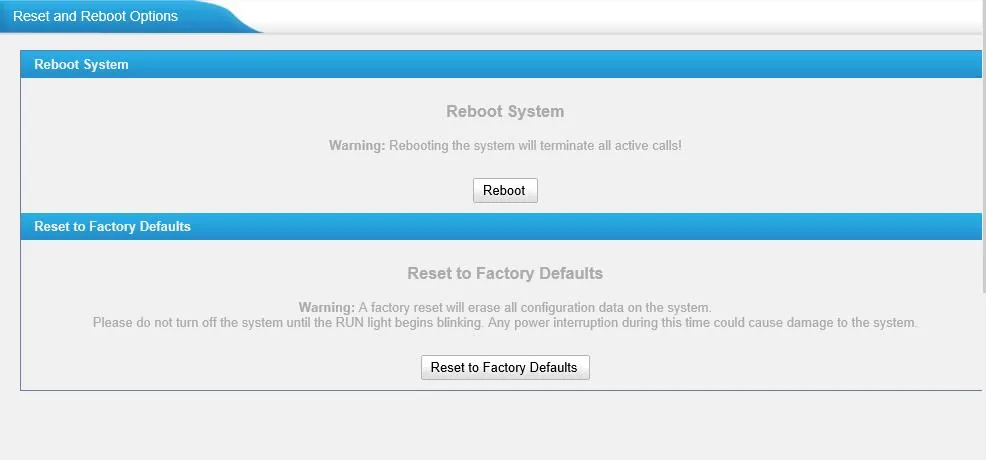 Screenshot: TE100 VoIP Gateway User Manual, version 61.0.0.8, p. 29.
What is erased: all configuration — trunk parameters, VoIP trunks, routes, network settings and the password.
What to do afterwards: the gateway is again reachable at http://192.168.5.150 with the login admin / password — start from step 1 and go through steps 1–5. A gateway reset does not change the extension login in the admin panel; if the extension password was not saved, issue a new one: Telephony → Operators → “Reset password”. Before resetting a working gateway, save its settings: System → System Preferences → Backup and Restore (file up to 1.8 MB; the manufacturer advises against restoring an old file after a firmware update). General notes on resetting gateways — in the overview.
If the gateway does not register#
- Wrong trunk type. You need Trunk Type =
Trunk. WithAccountthe gateway waits for the PBX to register on it, withService Providerit does not register at all. - The login is incomplete or not in both fields. User Name and Authorization Name must hold the same
sip-…-<number>string, not the extension number from the credentials window. - Apply Changes not clicked. After Save the settings are not active yet.
- The gateway “gave up”. After 8 failed attempts (Register Attempts) the gateway stops registering — even once the password is fixed or the internet is back. Click Apply Changes or reboot the gateway, and raise the number of attempts (step 3).
- TLS, SRTP or G.729 first. Transport — UDP, SRTP off,
a-law/u-lawfirst in the codec list. - Registered, but calls from the trunk do not arrive. The number is not substituted (no DID Associated Number or Strip/Prepend — the PBX receives the landline number), the operator sends the number digit by digit without Over Lap Dial, or the trunk itself is not up (step 5, item 2). If the route is right but a call with green registration is still rejected — fill in From User (step 3) or contact support: on the PBX side, matching by authorization name can be enabled for the gateway's extension.
- The gateway does not open at
192.168.5.150. The computer is not in the192.168.5.xsubnet, or the cable is in the WAN port, which is disabled by default.
General causes (SIP ALG on the router, UDP 5060 blocked) — in the overview, section “If the gateway does not register”; about the network — “Venue network, NAT and the SIM card”.
Models in the family#
| Model | E1/T1/J1 ports | Simultaneous calls | Network and case | Setup differences |
|---|---|---|---|---|
| TE100 | 1 × RJ45 | up to 30 | LAN and WAN 10/100/1000, Console RJ45, reserved port; desktop case 213 × 160 × 44 mm, 12 V / 2 A | base model |
| TE200 | 2 × RJ45 | up to 60 (30 per trunk) | same, a second E1/T1 instead of the reserved port | two E1 trunks — two digital trunks; a route can take one of them or a trunk group |
| TE100, previous generation | 1 × E1/T1 | up to 30 | LAN and WAN 10/100, USB 2.0, Console | firmware 16.18.x and its own manual (16.18.0.1); different front panel; do not install V3/V4 firmware on it |
The current TE100 and TE200 share one firmware and one manual (version 61.0.0.8); the two models' manuals differ only in the number of ports. There are no regional versions: E1, T1 and J1 are switched in the web interface (Mode Type). Certifications per the manual — CE and FCC; whether your country requires separate approval of equipment connected to an operator's network, check with the supplier.
Firmware: two hardware revisions
TE100/TE200 come in two hardware revisions with their own firmware branches: V3 — 61.x (latest as of 10.09.2026 — 61.0.0.9) and V4 — 63.x (latest — 63.0.0.7), both dated 18.07.2025. The previous-generation gateway uses the 16.x branch. The manufacturer warns: before upgrading, check the model and hardware version and take the file for exactly that one, otherwise the upgrade fails. Hardware and firmware versions are shown in Status → System Status → System Info, upgrading is in System → System Preferences → Firmware Update (over HTTP or from a TFTP server). Do not turn off the power during an upgrade.
FAQ#
How many extensions does a 30-channel (or 60-channel) gateway need?#
One: all channels go to the PBX through one SIP trunk, and different landline numbers are split between ring groups by the routes in step 4. If you prefer to see the trunks separately in the PBX, create one VoIP trunk and one extension per trunk.
Can I call out through the E1 trunk from the PBX?#
Not yet. Through this gateway our PBX can only receive calls from the trunk; outgoing calls go through a SIP provider number. More in “Outgoing calls through the gateway — not yet”.
A call drops after exactly 100 minutes — why?#
That is the gateway's factory limit: Gateway → VoIP Settings → General Preferences → MAX call duration = 6000 seconds. Set 0 (no limit) or a value with headroom and reboot the gateway — the change does not take effect without a reboot.
Can TE sit between a hotel's old PBX and the cloud?#
Yes: for the old PBX the gateway becomes the “operator” — Switch Side = Network on the trunk. Its users will be able to call our PBX's extensions if the route from the trunk leads into our SIP trunk. Agree on clocking and numbering with whoever maintains the old PBX: a wrong mode takes it down entirely. Calls from our PBX towards the old PBX are the same outgoing calls through the gateway, which are not available yet.
The operator panel does not show the caller's number — is it broken?#
No. The gateway knows and passes the number, but the PBX currently shows the call as coming from the gateway's extension.
The operator delivers the trunk over coaxial cable — will it work?#
TE's E1/T1 port is RJ45. Impedance, pinout and connecting a coaxial trunk are not described in Yeastar's documents — check with the gateway supplier or the operator how to match the cable to the port.
PRI is being switched off here soon — does buying a TE make sense?#
As a temporary bridge while the numbers are being ported — yes; for the long term — no: it is better to port the numbers to a SIP provider (“Connecting a provider number to the PBX”). Where ISDN still works and where it is being switched off — on the page “By country”.
Sources#
Yeastar documents, accessed 10.09.2026:
- TE100 VoIP Gateway User Manual (version 61.0.0.8) — https://help.yeastar.com/download/docs/te100-user-manual-en.pdf — front panel, address 192.168.5.150 and
admin/password, LAN Settings, password, Reset and Reboot, Backup and Restore, Digital Trunk, VoIP Trunk, SIP Settings, General Preferences, Route List, IP Trunk Status. Source of all screenshots on this page. - TE200 VoIP Gateway User Manual (version 61.0.0.8) — https://help.yeastar.com/download/docs/te200-user-manual-en.pdf — two ports, otherwise identical to the TE100 manual.
- Yeastar TE Series E1/T1/PRI VoIP Gateway Datasheet — https://www.yeastar.com/download/Yeastar_TE_Series_PRI_VoIP_Gateways_Datasheet_en.pdf — ports, 30/60 calls, codecs, transports, DTMF, PRI/MFC R2/SS7, power and dimensions.
- TE Series E1/T1/PRI VoIP Gateway — product page — https://www.yeastar.com/pri-voip-gateway/
- Connect Yeastar P-Series Cloud Edition and Yeastar TE100 Gateway — https://help.yeastar.com/en/p-series-cloud-edition/integrations/yeastar-te/connect-yeastar-ippbx-and-yeastar-te100-gateway.html — a Trunk-type trunk to the cloud PBX, Registered status.
- Receive Inbound Calls through the Extended E1/T1/PRI Trunk — https://help.yeastar.com/en/p-series-cloud-edition/integrations/yeastar-te/receive-inbound-calls-through-the-extended-e1-t1-pri-trunk.html — the route from the trunk: Call Comes in From, DID Number, DID Associated Number, Send Call Through.
- Make Outbound Calls through the Extended E1/T1/PRI Trunk — https://help.yeastar.com/en/p-series-cloud-edition/integrations/yeastar-te/make-outbound-calls-through-the-extended-e1-t1-pri-trunk.html — a SIP → E1 route and DOD (not used with our PBX yet).
- Release Notes for TE100/TE200 V3 (61.0.0.9) — https://www.yeastar.com/download/TE100_TE200/Yeastar_Release_Note_for_TE100_TE200_V3_en.pdf and V4 (63.0.0.7) — https://www.yeastar.com/download/TE100_TE200/Yeastar_Release_Note_for_TE100_TE200_V4_en.pdf
- Yeastar TE Firmware Upgrade Guide — https://www.yeastar.com/download/Yeastar_TE_Firmware_Upgrade_Guide_en.pdf — checking the hardware version, upgrading over HTTP and TFTP.
- Firmware Download — https://www.yeastar.com/firmware-download/ and End-of-Sale and End-of-Life Policy — https://www.yeastar.com/eol-policy/ — current firmware; TE is not on the end-of-sale/end-of-life lists.