D-Link DVG-7111S/7112S/5004S/2032S (FXO/FXS) — setup for our PBX
Your venue has a landline number on an ordinary telephone line, and a D-Link DVG series gateway is already on the wall — these sold in large numbers in Russia and the CIS. The models that take a landline are the ones with an FXO port: the DVG-7111S (one line and one analog phone), the DVG-6004S / DVG-6008S (4 or 8 landlines) and the combined DVG-7022S / 7044S / 7062S (lines plus ports for phones). The gateway turns the line into SIP, and a call to the landline number arrives in our PBX.
About the models in the title: D-Link has no DVG-7112S — it is neither in the catalogue nor among the documentation on D-Link's FTP. The DVG-5004S and DVG-2032S are gateways for analog phones only (FXS ports): a landline cannot be connected to them, and their ports join the PBX as ordinary extensions (see “Models in the family”).
All FXO models of the DVG series are discontinued (on dlink.ru — “EOL EOS”, in the “Archive” section), and their firmware has not been updated since 2016–2018. If you already have one, it is worth connecting: the fields are well documented and setup takes about twenty minutes. We do not recommend buying one new: for a new site, Yeastar TA FXO, Grandstream HT841/HT881 or Dinstar DAG FXO are a better fit.
To our PBX the gateway is just another extension: the landline registers on the PBX server with extension credentials, and the gateway itself dials an incoming call through to a ring group or an operator. What is the same for all gateways is in the overview “GSM gateway, landline or ISDN in your PBX”. This page is the step-by-step for D-Link DVG, with screenshots from D-Link's documentation.
What you need#
- Extension credentials from the admin panel — one set per landline (so the PBX shows which number was called): Telephony → Operators → create an operator for the line (“Landline 1”) → “Reset password” → the “Extension credentials” window: SIP server, Extension number, Login, Password, Port
5060, TransportUDP. The password is shown only once. Details — “Extension credentials for a gateway”. - The number the gateway will dial inside the PBX — a ring group number (Telephony → “Ring groups”, numbers from 700) or an operator's extension number. You will need it in step 4.
- The landline — into the Line port (DVG-7111S) or the FXO ports L1…L8 (DVG-6004S/6008S, 70xxS). ⚠️ D-Link warns: do not plug a phone port (FXS / Phone) into a telephone wall jack, and do not connect a telephone set to a line port.
- A laptop with a network cable — the first setup goes through the gateway's LAN port.
- The gateway on your venue network: the WAN port cabled to your router.
- An analog phone (for the DVG-7111S and 70xxS) — handy for reading out the address via the voice menu; not required.
Step 1. Find the gateway's IP address#
The DVG has two kinds of network ports: WAN (to the venue network) and LAN, where the gateway always answers at the factory address 192.168.8.254 and hands out addresses via DHCP itself.
- From the LAN side — the most reliable way. Cable a laptop to the LAN port, wait for an address from the gateway (or set
192.168.8.1–192.168.8.253, mask255.255.255.0, gateway192.168.8.254manually) and openhttp://192.168.8.254. If your venue network itself uses the192.168.8.xrange, the addresses will clash — D-Link asks you not to use this range on the venue network. - WAN mode. The documentation does not say which mode the WAN port uses out of the box. Log in from the LAN side and set DHCP or a static address of the venue network in the WAN settings (General Settings → Network Settings / SETUP → Internet Setup / General Settings → WAN), then save and restart (see “Saving” in step 2).
- By voice (DVG-7111S, DVG-70xxS). Pick up a phone in the Phone (FXS) port, dial
**#(the voice-menu password is empty from the factory), wait for the tone and dial101— the gateway reads out its WAN address. Other codes:102mask,103gateway,104connection type (1 — static, 2 — DHCP, 3 — PPPoE),301LAN address,509save,118reboot. - The DVG-6004S/6008S have no phone port: the voice menu is reachable only by calling the FXO port's number from an outside line (the factory menu password, per the manual, is
admin), and only until the Hot Line from step 4 is on. Logging in from the LAN side is easier.
Step 2. Log in to the web interface#
Open http://192.168.8.254 (from the LAN) or http://<WAN address>.
| Interface generation | Models | Factory login |
|---|---|---|
| “2008” — menu on the left (General Settings, Trunk Management, Status, System Settings…) | DVG-6004S/6008S (B1), DVG-7022S/7044S/7062S | no login and no password: “Login ID and Password are blank” |
| “2014” — tabs SETUP · ADVANCED · MAINTENANCE · STATUS | DVG-7111S (A1, B1) | user admin, no password |
| “2017” — menu Status · General Settings · Advanced Settings · System Settings | DVG-6004S C1 | a Login window; the manual does not state a factory password — if it will not let you in, check with your supplier or do a factory reset |
The hardware revision (A1/B1/C1) is on the label underneath: it determines which menu you will see. The admin/admin password from online tips is not confirmed by D-Link's documentation: admin is the factory password of the voice menu, not of the web interface.
Set an administrator password right away: “2008” — General Settings → Advanced Options → Administrator's Name and Password; DVG-7111S — MAINTENANCE → Device Management; C1 — System Settings → Login Account. Without a password, the web interface is open to anyone on the network.
Saving. The Accept / Apply buttons only apply the form — after a reboot everything is lost. When you are done, save: “2008” — System Settings → System Operation → Save Settings + Restart → Accept; DVG-7111S — MAINTENANCE → Save/Restart; C1 — System Settings → Save / Restart. A reboot takes about 40 seconds. Only one person can configure the gateway at a time — press Logout at the end.
Step 3. Enter the PBX credentials#
Where the SIP account lives:
- “2008” and C1 — General Settings → SIP: a table of lines at the top (each FXO line has its own row: Number, Register, Invite with ID / Account, User ID / Account, Password), the server address (Proxy Server IP / Domain) below.
- DVG-7111S — SETUP → VoIP Setup: blocks PHONE 1 – FXS (analog phone) and PHONE 2 – FXO (landline) with the same fields, SIP Proxy Server below. The landline is PHONE 2 – FXO; the phone in PHONE 1 needs its own, separate extension.
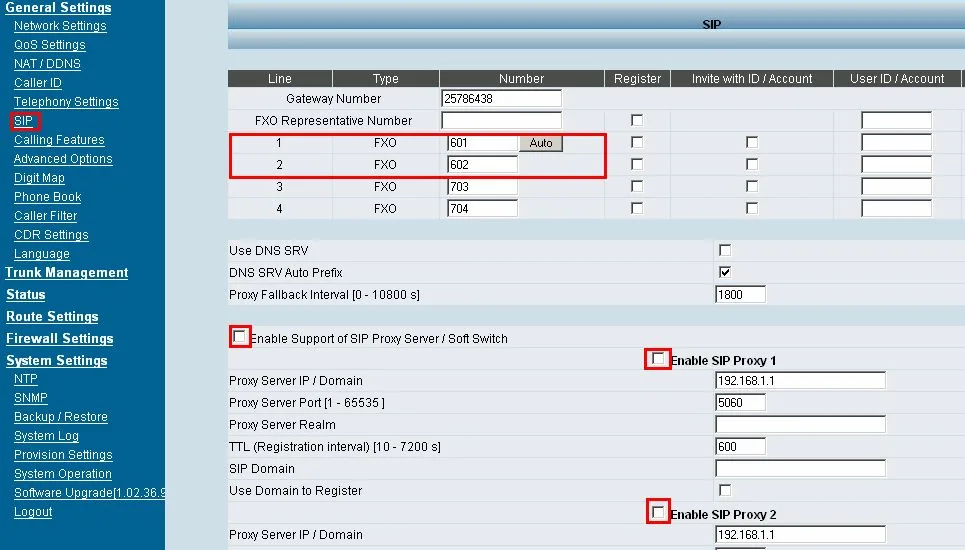
Screenshot: D-Link RU how-to “Hot-line between DVG-5004S and DVG-6004S without a SIP server”, p. 3. In D-Link's example the gateway works without a SIP server (registration off, the lines have service numbers 601/602) — for our PBX, tick the boxes as in the table below.
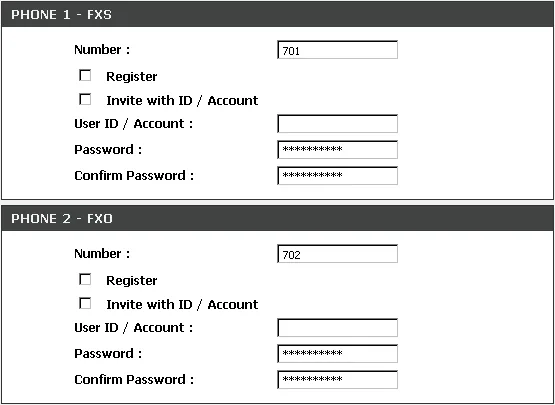
Screenshot: DVG-7111S VoIP Telephone Adapter User's Manual v1.0 (2014), hw B1, p. 22.
| Field in the “Extension credentials” window | Value | Where in the gateway |
|---|---|---|
| — | on | Enable Support of SIP Proxy Server / Soft Switch and Enable SIP Proxy 1 (on the DVG-7111S — Enable SIP Proxy in the SIP Proxy Server block) |
| SIP server | our PBX address | Proxy Server IP / Domain |
| Port | 5060 |
Proxy Server Port (factory 5060) |
| Login | sip-…-<number> — in full |
Number in the line's row (on the DVG-7111S — in PHONE 2 – FXO) |
| Login | the same full string | User ID / Account |
| Password | the extension password (shown once) | Password and its confirmation |
| — | ✓ | Register and Invite with ID / Account in the line's row |
| Transport | UDP |
“2008” — UDP only, no field; DVG-7111S — ADVANCED → VoIP → SIP Advanced → SIP Transport Protocol; C1 — General Settings → SIP Advanced → SIP Transport Protocol |
| Extension number | for your reference | not entered — note which extension the line uses |
| — | empty / off | Proxy Server Realm, SIP Domain, Use Domain to Register, Outbound Proxy Support, the backup proxy |
Number = login is not a mistake: the gateway puts Number into its SIP requests, and our PBX recognises the extension precisely by its login. It also keeps the line's number from matching the ring group number (step 4).
The “2008” interface (DVG-6004S/6008S, 70xxS): on the General Settings → Telephony Settings page, tick Enable FXO / Trunk Extension Number and Pick up Line by Dialing Extension Number — according to D-Link's manual, both are mandatory when registering to a server (“MUST be checked”). On the DVG-7111S the same boxes are on ADVANCED → VoIP → Hot Line (ticked from the factory).
One account for all lines. Instead of the line rows you can register the FXO Representative Number row (“Register all FXO ports as a hunting group”) as a single extension. It works, but the lines become indistinguishable in the PBX — one extension per line is better.
Press Accept / Apply, repeat for each connected line with its own extension, and save with a restart (step 2).
Codecs, DTMF, NAT — be sure to check the codecs
- Codecs — important. From the factory G.729 is first in the list and G.723.1 second, with G.711 only in 4th and 5th place. Our PBX works in G.711 A-law/µ-law (and G.722) and does not use G.729 or G.723.1. Open the codec table — “2008”: General Settings → Advanced Options → Codec Settings; DVG-7111S: ADVANCED → VoIP → Codec; C1: Advanced Settings → Codec setting — and set G.711 a-law — Codec Priority 1 (Russia, CIS, Europe), G.711 u-law — 2; untick G.723.1 and G.726 or move them down. G.722 64K (available on the DVG-7111S B1 and C1) need not be enabled: an analog line has no wideband anyway.
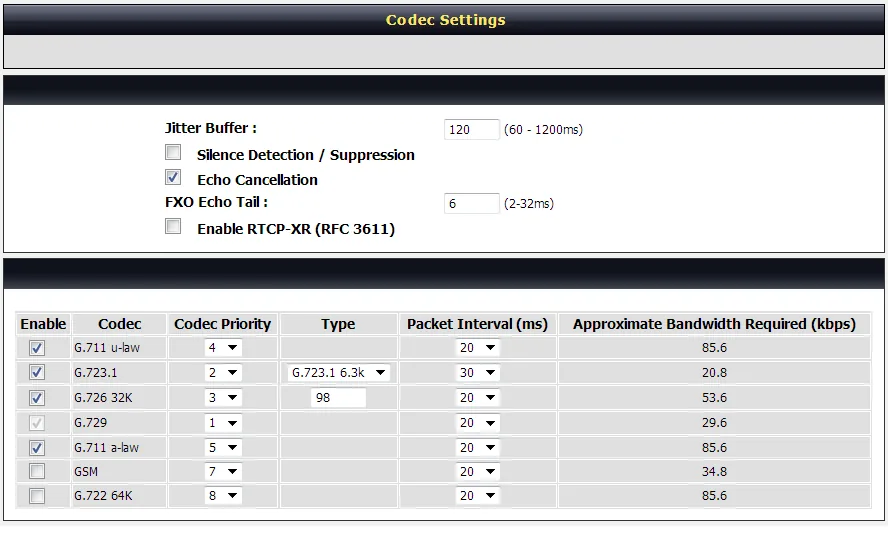
Screenshot: DVG-6004S VoIP Gateway User's Manual v1.0 (2017), hw C1, p. 45 — the factory codec order.
- DTMF: Enable Out-of-Band DTMF =
RFC2833(“2008” — Advanced Options; DVG-7111S — ADVANCED → VoIP → DTMF & PULSE; C1 — Advanced Settings → DTMF & PULSE). - NAT. Behind an ordinary router the gateway works without port forwarding; STUN and NAT IP are not needed. If registration drops from time to time, set Bind Proxy Interval for NAT (keeps the connection to the server alive) or lower the TTL (Registration interval) (factory 600 s). Turn off SIP ALG on the router. Leave the gateway's local SIP port (Listen Port UDP 5060) and the audio ports alone.
- TLS and SRTP are not available on these gateways — our PBX does not need them either.
Step 4. Send incoming calls to the PBX#
The gateway should dial a call from the landline through to the ring group by itself, straight away. On D-Link this is the Hot Line, set per FXO line: “When receiving a call from an outside line, the gateway will divert the call to the assigned hotline number”.
Where: “2008” — General Settings → Telephony Settings (the table of lines); C1 — General Settings → Hot Line; DVG-7111S — ADVANCED → VoIP → Hot Line, the PHONE 2 – FXO block.
| Field | What to set |
|---|---|
| Enable (“2008”, C1) | ✓ on connected lines; untick empty ones so the gateway does not wait on them for nothing |
| Hot Line | ✓ |
| Hot Line No. | 700 — the ring group number (or an operator's extension number); temporarily *43 to test the audio |
| Warm Line (Hot Line Delay) | 0 — the call goes to the group immediately |
| Wait for Caller ID before FXO / Trunk pick up (“2008”) / Ring count before FXO pick up (DVG-7111S) | if you want the caller's number, keep the wait: the gateway picks up after the first ring, once it has the number; without it the connection is faster |
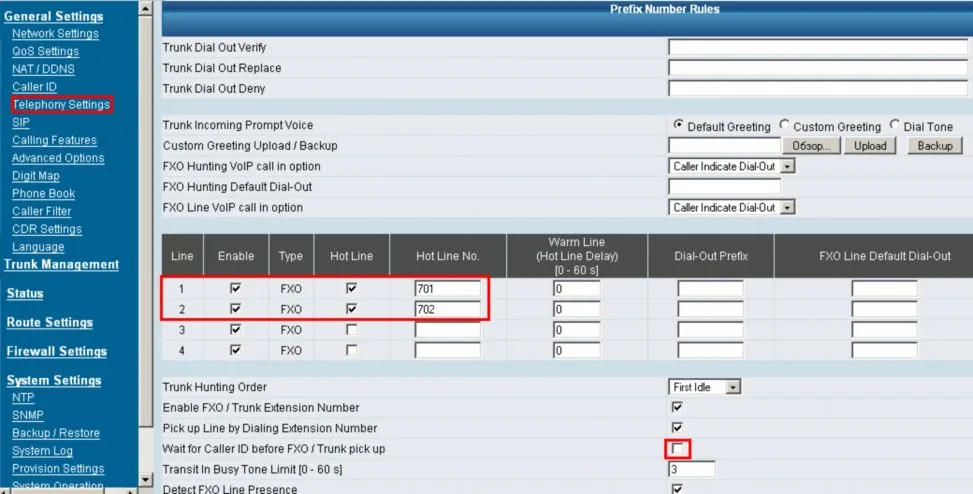
Screenshot: D-Link RU how-to “Hot-line between DVG-5004S and DVG-6004S without a SIP server”, p. 4. In D-Link's example the hot line goes to numbers 701/702 of a neighbouring gateway; for our PBX, Hot Line No. is the ring group number.
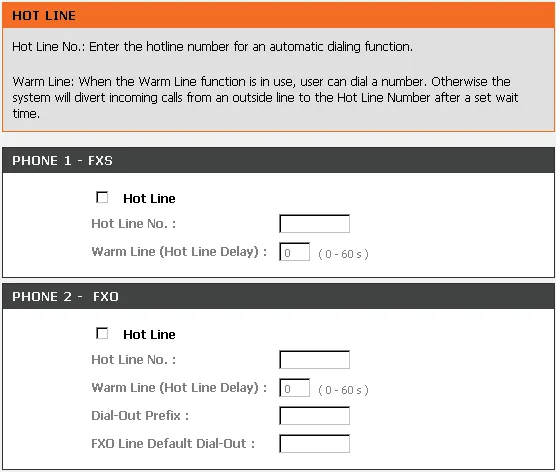
Screenshot: DVG-7111S VoIP Telephone Adapter User's Manual v1.0 (2014), hw B1, p. 51.
The ring group number must not match the number (Number) of any of the gateway's lines or an entry in its Phone Book: the gateway first looks the dialled number up locally and only then sends it to the server. On the DVG-7111S the lines come as 701 and 702 from the factory, and ring groups often have numbers from 700 too; if you entered the extension login as Number in step 3, there will be no clash.
The routing rules for provider numbers (schedule, voice menu) do not apply to calls from the gateway — the group is chosen by Hot Line No., and time-based variants and fallback belong to the group itself, see “Where to send incoming calls”. Different lines can go to different groups.
The caller's number. Turn on Caller ID → FXO Caller ID Detection and pick your line's format (see the country section below): the gateway passes the detected number in the caller name. We do not promise in advance that it will show in the operator panel — check with a real call. Do not enable the Put Caller ID In URI option (DVG-7111S, C1 — SIP Advanced): it puts the caller's number in place of the login, and our PBX stops recognising its extension — the call will not go through.
About outbound calls — honestly. You cannot currently call out from the PBX through this gateway's landline: the outbound rule routes only to a SIP-provider line, and to the PBX the gateway is an extension. The gateway itself can dial out to the network, but on the PBX side such outbound calls are not supported. Today a DVG is a way to receive calls on a landline number; outbound calls go through a SIP-provider number, see “Outbound calls through a gateway — not yet”.
⚠️ Lock the gateway with a filter — mandatory. From the factory a DVG accepts SIP calls from anyone and dials into the landline the number from any incoming call — at your expense. D-Link itself strongly recommends setting up a call filter and changing the password. Open Caller Filter (“2008” — General Settings → Caller Filter; DVG-7111S — ADVANCED → VoIP → Caller Filter; C1 — Advanced Settings → Caller Filter), choose the Allow mode (“deny access to all IP addresses except the listed ones”) and add one entry: Enable ✓, the IP address of our PBX's SIP server (if the credentials show a name, look up its address with nslookup on a computer), mask 255.255.255.255. Per the manual, calls from the SIP server in the gateway's settings are always accepted. Do not forward the gateway's SIP port or web interface to the outside on your router.
Step 5. Check registration and a call#
- Registration on the gateway. The Register LED on the case is lit (blinking — not registered; a red Alarm — failed to register or to get an address). Per-line details — Status → Current Status (“2008”, C1) or STATUS → VoIP Status (DVG-7111S), the Port Status section.
- Registration in the admin panel. The extension of this line on the “Operators” tab should show a green dot.
- A call. Call the landline number from a mobile — the group or operator from step 4 should ring. Hang up on the mobile: the call on the operator's side must end within a few seconds. If it “hangs”, disconnect detection is not configured — see the next section.
- Audio — the
*43echo test. Registration says nothing about audio: it travels as a separate stream. Temporarily put*43into the line's Hot Line No., apply and call the landline number: the PBX answers and plays your own voice back with a short delay. If you hear yourself, audio flows both ways. Silence or a drop right after the answer — check the codecs (step 3). After the test, put the group number back and save the settings with a restart.
Everything about testing is in the overview, section “How to check”.
Tune the line for your country#
From the factory the line is set up for Taiwan: impedance “Taiwan 600 Ohm”. On a line in any other country this step is mandatory — otherwise you get echo, hiss and calls that do not end when the caller hangs up.
- Line impedance — FXO Impedance (“2008” — Advanced Options; C1 — Line settings; DVG-7111S — ADVANCED → VoIP → Line → Termination Impedance). Pick your country in the list; the manuals do not give the full list of countries — if yours is not there, ask the line operator for the right value. Echo and hiss are a sign of a wrong choice; D-Link advises keeping the echo-canceller length (FXO Echo Tail) at the factory 6.
- Disconnect detection — the CPT/Cadence page: turn on Busy Tone Cadence Measurement and Auto Learning — the gateway learns your exchange's busy tone by itself. If the exchange reverses polarity on hang-up, turn on Enable Polarity Reversal (check with the operator). BTC Detection Sensitivity — higher cuts faster, but may drop a live conversation.
- The caller's number from the line — Caller ID: FXO Caller ID Detection, Detection Level, FSK Caller ID Type — DTMF, FSK Bellcore or ETSI (the C1 also has NTT). The Russian “AON” with a multi-frequency number request is not in the list.
Other line fields
- Drop Inactive Call / Silence Detection Threshold + Drop Silent Call Timeout — a safety cut-off for a silent call (on the DVG-7111S off from the factory, threshold 120 s).
- Detect FXO Line Presence — checks that the line is connected; untick it if it triggers falsely. The C1 also has Aggressive Ring Detection — for when the gateway misses an incoming call.
- PSTN Ring OFF Length — the pause between rings after which the gateway decides the caller hung up before an answer.
- FXO Dial Type (DTMF or pulse dialling), Flash Time, volume (Listening / Speaking / Tone Volume) — on the line page.
- Fax — T.30 (G.711) or T.38: DVG-7111S — ADVANCED → VoIP → Fax, “2008” — Telephony Settings → FAX/Modem.
- On power loss, the DVG-7111S connects the phone port to the landline — the phone works as an ordinary landline phone.
Factory reset#
A reset is needed if the web interface password is unknown, the gateway came from a previous owner, or the setup has become hopelessly tangled.
With the RESET button:
- DVG-6004S/6008S (B1), DVG-7022S/7044S/7062S — unplug the power, press and hold RESET, plug the power back in without releasing the button, hold for 6 seconds and release.
- DVG-7111S — with the power on, hold RESET for 5 seconds and release.
- DVG-6004S C1 — hold RESET for 6 seconds until the Alarm LED blinks rapidly, then release.
From the web interface: “2008” — System Settings → Backup / Restore → Restore Default Configurations → Restore; DVG-7111S — MAINTENANCE → Backup and Restore → Restore Default Settings; C1 — System Settings → Backup / Restore → Restore Default Settings. By voice (from a phone in the Phone port): **#, then 409 and a reboot.
What is erased: everything — the lines' SIP accounts, hot lines, the call filter, country settings, the administrator password (empty again). The LAN address returns to 192.168.8.254.
What to do afterwards: log in from the LAN at http://192.168.8.254, set up the WAN, go through steps 2–5 and the country section again, and do not forget Caller Filter and the password. Issue a new extension password — it is shown only once: Telephony → Operators → “Reset password”. General notes on resetting gateways — in the overview.
If the gateway does not register#
- The server is not enabled. Enable Support of SIP Proxy Server / Soft Switch or Enable SIP Proxy 1 is not ticked, or the line's row has no Register tick.
- The login is not entered in full, or in the wrong place. Number and User ID / Account take the whole
sip-…-<number>string; on the DVG-7111S — in the PHONE 2 – FXO block, not PHONE 1. - “2008” interface: the mandatory boxes are not ticked — Enable FXO / Trunk Extension Number and Pick up Line by Dialing Extension Number (Telephony Settings).
- The settings are not saved. Only Accept was pressed, without Save Settings + Restart — after a reboot the gateway went back to the old settings.
- The gateway has no address. A red Alarm — no WAN address, or a clash with the
192.168.8.xnetwork on the LAN side (step 1). - Registered, but the call fails. G.729 is still first in the codecs — make G.711 a-law priority 1; the call does not reach us — Hot Line No. matches a gateway line number or a Phone Book entry (step 4); Put Caller ID In URI is on.
General causes (SIP ALG on the router, an outdated password, UDP 5060 blocked) — in the overview, section “If the gateway does not register”; about the network — “Venue network, NAT and SIM card”.
Models in the family#
| Model | Ports | Network | Status | Setup differences |
|---|---|---|---|---|
| DVG-7111S (A1, B1) | 1 × FXS (PHONE 1) + 1 × FXO (PHONE 2, Line port) | WAN + LAN 10/100 | EOL; firmware up to 1.2.38.99 (2016) | “2014” interface: SETUP → VoIP Setup, ADVANCED → VoIP → Hot Line; UDP/TCP; up to three SIP servers; RESET 5 s |
| DVG-6004S (A1, B1) | 4 × FXO | WAN + 4 × LAN 10/100 | EOL; firmware 1.2.38.97 | “2008” interface: General Settings → SIP / Telephony Settings; UDP only; no phone port |
| DVG-6004S C1 | 4 × FXO | WAN 10/100/1000 + 2 × LAN 10/100/1000, USB | EOL; firmware 1.2.39.2 (2018) | “2017” interface: General Settings → SIP / Hot Line; UDP/TCP; G.722 in the codec list; RESET 6 s until Alarm blinks |
| DVG-6008S (B1) | 8 × FXO | WAN + 4 × LAN 10/100 | EOL; firmware 1.2.38.95 | as the DVG-6004S B1 (shared manual) |
| DVG-7022S | 2 × FXS + 2 × FXO | WAN + 4 × LAN 10/100 | EOL | “2008” interface, manual shared with 7044S/7062S |
| DVG-7044S | 4 × FXS + 4 × FXO | WAN + 4 × LAN 10/100 | EOL | “2008” interface |
| DVG-7062S | 6 × FXS + 2 × FXO | WAN + 4 × LAN 10/100 | EOL | “2008” interface |
The FXS ports of the combined models are analog phones: each one that should work in the PBX needs its own extension in the row of its FXS port on the same SIP page.
DVG-5004S, DVG-2032S and other models without FXO or on an older platform
- DVG-5004S / 5008S (4/8 FXS), DVG-2016S / 2032S (16/32 FXS), and the current DVG-2024S, DVG-2032S/16CO, DVG-5008SG — ports for analog phones only, they do not connect a landline. Their ports join the PBX as extensions: their SIP page has FXS rows with the same fields (Number, Register, User ID / Account, Password) — one extension per phone. About analog phones in the PBX — the “SIP phone setup” section.
- DVG-4088S (8 FXS + 8 FXO) and DVG-4032S (16 FXS + 16 FXO) on RJ-21 connectors — discontinued; their web interface is not described in the available documentation — check with your supplier.
- DVG-4022S and DVG-3004S — a different, older platform; this guide has not been checked against them.
- DVG-6004S/E — a regional variant with 4 or 8 FXO on the D-Link Middle East website; the site has no documentation for it.
FAQ#
Where can I find the DVG-7112S?#
D-Link has no such model — it is neither in the dlink.ru catalogue nor on D-Link's documentation FTP. Most likely the DVG-7111S is meant (one landline and one phone) — the guide above covers it.
Can I connect a landline to a DVG-5004S or DVG-2032S?#
No: they only have ports for analog phones (FXS). A landline needs a model with an FXO port — the DVG-7111S, DVG-6004S/6008S or DVG-7022S/7044S/7062S.
The admin/admin password does not work — what now?#
The DVG web interface has no password from the factory (the DVG-7111S has user admin with an empty password); admin is the voice-menu password. If an empty password does not get you in, a previous owner changed it — do a factory reset with the RESET button.
The gateway is discontinued — is it worth connecting?#
If you already have it — yes: registering the line as an extension and incoming calls to a group via the Hot Line work. Be sure to turn on Caller Filter, set a password and put G.711 first. Buying one for a new site is not worth it.
Can I call out through the landline via the PBX?#
Not yet. Through this gateway our PBX can only receive calls from the line; outbound calls go through a SIP-provider number. Details — “Outbound calls through a gateway — not yet”.
A call comes in but does not end when the guest hangs up#
From the factory the line is set up for Taiwan. Go through “Tune the line for your country”: FXO Impedance, Busy Tone Cadence Measurement with Auto Learning, and Enable Polarity Reversal if needed.
Sources#
D-Link documentation from the D-Link RU FTP and website. Accessed 2026-09-11.
- DVG-6004S VoIP Gateway User's Manual v1.0 (Sept. 2017), hw C1 — the “2017” menu, the 192.168.8.254 address, SIP per line and FXO Representative Number, SIP Transport Protocol, Hot Line, Line settings, Codec setting, Put Caller ID In URI, Caller Filter, Login Account, reset. Source of the codec table screenshot.
- DVG-6004S/6008S VoIP Gateway User's Manual v1.3 (2008), hw B1 — login without a user name or password, RESET with power, Telephony Settings (Hot Line, Warm Line, mandatory boxes), SIP, Caller ID, CPT/Cadence, the voice menu and its codes.
- DVG-7111S VoIP Telephone Adapter User's Manual v1.0 (2014), hw B1 — SETUP → VoIP Setup (PHONE 1 – FXS / PHONE 2 – FXO), admin account without a password, RESET 5 s, Codec, SIP Advanced, Hot Line, Line (Taiwan 600 Ohm), Caller Filter, LEDs, VoIP Status. Source of the DVG-7111S screenshots.
- DVG-7111S User's Manual v1.0 (early edition, hw A1) — the same fields, RESET 5 s.
- DVG-7022S/7044S/7062S VoIP Gateway User's Manual v1.3 (2008), hw B1 — model ports, login without a user name or password, FXS/FXO Representative Number.
- D-Link RU how-to “Hot-line between DVG-5004S and DVG-6004S without a SIP server” (in Russian) — screenshots of the “2008” menu: General Settings → SIP, Telephony Settings with Hot Line / Hot Line No. / Warm Line. Source of the “2008” interface screenshots.
- DVG-7111S B1 — Quick Installation Guide (in Russian) and DVG-6004S C1 — Quick Installation Guide (EN/RU) — the 192.168.8.254 address, default accounts, RESET 6 s.
- D-Link RU FAQ: setting up “Caller filter” on D-Link voice gateways (in Russian) — Allow mode, mask 255.255.255.255 for an IP PBX.
- D-Link RU forum: “ATTENTION! Securing VoIP gateways” (2015, in Russian) — D-Link's recommendation to set up Caller Filter and change the password.
- dlink.ru product pages — DVG-7111S, DVG-6004S C1, DVG-6004S/B, DVG-6008S, DVG-7044S, “VoIP devices” catalogue — EOL status, model specifications.
- Firmware directories: DVG-7111S and DVG-6004S — latest versions.